
1. 서론
Thank you for choosing the Pisichen 24 inch Touch Screen Gaming Monitor. This manual provides essential information for setting up, operating, and maintaining your monitor. Please read it thoroughly before use to ensure optimal performance and safety.
This monitor features a 24-inch QHD (2560x1440P) display with a 165Hz refresh rate, 2ms response time, and 10-point projected capacitive touchscreen functionality. It supports FreeSync and HDR, offering a vibrant and responsive visual experience for both gaming and professional applications.

Image: The Pisichen 24-inch 2K 165Hz Touch Screen Monitor highlighting its key features like HDR, IPS Panel, and 10-point Touch.
2. 패키지 내용
설치를 진행하기 전에 패키지에 모든 구성품이 포함되어 있는지 확인하십시오.
- Pisichen 24 inch Touch Screen Monitor
- 모니터 스탠드(베이스 및 넥)
- DP 케이블
- HDMI 케이블
- USB B Touch Cable
- USB CC 케이블
- DC 전원 어댑터
- 사용 설명서 (본 문서)
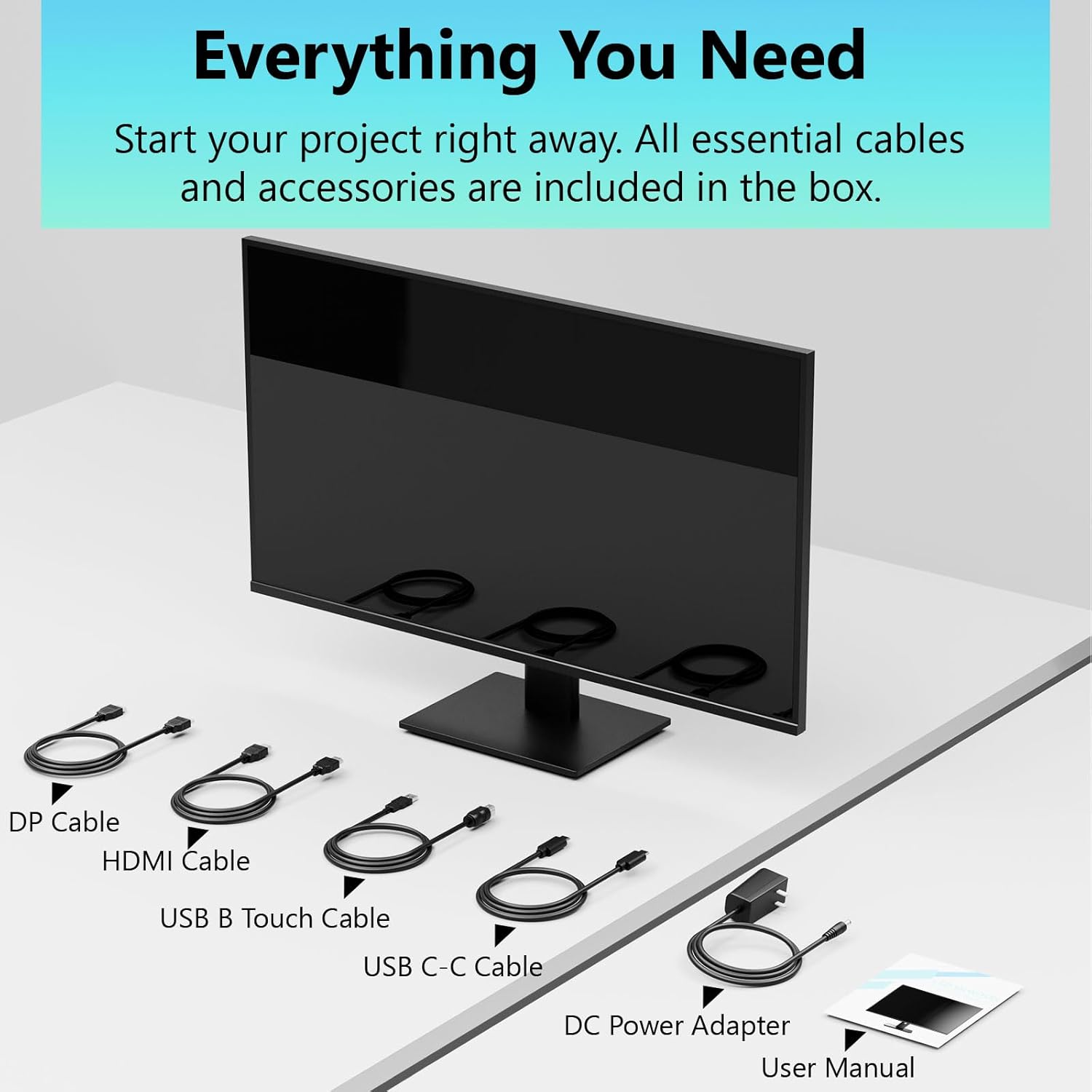
Image: All essential cables and accessories included in the box for the monitor setup.
3. 설정 지침
3.1 스탠드 조립
- 모니터를 포장에서 조심스럽게 꺼내어 흠집이 생기지 않도록 부드럽고 깨끗한 표면에 화면이 아래로 향하게 놓으십시오.
- 모니터 뒷면에 스탠드 목 부분을 부착하세요.
- 제공된 나사를 사용하여 스탠드 받침대를 스탠드 목 부분에 고정하십시오.
- 모니터를 똑바로 세우기 전에 모든 연결부가 단단히 고정되었는지 확인하십시오.
3.2 VESA 마운트 설치 (선택 사항)
This monitor supports VESA mounting. If you plan to use a VESA-compatible arm or wall mount, remove the stand and attach the VESA mount according to the mount's instructions. The VESA pattern is typically 75x75mm or 100x100mm (refer to specifications for exact details).
3.3 장치에 연결하기
이 모니터는 다양한 연결 옵션을 제공합니다.
- HDMI : HDMI 케이블의 한쪽 끝을 모니터의 HDMI 포트에 연결하고 다른 쪽 끝을 컴퓨터의 HDMI 출력 포트에 연결하십시오.
- 디스플레이포트(DP): Connect one end of the DP cable to the monitor's DP port and the other end to your computer's DP output.
- USB 타입-C: For compatible devices, connect the USB C-C cable to the monitor's USB Type-C port and your device's USB Type-C port. This single cable can transmit video, data, and power (charging).
- USB Type-B (for Touch Functionality): To enable the touch screen feature, connect the USB B Touch Cable from the monitor's USB Type-B port to an available USB Type-A port on your computer.

Image: The monitor's rear panel with various connectivity options, including HDMI, DisplayPort, and USB-C ports.
3.4 전원 연결
Connect the DC Power Adapter to the monitor's power input port, then plug the adapter into a power outlet.
3.5 Initial Power On and Touch Compatibility
Press the power button on the monitor. The display should light up. If no image appears, ensure all cables are securely connected and the correct input source is selected on the monitor (via the OSD menu).
For touch functionality, ensure the USB B Touch Cable is connected to your computer. Touch compatibility may vary by operating system and device. Most Windows PCs support multi-touch. For Mac devices, single-touch click is generally supported, but multi-touch may require specific drivers or configurations. Game consoles (PS3/4/5, Xbox, Steam Deck) and some other devices (Fire TV, Apple products like iPhone/iPad) typically do not support touch functionality.

Image: A compatibility chart illustrating which devices support multi-touch or single-touch, and which devices do not support touch functionality with the monitor.
4. 사용 설명서
4.1 전원 켜기/끄기
모니터에 있는 전원 버튼을 눌러 모니터를 켜거나 끄세요. 전원 표시등이 모니터의 상태를 보여줍니다.
4.2 온스크린 디스플레이(OSD) 메뉴
The OSD menu allows you to adjust various monitor settings. Use the control buttons (usually located on the back or bottom of the monitor) to navigate the menu. Common menu options include:
- 사진 설정: Brightness, Contrast, Sharpness, Color Temperature, HDR mode.
- 화면 설정: Aspect Ratio, Input Source selection (HDMI, DP, USB-C).
- 게임 설정: FreeSync, Response Time (Overdrive), Crosshair.
- 오디오 설정: Volume (if internal speakers or audio output are present).
- 시스템 설정: 언어, OSD 투명도, 공장 초기화.
4.3 터치 스크린 기능
The monitor supports 10-point multi-touch, allowing for intuitive interaction directly on the screen. Ensure the USB B Touch Cable is connected to your computer for this feature to work.
- 단일 탭 : 왼쪽 클릭과 동일합니다.
- 길게 누르기 : 마우스 오른쪽 버튼을 클릭하는 것과 같습니다.
- 핀치 투 줌: 확대/축소하려면 두 손가락을 사용하세요.
- 강타: Navigate through content or scroll.

Image: A user interacting with the monitor's touch screen, highlighting its precision and responsiveness for creative tasks.
4.4 인체공학적 조정
The monitor stand allows for tilt adjustments to achieve the most comfortable viewing and touch angle. Gently adjust the screen to your preferred position.
4.5 눈 관리 기능
The monitor includes advanced eye-comfort features such as Flicker-Free technology and Low Bluelight mode to reduce eye strain during prolonged use. These settings can typically be adjusted within the OSD menu.

Image: Visual representation of the monitor's advanced eye-comfort features, including Flicker-Free and Low Bluelight technologies.
5. 유지관리
5.1 모니터 청소
- 청소하기 전에는 항상 모니터의 전원을 끄고 전원 코드를 뽑으세요.
- 부드럽고 보풀이 없는 천을 살짝 사용하십시오. damp물이나 부드럽고 연마성이 없는 화면 세척제로 닦으세요.
- 세척제를 화면에 직접 뿌리지 마세요. 천에 먼저 묻혀 사용하세요.
- 벤젠, 신나, 암모니아계 세척제 또는 연마재는 화면 표면을 손상시킬 수 있으므로 사용을 피하십시오.
5.2 보관
모니터를 장기간 보관할 경우, 전원을 끄고 플러그를 뽑은 후 직사광선과 극한의 온도를 피해 서늘하고 건조한 곳에 보관하십시오. 최상의 보호를 위해 가능하다면 원래 포장재를 사용하십시오.
6. 문제 해결
모니터에 문제가 발생하면 다음의 일반적인 문제 해결 단계를 참조하세요.
- 전원 없음: 전원 어댑터가 모니터와 작동하는 콘센트에 제대로 연결되어 있는지 확인하십시오. 전원 표시등이 켜져 있는지 확인하십시오.
- 이미지/신호 없음:
- Verify that the video cable (HDMI, DP, or USB-C) is securely connected to both the monitor and your computer.
- 모니터의 OSD 메뉴에서 올바른 입력 소스가 선택되었는지 확인하세요.
- 모니터가 감지되고 활성화되어 있는지 확인하려면 컴퓨터의 디스플레이 설정을 확인하세요.
- 터치 없이 작동하는 기능:
- Confirm the USB B Touch Cable is connected from the monitor to your computer.
- Check your computer's device manager to see if the touch screen driver is installed and functioning correctly.
- Refer to the "Initial Power On and Touch Compatibility" section for device-specific limitations.
- 깜빡이거나 왜곡된 이미지:
- 비디오 케이블에 손상이나 느슨한 연결이 있는지 확인하세요.
- 다른 비디오 케이블이나 포트를 사용해 보세요.
- 컴퓨터 디스플레이 설정에서 새로 고침률을 조정하세요.
- 데드 픽셀: LCD/LED 기술에서는 밝거나 어두운 픽셀이 소수 나타나는 것이 일반적이며, 제조업체 사양을 초과하지 않는 한 결함으로 간주되지 않습니다.
이러한 단계를 시도한 후에도 문제가 지속되면 고객 지원팀에 문의하세요.
7. 사양
| 특징 | 사양 |
|---|---|
| 상표 | 피시첸 |
| 모델 번호 | 24IN165HZ-QHD |
| 화면 크기 | 23.8인치 |
| 해결 | QHD 와이드 1440p (2560 x 1440) |
| 종횡비 | 16시 9분 |
| 새로 고침 빈도 | 165Hz |
| 응답 시간 | 2밀리초 |
| 디스플레이 유형 | LED IPS |
| 명도 | 400 칸델라(cd/m²) |
| 대비율 | 3000시 1분 |
| View잉 각도 | 178도 |
| 색상 영역 | 99% |
| Picture Quality Enhancement | HDR |
| 적응형 동기화 | 프리싱크 |
| 연결 기술 | DisplayPort, HDMI, USB Type-C, USB Type-B |
| 추가 기능 | Tilt Adjustment, 10-Point Touchscreen |
| 품목 치수(D x W x H) | 0.75인치 깊이 x 21.5인치 너비 x 12.7인치 높이 |
| 품목 무게 | 5.38 킬로그램 |
| 색상 | 검은색 |
8. 보증 정보
This product comes with a 1-year limited warranty from the date of purchase. The warranty covers manufacturing defects and workmanship under normal use. It does not cover damage caused by misuse, accidents, unauthorized modifications, or external factors. Please retain your proof of purchase for warranty claims.
9. 고객 지원
For technical assistance, warranty claims, or further inquiries, please contact Pisichen customer support. You may find contact information on the official Pisichen web사이트나 소매업체를 통해 구매하세요.
추가 리소스 및 제품 정보는 다음을 방문하세요. Pisichen Store on Amazon.