
소개
This manual provides instructions for the Brydge 10.9 MAX+ Wireless Keyboard Case. This product is designed to enhance your iPad experience by providing a physical keyboard with a multi-touch trackpad and a protective case. Please read this manual thoroughly before use to ensure proper operation and care.
호환성
The Brydge 10.9 MAX+ Wireless Keyboard Case is compatible with the following iPad models:
- iPad 10th Generation (Model Numbers: A2696, A2757, A2777)
- iPad A16 (11th Generation) (Model Numbers: A3354, A3355, A3356)
중요한: This keyboard case is not designed for use with iPad Air, iPad Pro, iPad 9th Gen, or older iPad models.
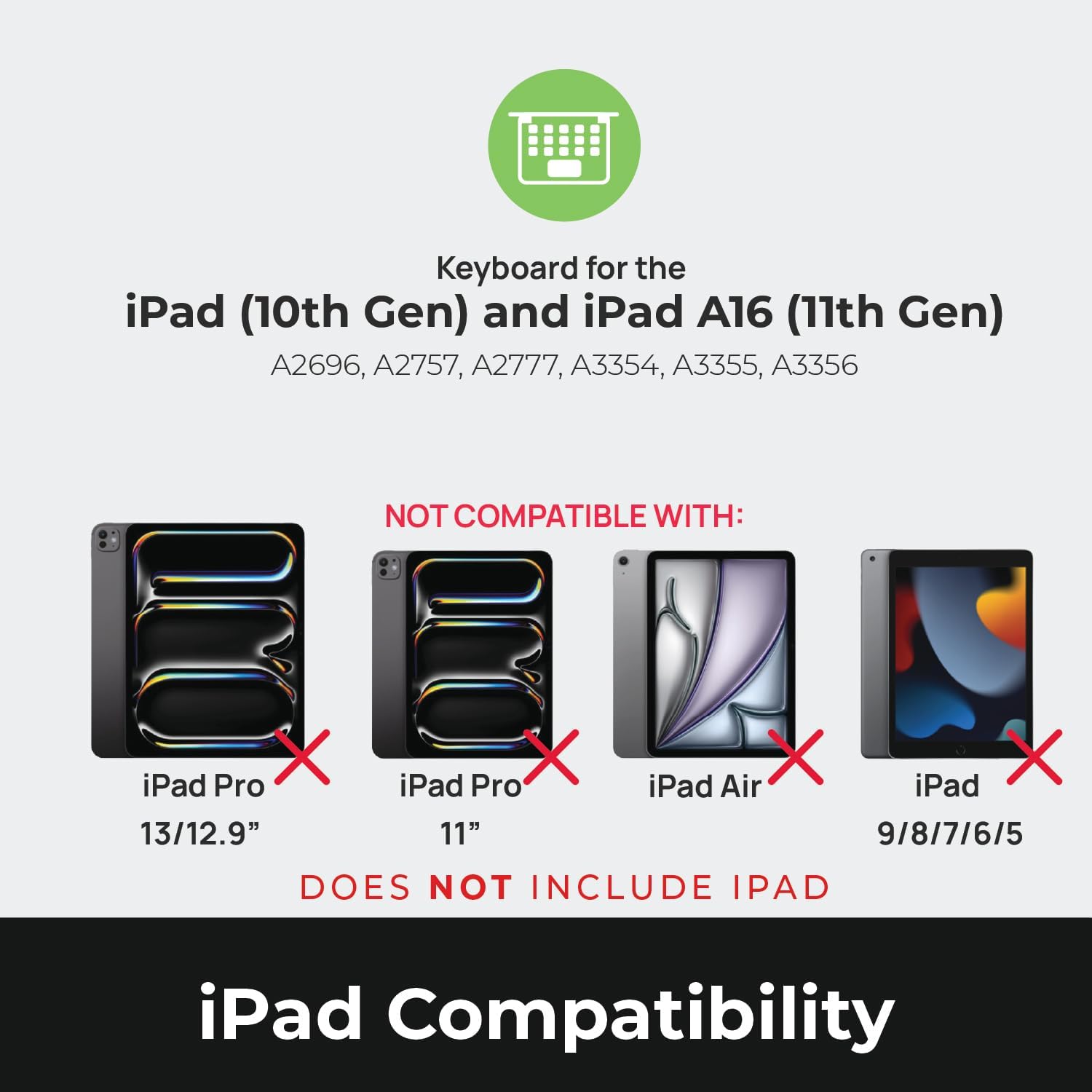
Image: Compatibility chart showing supported iPad models (10th Gen, A16 11th Gen) and incompatible models (iPad Pro 13/12.9", iPad Pro 11", iPad Air, iPad 9/8/7/6/5).
상자 안에 무엇이 들어있나요?
포장을 풀 때 모든 물품이 있는지 확인하십시오.
- 1 x Brydge 10.9 MAX+ Wireless Keyboard
- 1 x Detachable Magnetic SnapFit Case
- 1 x 사용자 매뉴얼(이 문서)
Note: An iPad and USB-C charging cable are not included. The USB-C cable typically comes with your iPad.

Image: Depiction of the box contents, including the keyboard, case, and user manual.
설치 지침
1. Attaching Your iPad to the SnapFit Case
- Carefully align your iPad with the SnapFit Case.
- Gently press the iPad into the case until it is securely seated. The case is designed for a snug fit to provide protection.
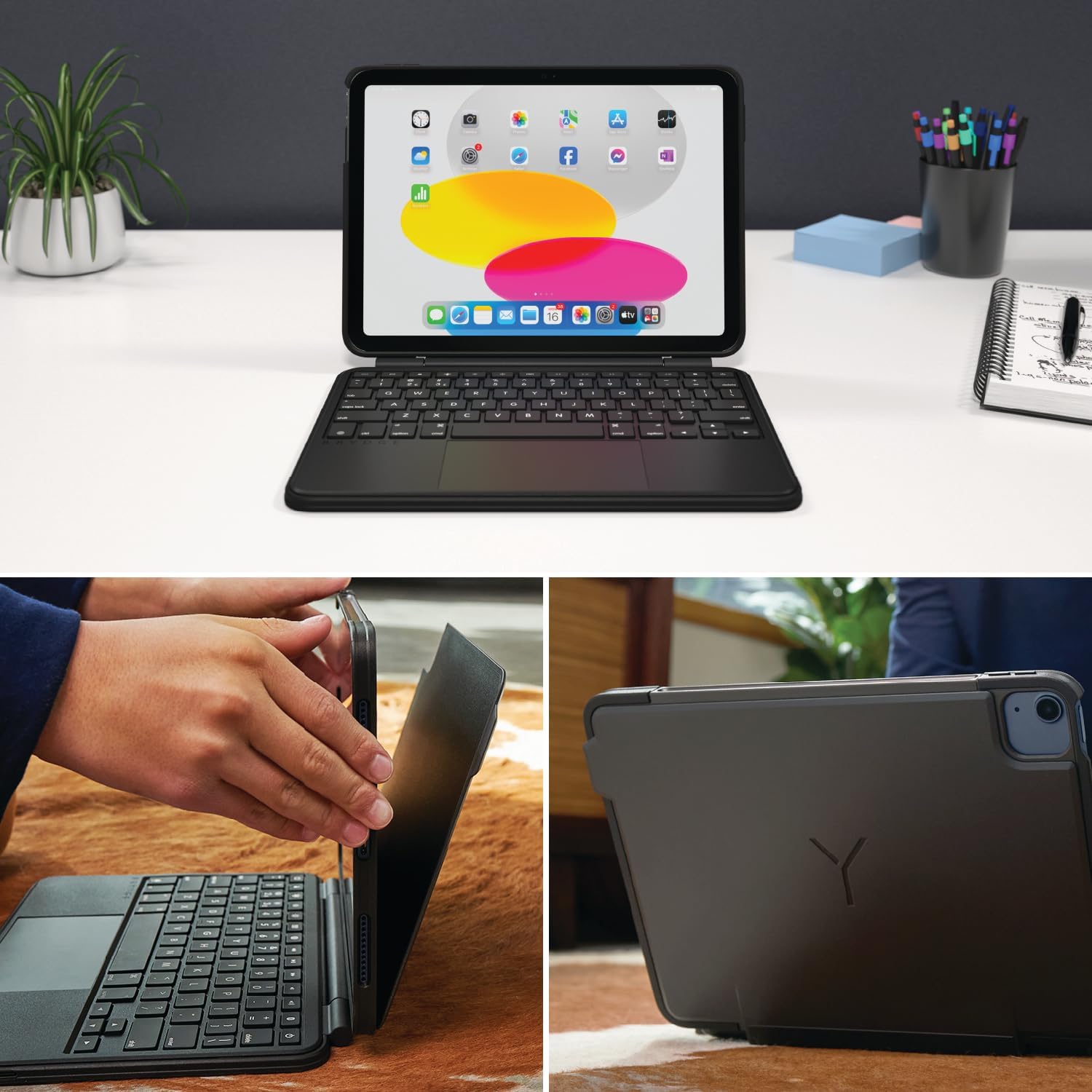
Image: Shows the process of attaching the iPad to the SnapFit case and the case attached to the keyboard.
2. Connecting the Case to the Keyboard
The SnapFit Case features a magnetic back cover that securely attaches to the Brydge keyboard. Simply align the back of the cased iPad with the magnetic area on the keyboard base until it snaps into place.
3. 키보드 충전
Before first use, it is recommended to fully charge the keyboard. Use a USB-C cable (not included) to connect the keyboard's charging port to a power source. The charging port is typically located on the side or back of the keyboard.
4. 블루투스 페어링
- 키보드가 충전되어 있고 전원이 켜져 있는지 확인하세요.
- iPad에서 다음으로 이동하세요. 설정 > 블루투스.
- 블루투스를 켜세요.
- The Brydge keyboard should appear in the "Other Devices" list. Tap on its name to connect.
- If prompted, enter the pairing code displayed on your iPad using the Brydge keyboard, then press 입력하다.
The keyboard features Instant-On™ Connectivity via Bluetooth 5.0, providing a quick and stable connection once paired.

Image: Illustrates the keyboard's Bluetooth 5.0 and Instant-On connectivity features.
작동 지침
키보드 기능
- 백라이트 키: The keyboard features adjustable backlit keys with 3 brightness levels. Use the dedicated function keys (usually located in the top row) to cycle through brightness settings or turn the backlight off.
- 기능 키: The top row of keys provides quick access to iPadOS functions such as Home, Search, Brightness, Media Controls, and Volume.
멀티터치 트랙패드
The integrated multi-touch trackpad supports various iPadOS gestures for navigation and interaction. Refer to your iPad's settings for a full list of supported gestures.
- 클릭: 트랙패드를 눌러 클릭을 수행합니다.
- 스크롤링: 두 손가락을 사용하여 위아래로 스크롤하세요.
- 줌: 확대하거나 축소하려면 두 손가락으로 핀치하세요.
- 앱 전환기: Swipe up with three fingers to open the App Switcher.
- 홈 화면: Swipe up with one finger from the bottom edge to return to the Home Screen.

Image: Highlights the detachable magnetic SnapFit case and the native multi-touch trackpad.
조정 View잉 앵글
The keyboard allows for a screen rotation of up to 135 degrees, enabling various view타이핑, 그림 그리기 또는 미디어 소비에 적합한 각도.

Image: Displays key features including up to 3-month battery life, 3 levels of backlit keys, and 0-130° view각도를 나타냅니다.
배터리 수명
The keyboard offers up to 3 months of battery life on a single charge, depending on usage and backlight settings. To conserve battery, the keyboard will enter sleep mode after a period of inactivity.
유지
- 청소: 부드러운 d를 사용하세요amp, lint-free cloth to clean the keyboard and case. Avoid abrasive cleaners or solvents.
- 저장: 장시간 사용하지 않을 때는 키보드를 완전히 충전하고 시원하고 건조한 곳에 보관하세요.
- 배터리 관리 : 배터리 수명을 연장하려면 키보드를 자주 완전히 방전시키지 마십시오. 배터리 잔량 표시가 낮아지면 충전하십시오.
문제 해결
키보드가 블루투스로 연결되지 않습니다
- 키보드가 충전되어 있는지 확인하세요.
- iPad에서 Bluetooth가 활성화되어 있는지 확인하세요.
- iPad의 블루투스 설정에서 해당 기기를 연결 해제한 후 다시 페어링을 시도하세요.
- iPad와 키보드를 모두 다시 시작하세요.
Trackpad Not Responding or Moving Erratically
- Ensure the keyboard is fully charged. Low battery can affect trackpad performance.
- Clean the trackpad surface with a soft, dry cloth to remove any debris or smudges.
- Bluetooth 연결을 끊었다가 다시 연결하십시오.
- Check for any firmware updates for the Brydge keyboard via the Brydge Connect App (if available).
키가 응답하지 않음
- Confirm the keyboard is powered on and connected via Bluetooth.
- 키 아래에 물리적인 장애물이 있는지 확인하세요.
- If specific keys are not working, try restarting the keyboard and iPad.
명세서
| 모델 번호 | BRY8042 |
| 제품 치수 | 10인치 길이 x 7.65인치 너비 x 0.8인치 높이(10 x 7.65 x 0.8인치) |
| 품목 무게 | 1.85파운드 |
| 연결 기술 | 블루투스 5.0 |
| 키보드 설명 | 무선 전화 |
| 특별 기능 | Backlit, Rechargeable, Multi-Touch Trackpad, Detachable Magnetic SnapFit Case |
| 색상 | 검은색 |
| 재료 | 폴리카보네이트, 열가소성 폴리우레탄(TPU) |
| 배터리 | 1 Nonstandard Battery (included), up to 3 months battery life |
| View잉 각도 | 최대 135도 |
보증 및 지원
This product is subject to a standard return policy, typically 30 days from the date of purchase for refunds or replacements. For specific warranty details, please refer to the documentation provided with your purchase or contact Brydge customer support.
For technical assistance, troubleshooting, or warranty claims, please visit the official Brydge support website or contact their customer service department. Contact information can usually be found on the Brydge web현장이나 포장재에.
Note: Protection plans may be available for purchase separately.
