
1. 서론
This manual provides essential information for setting up, operating, maintaining, and troubleshooting your HP Chromebook 14a-ne1013dx. This device is designed for productivity and entertainment, featuring a reliable Intel Celeron N4500 processor, a 14-inch HD display, and the Chrome OS operating system.
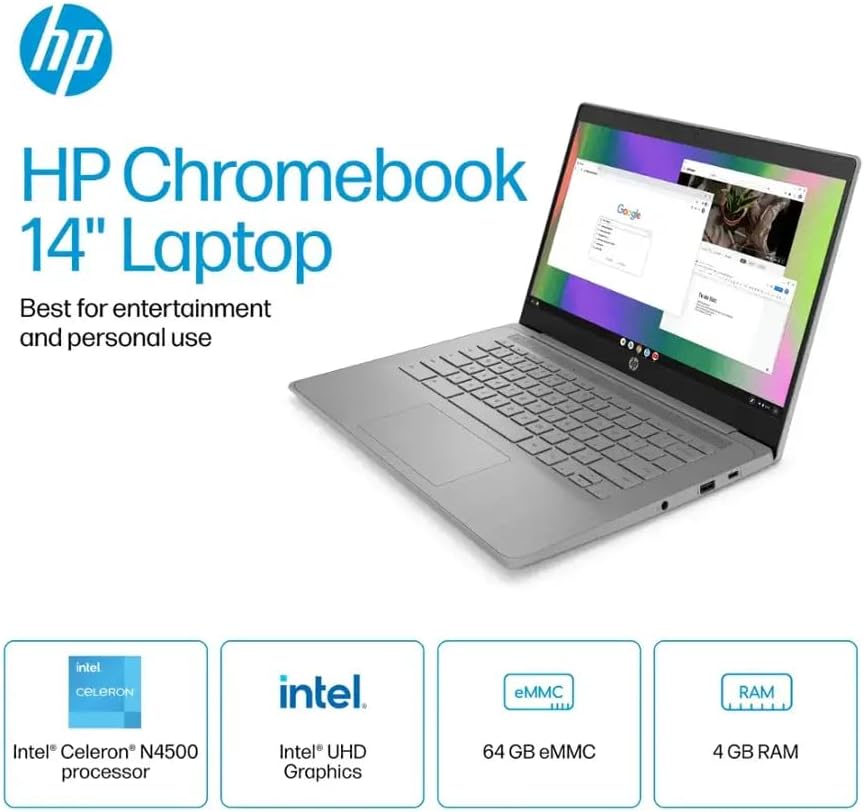
그림 1.1: HP Chromebook 14a-ne1013dx overview, highlighting its core components: Intel Celeron N4500 processor, Intel UHD Graphics, 64GB eMMC storage, and 4GB RAM.
2. 설정
2.1 포장 풀기 및 초기 검사
모든 구성품을 포장에서 조심스럽게 꺼내세요. 아래 나열된 모든 품목이 들어 있고 손상되지 않았는지 확인하세요.

그림 2.1: Items included in the box: HP Chromebook 14-inch Laptop, 45W USB Type-C power adapter, and setup instructions.
상자 안에 무엇이 들어있나요?
- HP Chromebook 14-inch Laptop (Model: 14a-ne1013dx)
- 45W USB Type-C Power Adapter
- 설치 지침
- 통합 Web캠
2.2 전원 켜기 및 초기 구성
- Connect the 45W USB Type-C power adapter to the Chromebook and a power outlet.
- Open the laptop lid. The Chromebook should power on automatically. If not, press the power button located on the keyboard.
- Follow the on-screen prompts to select your language, connect to a Wi-Fi network, and sign in with your Google account. A Google account is required to use Chrome OS.
3. 크롬북 사용 방법
3.1 Chrome OS Basics
Your HP Chromebook runs on Chrome OS, a lightweight operating system designed for speed, simplicity, and security. It integrates seamlessly with Google services and provides access to a wide range of web-based applications and Android apps.

그림 3.1: Chrome OS security features, including built-in virus protection and automatic updates, ensuring a secure and efficient user experience.
3.2 디스플레이 및 멀티미디어
The 14-inch HD (1366 x 768) micro-edge, anti-glare display provides clear visuals for work and entertainment. Dual speakers enhance the audio experience.

그림 3.2: The 14-inch micro-edge display is ideal for streaming and multimedia consumption, allowing multiple applications to be view동시에 편집했습니다.
3.3 포트 및 연결
Your Chromebook is equipped with various ports for connecting peripherals and external displays.

그림 3.3: Port layout of the HP Chromebook 14a-ne1013dx, including HDMI 1.4b, USB Type-A, USB Type-C, and a headphone/microphone combo jack.
- 1x SuperSpeed USB 3.1 Type-C: For data transfer, power delivery, and display output.
- 2x SuperSpeed USB 3.0 Type-A: 마우스, 키보드, 외부 저장 장치 등 USB 장치를 연결하는 데 사용됩니다.
- HDMI 1.4 포트 1개: 외부 모니터나 TV에 연결하는 데 사용합니다.
- 1x Headphone/microphone combo: 오디오 입력 및 출력용.
Wireless connectivity includes Wi-Fi (802.11a/b/g/n/ac) and Bluetooth for connecting to wireless networks and accessories.
4. 유지관리
4.1 크롬북 청소하기
- 화면: 부드럽고 보풀이 없는 천을 살짝 사용하십시오. damp물이나 전자제품 전용 화면 세정제로 닦으십시오. 세정제를 화면에 직접 분사하지 마십시오.
- 키보드 및 섀시: 부드럽고 마른 천을 사용하세요. 잘 지워지지 않는 오염의 경우, 약간amp 천을 사용할 수 있습니다. 강한 화학 물질이나 연마재는 피하세요.
- 포트: Ensure ports are free of dust and debris. Use compressed air if necessary, holding the can upright to prevent liquid propellant from spraying.
4.2 배터리 관리
- 배터리 수명을 극대화하려면 극한의 온도를 피하세요.
- 가끔 배터리를 20% 이하로 방전한 후 완전히 충전하는 것이 좋습니다.
- The Chromebook supports HP Fast Charge for quick recharging.
5. 문제 해결
5.1 일반적인 문제 및 해결 방법
| 문제 | 가능한 해결책 |
|---|---|
| 크롬북 전원이 켜지지 않습니다. | Ensure the power adapter is securely connected to both the Chromebook and a working power outlet. Try a different outlet. If the battery is completely drained, it may take a few minutes to show signs of charging. |
| Wi-Fi에 연결할 수 없습니다. | Check if Wi-Fi is enabled in Chrome OS settings. Restart your router and modem. Verify the Wi-Fi password. Try connecting to a different network if available. |
| 외부 디스플레이가 감지되지 않았습니다. | Ensure the HDMI cable is securely connected to both the Chromebook and the external display. Check the input source on your external display. Try a different HDMI cable or port if available. |
| 성능이 느립니다. | Close unnecessary browser tabs and applications. Clear browser cache and cookies. Ensure Chrome OS is up to date. Consider a powerwash (factory reset) as a last resort, backing up your data first. |
| Web캠이 작동하지 않습니다. | Ensure no physical cover is obstructing the webcam. Check privacy settings in Chrome OS to ensure applications have permission to access the camera. Restart the Chromebook. |
6. 사양
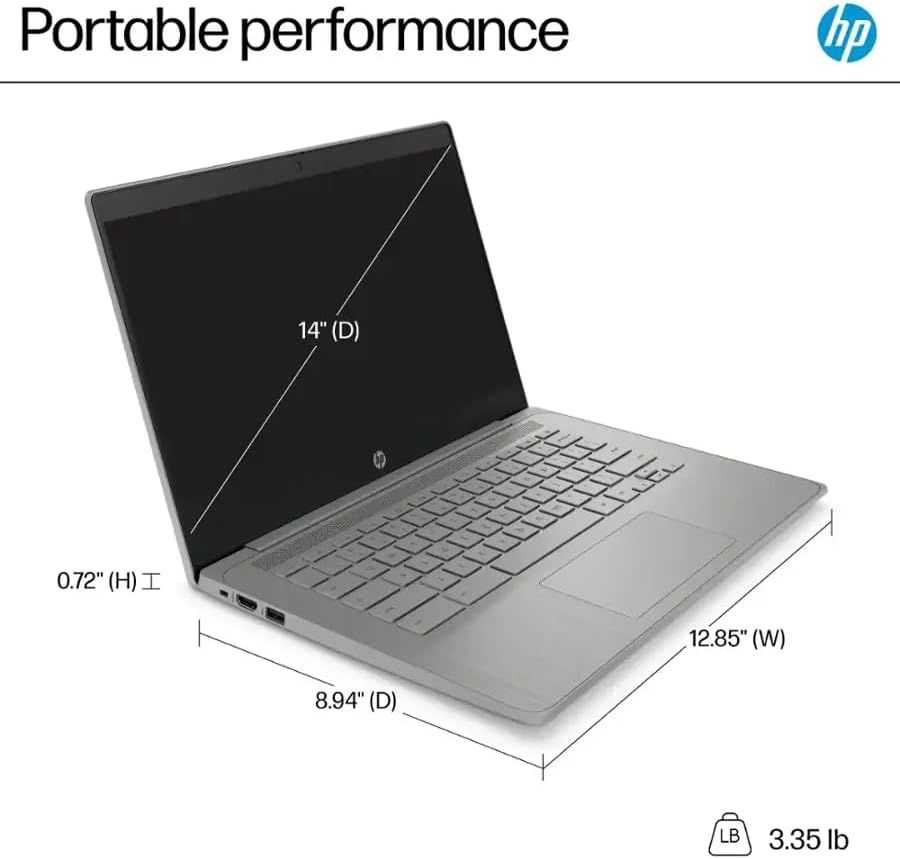
그림 6.1: Physical dimensions and weight of the HP Chromebook 14a-ne1013dx.
| 특징 | 세부 사항 |
|---|---|
| 모델명 | 14a-ne1013dx |
| 프로세서 | Intel Celeron N4500 (1.1 GHz, up to 2.8 GHz burst) |
| 제도법 | Intel UHD 그래픽(통합) |
| 표시하다 | 14-inch diagonal, HD (1366 x 768), micro-edge, anti-glare, 250 nits, 60Hz LCD |
| 숫양 | 4GB DDR4 SD램 |
| 저장 | 64GB 메모리 |
| 운영 체제 | 크롬 OS |
| 무선 연결 | 802.11a/b/g/n/ac Wi-Fi, 블루투스 |
| 포트 | 1x SuperSpeed USB 3.1 Type-C, 2x SuperSpeed USB 3.0 Type-A, 1x HDMI 1.4, 1x Headphone/microphone combo |
| 내장 미디어 | Web캠 |
| 치수(길이 x 너비 x 높이) | 12.85" x 8.94" x 0.72"(32.64cm x 22.71cm x 1.83cm) |
| 무게 | 3.35파운드(1.52kg) |
| 색상 | 회색 |
| 특별 기능 | Chrome OS, HP Fast Charge |
7. 보증 정보
Your HP Chromebook 14a-ne1013dx comes with a 1년 한정 보증제품에 동봉된 보증서를 참조하여 전체 약관을 확인하십시오. 보증 청구를 위해 구매 증빙 자료를 보관하십시오.
8. 지원
기술 지원, 드라이버 다운로드 또는 추가 제품 정보는 HP 공식 지원 웹사이트를 방문하십시오. website. You can typically find support resources by searching for your model number (14a-ne1013dx) on the HP support portal.
HP 지원 Web대지: www.hp.com/support