
소개
The ETIKEZ PM290C is a compact and portable thermal sticker printer designed for various labeling and creative tasks. This manual provides detailed instructions on how to set up, operate, and maintain your printer to ensure optimal performance.
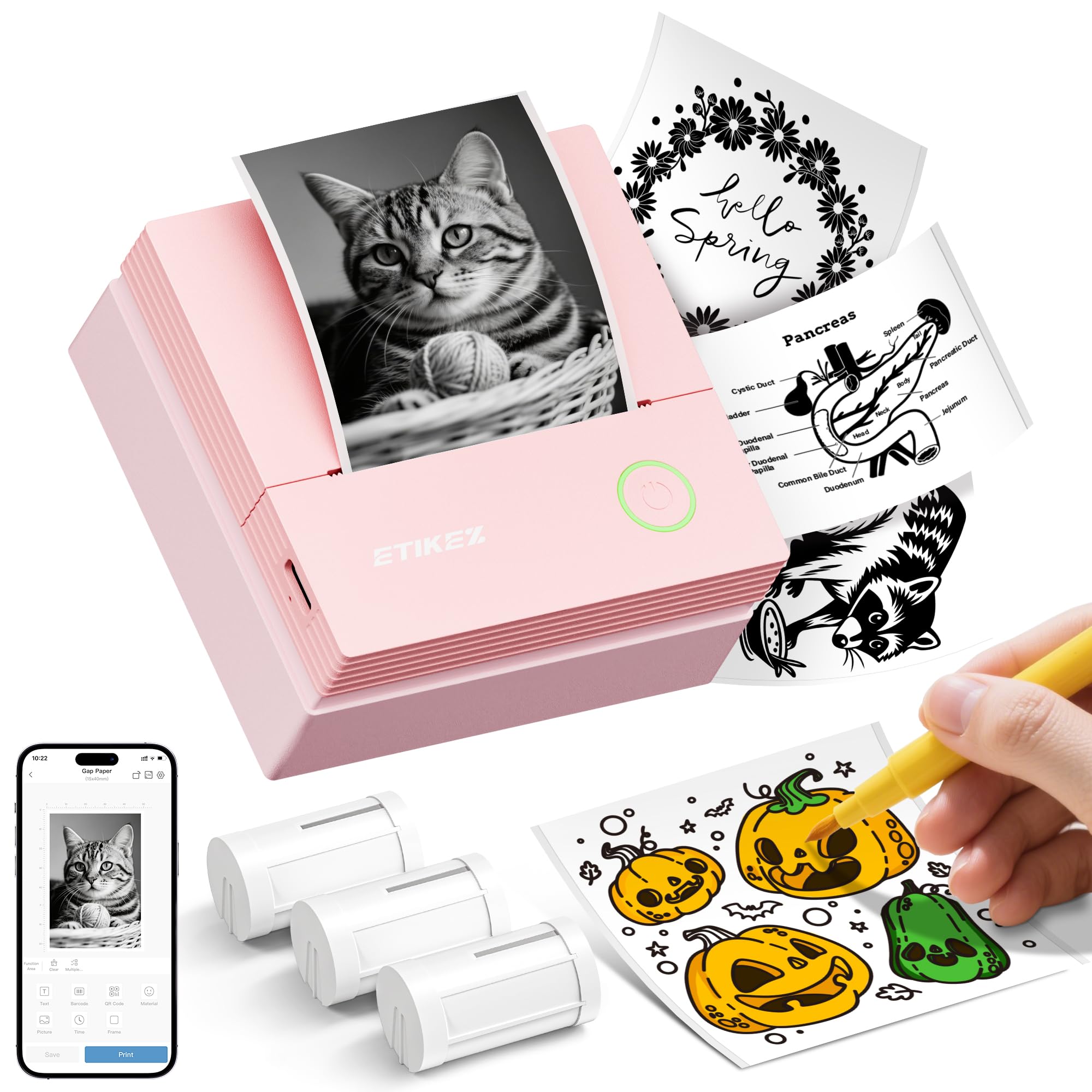
Image: The ETIKEZ PM290C Thermal Sticker Printer, a compact pink device, shown on a wooden desk with paper rolls and pens.
설치 가이드
1. 언박싱 및 초기 검사
Upon receiving your ETIKEZ PM290C printer, carefully remove all components from the packaging. Verify that all items are present and undamaged. The package should include the printer, three rolls of paper, and a charging cable.
2. 종이 롤 장착
- Open the printer cover by gently lifting it.
- Tear off the green sticker from the paper roll. Ensure the printing side of the paper is facing downwards.
- Align the paper roll with the notch inside the printer and insert it vertically.
- Pull out approximately 1-2 cm of the print paper from the printer's output slot.
- Close the printer cover securely. The printer is now ready for use.
Video: Demonstrates the step-by-step process of loading paper rolls into the ETIKEZ PM290C mini printer.
3. 앱 다운로드 및 블루투스 연결
To operate your ETIKEZ PM290C printer, you need to download and connect to the "Labelnize" application.
- Download the "Labelnize" App:
- 방법 1 (QR 코드): Scan the QR code provided in your printer's packaging or on the official website to directly install the "Labelnize" app.
- 방법 2 (앱 스토어 검색): 검색 "Labelnize" on the Apple App Store (for iOS devices) or Google Play Store (for Android devices) and download the official application.
- 블루투스 켜기: 모바일 장치에서 Bluetooth가 활성화되어 있는지 확인하십시오.
- 프린터 연결:
- "Labelnize" 앱을 엽니다.
- Allow the app to use wireless data and grant Bluetooth permissions when prompted.
- Click on "Connect now" within the app.
- Find "PM290" in the list of available devices and click "Click to connect" next to it.
- Once connected, you can choose to register an account for a better experience or skip this step.
Video: A guide on how to download the "Labelnize" app and connect it to the ETIKEZ PM290C printer via Bluetooth.
작동 지침
1. Basic Printing with Labelnize App
The "Labelnize" app offers various functions and templates to fulfill your creative and organizational needs. You can print text, images, and use pre-designed templates.
- From the app's main interface, select your desired function (e.g., "Image printing", "System templates", "Text editing").
- If printing an image, allow the app access to your photo library and select the image you wish to print.
- Use the in-app editing tools to make any necessary adjustments to your image or text (e.g., rotate, crop, adjust density).
- Once satisfied with your design, click the "Print" button.
- Adjust print settings such as density and number of copies, then confirm to start printing.
2. Versatile Printing Applications
The ETIKEZ PM290C printer is suitable for a wide range of applications, enhancing organization and creativity:
- 텍스트 인쇄: Print notes, lists, or short messages for quick reference.
- Bullet Journaling: Create custom stickers and labels to personalize your bullet journal entries.
- 학습 노트: Print diagrams, definitions, or key information to stick into your study materials.
- 홈 정리: Label containers, shelves, and storage boxes for efficient home management.
- Gift Labels: Design and print unique labels for gifts, adding a personal touch.
- File 라벨: Organize documents and files with custom labels for easy identification.
- 할 일 목록: Print small, portable to-do lists to keep track of your tasks.
- 북마크: Create personalized bookmarks with quotes or images.
Video: Demonstrates various creative and organizational uses of the ETIKEZ PM290C Thermal Sticker Printer, including text printing, bullet journaling, home organization, and creating gift labels.
유지
To ensure the longevity and optimal performance of your ETIKEZ PM290C printer, follow these maintenance guidelines:
- 프린트 헤드 청소: 부드럽고 보풀 없는 천으로 감열 프린트 헤드를 정기적으로 가볍게 닦아주세요.amp이소프로필 알코올로 세척하십시오. 청소하기 전에 프린터 전원이 꺼져 있고 완전히 식었는지 확인하십시오.
- 외부 청소: Wipe the exterior of the printer with a dry, soft cloth. Avoid using harsh chemicals or abrasive materials.
- 저장: 프린터를 직사광선과 극한 온도 변화를 피해 서늘하고 건조한 곳에 보관하십시오.
- 서류 보관: Store thermal paper rolls in a cool, dark place to prevent premature fading or damage.
문제 해결
If you encounter issues with your ETIKEZ PM290C printer, refer to the following common problems and solutions:
- 프린터가 블루투스로 연결되지 않습니다:
- 기기에서 블루투스가 활성화되어 있고 프린터 전원이 켜져 있는지 확인하십시오.
- Restart both your device and the printer.
- Check if the "Labelnize" app has Bluetooth permissions.
- Try reconnecting through the app.
- 인쇄 품질 불량:
- Check the paper roll for proper loading and ensure it's thermal paper.
- 유지관리 섹션에 설명된 대로 프린트 헤드를 청소하세요.
- Adjust the print density settings in the "Labelnize" app.
- Ensure the paper roll is not old or damaged.
- 용지 걸림:
- 프린터를 끕니다.
- Open the printer cover and carefully remove any jammed paper.
- Reload the paper roll correctly.
- 프린터 전원이 켜지지 않음:
- Ensure the printer is fully charged. Connect it to a power source and wait a few minutes before attempting to turn it on.
- 문제가 지속되면 고객 지원에 문의하십시오.
제품 사양
| 특징 | 사양 |
|---|---|
| 상표 | 에티케즈 |
| 모델 번호 | PM290C |
| 제품 치수 | 3.28 x 1.54 x 3.3 인치 |
| 품목 무게 | 10.8 온스 |
| 지원되는 미디어 크기 | 50 x 30 millimeters |
| 인쇄 매체 | 감열지 |
| 인쇄 색상 | 검은색 |
| 최대 인쇄 해상도 | 600 dots per inch (DPI) |
| 양면 인쇄 | 아니요 (단면) |
| 최대 입력 시트 용량 | 50 |
| 연결성 | 블루투스 |
| 색상 | 일종의 염기성 물감 |
보증 및 지원
Your ETIKEZ PM290C Thermal Sticker Printer comes with a standard manufacturer's warranty. For specific warranty details, including coverage period and terms, please refer to the warranty card included in your product packaging or visit the official ETIKEZ web대지.
If you require technical assistance, have questions about your product, or need to report an issue, please contact ETIKEZ customer support through their official channels. Contact information can typically be found on the product packaging, the official website, or within the "Labelnize" app.