
1. 서론
This manual provides detailed instructions for the Rapoo 9050S Multi-Device Keyboard and Mouse Combo. This wireless set offers versatile connectivity options (2.4GHz, Bluetooth 5.0/4.0) and supports up to four devices simultaneously, making it suitable for various operating systems including Windows, Mac, Linux, and Chrome. The keyboard features low-profile chiclet keys for a quiet typing experience, while the mouse offers adjustable DPI for precise control. Both devices are rechargeable and designed for efficient multi-tasking.

Image: The Rapoo 9050S keyboard and mouse combo displayed with a monitor, laptop, tablet, and smartphone, illustrating its multi-device and multi-OS compatibility.
2. 패키지 내용
패키지에 모든 품목이 들어 있는지 확인하세요.
- Rapoo 9050S Wireless Keyboard
- Rapoo 9050S Wireless Mouse
- USB 수신기(마우스 배터리 칸 내부에 보관)
- USB Charging Cable (USB-C for keyboard, Micro-USB for mouse)
- 빠른 시작 가이드(이 문서)
3. 설정
3.1. 초기 충전
Before first use, ensure both the keyboard and mouse are fully charged. Connect the provided USB charging cable to the charging port on each device and to a USB power source (e.g., computer USB port, USB wall adapter).

Image: The Rapoo 9050S keyboard and mouse connected to a charging cable. The keyboard has a USB-C port, and the mouse has a micro-USB port. Both are shown with a charging cable plugged in.
3.2. 키보드 연결
The keyboard supports connection via 2.4GHz wireless (USB receiver) or Bluetooth 5.0/4.0. It can connect to up to 4 devices.
3.2.1. 2.4GHz 무선 연결 (USB 수신기)
- 일반적으로 마우스 배터리 칸에 보관되어 있는 USB 수신기를 찾으십시오.
- USB 수신기를 컴퓨터의 사용 가능한 USB 포트에 연결합니다.
- Turn on the keyboard. The keyboard should automatically connect.
3.2.2. 블루투스 연결
- 키보드를 켭니다.
- Press and hold one of the Bluetooth channel keys (F1, F2, F3, or F4) for 3 seconds until the indicator light blinks rapidly, indicating pairing mode.
- On your device (computer, tablet, phone), go to Bluetooth settings and search for "Rapoo 9050S Keyboard".
- Select the keyboard to pair. The indicator light will stop blinking once connected.

Image: Close-up of the Rapoo 9050S keyboard showing the F1-F4 keys with device indicators, used for switching between paired devices.
3.3. 마우스 연결
The mouse supports connection via 2.4GHz wireless (USB receiver) or Bluetooth 5.0/4.0. It can connect to up to 2 devices.
3.3.1. 2.4GHz 무선 연결 (USB 수신기)
- Ensure the USB receiver is plugged into your computer.
- Turn on the mouse and switch it to 2.4GHz mode (indicated by a switch on the bottom). The mouse should automatically connect.
3.3.2. 블루투스 연결
- Turn on the mouse and switch it to Bluetooth mode (indicated by a switch on the bottom).
- Press and hold the Bluetooth pairing button on the bottom of the mouse for 3 seconds until the indicator light blinks rapidly.
- On your device, go to Bluetooth settings and search for "Rapoo 9050S Mouse".
- Select the mouse to pair. The indicator light will stop blinking once connected.

Image: The underside of the Rapoo 9050S mouse, showing the power switch and the Bluetooth pairing button.
3.4. Multi-Device Pairing and Switching
The Rapoo 9050S combo allows seamless switching between multiple paired devices.
- 건반: Use the F1, F2, F3, F4 keys to switch between up to four paired devices. A short press will switch to the corresponding device.
- 생쥐: Use the switch on the bottom of the mouse to toggle between 2.4GHz (USB receiver) and Bluetooth connections.

Image: The Rapoo 9050S keyboard and mouse shown connected to a laptop and a tablet, illustrating multi-device functionality.
4. 사용 설명서
4.1. 키보드 기능
- 로우프로file 치클릿 키: 편안하고 조용한 타이핑을 위해 설계되었습니다.
- Dual System Hotkeys: Supports Windows and Mac OS shortcuts for 12 widely used functions (e.g., play/pause, volume +/-). Use the Fn key in combination with the F-keys for these functions.
- 표시등: The keyboard features indicator lights for device selection, capitalization (Caps Lock), and battery status.
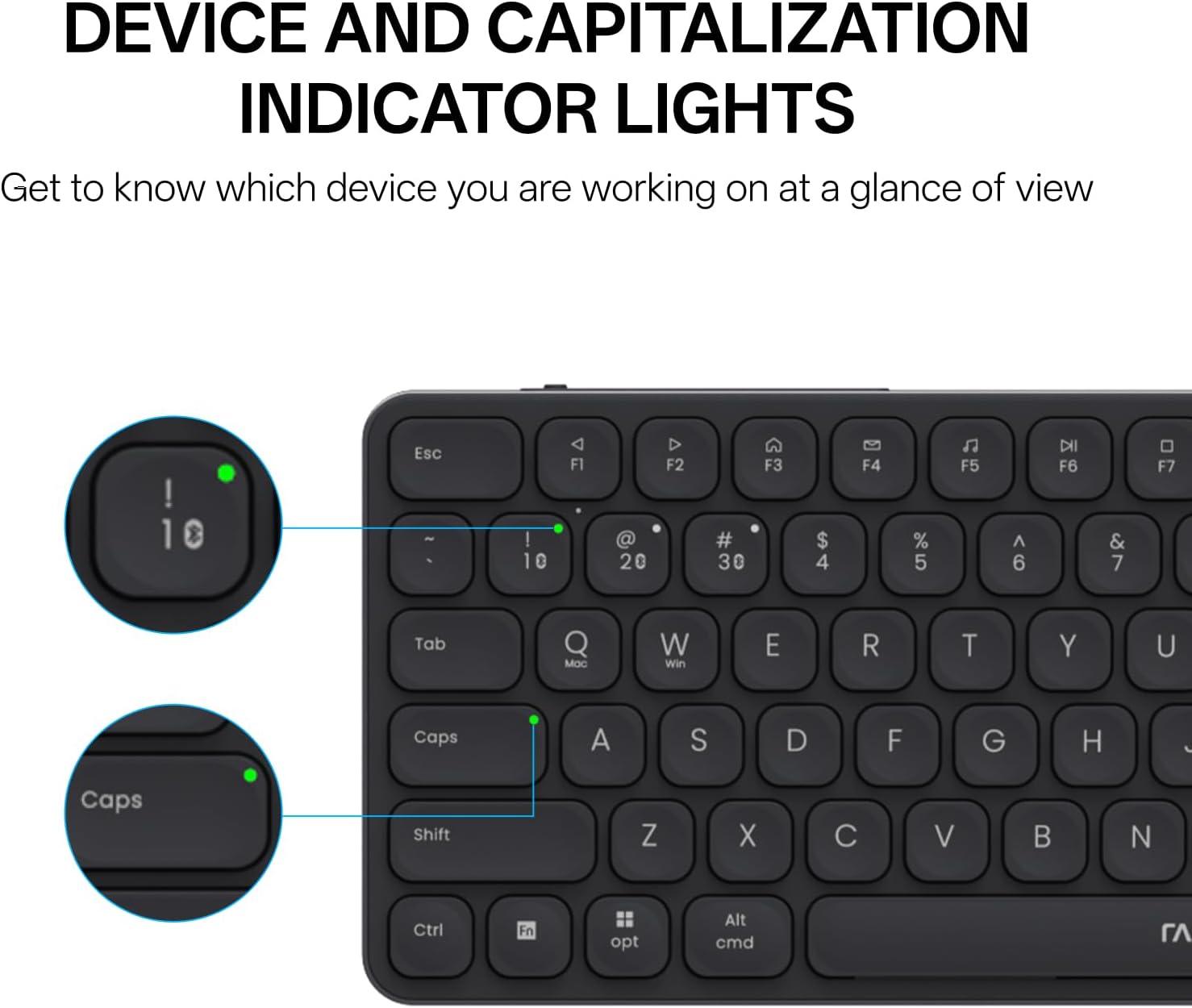
Image: Close-up of the Rapoo 9050S keyboard highlighting the device and capitalization indicator lights.

Image: The Rapoo 9050S keyboard illustrating the use of Fn key with F1-F12 for multimedia and system functions.
4.2. 마우스 기능
- 조용한 클릭: The mouse buttons are designed for quiet operation.
- 조정 가능한 DPI: Cycle through 800/1000/1200/1600/2400 DPI resolutions using the DPI button, located near the scroll wheel, to adjust cursor speed and precision.

Image: A hand holding the Rapoo 9050S mouse, illustrating its ergonomic design and the location of the DPI switch button.
5. 유지관리
- 청소: 부드럽고 마른 천으로 키보드와 마우스를 닦으세요. 잘 지워지지 않는 얼룩은 약간 거친 천으로 닦아내세요.amp 천을 사용하여 기기에 습기가 들어가지 않도록 할 수 있습니다.
- 배터리 관리 : To prolong battery life, avoid fully discharging the devices frequently. Charge them when the battery indicator shows low power.
- 저장: When not in use for extended periods, turn off the devices to conserve battery. Store in a cool, dry place.
6. 문제 해결
6.1. 기기가 연결되지 않음
- 전원 확인: Ensure both the keyboard and mouse are turned on and have sufficient battery charge.
- 수리하다: For Bluetooth, try unpairing and re-pairing the device. For 2.4GHz, ensure the USB receiver is securely plugged in.
- 스위치 모드: Verify that the mouse is set to the correct connection mode (2.4GHz or Bluetooth) using the switch on its underside.
- 간섭: Move closer to your device or away from potential sources of interference (e.g., other wireless devices, large metal objects).
6.2. Lag or Unresponsive Input
- 배터리 수준: Low battery can cause performance issues. Charge the devices.
- 거리: Ensure the devices are within the effective range of your computer (typically up to 10 meters for Bluetooth/2.4GHz).
- DPI Setting (Mouse): If the mouse cursor is too slow or fast, adjust the DPI setting.
7. 사양
| 특징 | 세부 사항 |
|---|---|
| 모델 번호 | 9050S |
| 연결성 | 2.4GHz 무선, 블루투스 5.0/4.0 |
| 다중 장치 지원 | Keyboard: Up to 4 devices; Mouse: Up to 2 devices |
| 호환 OS | Windows, Mac, Linux, Chrome |
| 키보드 유형 | 로우프로file Chiclet Scissor Keys |
| 마우스 DPI | 800/1000/1200/1600/2400 adjustable |
| 배터리 | Rechargeable (2 AAA batteries included) |
| 품목 무게 | 1.32파운드 |
| 패키지 크기 | 14.88 x 5.28 x 1.73 인치 |
| 제조업체 | 심천 Rapoo 기술 Co., 주식 회사. |
8. 보증 및 지원
Rapoo products are designed for reliability and performance. For warranty information, please refer to the warranty card included in your product packaging or visit the official Rapoo website. For technical support, troubleshooting assistance, or product inquiries, please contact Rapoo customer service through their official channels.
더 많은 정보와 지원은 다음에서 찾을 수 있습니다. Rapoo Store on Amazon.


