
1. 서론
구매해주셔서 감사합니다asing the Z-Edge 27-inch 4K UHD IPS Monitor, Model S274K. This monitor is designed to provide a high-quality visual experience for both professional and gaming applications, featuring a 3840x2160 resolution, 120Hz refresh rate, and 1ms response time. This manual provides essential information for setting up, operating, and maintaining your monitor to ensure optimal performance and longevity.

Image: Visual comparison demonstrating the clarity of 4K UHD (3840x2160) resolution compared to QHD (2560x1440) and FHD (1920x1080) on the Z-Edge monitor.
2. 안전 정보
본 제품을 사용하기 전에 모든 지침을 꼼꼼히 읽어 주십시오. 나중에 참조할 수 있도록 이 설명서를 보관하십시오.
- 모니터를 비, 습기 또는 극한의 온도에 노출시키지 마세요.
- 모니터 주변의 통풍이 잘 되도록 하십시오. 통풍구를 막지 마십시오.
- 모니터와 함께 제공된 전원 어댑터만 사용하세요.
- 전원 코드 위에 무거운 물건을 올려 놓지 마세요.
- 장시간 모니터를 사용하지 않을 경우에는 콘센트에서 전원 플러그를 뽑아 두세요.
- 모니터를 직접 수리하려고 하지 마십시오. 모든 수리는 자격을 갖춘 기술자에게 맡기십시오.
3. 패키지 내용
패키지에 모든 품목이 들어 있는지 확인하세요.
- Z-Edge 27-inch 4K UHD Monitor
- 모니터 스탠드(베이스 및 넥)
- 전원 어댑터
- HDMI 케이블
- 사용 설명서 (본 문서)
- 스탠드 조립용 나사
4. 모니터 오버view
4.1 정면 View
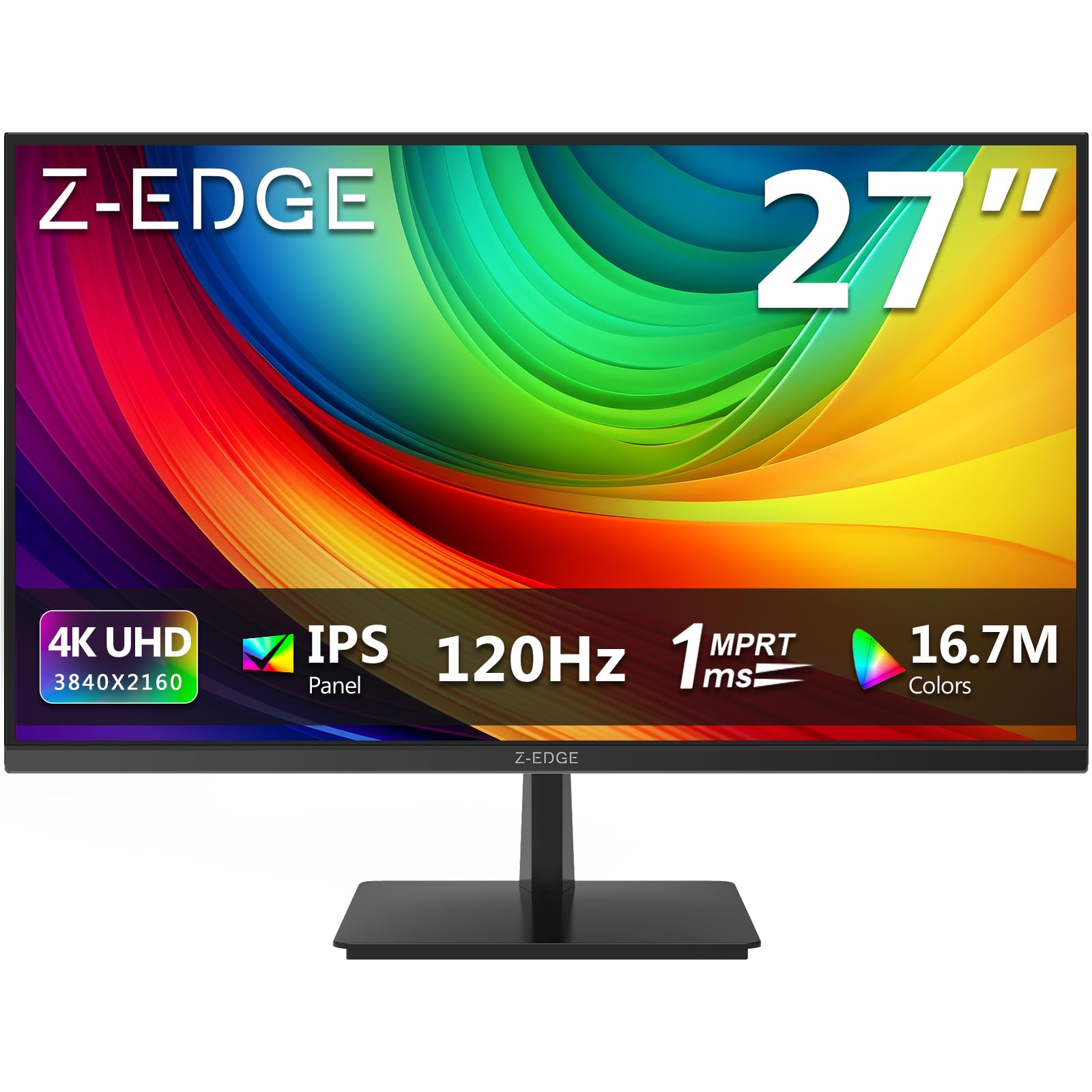
이미지: 앞면 view of the Z-Edge 27-inch 4K UHD monitor. This image shows the monitor displaying a vibrant scene, highlighting its slim bezels and overall design.
4.2 후면 View 및 포트

이미지: 후면 view of the Z-Edge 27-inch 4K UHD monitor. This image illustrates the monitor's connectivity options, including HDMI and DisplayPort inputs, and the VESA mounting pattern.
사용 가능한 포트:
- DC 12V : 전원 입력 포트.
- HDMI 1/2 (2.0): Two HDMI input ports for connecting various devices.
- DP 1/2 (1.4): Two DisplayPort input ports for high-resolution connections.
- 오디오 출력: 외부 스피커 또는 헤드폰을 연결하기 위한 3.5mm 오디오 잭이 있습니다.

이미지: 상세 view of the monitor's input ports. This diagram clearly labels each port, including DC 12V power, two HDMI 2.0, two DisplayPort 1.4, and an audio output.
5. 설정
5.1 스탠드 조립
- 모니터를 포장에서 조심스럽게 꺼내되, 화면을 보호하십시오.
- 제공된 나사를 사용하여 스탠드 목 부분을 모니터 패널에 부착하십시오.
- Connect the stand base to the stand neck, securing it with the remaining screws.
- 조립된 모니터를 안정적이고 평평한 표면에 놓으세요.
Alternatively, the monitor supports VESA 100x100mm mounting for wall mounts or monitor arms. Ensure the VESA mount is rated for the monitor's weight.
5.2 장치에 연결하기
Connect your computer, game console, or other compatible device to the monitor using either an HDMI or DisplayPort cable.
- For 4K resolution at 120Hz, use a DisplayPort 1.4 cable or an HDMI 2.0 cable.
- Insert one end of the cable into the corresponding port on your device and the other end into an available HDMI or DP port on the monitor.
5.3 전원 연결
- Connect the power adapter to the DC 12V port on the monitor.
- 전원 어댑터를 전원 콘센트에 꽂습니다.
6. 사용 설명서
6.1 전원 켜기/끄기
모니터에 있는 전원 버튼을 눌러 모니터를 켜거나 끄세요. 모니터가 켜지면 전원 표시등이 켜집니다.
6.2 OSD 메뉴 탐색
The On-Screen Display (OSD) menu allows you to adjust various monitor settings. Use the control buttons (usually located on the back or bottom of the monitor) to navigate the menu.
- Press a button to open the OSD menu.
- 방향 버튼을 사용하여 옵션 사이를 이동하세요.
- 선택 버튼을 눌러 선택을 확정하거나 하위 메뉴로 이동하세요.
- OSD 메뉴를 닫으려면 종료 버튼을 누르십시오.
6.3 영상 설정
Adjust display characteristics to your preference:
- 명도: 화면의 전체 밝기를 조절하세요.
- 차이: 밝은 부분과 어두운 부분의 차이를 조정하세요.
- 색온도: 사전 설정 모드(예: 따뜻한 색, 차가운 색, 사용자 지정) 중에서 선택하거나 RGB 값을 수동으로 조정할 수 있습니다.
- 종횡비: Choose between Full, 4:3, or 16:9.
6.4 게임 기능

Image: Visual representation of the difference between 120Hz and 60Hz refresh rates, illustrating how 120Hz provides a smoother and more fluid visual experience, especially for fast-paced content.
- FreeSync / Adaptive Sync: Enable this feature in the OSD menu and on your graphics card settings to synchronize the monitor's refresh rate with your GPU's frame rate, reducing screen tearing and stuttering.
- 응답 시간(MPRT): Adjust for faster pixel response, beneficial for fast-paced gaming.

Image: Visual demonstration of FreeSync technology. The left side shows screen tearing and stuttering when FreeSync is off, while the right side displays smooth, fluid motion with FreeSync enabled.
6.5 입력 선택
If you have multiple devices connected, use the OSD menu or a dedicated input select button to switch between HDMI 1, HDMI 2, DP 1, and DP 2 inputs.
7. 유지관리
7.1 모니터 청소
- 청소하기 전에는 항상 모니터의 플러그를 전원 콘센트에서 뽑으세요.
- 부드럽고 털이 없는 천을 살짝 사용하세요.amp물이나 부드럽고 연마성이 없는 화면 세척제로 닦으세요.
- 세척제를 화면에 직접 뿌리지 마세요.
- Avoid using alcohol-based cleaners, ammonia, or abrasive materials.
7.2 일반 관리
- 모니터를 직사광선과 열원으로부터 멀리 두세요.
- 모니터나 케이블 위에 무거운 물건을 올려놓지 마세요.
- 날카로운 물체로 화면을 만지지 마십시오.
8. 문제 해결
| 문제 | 가능한 원인 | 해결책 |
|---|---|---|
| 화면에 이미지가 없습니다. |
|
|
| 이미지가 흐릿하거나 왜곡됩니다. |
|
|
| 화면 찢김 또는 끊김 현상(게임) |
|
|
| 헤드폰/스피커에서 소리가 나지 않습니다 |
|
|
9. 사양
| 특징 | 세부 사항 |
|---|---|
| 상표 | Z-엣지 |
| 모델 번호 | S274K |
| 화면 크기 | 27 인치 |
| 패널 유형 | IPS |
| 해결 | 4K UHD(3840 x 2160 픽셀) |
| 새로 고침 빈도 | 120Hz |
| 응답 시간 | 1ms MPRT |
| 종횡비 | 16시 9분 |
| 명도 | 250칸델라/제곱미터 |
| 대비율 | 1000시 1분 |
| 색상 지원 | 1.07 Billion Colors (99% sRGB) |
| View잉 각도 | 178°(수평/수직) |
| 연결성 | HDMI 2.0 2개, DisplayPort 1.4 2개, 오디오 출력 |
| 특별 기능 | Adjustable Tilt (-5°~15°), FreeSync, Flicker-Free, Ultra Slim Bezel |
| VESA 호환성 | 100x100mm |
| 전력 소비 | 32와트 |
| 에너지 효율 등급 | 에프(EPREL 링크) |

Image: Key display specifications including IPS Panel technology, 250 nits brightness, support for 16.7 million colors, and a 1000:1 contrast ratio.
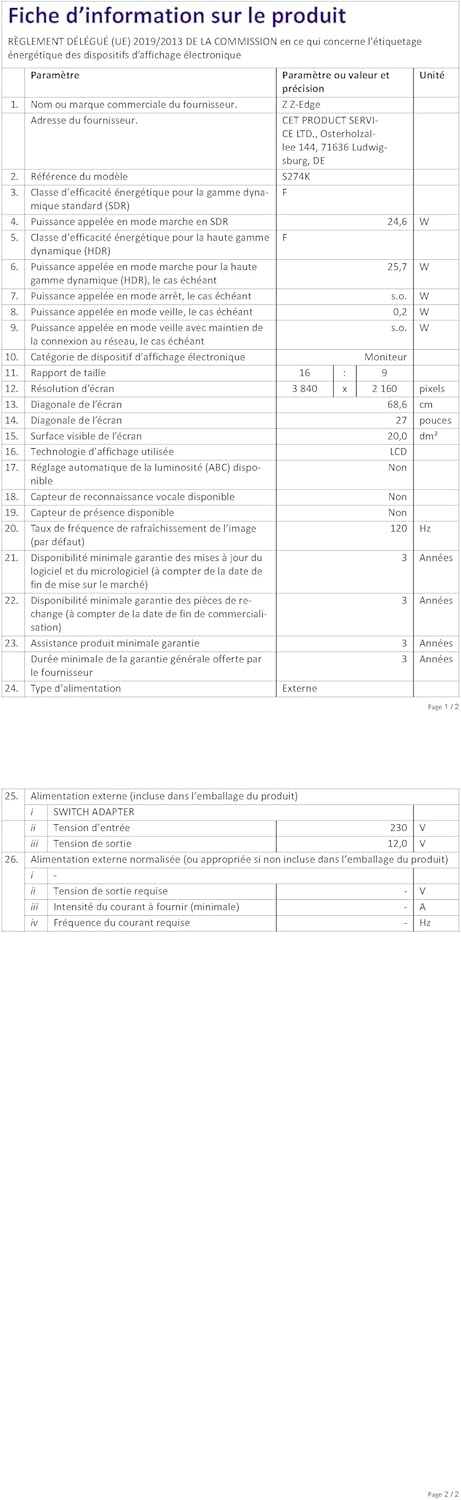
Image: EU Energy Label for the Z-Edge S274K monitor, indicating an energy efficiency class of F and energy consumption of 25 kWh per 1000 hours.
10. 보증 및 지원
10.1 제조업체 보증
This Z-Edge monitor comes with a 1년 제조사 보증 구매일로부터 적용됩니다. 이 보증은 정상적인 사용 조건에서 발생하는 재료 및 제조상의 결함에 적용됩니다. 단, 오용, 사고, 무단 개조 또는 외부 요인으로 인한 손상은 보증 대상에서 제외됩니다.
보증을 청구하려면 구매 증빙 서류를 보관하세요.
10.2 고객 지원
If you encounter any issues not covered in the troubleshooting section or require further assistance, please contact Z-Edge customer support. Refer to the official Z-Edge web최신 연락처 정보와 지원 리소스를 제공하는 사이트입니다.