
1. 서론
This manual provides essential information for the proper setup, operation, and maintenance of your Veout 15.6-inch Portable Monitor. Please read these instructions thoroughly before using the product to ensure optimal performance and longevity.
2. 패키지 내용
아래 나열된 모든 품목이 제품 포장에 들어 있는지 확인하세요.
- 1 x 휴대용 모니터
- 1 x USB-A-USB-C 케이블
- 1 x USB-C to USB-C 케이블
- 1 x 미니 HDMI-HDMI 케이블
- 1 x 사용자 설명서

그림 2.1: 휴대용 모니터에 포함된 액세서리.
3. 제품 오버view
The Veout portable monitor features a 15.6-inch IPS display with a slim profile and integrated kickstand for versatile use.
3.1. 신체적 특징

그림 3.1: 전면 view of the Veout 15.6-inch Portable Monitor.

그림 3.2: 후면 view highlighting connectivity ports.

그림 3.3: 사이드 프로file demonstrating the monitor's thin design.
3.2. 포트 및 제어
- 모든 기능을 갖춘 USB-C 포트: For video, audio, data, and power delivery with a single cable.
- 미니 HDMI 포트: For video and audio input. Requires external power via USB-C when used.
- 3.5mm 오디오 잭: 외부 헤드폰이나 스피커를 연결하는 데 사용합니다.
- Control Wheel/Buttons: Used for adjusting volume, brightness, and navigating the On-Screen Display (OSD) menu.
3.3. Integrated Kickstand
The monitor features a foldable kickstand for stable positioning at various view각도를 나타냅니다.
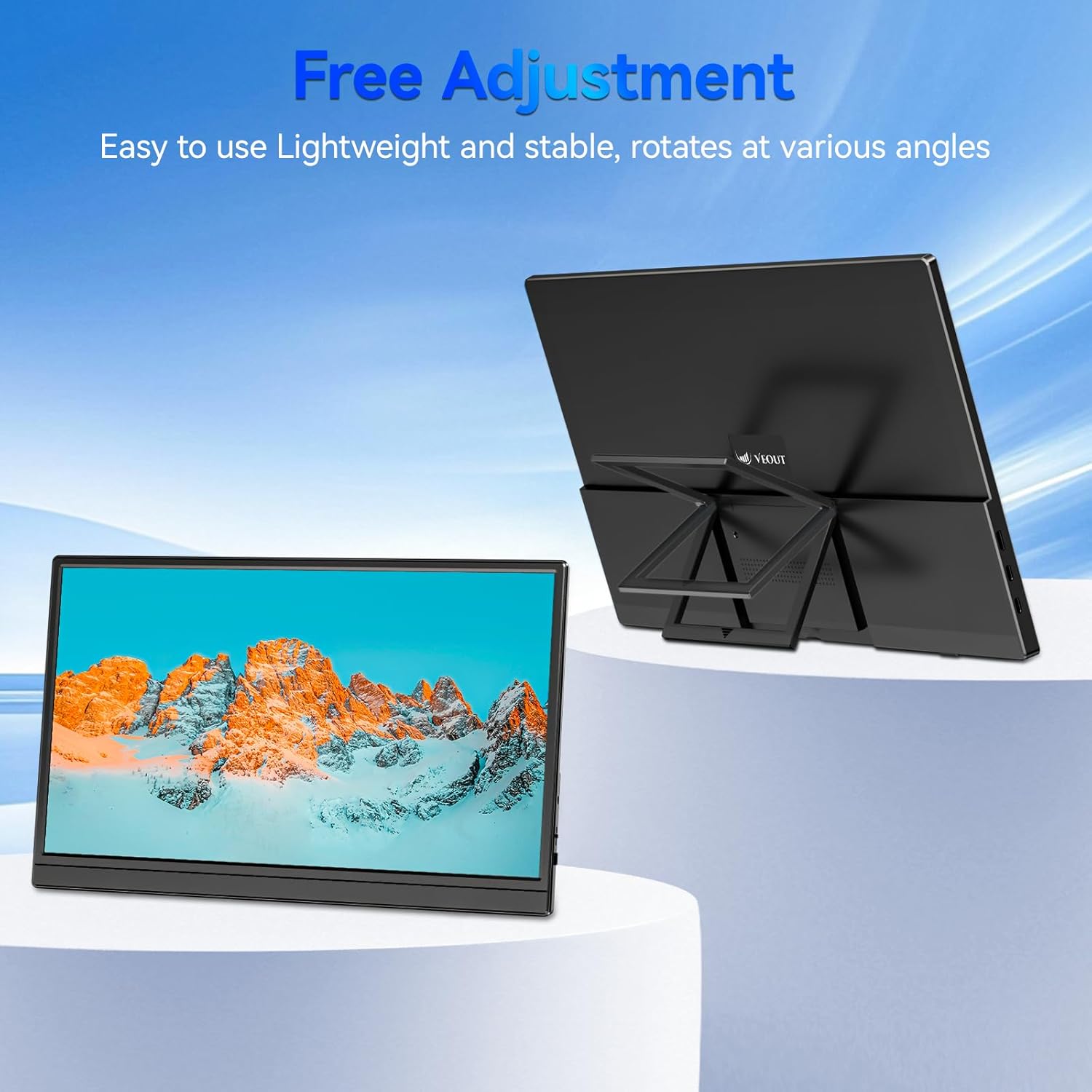
Figure 3.4: Monitor with kickstand for adjustable view주고받음.
4. 설정
The Veout portable monitor supports plug-and-play functionality, requiring no driver installation for most devices.
4.1. 장치에 연결하기
- USB-C 연결(케이블 1개):
- Connect one end of the USB-C to USB-C cable to a full-function USB-C port on your laptop, smartphone, or other compatible device.
- Connect the other end of the USB-C to USB-C cable to one of the full-function USB-C ports on the portable monitor.
- This connection provides video, audio, and power to the monitor.
- HDMI Connection (Requires Additional Power):
- Connect one end of the Mini-HDMI to HDMI cable to the Mini-HDMI port on the monitor.
- Connect the other end of the Mini-HDMI to HDMI cable to the HDMI port on your device.
- For power, connect the USB-A to USB-C cable or a USB-C to USB-C cable from your device's USB port or a power adapter (not included) to one of the monitor's USB-C ports.
4.2. Positioning the Monitor
Deploy the integrated kickstand to position the monitor on a flat surface. Adjust the angle for optimal viewing. The monitor can be used in both landscape and portrait orientations.

Figure 4.1: Monitor used in portrait mode for document view주고받음.
5. 사용 설명서
5.1. 디스플레이 모드
컴퓨터에 연결하면 운영 체제의 디스플레이 설정을 통해 표시 모드를 구성할 수 있습니다.
- Copy Mode (Mirror Display): Duplicates your primary screen's content onto the portable monitor. Useful for presentations or sharing content.
- 확장 모드: Extends your desktop across both screens, providing additional workspace for multitasking.
- 두 번째 화면 전용 모드: Displays content only on the portable monitor, with the primary device's screen turned off.
5.2. 설정 조정
The monitor features an intuitive control mechanism for quick adjustments:
- 밝기 조정: Scroll the control wheel up or down to instantly adjust screen brightness.
- 볼륨 조절: Scroll the control wheel up or down to instantly adjust speaker volume.
- OSD 메뉴 : Press the control wheel or designated button to access the On-Screen Display menu for advanced settings like color, contrast, and input source selection.
5.3. 안과 진료 기술
The monitor incorporates advanced eye-care technology designed to reduce blue light emission and screen flicker, promoting comfortable view장기간 사용 시.
6. 유지관리
모니터의 성능과 외관을 유지하려면 다음 지침을 따르십시오.
- 화면 청소: 부드럽고 보풀이 없는 천으로 화면을 부드럽게 닦으세요. 잘 지워지지 않는 얼룩은 가볍게 닦아주세요.amp천에 물이나 화면 세척액을 묻혀 닦아주세요. 강한 화학 물질이나 연마재는 사용하지 마세요.
- C 청소asing: 부드럽고 마른 천을 사용하여 모니터의 c를 청소하십시오.asing.
- 저장: 사용하지 않을 때는 모니터를 서늘하고 건조한 곳에 보관하십시오. 가능하면 원래 포장이나 보호 슬리브에 넣어 보관하는 것이 좋습니다.
- 액체를 피하세요: Do not expose the monitor to excessive moisture or spill liquids directly onto it.
7. 문제 해결
모니터에 문제가 발생하면 다음의 일반적인 문제와 해결 방법을 참조하세요.
| 문제 | 가능한 원인 | 해결책 |
|---|---|---|
| 디스플레이 없음/"신호 없음" 메시지 | 케이블 연결이 잘못되었거나, 전력이 부족하거나, 입력 소스가 올바르지 않습니다. | Ensure cables are securely connected. If using HDMI, ensure a separate power source is connected to the monitor's USB-C port. Check your device's display settings to ensure the monitor is detected and enabled. Select the correct input source via the OSD menu. |
| 깜빡이는 화면 | Loose cable connection, incompatible resolution/refresh rate, power fluctuations. | Reconnect cables. Adjust display resolution or refresh rate on your connected device. Ensure stable power supply. |
| 모니터 스피커에서 소리가 나지 않습니다. | Monitor volume too low, incorrect audio output selected on device. | Increase monitor volume using the control wheel. On your connected device, ensure the portable monitor is selected as the audio output device. |
| 전원이 켜지지 않는 모니터 | No power supply, faulty cable. | Ensure the monitor is receiving power via a USB-C connection from a compatible device or power adapter. Try a different USB-C cable. |
8. 사양
| 특징 | 세부 사항 |
|---|---|
| 제품 모델 번호 | Veout-15.6 |
| 화면 크기 | 15.6인치 |
| 해결 | 1920 x 1080 픽셀(FHD 1080p) |
| 종횡비 | 16시 9분 |
| 패널 유형 | IPS |
| 화면 표면 | 매트 |
| 제품 치수 | 1.97 x 13.78 x 11.02 인치 |
| 품목 무게 | 3.08파운드 |
| 입력 Voltage | 5V |
| 정격 전류 | 3A |
| 출력 전력 | 5.5와트 |
| 제조업체 | Guangdong Zhanwei electronic Technology Co., LTD |

Figure 8.1: Product information and certification details.
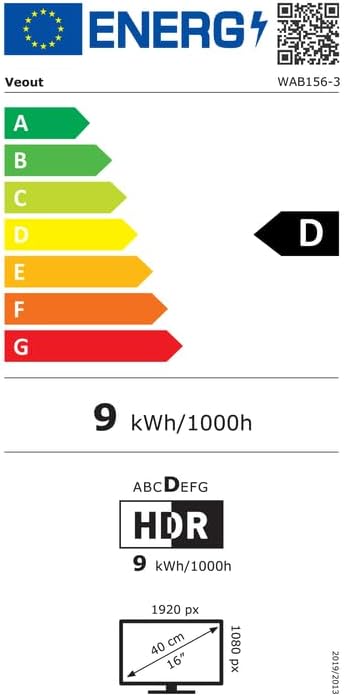
Figure 8.2: EU Energy Label for model WAB156-3. For more details, visit eprel.ec.europa.eu/qr/2209122.
9. 보증 및 지원
Your Veout Portable Monitor is backed by a 12-month warranty from the date of purchase. We are committed to providing customer service and support.
- 보증 기간: 12개월
- 반품 정책: 30일 환불 보장
- 고객 서비스: 24시간 이용 가능

그림 9.1: 보증 및 지원 정보.
For technical assistance or warranty claims, please contact Veout customer support at support@veout.com.