
1. 서론
This manual provides detailed instructions for the installation, operation, and maintenance of your WONLINK 1200Mbps Dual Band WiFi Extender. This device is designed to expand your existing WiFi network coverage, eliminate dead zones, and provide stable, high-speed internet access throughout your home or office.
2. 안전 정보
- 기기가 올바른 전압의 표준 전기 콘센트에 꽂혀 있는지 확인하십시오.tage.
- 기기를 물, 습기 또는 극한 온도에 노출시키지 마세요.
- 열원 근처나 직사광선에 장치를 두지 마십시오.
- 기기를 직접 열거나 수리하려고 하지 마십시오. 자격을 갖춘 전문가에게 서비스를 의뢰하십시오.
- 기기를 어린이와 애완동물의 손이 닿지 않는 곳에 보관하세요.
3. 패키지 내용
패키지에 모든 품목이 들어 있는지 확인하세요.
- 1 x WONLINK 1200Mbps WiFi Extender
- 1 x Operation Instructions (this manual)
- RJ-45 네트워크 케이블 1개
4. 제품 오버view
The WONLINK WiFi Extender features a compact design with four external antennas for enhanced signal coverage. It supports dual-band WiFi (2.4GHz and 5.8GHz) and includes an Ethernet port for wired connections.

그림 4.1: 앞쪽 view of the WONLINK WiFi Extender, showing LED indicators and WPS button.
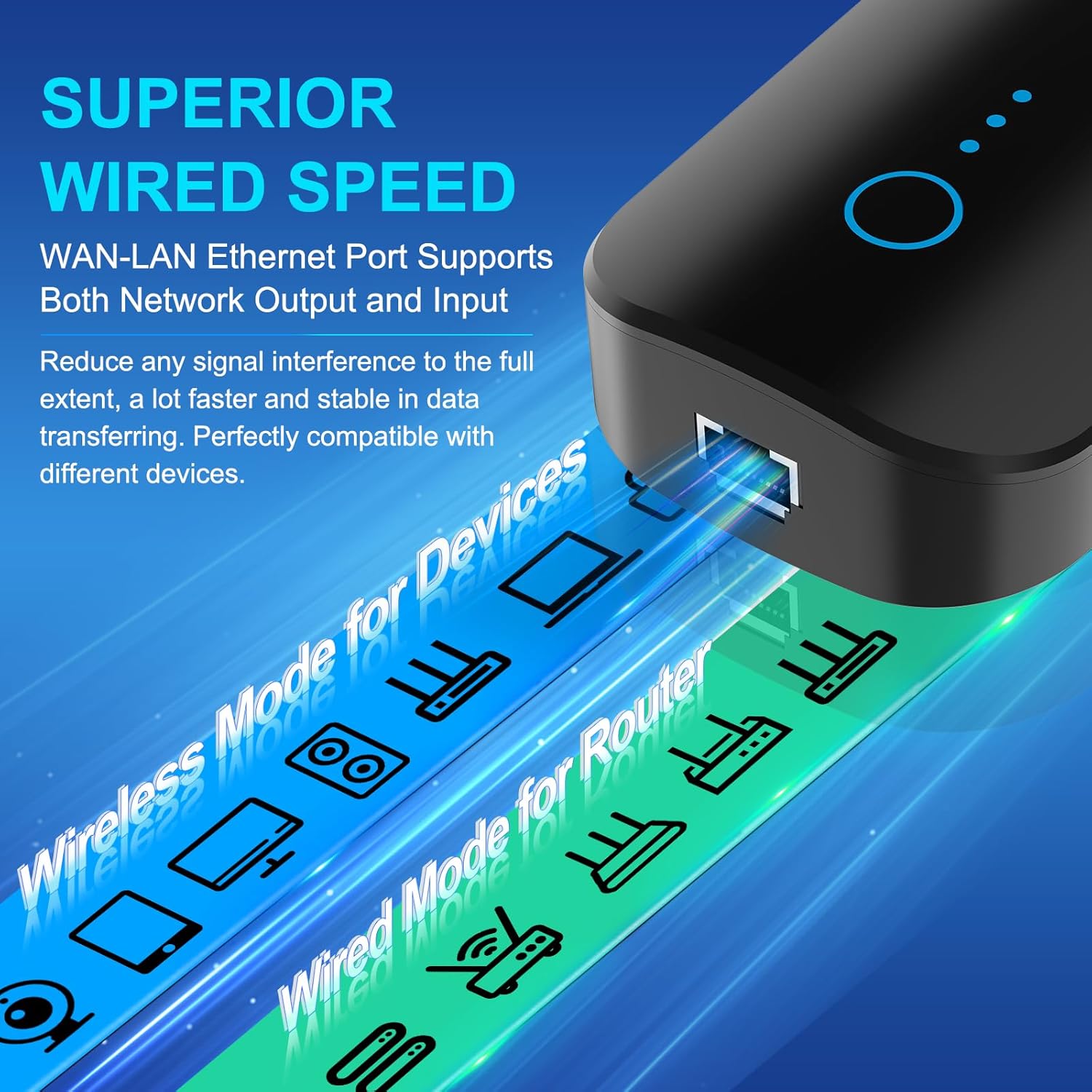
그림 4.2: 옆 view highlighting the WAN/LAN Ethernet port for wired connections.
LED 표시등:
- 전원 LED: 전원 상태를 나타냅니다.
- WiFi LED: Indicates WiFi activity.
- 신호 LED: Displays the strength of the received router signal.
버튼 및 포트:
- WPS/재설정 버튼: 빠른 설정(WPS) 또는 공장 초기화에 사용됩니다.
- WAN/LAN Ethernet Port: Supports both network output and input for wired devices.
5. 설정 및 설치
The WONLINK WiFi Extender can be set up using two methods: WPS (Wi-Fi Protected Setup) or via a web 브라우저.
5.1. WPS 설정 (빠른 설정을 위해 권장)
- Plug the WiFi Extender into an electrical outlet near your main router. Wait for the Power LED to light up.
- 메인 라우터의 WPS 버튼을 누르세요.
- Within 2 minutes, press the WPS button on the WONLINK WiFi Extender. The Signal LED on the extender will blink during the connection process.
- Once connected, the Signal LED will turn solid, indicating a successful connection.
- Unplug the extender and relocate it to a suitable position between your router and the WiFi dead zone. Ensure the Signal LED indicates a good signal strength from your router.

그림 5.1: Illustrates the WPS button on the extender and router for quick connection.
5.2. Web 브라우저 설정
- Plug the WiFi Extender into an electrical outlet. Wait for the Power LED to light up.
- On your computer or smartphone, connect to the extender's default WiFi network (e.g., "WONLINK-XXXX-2G" or "WONLINK-XXXX-5G"). No password is required initially.
- 열기 web 브라우저를 열고 기본 IP 주소를 입력하십시오. 192.168.10.1 주소창에.
- Follow the on-screen instructions to log in (default username/password might be "admin/admin" or specified in the quick start guide).
- Select "Repeater Mode" or "AP Mode" based on your requirements.
- Scan for available WiFi networks and select your home network (SSID).
- Enter your home WiFi network's password.
- Confirm settings and restart the extender if prompted.
- Once configured, the extender will broadcast new WiFi networks (e.g., "YourNetworkName-EXT" or similar). Connect your devices to these new networks.

그림 5.2: Step-by-step visual guide for web 브라우저 설정.
6. 작동 모드
The WONLINK WiFi Extender supports multiple operating modes to suit various networking needs:
- 리피터 모드: Extends the coverage of an existing wireless network. This is the most common mode for eliminating WiFi dead zones.
- 액세스 포인트(AP) 모드: Converts a wired network connection into a wireless access point. Ideal for creating a new WiFi network from an Ethernet source.
- 라우터 모드 : Functions as a basic router, creating a private network from a modem connection.

그림 6.1: Visual representation of Repeater, Router, and AP modes.
7. 유지관리
- 정기 청소: Gently wipe the device with a dry, soft cloth to remove dust. Do not use liquid cleaners.
- 펌웨어 업데이트: 제조사 확인해보세요 web최적의 성능과 보안을 보장하기 위해 정기적으로 사이트를 방문하여 펌웨어 업데이트를 실시합니다.
- 최적의 배치: Ensure the extender is placed in an open area, away from obstructions and other electronic devices that may cause interference.
- 다시 시작: If you experience network issues, try restarting the extender by unplugging it for 10 seconds and then plugging it back in.
8. 문제 해결
Q1: The extender is not powering on.
A: Ensure the power outlet is functional and the extender is securely plugged in. Try a different outlet.
Q2: Cannot connect to the extender's default WiFi network during setup.
A: Make sure the extender is powered on and you are within its range. If you have previously configured it, perform a factory reset by pressing and holding the WPS/Reset button for 5-8 seconds until the LEDs flash.
Q3: The extender is connected to the router, but there is no internet access.
A:
- 메인 라우터에 인터넷 접속이 가능한지 확인하세요.
- Ensure the extender is receiving a strong signal from the router (check the Signal LED). Relocate the extender closer to the router if the signal is weak.
- Reconfigure the extender, ensuring you enter the correct password for your main WiFi network.
Q4: The extended WiFi network is slow or unstable.
A:
- Relocate the extender to an optimal position, ideally halfway between your router and the desired coverage area, where it can receive a strong signal from the router.
- Minimize interference by keeping the extender away from large metal objects, microwaves, cordless phones, and Bluetooth devices.
- 라우터의 펌웨어가 최신인지 확인하세요.
- Consider using the 5GHz band for devices that support it, as it generally offers higher speeds and less interference, though with shorter range.
9. 사양
| 특징 | 설명 |
|---|---|
| 상표 | 원링크 |
| 무선 통신 표준 | 802.11a/b/g/n/ac |
| 데이터 전송 속도 | 초당 1200메가비트(Mbps) |
| 주파수 대역 클래스 | 듀얼 밴드(2.4GHz 및 5.8GHz) |
| 특별 기능 | 360 Degree Coverage, Access Point Mode, Repeater Mode, Router Mode |
| 이더넷 포트 | 10/100Mbps RJ45 WAN/LAN Port |
| 안테나 | 4개의 외부 고이득 안테나 |
| 보안 | WPA-PSK/WPA2-PSK/WPA/WPA2 |
| 품목 무게 | 7.4 온스 |
| 패키지 크기 | 8.15 x 3.86 x 3.03 인치 |
10. 보증 및 지원
For warranty information and technical support, please refer to the official WONLINK web사이트를 방문하거나 고객 서비스에 직접 문의하세요. 보증 청구를 위해 구매 영수증을 보관하세요.