
소개
This manual provides essential information and instructions for the Blackview Tab 20 WiFi tablet. Please read this manual carefully before using your device to ensure proper operation and to maximize its features. Keep this manual for future reference.
상자 안에 무엇이 들어있나요?
패키지에 모든 품목이 들어 있는지 확인하세요.
- 검은색view 탭 20 WiFi 태블릿
- TPU 보호 케이스
- 사용자 설명서
- 전원 어댑터
- USB 케이블
Note: The user manual included in the box may not be in English. This digital manual provides English instructions.
제품 끝view
Familiarize yourself with the key components and features of your Blackview 탭 20 WiFi 태블릿.
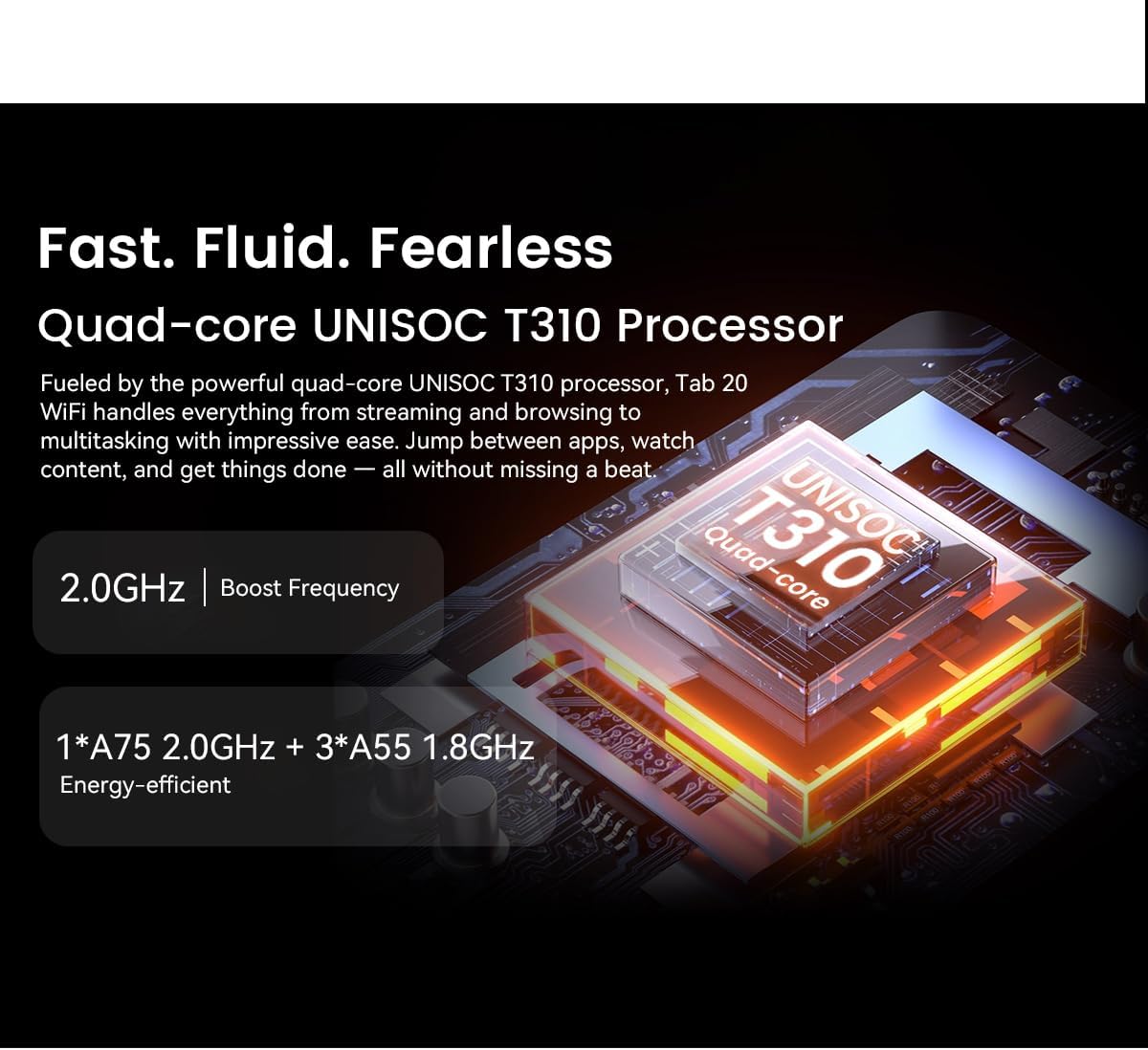
그림 1: 앞쪽 view 검은색의view Tab 20 WiFi tablet, showing the display and front camera.

그림 2: 뒤쪽에 view 검은색의view Tab 20 WiFi tablet, highlighting the rear camera module.

그림 3: 옆 view 검은색의view Tab 20 WiFi tablet, illustrating the USB Type-C charging port.

그림 4: 옆 view 검은색의view Tab 20 WiFi tablet, showing the dual speaker grilles.
주요 특징:
- Gemini AI 2.0: Integrated AI assistant for intelligent control and real-time interaction.
- 10.1인치 HD+ 디스플레이: Expansive screen with 800 x 1200 pixel resolution for clear visuals.
- Dual Box Speakers: Enhanced audio experience with Smart-K powered dual speakers.
- 카메라: 사진 촬영 및 영상 통화를 위한 8MP 후면 카메라와 5MP 전면 카메라가 탑재되어 있습니다.
- 메모리 및 스토리지 : Up to 12GB RAM (4GB physical + 8GB expansion) and 64GB internal storage, expandable up to 2TB via microSD.
- 6000mAh 배터리: 장시간 사용을 위해 설계된 대용량 배터리입니다.
- 눈 보호 모드: Three dedicated modes (Reading, Night Light, Dark) to reduce eye strain.
- UNISOC T310 Processor: Quad-core processor for smooth multitasking and performance.
설정
- 태블릿 충전:
Before first use, fully charge the tablet using the provided power adapter and USB cable. Connect the USB cable to the tablet's Type-C port and the adapter to a power outlet. The charging indicator will show the charging status.
- 전원 켜기/끄기:
To power on, press and hold the power button until the Blackview logo appears. To power off, press and hold the power button, then select "Power off" from the options.
- 초기 설정 :
Follow the on-screen prompts to complete the initial setup. This includes selecting your language, connecting to a Wi-Fi network, setting up your Google account, and configuring facial unlock.
- MicroSD 카드 삽입(선택 사항):
If you wish to expand storage, locate the SIM/microSD card tray on the side of the tablet. Use the provided ejector tool to open the tray. Insert a microSD card (up to 2TB) into the designated slot, ensuring correct orientation, then close the tray securely.
작동 지침
기본 탐색:
- 터치 제스처: 탭하여 선택하고, 스와이프하여 스크롤하고, 핀치하여 확대/축소합니다.
- 홈 화면: 앱, 위젯, 알림에 액세스합니다.
- 알림 패널: 화면 상단에서 아래로 스와이프하여 view 알림 및 빠른 설정.
Wi-Fi에 연결:
- 이동하다 설정 > 네트워크 및 인터넷 > 와이파이.
- Wi-Fi를 켜세요.
- 목록에서 원하는 네트워크를 선택하고 필요한 경우 비밀번호를 입력하세요.
Using Gemini AI:
블랙view Tab 20 WiFi integrates Gemini AI 2.0 for intelligent assistance. You can activate it via voice commands or specific gestures (refer to on-screen tutorials during initial setup or in the AI settings). Gemini AI can assist with tasks, provide information, and control smart features.

그림 5: Visual representation of Gemini AI 2.0's integration with various applications and smart controls.
카메라 작동:
사진과 동영상을 촬영하려면 카메라 앱을 여세요.
- 후면 카메라(8MP): Suitable for general photography and document scanning.
- 전면 카메라(5MP): 영상 통화와 셀카에 이상적입니다.
Tap the shutter button to take a photo. Switch between photo and video modes as needed.

그림 6: 클로즈업 view of the tablet's rear and front cameras.
눈 보호 모드:
To reduce eye strain, activate one of the three eye protection modes:
- 읽기 모드: Adjusts screen color temperature for a paper-like reading experience.
- 야간 조명 모드 : Filters blue light to reduce eye fatigue during evening use.
- 다크 모드: Inverts colors to a dark theme, reducing brightness in low-light environments.
These modes can typically be found in 설정 > 표시하다 or via the quick settings panel.

그림 7: Visual guide to the tablet's eye protection modes.
유지
- 청소: 부드럽고 보풀이 없는 천을 사용하여 태블릿 화면과 본체를 닦으세요. 강한 화학 물질이나 연마재는 사용하지 마세요.
- 소프트웨어 업데이트: 최적의 성능과 보안을 위해 시스템 업데이트를 정기적으로 확인하고 설치하세요. 설정 > 체계 > 시스템 업데이트.
- 배터리 관리 : 배터리 수명을 연장하려면 극한 온도에 노출시키지 마십시오. 배터리가 완전히 방전되는 것을 자주 방지하십시오.
- 스토리지 관리: 불필요한 것을 주기적으로 정리하세요 files and uninstall unused apps to free up storage space and maintain performance.
문제 해결
| 문제 | 가능한 원인 | 해결책 |
|---|---|---|
| 태블릿의 전원이 켜지지 않습니다. | 배터리 부족; 소프트웨어 오류. | 태블릿을 최소 30분 동안 충전하세요. 전원 버튼을 10~15초 동안 길게 눌러 강제로 재시작하세요. |
| Wi-Fi에 연결할 수 없습니다. | 비밀번호가 잘못되었습니다. 라우터 문제입니다. Wi-Fi가 비활성화되었습니다. | Ensure correct password. Restart your Wi-Fi router. Check if Wi-Fi is enabled in settings. |
| 앱 속도가 느리거나 멈춥니다. | 너무 많은 앱이 실행 중이거나, 저장 공간이 부족하거나, 소프트웨어가 오래되었습니다. | Close background apps. Clear cache/data for problematic apps. Free up storage. Update system software. |
| 배터리가 빨리 소모됩니다. | 화면 밝기 높음; 백그라운드 앱 실행; 과도한 사용. | Reduce screen brightness. Close unused apps. Limit background data usage. Check battery usage in settings. |
| Facial unlock not working. | Poor lighting; face not recognized; sensor obstruction. | Ensure adequate lighting. Clean the front camera. Re-register your face in settings. |
명세서
| 특징 | 세부 사항 |
|---|---|
| 상표 | 검은색view |
| 모델명 | TAB 20 WIFI |
| 운영 체제 | 안드로이드 15 |
| 프로세서 | UNISOC T310 (Quad-core) |
| 숫양 | Up to 12GB (4GB physical + 8GB expansion) |
| 내부 저장소 | 64GB (XNUMX기가바이트) |
| 확장 가능한 스토리지 | microSD slot, up to 2TB |
| 화면 크기 | 10.1 인치 |
| 화면 해상도 | 800 x 1200 픽셀 |
| 후방 카메라 | 8메가픽셀 |
| 전면 카메라 | 5메가픽셀 |
| 배터리 용량 | 6000mAh |
| 연결성 | 와이파이, 블루투스, USB 타입-C |
| 특별 기능 | Gemini AI Assistant, Facial Unlock, Google Lens |
| 크기 (길이 x 너비 x 두께) | 24.2L x 16W x 0.9Thickness cm |
| GTIN/UPC | 810154306572 |
보증 및 지원
보증 정보:
블랙view Tab 20 WiFi tablet comes with a 한정 보증. Please refer to the warranty card included in your product packaging for specific terms and conditions, including coverage duration and claim procedures. Keep your proof of purchase for warranty claims.
고객 지원:
기술 지원, 본 설명서에 제시된 내용 외의 문제 해결 또는 보증 관련 문의는 Black에 문의하십시오.view customer support. You can typically find contact information on the official Blackview web해당 웹사이트 또는 태블릿을 구매한 판매점을 통해 확인할 수 있습니다.
Always provide your product model (TAB 20 WIFI) and serial number when contacting support for faster service.