1. 제품 오버view
The avedio links VHS to Digital Converter is a USB capture device designed to convert analog video signals from various sources into a digital USB format. This allows for the preservation and playback of older media on modern computers.
- 아날로그에서 디지털로의 변환: Converts analog video (RCA/Composite) to digital USB signals, supporting resolutions up to 1080p at 30Hz.
- 폭넓은 호환성: Ideal for connecting old camcorders, set-top boxes, DVD players, VHS recorders, and DVRs.
- 플러그 앤 플레이: Designed for ease of use with most current laptops, ensuring stable video recording and transmission.
- 연장 케이블: Features a 1-meter USB cable for flexible connection options.
- 시스템 지원: Compatible with Windows and macOS operating systems.
- 소프트웨어 통합: Works seamlessly with popular recording software such as OBS and PotPlayer for video capture and screen recording.

Image 1.1: The avedio links VHS to Digital Converter, showing its RCA (yellow, white, red) and S-Video input connectors, and the USB output connector. This device facilitates the conversion of analog audio and video to a digital format.
2. 패키지 내용
패키지에 모든 품목이 들어 있는지 확인하세요.
- RCA and S-Video to USB Capture Adapter
- USB-A-USB-C 변환기
- 드라이버 CD
- 사용 설명서(본 문서)
3. 설정 지침
Follow these steps to set up your avedio links VHS to Digital Converter:
- 드라이버 설치: Insert the included Driver CD into your computer's CD/DVD drive and follow the on-screen instructions to install the necessary drivers. If your computer does not have a CD drive, drivers may be available for download from the avedio links support web대지.
- 아날로그 소스 연결: Connect your analog video source (e.g., VCR, camcorder, DVD player) to the converter using the appropriate RCA (yellow for video, white for left audio, red for right audio) or S-Video cables. Ensure all connections are secure.
- 컴퓨터에 연결: Plug the USB connector of the capture device into an available USB 2.0 port on your laptop or PC. If your computer only has USB-C ports, use the provided USB-A to USB-C converter.
- Install Recording Software: Install your preferred video recording software (e.g., OBS Studio, PotPlayer). These applications are widely available and offer robust features for video capture.
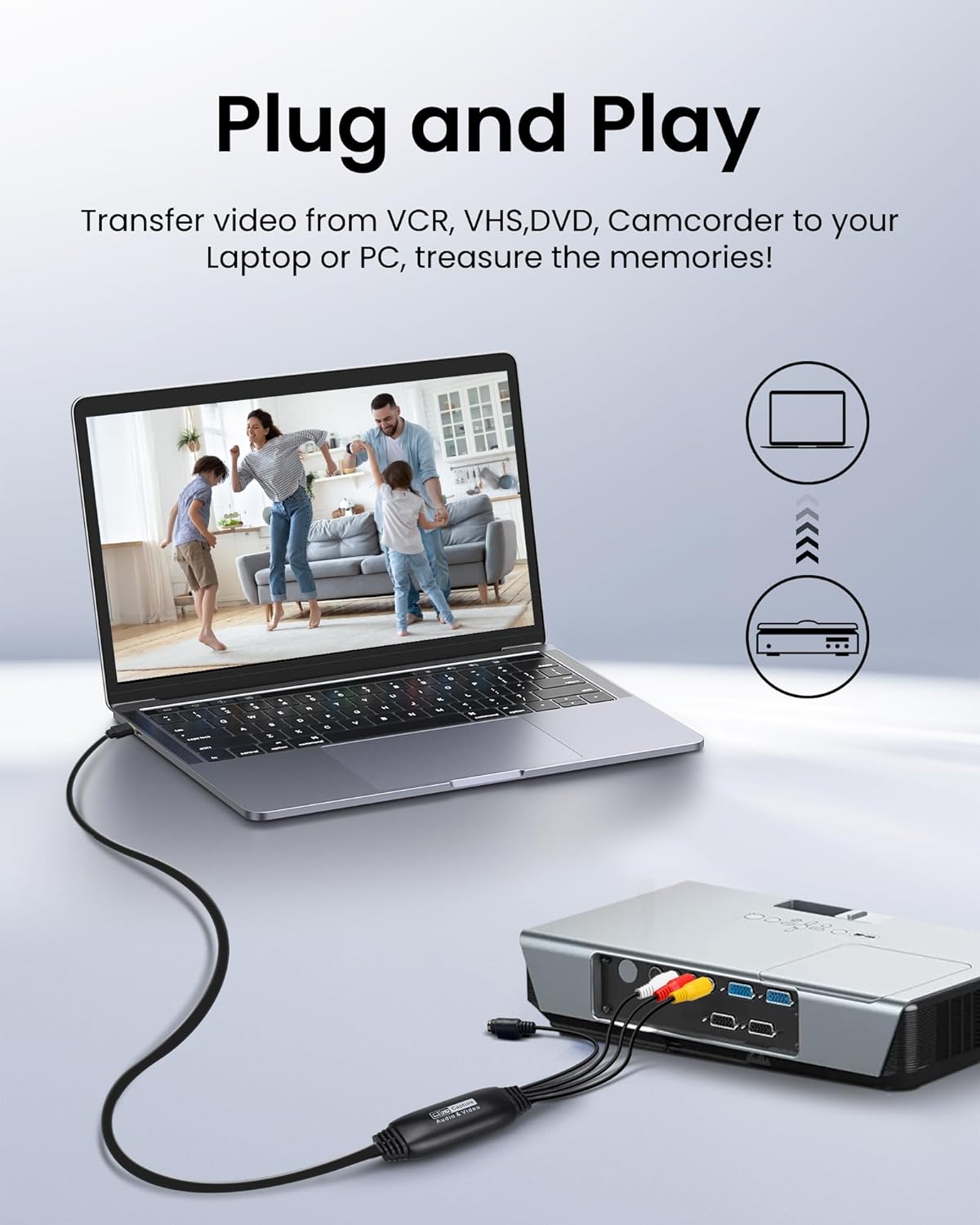
Image 3.1: Connection diagram illustrating how to connect an analog source (VCR) to the avedio links converter and then to a laptop for digital conversion.

Image 3.2: The converter is compatible with various operating systems including Mac OS, Windows, Android, and Linux, and supports software like OBS, Xsplit, VLC, and Skype for video capture.
4. 사용 설명서
설정이 완료되면 다음 단계를 따라 비디오를 캡처하세요.
- 전원 켜기 장치: Ensure your analog video source (VCR, camcorder) and computer are powered on.
- 소프트웨어 실행: Open your chosen video recording software (e.g., OBS Studio).
- 비디오 입력 방식을 선택하세요: In the software settings, locate the video input source selection. Choose the avedio links capture device (it may appear as 'USB Video Device' or similar).
- 오디오 입력을 선택하세요: Similarly, select the audio input source, which should also correspond to the avedio links capture device.
- 설정 구성: Adjust video resolution, frame rate, and audio settings within the software as needed. For optimal quality, aim for 1080p at 30Hz if supported by your source and software.
- 재생 시작: Begin playing the video on your analog source device.
- 녹음 시작: In your software, click the 'Record' button to begin capturing the video. Monitor the preview 신호가 제대로 수신되고 있는지 확인하기 위한 창입니다.
- 녹음 중지: Once the playback is complete, stop the recording in your software. Save the captured video file to your desired location on your computer.
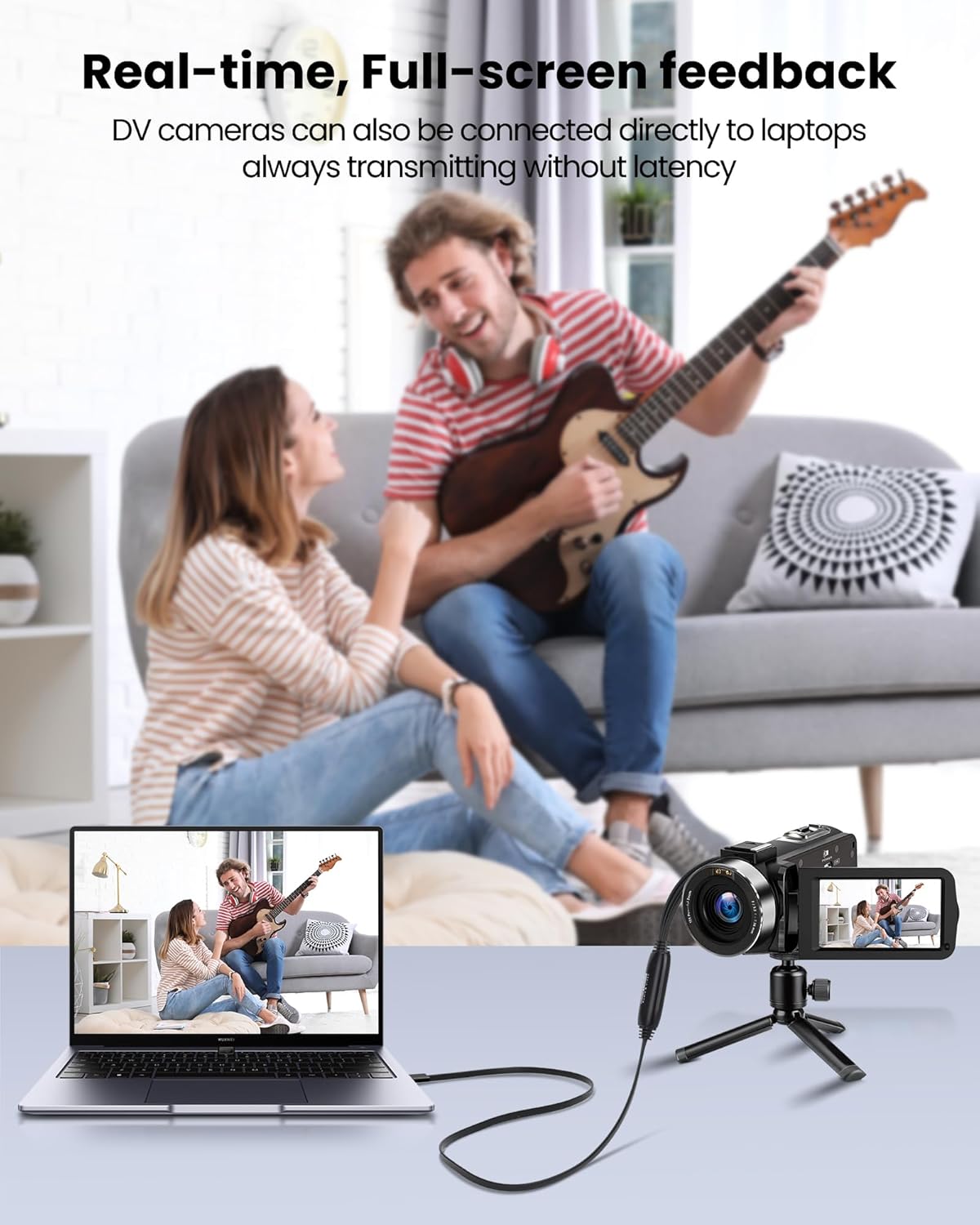
Image 4.1: Demonstrates real-time, full-screen feedback when a DV camera is connected directly to a laptop using the converter, ensuring no latency during transmission.

Image 4.2: The converter supports up to 1080P@30Hz output, as shown with a gaming console connected to a television.
5. 유지관리
To ensure the longevity and optimal performance of your avedio links converter:
- 청소: 부드럽고 마른 천을 사용하여 기기를 닦으세요. 액체 세척제나 연마재는 사용하지 마세요.
- 저장: 변환기를 직사광선과 극한 온도 변화를 피해 서늘하고 건조한 곳에 보관하십시오.
- 케이블 관리: Avoid bending or kinking the cables excessively. Do not pull on the cables to disconnect the device.
- 소프트웨어 업데이트: Periodically check for updated drivers or software for your operating system and recording application to ensure compatibility and performance.
6. 문제 해결
If you encounter issues, refer to the following troubleshooting tips:
- 영상/음성 신호 없음:
- Ensure all cables (RCA/S-Video, USB) are securely connected.
- 아날로그 소스 장치(VCR, 캠코더)의 전원이 켜져 있고 콘텐츠가 재생 중인지 확인하십시오.
- Check if the correct video and audio input sources are selected in your recording software.
- Confirm that the drivers for the capture device are correctly installed. Reinstall if necessary.
- 비디오/오디오 품질이 좋지 않음:
- Ensure the analog source is providing a clean signal. Test with a different tape or DVD if possible.
- Check cable quality. Damaged or low-quality cables can degrade the signal.
- Adjust resolution and bitrate settings in your recording software. Higher settings generally result in better quality but larger file 크기.
- 소프트웨어가 장치를 인식하지 못함:
- Ensure drivers are installed correctly. Try uninstalling and reinstalling them.
- 드라이버 설치 후 컴퓨터를 재시작하십시오.
- 컴퓨터의 다른 USB 포트를 사용해 보십시오.
- Update your recording software to the latest version.
- 소프트웨어 설치 문제:
- If you experience issues installing software from the CD, try downloading the latest version directly from the software developer's website (e.g., OBS Studio).
- 운영 체제가 소프트웨어의 최소 요구 사항을 충족하는지 확인하십시오.
7. 사양
| 상표 | 아베디오 링크 |
| 모델 번호 | 9799240a-5448-44ed-a7ce-1925c09da1aa |
| 제품 치수 | 16.3 x 13.1 x 1.5cm |
| 무게 | 110그램 |
| 색상 | 검은색 |
| 입력 인터페이스 | RCA (Composite), S-Video |
| 출력 인터페이스 | USB 2.0 (with USB-A to USB-C converter) |
| 최대 해상도 | 1080p@30Hz |
| 호환 장치 | 노트북, PC |
| 운영 체제 | Windows, macOS (also compatible with Android, Linux) |

Image 7.1: The avedio links converter featuring its 1-meter extended USB cable, providing increased flexibility for connections.
8. 보증 및 지원
For technical support, driver updates, or warranty inquiries, please visit the official avedio links web해당 사이트를 방문하거나 고객 서비스에 문의하세요. 보증 청구를 위해 구매 영수증을 보관하세요.