
1. 서론
Thank you for choosing the Dierya x TMKB M1 Wireless Gaming Mouse. This manual provides detailed instructions on how to set up, operate, and maintain your new gaming mouse. The M1 mouse offers versatile connectivity, high-precision tracking, and customizable features to enhance your gaming and productivity experience.
2. 제품 오버view
2.1 구성 요소 및 제어
Familiarize yourself with the various buttons and features of your Dierya M1 mouse:
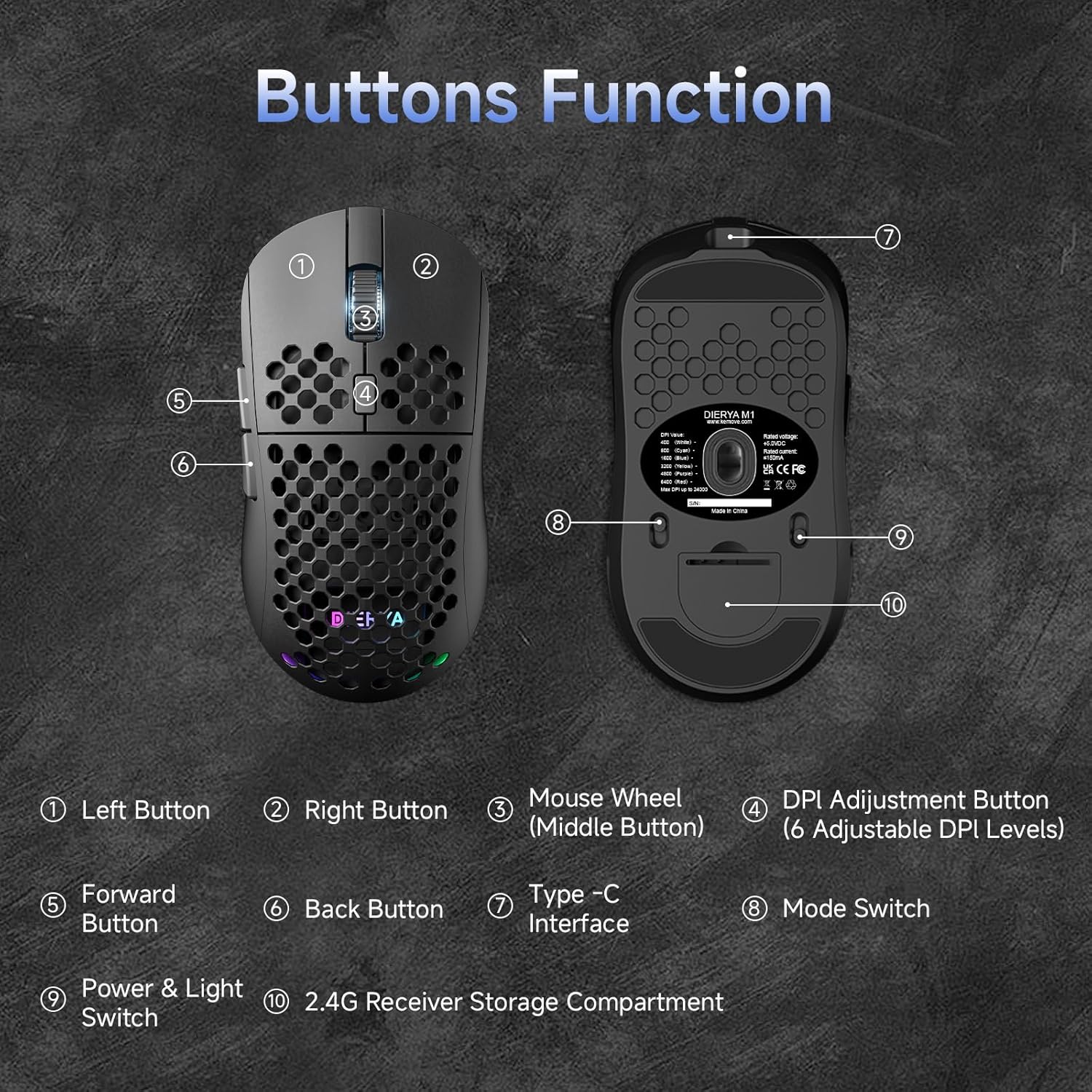
This diagram illustrates the various components of the Dierya M1 wireless gaming mouse. It highlights the 왼쪽 버튼 (1), 오른쪽 버튼(2), Mouse Wheel (Middle Button) (3), DPI Adjustment Button (4) with 6 adjustable DPI levels, 앞으로 가기 버튼 (5), 뒤로 가기 버튼(6), Type-C Interface (7) for charging and wired connection, 모드 스위치(8) for selecting connection type, Power & Light Switch (9), 그리고 2.4G Receiver Storage Compartment (10) located on the underside.
2.2 주요 특징
- 24,000 DPI 광학 센서: Adjustable DPI range from 200 to 24,000, with 6 preset levels (400-6400 DPI).
- 3중 모드 연결: Supports ultra-fast 2.4GHz wireless, energy-efficient Bluetooth 5.2, and stable USB-C wired connections.
- 긴 배터리 수명: 1000mAh battery provides up to 180 hours in ECO mode or 48 hours with RGB lighting, with 1-hour fast charging.
- 가볍고 인체공학적인 디자인: Weighs only 90g with a honeycomb shell for breathability and a symmetrical design (125x63x41 mm).
- 프로그래밍 가능한 버튼: 6 customizable buttons via the M1 Driver software (Windows only).
- 역동적인 RGB 조명: 13 integrated RGB lighting effects with 16.8 million customizable colors.
- 고성능: 125-1000 Hz polling rate, 300 IPS tracking speed, and 35G acceleration.
- 내구성 있는 스위치: Equipped with Huano switches rated for 20 million clicks and 100% PTFE feet for smooth gliding.
3. 설정
3.1 마우스 충전
Before first use, it is recommended to fully charge the mouse. Connect the provided USB-C cable to the Type-C Interface (7) on the mouse and the other end to a USB power source (e.g., computer USB port, USB wall adapter).
- The mouse charges in approximately 1 hour.
- The scroll wheel LED will indicate charging status (e.g., red for charging, green for fully charged).
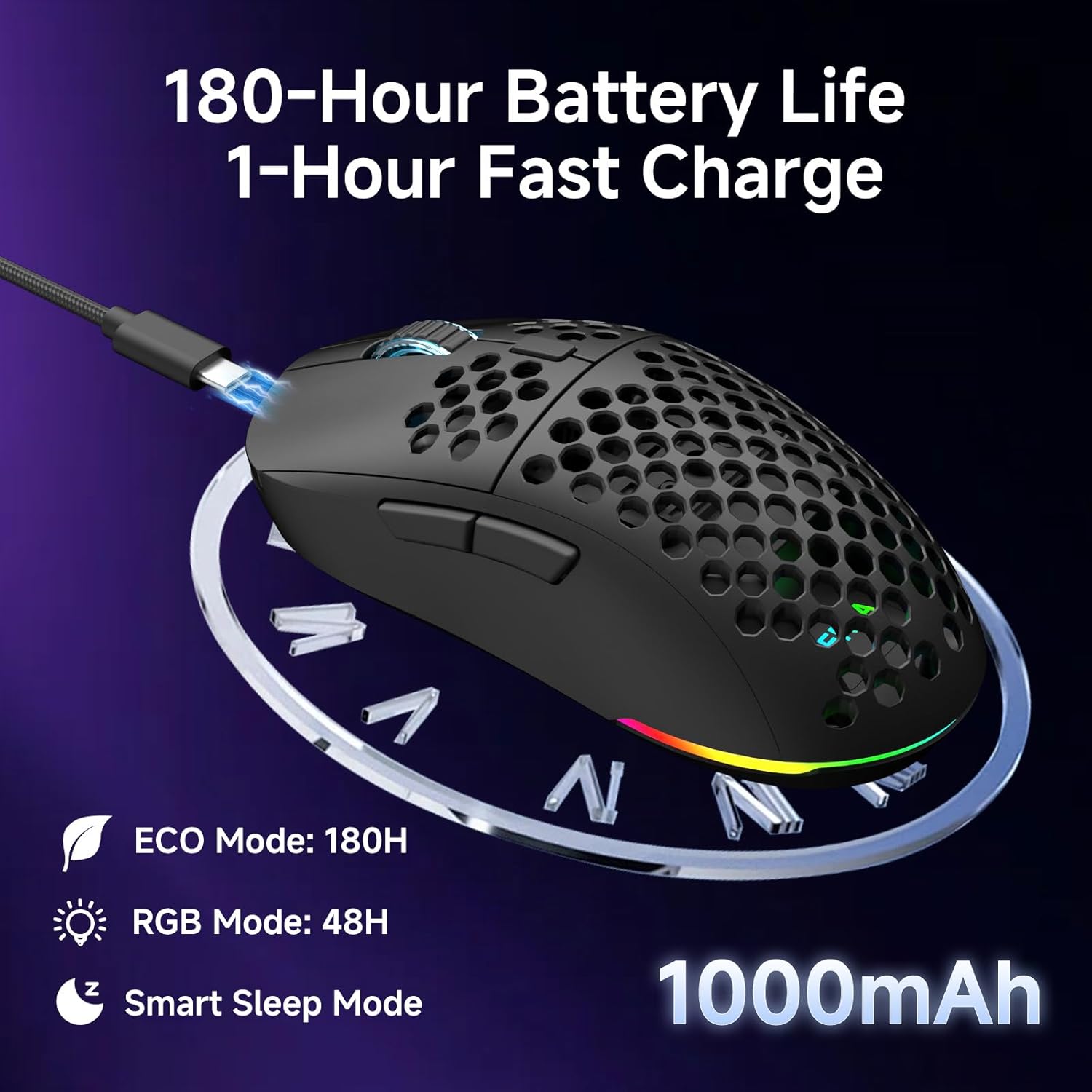
The Dierya M1 mouse features a 1000mAh battery, providing up to 180 hours of use in ECO mode or 48 hours with RGB lighting enabled. It supports fast charging, reaching full capacity in approximately 1 hour via the included USB-C cable. The mouse also includes a smart sleep mode to conserve power during inactivity.
3.2 마우스 연결
The Dierya M1 mouse offers three connection modes: 2.4GHz Wireless, Bluetooth 5.2, and USB-C Wired.

The Dierya M1 mouse supports three flexible connection modes: Bluetooth 5.2 for energy-efficient pairing with up to two devices, 2.4GHz Wireless via a USB dongle for ultra-fast response, and a stable USB-C Wired connection for charging and direct use. Each mode offers a different polling rate, with 2.4GHz and wired modes providing 1000Hz, and Bluetooth offering 125Hz.
3.2.1 2.4GHz 무선 연결
- Locate the 2.4G receiver in the storage compartment (10) on the underside of the mouse.
- 2.4G 수신기를 컴퓨터의 사용 가능한 USB 포트에 꽂습니다.
- Set the Mode Switch (8) on the underside of the mouse to the '2.4G' position.
- The mouse should connect automatically. The polling rate for this mode is 1000 Hz.
3.2.2 블루투스 5.2 연결
- Set the Mode Switch (8) on the underside of the mouse to the 'BT' position.
- 컴퓨터나 기기에서 Bluetooth 설정을 열고 새 기기를 검색하세요.
- Select 'Dierya M1' from the list of available devices to pair.
- The mouse supports Bluetooth 5.2 and has a polling rate of 125 Hz in this mode.
3.2.3 USB-C 유선 연결
- Connect the USB-C cable to the Type-C Interface (7) on the mouse.
- USB-C 케이블의 다른 쪽 끝을 컴퓨터의 사용 가능한 USB 포트에 연결합니다.
- The mouse will automatically switch to wired mode and begin charging. The polling rate for this mode is 1000 Hz.
4. 사용 설명서
4.1 DPI 조정
The Dierya M1 mouse features a dedicated DPI Adjustment Button (4) to cycle through preset DPI levels. The scroll wheel LED color indicates the current DPI setting.
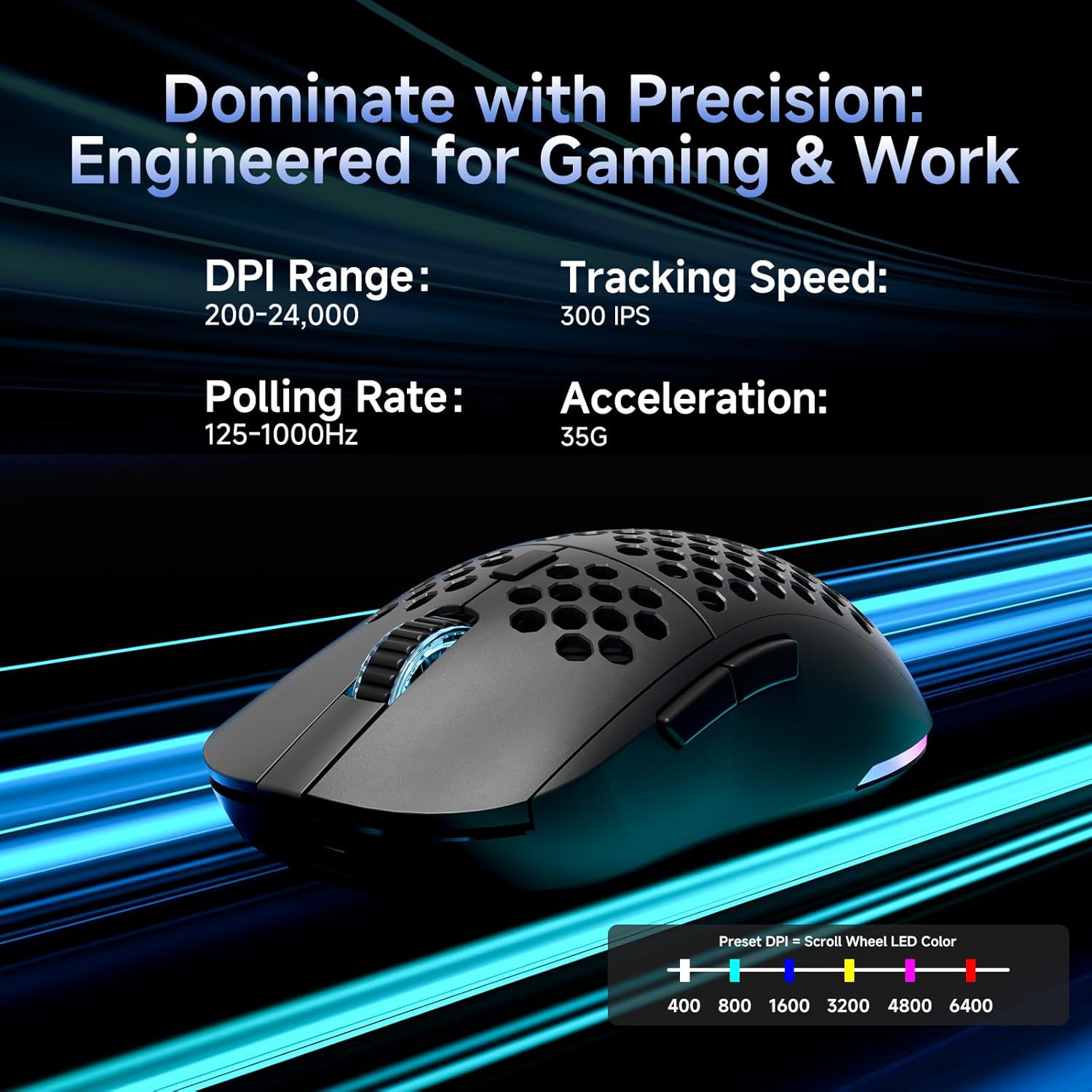
This image details the performance specifications of the Dierya M1 mouse, including a DPI range of 200-24,000, a tracking speed of 300 IPS, a polling rate of 125-1000Hz, and 35G acceleration. It also shows the preset DPI levels (400, 800, 1600, 3200, 4800, 6400) and the color indicators on the scroll wheel for each setting.
- Press the DPI Adjustment Button (4) to cycle through the 6 default DPI settings: 400, 800, 1600, 3200, 4800, and 6400 DPI.
- Each DPI level is indicated by a specific color on the scroll wheel LED.
- For custom DPI settings and a wider range (200-24,000 DPI), use the M1 Driver software.
4.2 RGB 조명 제어
The Dierya M1 mouse features dynamic RGB lighting. You can control the lighting effects and colors using the M1 Driver software.
- The mouse has 13 built-in RGB lighting effects.
- Use the M1 Driver software to customize colors (16.8 million options), brightness, and speed of the lighting effects.
- The Power & Light Switch (9) on the underside can be used to turn the lighting on or off.
4.3 프로그래밍 가능한 버튼 및 소프트웨어
The M1 mouse has 6 programmable buttons that can be customized using the dedicated M1 Driver software.

The Dierya M1 driver software, currently available for Windows, allows users to customize various aspects of the mouse. This includes reassigning the 6 programmable buttons, creating macros, adjusting DPI settings, modifying the polling rate, and personalizing the 13 dynamic RGB lighting effects with 16.8 million colors.
- 소프트웨어 호환성 : The M1 Driver software is currently only available for Windows operating systems.
- 키 할당: Reassign functions to any of the 6 programmable buttons (Left, Right, Middle, DPI, Forward, Back).
- 매크로 생성: Create and assign complex macros to streamline in-game actions or productivity tasks.
- DPI & Polling Rate: Fine-tune DPI settings beyond the presets and adjust the polling rate.
- RGB 사용자 정의: Personalize lighting effects, colors, and patterns.
- 찬성file 관리: 다양한 프로를 저장하고 불러오세요files for various games or applications.
4.4 절전 모드
The M1 mouse is designed with automatic power-saving features to extend battery life:
- The mouse will enter an automatic power-saving mode after 1-5 minutes of inactivity.
- This inactivity time can be adjusted via the M1 Driver software.
- 마우스를 깨우려면 마우스를 움직이거나 아무 버튼이나 클릭하면 됩니다.
5. 유지관리
Proper maintenance ensures the longevity and optimal performance of your Dierya M1 mouse.
- 청소: 부드럽고 마른 천으로 마우스 표면을 닦으세요. 잘 지워지지 않는 얼룩은 약간 부드러운 천으로 닦아내세요.amp 천을 사용할 수 있지만, 마우스에 물기가 들어가지 않도록 하십시오. 독한 화학 약품이나 연마성 세척제는 사용하지 마십시오.
- 센서 유지 보수: 정확한 추적을 보장하려면 마우스 밑면의 광학 센서를 깨끗하고 먼지나 이물질이 없는 상태로 유지하세요.
- 배터리 관리 : 배터리를 자주 완전히 방전시키지 마십시오. 장기간 보관할 경우 마우스를 약 50% 정도 충전한 후 서늘하고 건조한 곳에 보관하십시오.
- 저장: 사용하지 않을 때는 마우스를 극한의 온도를 피해 깨끗하고 건조한 곳에 보관하세요.
6. 문제 해결
If you encounter issues with your Dierya M1 mouse, refer to the following common troubleshooting steps:
| 문제 | 가능한 원인 | 해결책 |
|---|---|---|
| 마우스가 응답하지 않습니다 (2.4GHz) | 배터리 부족, 수신기 연결 해제, 모드 오류, 간섭. | Charge the mouse. Ensure 2.4G receiver is securely plugged in. Set Mode Switch to '2.4G'. Try a different USB port. Reduce distance to receiver. |
| 마우스가 응답하지 않음(블루투스) | Low battery, incorrect mode, not paired, Bluetooth off on device. | Charge the mouse. Set Mode Switch to 'BT'. Ensure Bluetooth is enabled on your device. Re-pair the mouse in Bluetooth settings. |
| 마우스가 응답하지 않음(유선) | Cable not connected, faulty cable/port. | Ensure USB-C cable is securely connected to both mouse and computer. Try a different USB port or cable. |
| 부정확한 추적 | Dirty sensor, unsuitable surface, incorrect DPI. | Clean the optical sensor. Use a mouse pad or a clean, non-reflective surface. Adjust DPI settings. |
| RGB 조명이 작동하지 않습니다 | Lighting switched off, low battery, software issue. | Check Power & Light Switch (9). Charge the mouse. Check settings in M1 Driver software. |
| 버튼을 프로그래밍할 수 없음 | M1 Driver not installed/running, not on Windows. | Ensure M1 Driver software is installed and running (Windows only). Check software settings. |
7. 사양
| 모델명 | M1 |
| 상표 | 디에리야 |
| 연결 기술 | 2.4GHz 무선, 블루투스 5.2, USB-C 유선 |
| 움직임 감지 기술 | 광학 |
| DPI 범위 | 200 - 24,000 DPI (6 preset levels: 400, 800, 1600, 3200, 4800, 6400) |
| 폴링 속도 | 125-1000Hz |
| 추적 속도 | 300 IPS |
| 가속 | 35G |
| 버튼의 수 | 6 (프로그래밍 가능) |
| 배터리 용량 | 1000 마판 리튬 이온 |
| 배터리 수명 | Up to 180 hours (ECO mode), 48 hours (RGB mode) |
| 충전 시간 | 약 1시간 |
| 무게 | 90그램 |
| 치수 | 125 x 63 x 41mm |
| 스위치 유형 | Huano (20 million clicks) |
| 발 재질 | 100% PTFE |
| 운영 체제 호환성 | 윈도우, 맥OS, 리눅스, 크롬 OS |
| Driver Software Compatibility | 윈도우 전용 |
8. 보증 및 지원
8.1 제조업체 보증
디에리아 M1 무선 게이밍 마우스는 다음과 같은 특징을 갖추고 있습니다. 1년 제조사 보증. 본 보증은 정상적인 사용 환경에서 발생하는 재료 및 제조상의 결함에 적용됩니다. 보증 청구를 위해 구매 증빙 서류를 보관해 주십시오.
8.2 고객 지원
For further assistance, technical support, or warranty inquiries, please refer to the official Dierya website or contact your retailer. Ensure you have your product model (M1) and proof of purchase ready when seeking support.