
1. 서론
This manual provides detailed instructions for the setup, operation, and maintenance of your KCEVE KVM Switch. This device allows you to control up to three computers (two laptops and one desktop) using a single set of keyboard, mouse, and two HDMI monitors. It supports high-resolution video output up to 4K@60Hz and features USB 3.0 ports for high-speed data transfer.
2. 패키지 내용
아래 나열된 모든 품목이 패키지에 포함되어 있는지 확인하세요.
- 1 x KCEVE KVM Switch (Model KC-302HX-CA)
- USB-C 케이블 2개
- 2 x HDMI 케이블
- 1 x USB 3.0 케이블
- 1 x Wired Remote Control (1.5m)
- 1 x DC 12V 전원 어댑터
- 1 x 사용자 설명서

Image: All components included in the KCEVE KVM Switch package, neatly arranged.
3. 제품 오버view
The KVM switch is designed for efficient multi-computer management, allowing seamless switching between devices while sharing peripherals and dual monitors.
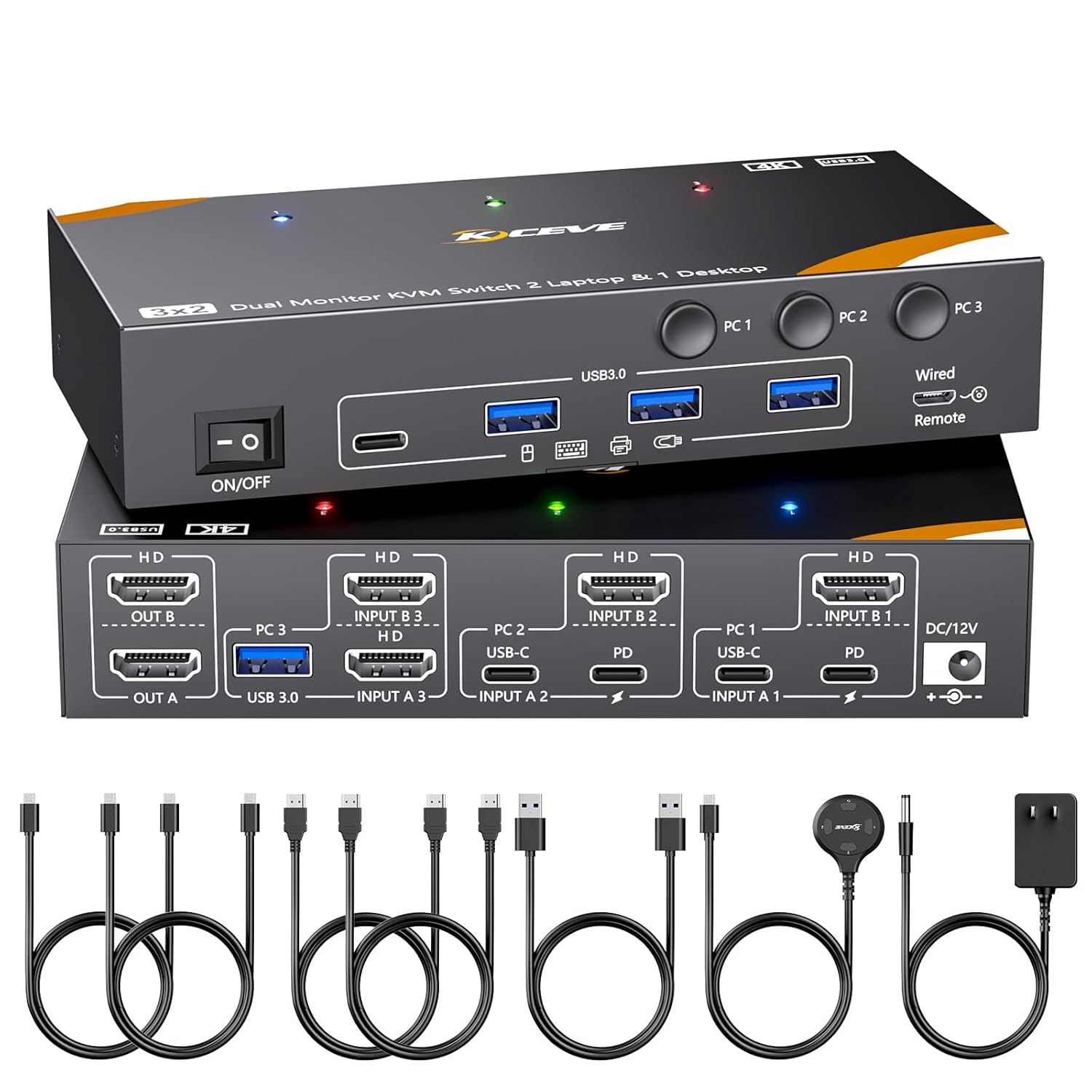
이미지: 앞면과 뒷면 view of the KCEVE KVM Switch unit, showing all connection ports and buttons.
전면 패널 포트:
- 온 / 오프 스위치: Power control for the KVM switch.
- USB 3.0 포트(x4): For connecting USB peripherals like keyboard, mouse, printer, USB drives, etc.
- PC1, PC2, PC3 Buttons: 연결된 컴퓨터 간 전환을 위한 수동 선택 버튼.
- Wired Remote Port: For connecting the external wired remote control.
후면 패널 포트:
- DC 12V : 전원 입력 포트.
- PC1 (USB-C + HDMI): Input for Laptop 1 (USB-C for data/video/PD, HDMI for video).
- PC2 (USB-C + HDMI): Input for Laptop 2 (USB-C for data/video/PD, HDMI for video).
- PC3 (USB 3.0 + HDMI x2): Input for Desktop (USB 3.0 for data, two HDMI for dual video output).
- OUT A / OUT B (HDMI): Output ports for connecting two HDMI monitors.
4. 설정 지침
Follow these steps to correctly set up your KCEVE KVM Switch:
4.1 컴퓨터 연결하기
연결하기 전에 모든 장치의 전원이 꺼져 있는지 확인하세요.
- For Desktop (PC3): Connect two HDMI cables from your desktop's graphics card to the 'INPUT A 3' and 'INPUT B 3' HDMI ports on the KVM switch. Connect one USB 3.0 cable from your desktop's USB port to the 'USB 3.0 INPUT A 3' port on the KVM switch.
- For Laptops (PC1 & PC2): For each laptop, connect one HDMI cable from the laptop's HDMI output to the corresponding 'INPUT A' and 'INPUT B' HDMI ports (e.g., 'INPUT A 1' and 'INPUT B 1' for PC1). Connect one USB-C cable from the laptop's USB-C port to the corresponding 'USB-C IN' port (e.g., 'USB-C IN 1' for PC1). Ensure your laptop's USB-C port and HDMI can output video simultaneously.

Image: A visual guide illustrating how to connect desktop and laptop computers to the KVM switch using HDMI, USB 3.0, and USB-C cables.
4.2 Connecting Monitors
- Connect an HDMI cable from your first monitor to the 'OUT A' HDMI port on the KVM switch.
- Connect an HDMI cable from your second monitor to the 'OUT B' HDMI port on the KVM switch.
4.3 주변기기 연결하기
- Plug your USB keyboard, mouse, and other USB 3.0 devices (e.g., printer, scanner, webcam) into the USB 3.0 ports on the front panel of the KVM switch.
- If desired, connect the wired remote control to the 'Wired Remote' port on the front panel.

Image: Close-up of the KVM switch's front panel, showing USB 3.0 ports connected to a mouse, keyboard, and USB drive, highlighting 5Gbps data transfer.
4.4 전원 연결
- Connect the DC 12V power adapter to the 'DC 12V' port on the rear panel of the KVM switch.
- 전원 어댑터를 벽면 콘센트에 꽂으세요.
The KVM switch also provides 85W Power Delivery (PD) for laptops connected via USB-C. For optimal charging, use a 100W PD charger with the KVM switch.

Image: A laptop connected to the KVM switch, illustrating 85W Power Delivery for charging.
5. 사용 설명서
5.1 컴퓨터 간 전환
연결된 컴퓨터 간에는 다음 두 가지 방법으로 전환할 수 있습니다.
- 패널 버튼: Press the 'PC1', 'PC2', or 'PC3' button on the front panel of the KVM switch to select the desired computer. The LED indicator above the button will light up to show the active computer.
- 유선 리모컨: Use the included 1.5m wired remote control to switch between computers by pressing its button.

Image: Demonstrates switching between computers using both the KVM switch's front panel buttons and the wired remote control.
5.2 디스플레이 모드
The KVM switch supports various display modes for your dual monitors:
- 확장 모드: Displays different content on each monitor, extending your desktop workspace.
- 미러 모드: Duplicates the content of one monitor onto the other.
You can typically switch between these modes by pressing 'Windows + P' on your keyboard (for Windows OS). Please note that Apple M1/M2 chips only support single-screen output, and MacBook Pro (M3) cannot output images through both USB-C and HDMI ports simultaneously.

Image: Two monitors connected to the KVM switch, illustrating both extended desktop and mirrored display configurations.
6. 사양
| 특징 | 설명 |
|---|---|
| 모델 번호 | KC-302HX-CA |
| 입력 포트 | 2 x USB-C (for Laptops), 1 x USB 3.0 (for Desktop), 4 x HDMI (2 for Laptops, 2 for Desktop) |
| 출력 포트 | 2 x HDMI (OUT A, OUT B), 4 x USB 3.0 |
| 비디오 해상도 | Up to 4K@60Hz, 4K@30Hz, 2K@144Hz, 1080P@144Hz (backward compatible) |
| USB 데이터 전송 | 최대 5Gbps(USB 3.0) |
| 전력 공급(PD) | 85W for USB-C connected laptops (requires 100W PD charger for KVM) |
| 전환 방법 | Panel Button, Wired Remote |
| 재료 | 금속 껍질 |
| 치수 | 15.24 x 5.08 x 2.54cm |
| 운영 볼륨tage | 12 볼트 |

Image: Visual representation of 4K@60Hz and 2K@144Hz resolution support.
7. 문제 해결
문제가 발생하면 다음의 일반적인 문제와 해결 방법을 참조하세요.
- 모니터에 아무것도 표시되지 않음:
- Ensure all HDMI and USB-C/USB 3.0 cables are securely connected to both the KVM switch and your computers/monitors.
- Verify the KVM switch is powered on and the correct computer input is selected.
- Check if your laptop's USB-C port and HDMI output can function simultaneously for video.
- Try restarting the KVM switch and connected computers.
- 키보드/마우스가 응답하지 않음:
- Ensure the USB cables from the computers to the KVM switch are properly connected.
- Try plugging the keyboard/mouse into different USB 3.0 ports on the KVM switch.
- Some specialized keyboards/mice may require direct connection to the computer or specific drivers.
- 간헐적인 연결/깜박이는 화면:
- Use high-quality HDMI and USB cables. Longer cables may require active extenders.
- Ensure the KVM switch is receiving adequate power from the DC 12V adapter.
- Check for updated graphics drivers on your computers.
- Laptop Not Charging via USB-C PD:
- Verify that your USB-C cable supports Power Delivery.
- Ensure the KVM switch is powered by the DC 12V adapter and that you are using a 100W PD charger for the KVM switch itself.
8. 유지관리
To ensure the longevity and optimal performance of your KCEVE KVM Switch, please follow these maintenance guidelines:
- 청소: 부드럽고 마른 천을 사용하여 기기 외부를 닦으세요. 액체 세척제나 에어로졸은 기기를 손상시킬 수 있으므로 사용하지 마세요.
- 통풍: 과열을 방지하기 위해 KVM 스위치를 환기가 잘 되는 곳에 설치하십시오. 환기구를 막지 마십시오.
- 케이블 관리 : 케이블 손상을 방지하고 안정적인 연결을 유지하려면 케이블을 정리하고 엉키지 않도록 하십시오.
- 저장: 장시간 사용하지 않을 경우, 직사광선과 극한의 온도를 피해 시원하고 건조한 곳에 보관하세요.
9. 보증 및 지원
KCEVE provides 12 months of after-sales service and lifetime technical support for your KVM switch. If you have any questions or require assistance, please do not hesitate to contact our customer support team.
연락처 정보: Please refer to the contact details provided on the product packaging or the official KCEVE web최신 지원 정보는 사이트에서 확인하세요.