
1. 제품 오버view
The DIERYA Falcon M1 is a high-performance wireless gaming mouse designed for precision and versatility. It features multiple connectivity options, customizable settings, and an ergonomic design for extended use.

그림 1.1: 위에view of the DIERYA Falcon M1 Wireless Gaming Mouse, illustrating its honeycomb design, 2.4GHz/Bluetooth 5.2/USB-C connectivity, 200-24000 DPI range, 125-1000Hz polling rate, 1000mAh battery, 6 programmable buttons, customizable RGB strip, dedicated software support, 20 million click durability, and ultra-light 90-gram weight.

그림 1.2: The Falcon M1 mouse from a side view, highlighting its performance specifications including a maximum tracking speed of 300 IPS, a DPI range of 200-24000, a polling rate of 125-1000Hz, and 35G acceleration.
2. 패키지 내용
아래 나열된 모든 품목이 패키지에 포함되어 있는지 확인하세요.
- DIERYA Falcon M1 Wireless Gaming Mouse
- USB-C 케이블
- 사용 설명서
3. 설정
3.1. 마우스 충전
Before initial use, fully charge the mouse. Connect the provided USB-C cable to the mouse's charging port and the other end to a USB power source (e.g., computer USB port, USB wall adapter). A full charge typically takes approximately 1 hour.
3.2. 마우스 연결
The Falcon M1 supports three connection modes: 2.4GHz Wireless, Bluetooth 5.2, and USB-C Wired.
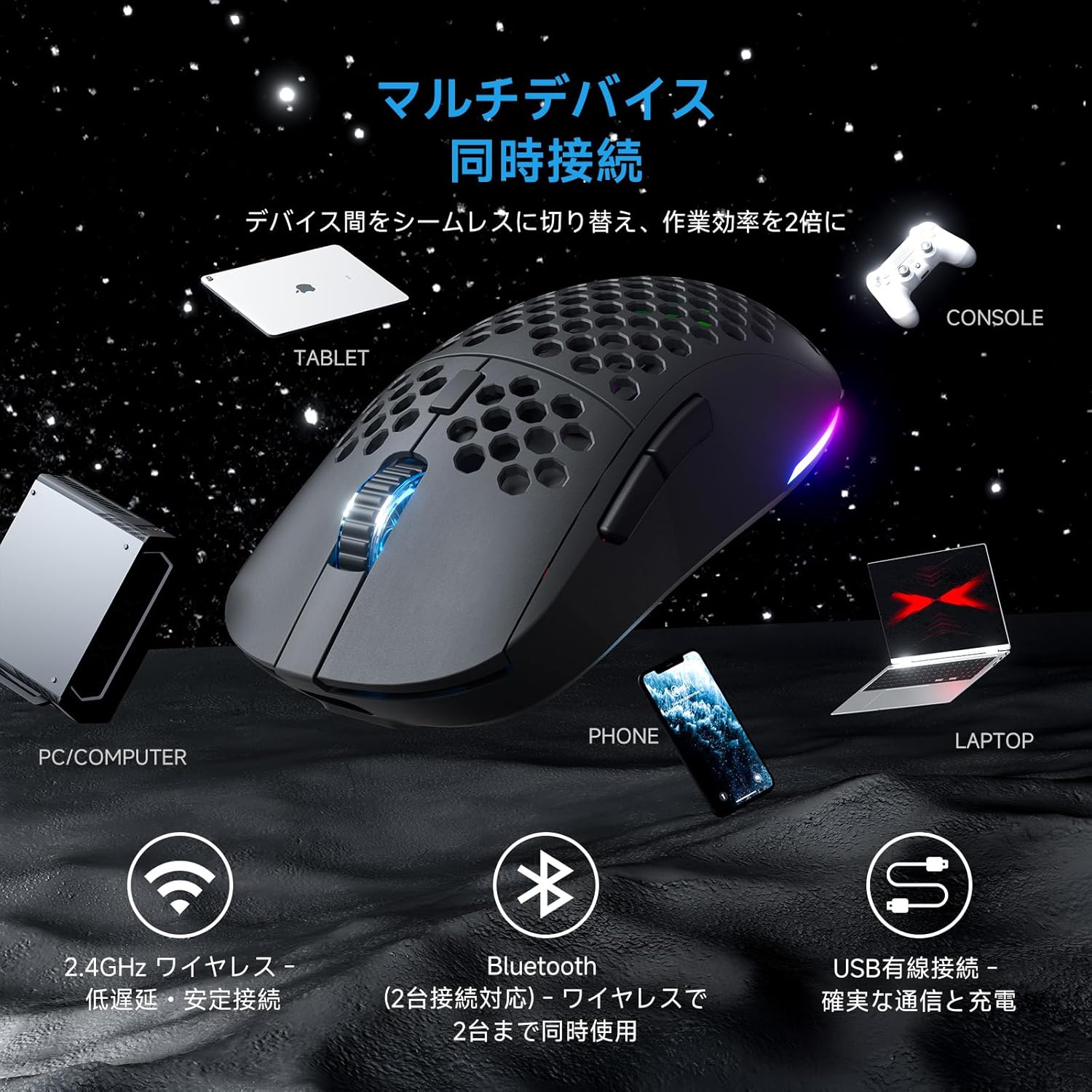
그림 3.1: The Falcon M1 mouse demonstrating multi-device simultaneous connection capabilities, including PC/Computer, Tablet, Phone, Laptop, and Console via 2.4GHz wireless, Bluetooth 5.2, and USB wired connections.
3.2.1. 2.4GHz 무선 연결
- Locate the USB 2.4GHz receiver (dongle) inside the mouse's bottom compartment.
- USB 수신기를 컴퓨터의 사용 가능한 USB 포트에 연결합니다.
- 하단의 전원 스위치를 사용하여 마우스를 켜세요. 마우스가 수신기에 자동으로 연결됩니다.
- The LED indicator on the mouse will show the connection status.
3.2.2. 블루투스 5.2 연결
- Turn on the mouse and switch to Bluetooth mode using the mode switch on the bottom.
- 사용하시는 기기(PC, 노트북, 태블릿, 스마트폰)에서 블루투스를 활성화하고 새로운 기기를 검색하세요.
- Select "DIERYA Falcon M1" from the list of available devices to pair.
- The mouse supports simultaneous connection to two Bluetooth devices. Use the bottom button to switch between saved profiles.
3.2.3. USB-C 유선 연결
- Connect the provided USB-C cable to the mouse and the other end to your computer's USB port.
- 마우스가 자동으로 유선 모드로 전환되고 충전이 시작됩니다.
4. 사용 설명서
4.1. DPI 조정
The Falcon M1 offers a wide DPI range from 200 to 24,000, adjustable in 1-unit increments. It comes with 6 preset DPI levels (400/800/1600/3200/4800/6400). You can cycle through these presets using the dedicated DPI button on the mouse. The current DPI setting is indicated by the color of the wheel LED and RGB strip (White/Yellow/Light Blue/Blue/Green/Red).
4.2. 버튼 사용자 정의
The mouse features 6 programmable buttons. To customize button functions, assign macros, or fine-tune settings, download and install the dedicated driver software from the official DIERYA website. The software is compatible with Windows systems.

그림 4.1: Screenshot of the DIERYA Falcon M1 customization software, showing options for key functions, DPI adjustment, USB report rate, and various lighting effects. Note: This software is primarily for Windows systems.
4.3. RGB 조명 제어
The Falcon M1 features customizable RGB lighting with 13 preset effects (e.g., breathing, flicker, flow, starlight) and 16.8 million color options. Lighting effects can be adjusted through the dedicated driver software.

그림 4.2: The Falcon M1 mouse showcasing its customizable RGB full-color lighting, with options for 13 preset light effects and 16.7 million colors, allowing for personalized lighting modes.
4.4. 전원 관리
The mouse is equipped with a 1000mAh battery, offering up to 180 hours of use in ECO mode (RGB lighting off) and 48 hours with full RGB lighting. It features automatic sleep functions to conserve power:
- 가벼운 수면: Activates after 1 minute of inactivity.
- 깊은 잠: 5분간 활동이 없으면 활성화됩니다.
The sleep activation times can be configured via the dedicated software.

그림 4.3: Illustration of the Falcon M1's smart power management, showing a 1000mAh battery providing up to 180 hours in ECO mode (RGB off) and 45 hours with RGB on. It also details light sleep (1 min inactivity) and deep sleep (5 min inactivity) features.
5. 유지관리
5.1. 청소
최적의 성능과 외관을 유지하려면 마우스를 정기적으로 청소하세요.
- 부드럽고 마른 천으로 마우스 표면을 닦으세요.
- 완고한 먼지에는 약간 damp천에 물이나 순한 세척액을 묻혀 닦으세요. 강한 화학 물질은 피하세요.
- Use compressed air to clear dust from the honeycomb structure and sensor area.
5.2. 보관
장시간 사용하지 않을 때는 마우스를 직사광선과 극한의 온도를 피해 서늘하고 건조한 곳에 보관하세요. 배터리 수명을 절약하려면 마우스 전원을 꺼두세요.
6. 문제 해결
If you encounter issues with your DIERYA Falcon M1 mouse, please refer to the following common solutions:
- 마우스가 응답하지 않습니다. Ensure the mouse is charged and turned on. Check the connection mode (2.4GHz, Bluetooth, or wired) and ensure it matches your device's connection. For 2.4GHz, ensure the USB receiver is properly plugged in. For Bluetooth, re-pair the device.
- DPI가 변경되지 않음: Press the DPI button to cycle through presets. If using custom DPI settings, ensure the driver software is installed and configured correctly.
- RGB 조명이 작동하지 않습니다: Check if RGB lighting is enabled in the driver software. Ensure the mouse has sufficient battery charge, as RGB consumes power.
- 지연 또는 연결 끊김: For wireless connections, ensure there are no strong interferences (e.g., other wireless devices, large metal objects) between the mouse and the receiver/device. Try moving closer to the receiver or switching to a wired connection.
For further assistance, please visit the official DIERYA support web대지.
7. 사양
Detailed technical specifications for the DIERYA Falcon M1 Wireless Gaming Mouse:

그림 7.1: The Falcon M1 mouse with its dimensions (125mm length, 63mm width, 41mm height) and illustrations of compatible grip styles: Palm Grip, Finger Tip Grip, and Claw Grip. Optimized for medium to large hands (approx. 17cm or larger).

그림 7.2: 클로즈업 view of the Falcon M1 mouse, highlighting its breathable honeycomb structure for comfort, sure-grip matte texture, and ultra-smooth PTFE feet for effortless gliding.
| 특징 | 사양 |
|---|---|
| 상표 | 디에리아 |
| 모델 | M1 |
| 색상 | 검은색 |
| 연결성 | 2.4GHz 무선, 블루투스 5.2, USB-C 유선 |
| 움직임 감지 | 광학 |
| DPI 범위 | 200 - 24,000 DPI (adjustable in 1-unit increments) |
| DPI 사전 설정 | 400, 800, 1600, 3200, 4800, 6400 |
| 폴링 속도 | 125~1000Hz |
| 버튼 | 6 (프로그래밍 가능) |
| 스위치 | Huano (20 million click durability) |
| 무게 | 약 90g |
| 치수 | 125 x 63 x 41mm |
| 배터리 용량 | 1000mAh |
| 배터리 수명 | Up to 180 hours (ECO mode), 48 hours (Full RGB) |
| 충전 시간 | Approx. 1 hour (USB-C) |
| 호환 OS | Windows 10, Windows 11, macOS, Linux |
| 손의 방향 | 오른손잡이 |
| 외장재 | 플라스틱 |
8. 보증 및 지원
8.1. 보증 정보
The DIERYA Falcon M1 Wireless Gaming Mouse comes with a 1년 보증 against manufacturing defects from the date of purchase. Please retain your proof of purchase for warranty claims. This warranty does not cover damage caused by misuse, accidents, unauthorized modifications, or normal wear and tear.
8.2. 고객 지원
For technical support, warranty claims, or additional product information, please visit the official DIERYA web사이트를 참조하거나 고객 서비스에 문의하세요. 포장 또는 공식 web최신 연락처 정보는 사이트에서 확인하세요.