
1. 서론
Thank you for choosing the ZEUSLAP Z18W Dual Screen Portable Monitor. This device is designed to enhance your productivity and multimedia experience by providing two additional 18.5-inch displays for your compatible devices. This manual provides essential information for setting up, operating, and maintaining your monitor.
2. 제품 오버view
2.1 주요 특징
- Dual 18.5-inch Full HD IPS Displays: 생생한 색상과 다양한 디자인을 즐겨보세요 viewing angles with 1920x1080 resolution on each screen.
- 120Hz 재생률: Experience smooth visuals, ideal for gaming and fast-paced multimedia.
- Type-C 연결: Single cable solution for power and video transmission with compatible devices.
- 100% sRGB 색역: Ensures accurate and rich color reproduction.
- 300 cd/m² Brightness: 다양한 조명 조건에서도 선명한 가시성을 제공합니다.
- 터치 스크린 기능: Interact directly with the display for intuitive control.
- 폭넓은 호환성: Connects to Laptops, Desktops, Gaming Consoles, and Smartphones.
2.2 패키지 내용
다음 품목이 패키지에 포함되어 있는지 확인하세요.
- ZEUSLAP Z18W Dual Screen Portable Monitor
- USB-C to USB-C Cable (for video and power)
- USB-A to USB-C Power Cable (for additional power if needed)
- 사용자 설명서

This image shows the ZEUSLAP Z18W dual portable monitor set up next to a laptop, demonstrating its extended display capabilities for enhanced productivity.
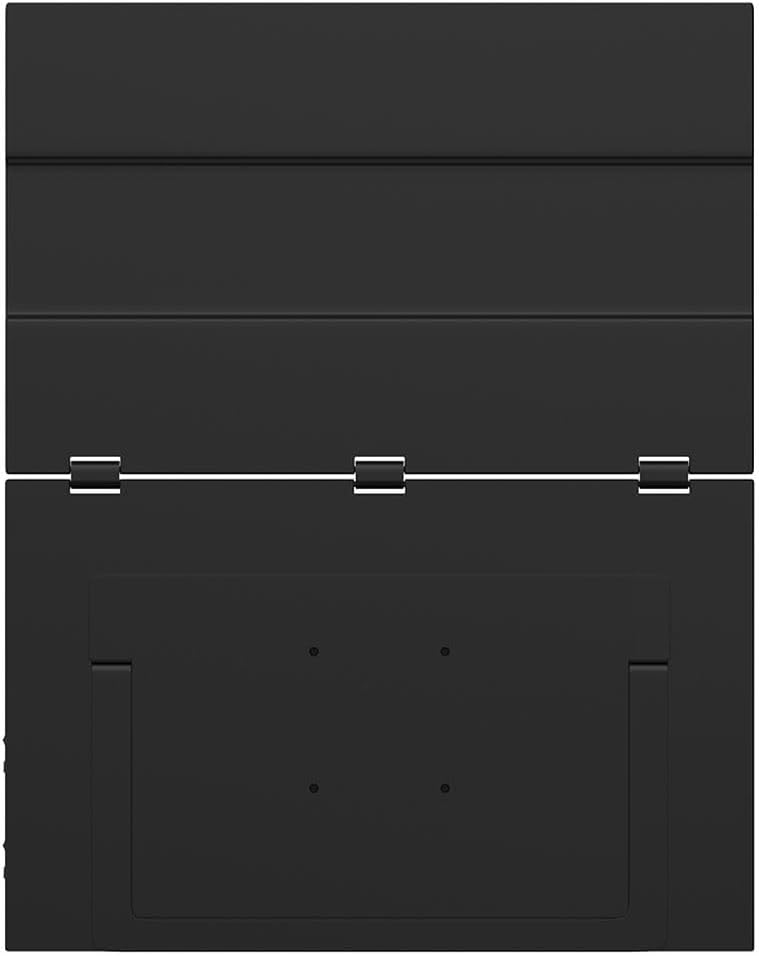
뒤 view of the ZEUSLAP Z18W monitor highlights its robust hinge design and integrated stand, allowing for flexible positioning and stability.
3. 설정
3.1 장치에 연결하기
The ZEUSLAP Z18W monitor supports various connection methods. Ensure your device has the necessary ports.
- USB-C(모든 기능 포함): If your laptop, smartphone, or gaming console has a full-featured USB-C port (supporting DisplayPort Alternate Mode and power delivery), connect the monitor using the provided USB-C to USB-C cable. This single cable can transmit video, audio, and power to the monitor.
- USB-C (Power Only) + HDMI (Video): If your device's USB-C port does not support video output, or if you are connecting to a device with an HDMI port, you will need two cables:
- Connect an HDMI cable (not included) from your device to the monitor's HDMI input.
- Connect the provided USB-A to USB-C power cable from a USB power source (e.g., laptop USB port, wall adapter) to the monitor's USB-C power input.
3.2 전원 켜기/끄기
- 전원 켜기: Once connected to a compatible device and receiving power, the monitor should automatically power on. If not, press the Power button located on the side of the monitor.
- 전원 끄기 : Press and hold the Power button for a few seconds until the display turns off. Disconnect the cables when not in use.
4. 사용 설명서
4.1 온스크린 디스플레이(OSD) 메뉴
The OSD menu allows you to adjust various display settings. The monitor typically features a joystick or a set of buttons for navigation.
- OSD에 접근하기: Press the OSD button (or push the joystick) to open the menu.
- 항해: Use the joystick or directional buttons to move through menu options.
- 선택: Press the OSD button (or push the joystick in) to select an option.
- 출구: Navigate to the 'Exit' option or press the 'Back' button to close the OSD menu.
Common OSD settings include Brightness, Contrast, Color Temperature, Input Source, Aspect Ratio, and Volume.
4.2 디스플레이 모드
컴퓨터에 연결하면 운영 체제의 디스플레이 설정을 통해 표시 모드를 구성할 수 있습니다.
- 확장 모드: Each monitor displays a separate desktop, allowing for more screen space and multitasking.
- 복제 모드: All monitors display the same content, useful for presentations or sharing your screen.
4.3 터치 스크린 기능
The ZEUSLAP Z18W features a touch screen. For touch functionality to work, ensure your device supports touch input over the connected interface (typically USB-C) and that the necessary drivers are installed (usually automatically by the operating system).
- 싱글 터치: Tap to select or open items.
- 멀티터치 제스처: Use gestures like pinch-to-zoom, two-finger scroll, etc., as supported by your operating system.
5. 유지관리
5.1 모니터 청소
- 청소하기 전에는 반드시 모니터 전원을 끄고 모든 케이블을 분리하십시오.
- 부드럽고 보풀이 없는 천을 살짝 사용하십시오. damp물이나 비연마성 화면 세척제로 세척하세요.
- 세척제를 화면에 직접 뿌리지 마세요.
- 알코올, 암모니아 또는 연마성 세척제는 화면 표면을 손상시킬 수 있으므로 사용하지 마십시오.
5.2 보관
- 모니터는 직사광선과 극한의 온도를 피해 서늘하고 건조한 곳에 보관하세요.
- Use the original packaging or a protective case to prevent damage during transport or storage.
6. 문제 해결
| 문제 | 가능한 원인 | 해결책 |
|---|---|---|
| 디스플레이 없음 / "신호 없음" 메시지 |
|
|
| Monitor powers on but no image |
|
|
| 터치 스크린이 응답하지 않습니다 |
|
|
| 깜빡이거나 왜곡된 이미지 |
|
|
7. 사양
| 특징 | 세부 사항 |
|---|---|
| 모델명 | Z18W |
| 화면 크기 | 2 x 18.5 인치 |
| 해결 | 1920 x 1080(풀HD) |
| 새로 고침 빈도 | 120Hz |
| 패널 유형 | IPS |
| 색상 영역 | 100% sRGB |
| 명도 | 300칸델라/제곱미터 |
| 연결성 | USB-C, USB |
| 특별 기능 | Dual Screen, High Refresh Rate, Type-C Connection, Touch Screen |
| 호환 장치 | Laptop, Desktop, Gaming Console, Smartphone |
8. 보증 및 지원
The ZEUSLAP Z18W Dual Screen Portable Monitor comes with a standard manufacturer's warranty. Please refer to the warranty card included in your package for specific terms and conditions, including the warranty period and coverage details.
For technical support, troubleshooting assistance, or warranty claims, please contact the retailer where you purchased the product or visit the official ZEUSLAP web고객 서비스 연락처 정보를 제공하는 사이트입니다.