
1. 서론
Thank you for choosing the Zeuslap Z13KT 13.3-inch Portable Touchscreen Monitor. This device is designed to enhance your productivity and entertainment experience with its high-resolution 2K IPS display, 100% sRGB color gamut, and responsive touch functionality. This manual provides essential information for the safe and efficient use of your monitor, including setup, operation, maintenance, and troubleshooting.
2. 안전 정보
- 모니터를 사용하기 전에 모든 지침을 주의 깊게 읽으십시오.
- 모니터를 비, 습기 또는 극한의 온도에 노출시키지 마세요.
- 모니터를 열원 근처나 직사광선에 노출시키지 마세요.
- 제조사에서 제공하거나 권장하는 전원 어댑터와 케이블만 사용하십시오.
- 모니터를 직접 분해하거나 수리하지 마십시오. 모든 정비는 자격을 갖춘 기술자에게 맡기십시오.
- Clean the monitor with a soft, dry cloth. Avoid using liquid cleaners or aerosols.
- 모니터를 강한 자기장으로부터 멀리하세요.
3. 패키지 내용
제품을 개봉하신 후 구성품을 확인해 주십시오. 누락된 품목이나 손상된 품목이 있을 경우 판매점에 문의해 주십시오.
- Zeuslap Z13KT Portable Monitor
- USB-C-USB-C 케이블 (전원 및 비디오/터치용)
- 미니 HDMI-HDMI 케이블 (영상용)
- USB-A-USB-C 케이블(전원용)
- 전원 어댑터(포함된 경우)
- 보호 커버/스탠드
- 사용 설명서 (본 문서)
4. 제품 오버view
모니터의 구성 요소와 포트에 익숙해지세요.
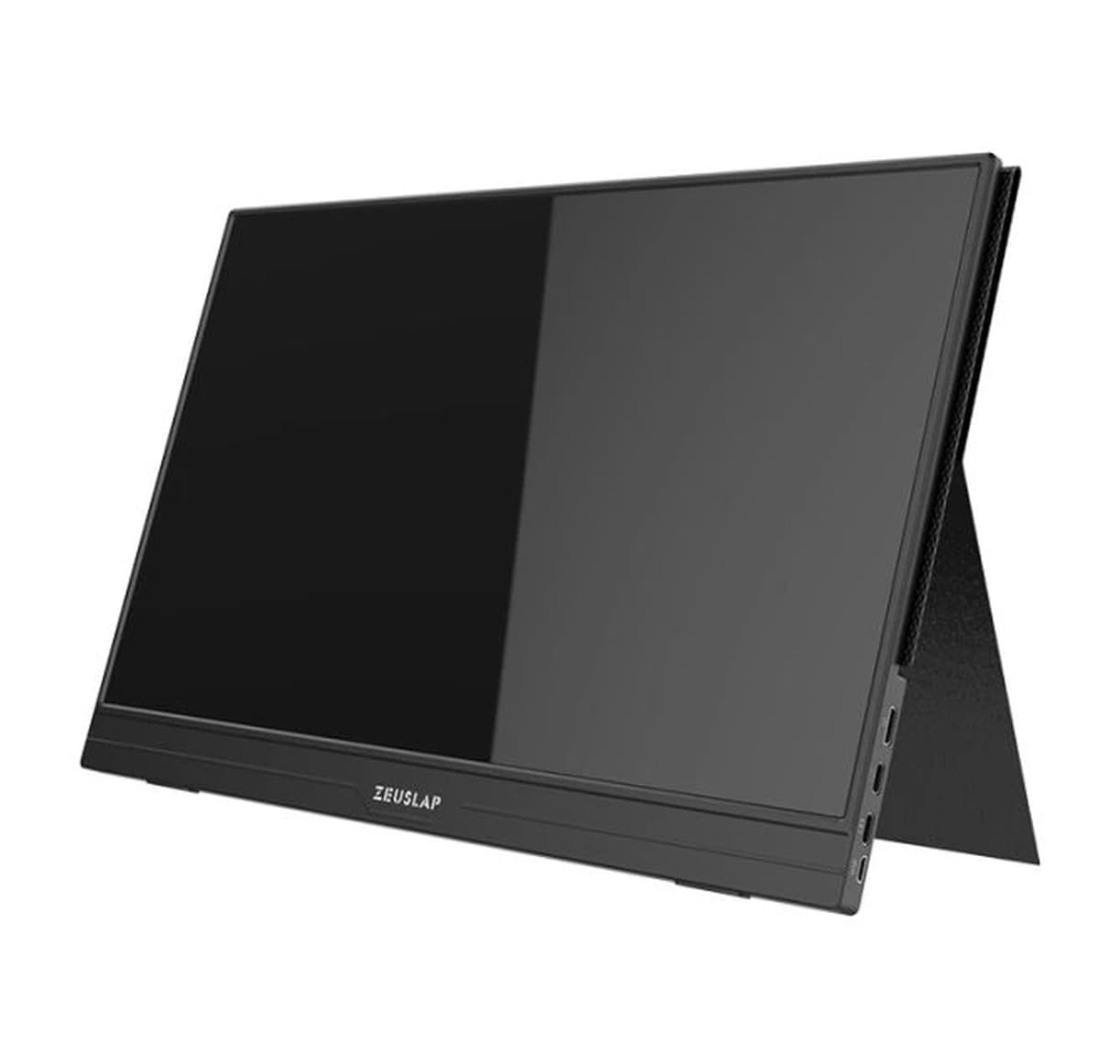
그림 4.1: 앞쪽 view of the Zeuslap Z13KT portable monitor, showcasing its slim design and screen.
4.1. 모니터 구성 요소
- 13.3-inch 2K IPS Touchscreen: Main display area with touch input capability.
- 전원 버튼: Turns the monitor on/off and can be used to access the OSD menu.
- 메뉴/탐색 버튼: 화면 메뉴(OSD)를 탐색하기 위한 것입니다.
- 스피커: 통합 오디오 출력.
4.2. Available Ports
- USB-C Port (Full-featured): For power, video signal, and touch data transmission from compatible devices (e.g., laptops, smartphones).
- USB-C Port (Power Only): For connecting to an external power adapter to supply power to the monitor.
- 미니 HDMI 포트: For video signal input from devices like gaming consoles, cameras, or older laptops.
- 3.5mm 오디오 잭: 외부 헤드폰이나 스피커를 연결하는 데 사용합니다.
5. 설정
Follow these steps to connect your Zeuslap Z13KT monitor to your device.
5.1. Connecting to a Laptop/PC (USB-C with DisplayPort Alt Mode)
- Ensure your laptop's USB-C port supports DisplayPort Alternate Mode (DP Alt Mode) and power delivery.
- Connect one end of the provided USB-C to USB-C cable to the full-featured USB-C port on the monitor.
- Connect the other end of the USB-C to USB-C cable to your laptop's compatible USB-C port.
- The monitor should automatically detect the signal and power on. If not, press the monitor's power button.
- For touch functionality, ensure the USB-C connection is established correctly.
5.2. Connecting to a Laptop/PC (HDMI + USB for Power/Touch)
- Mini HDMI-HDMI 케이블의 한쪽 끝을 모니터의 Mini HDMI 포트에 연결합니다.
- HDMI 케이블의 다른 쪽 끝을 노트북의 HDMI 포트에 연결하세요.
- For power, connect the USB-A to USB-C cable from your laptop's USB-A port (or a power adapter) to the power-only USB-C port on the monitor.
- For touch functionality, if your laptop has a USB-A port, connect the USB-A end of the USB-A to USB-C cable to your laptop and the USB-C end to the full-featured USB-C port on the monitor. This will provide touch data.
- The monitor should power on and display the image.
5.3. Connecting to a Smartphone (USB-C with DisplayPort Alt Mode)
Note: Not all smartphones support video output via USB-C. Check your phone's specifications.
- Connect one end of the USB-C to USB-C cable to the full-featured USB-C port on the monitor.
- Connect the other end of the USB-C to USB-C cable to your compatible smartphone's USB-C port.
- The monitor will draw power from the phone. For extended use or if the phone cannot supply enough power, connect an external power adapter to the monitor's power-only USB-C port.
- The monitor should display your phone's screen, and touch functionality should be active.
6. 사용 설명서
6.1. 전원 켜기/끄기
- 전원을 켜려면: 전원 버튼을 누르세요.
- 전원을 끄려면: 전원 버튼을 3초간 길게 누르세요.
6.2. 화면 디스플레이(OSD) 메뉴
OSD 메뉴를 사용하면 다양한 모니터 설정을 조정할 수 있습니다.
- OSD에 접근하기: Press the Menu button (or short press the Power button, depending on model variation).
- 항해: Use the navigation buttons (or touch gestures if enabled) to move through menu options.
- 선택: Press the Menu button (or tap) to select an option.
- 출구: Navigate to the "Exit" option or wait for the OSD to time out.
6.3. 일반적인 OSD 설정
- 밝기/대비: 화면 밝기와 명암비를 조정하세요.
- 색상 설정: 색온도, 색조 및 채도를 조정하세요.
- 입력 소스: USB-C와 Mini HDMI 입력 중에서 수동으로 선택하세요.
- 종횡비: 화면 비율을 변경하세요(예: 16:9, 4:3).
- 용량: Adjust the built-in speaker volume.
- 언어: OSD 메뉴 언어를 선택하세요.
6.4. 터치스크린 기능
The monitor supports multi-touch gestures. Ensure your device (laptop/smartphone) is compatible and connected via a full-featured USB-C cable for touch input to function.
- 수도꼭지: 마우스 클릭과 동일합니다.
- 강타: 스크롤 또는 탐색을 위해.
- 핀치 투 줌: For zooming in or out on content.
7. 유지관리
7.1. 모니터 청소
- 청소하기 전에는 항상 모니터의 전원을 끄고 플러그를 뽑으세요.
- 부드럽고 보풀 없는 천으로 화면을 살살 닦아주세요.asing.
- 완고한 얼룩의 경우 가볍게 damp천에 물이나 화면 전용 세척액을 묻혀 닦으세요. 화면에 직접 액체를 뿌리지 마세요.
- 연마성 세척제, 알코올 또는 암모니아 기반 용액은 화면 표면을 손상시킬 수 있으므로 사용을 피하십시오.
7.2. 보관
- When not in use, store the monitor in a cool, dry place.
- Use the provided protective cover to prevent scratches and dust accumulation.
- 모니터 위에 무거운 물건을 올려놓지 마세요.
8. 문제 해결
모니터에 문제가 발생하면 다음의 일반적인 문제와 해결 방법을 참조하세요.
| 문제 | 가능한 원인 | 해결책 |
|---|---|---|
| 화면 안 나옴/신호 없음 |
|
|
| 터치스크린이 작동하지 않음 |
|
|
| 디스플레이가 깜빡이거나 불안정함 |
|
|
| 모니터 스피커에서 소리가 나지 않습니다. |
|
|
9. 사양
| 특징 | 세부 사항 |
|---|---|
| 모델 | ZL-Z13KT |
| 화면 크기 | 13.3인치 |
| 해결 | 2560 x 1600(2K) |
| 새로 고침 빈도 | 60Hz |
| 패널 유형 | IPS |
| 색상 영역 | 100% sRGB |
| 명도 | 300칸델라/제곱미터 |
| 터치스크린 | 예 |
| 연결성 | 2x USB-C (1x Full-featured, 1x Power), 1x Mini HDMI, 1x 3.5mm Audio Jack |
| 전원 입력 | USB-C (5V-20V) |
10. 보증 및 지원
Specific warranty information for the Zeuslap Z13KT monitor is not available in the provided product data. Please refer to the warranty card included with your product or visit the official ZEUSLAP web자세한 보증 약관은 해당 사이트에서 확인하세요.
For technical support, product inquiries, or service requests, please contact your retailer or the manufacturer directly through their official support channels.


