
Upvivi X88 PRO 14
Upvivi Android 14 TV Box User Manual
Model: X88 PRO 14
소개
Thank you for choosing the Upvivi Android 14 TV Box. This device transforms your television into a smart entertainment hub, offering access to a wide range of applications, streaming services, and media content. Featuring the latest Android 14 operating system, a powerful RK3518 Quad-Core CPU, 4K Ultra HD support, Wi-Fi 6, and Bluetooth 5.0, this TV box delivers a smooth and immersive viewing experience. This manual provides detailed instructions for setting up, operating, maintaining, and troubleshooting your device to ensure optimal performance.
패키지 내용
다음 항목에 대한 상자를 체크해 주세요.
- 1 x Android 14.0 TV Box (2GB+16GB)
- 1 x IR Remote Control (배터리는 포함되어 있지 않습니다)
- 1 x 전원 어댑터(DC 5V/2A)
- 1 x HDMI 케이블
- 1 x 사용자 매뉴얼(이 문서)

Image: The Upvivi Android 14 TV Box and its accompanying remote control, as typically found in the package.
제품 끝view
The Upvivi Android 14 TV Box is designed for ease of use and high performance. Below is an overview of its key features and interface ports.

이미지: 앞면 view of the TV box, highlighting its Android 14 OS, 4K video capability, Wi-Fi 6, 10/100M Ethernet, and Bluetooth 5.0 features.
인터페이스 포트
The device is equipped with various ports for connectivity:
- DC 포트 : 전원 어댑터를 연결합니다.
- SPDIF: 디지털 오디오 출력.
- HDMI : TV나 디스플레이에 연결하여 비디오와 오디오를 출력합니다.
- LAN : 유선 네트워크 연결을 위한 이더넷 포트.
- USB 2.0 포트 : For connecting USB devices like flash drives, keyboards, or mice.
- USB 3.0 포트 : High-speed USB port for faster data transfer with compatible devices.
- TF 카드 슬롯 : For inserting Micro SD cards to expand storage.
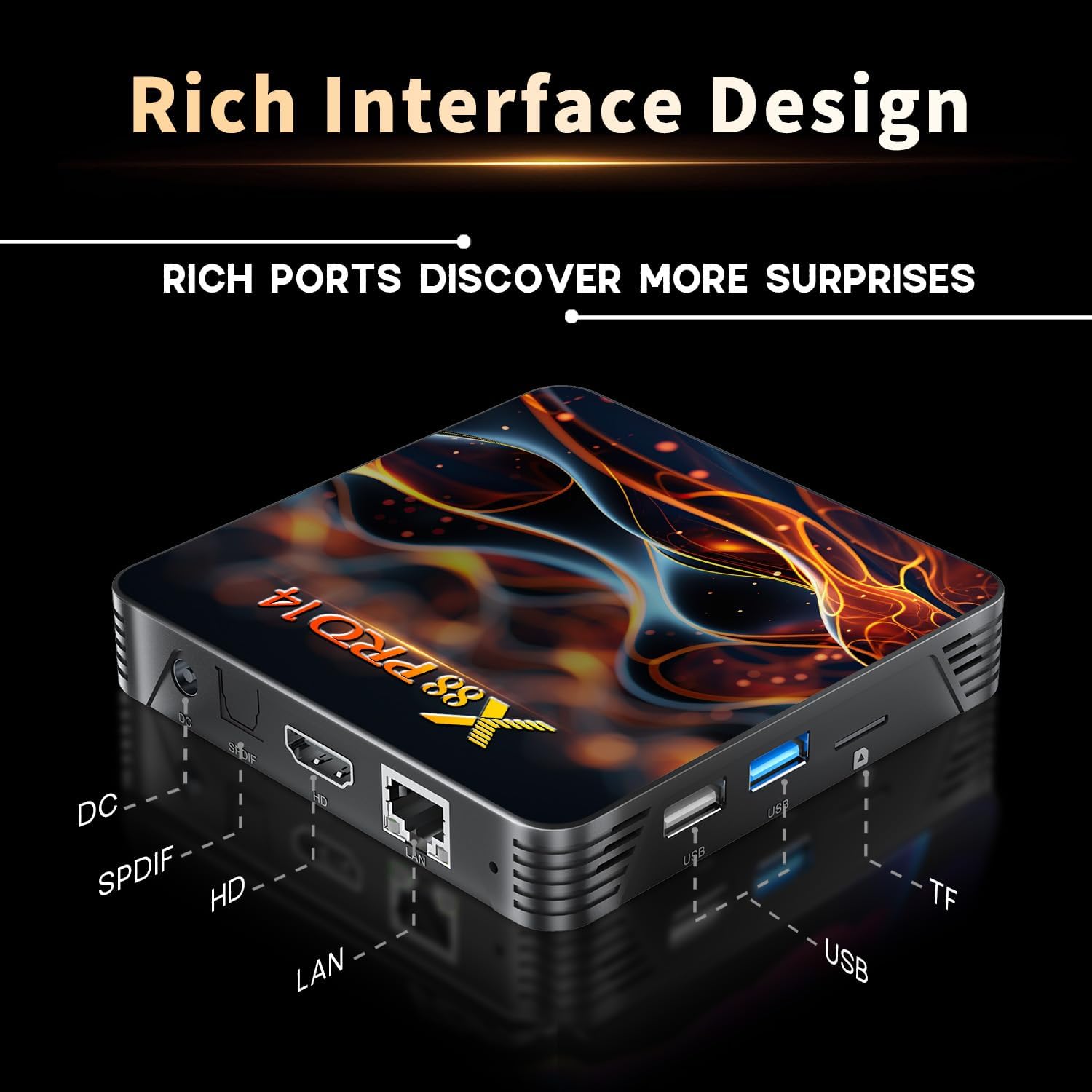
Image: A detailed diagram illustrating the various input and output ports available on the TV box, including DC, SPDIF, HDMI, LAN, USB, and TF card slot.
설치 가이드
Follow these steps to set up your Upvivi Android 14 TV Box:
- 전원에 연결: Insert the DC 5V/2A power adapter into the DC port on the TV box, then plug the adapter into a wall outlet. The power indicator LED on the box will illuminate.
- TV에 연결: Use the provided HDMI cable to connect the HDMI port on the TV box to an available HDMI input on your television.
- 입력 선택: Turn on your TV and use its remote control to select the correct HDMI input source that your TV box is connected to.
- 네트워크 연결 :
- 와이파이: Once the box boots up, navigate to the Settings menu, select Network, and choose Wi-Fi. Select your network from the list, enter the password, and connect.
- 이더넷: For a wired connection, connect an Ethernet cable from your router to the LAN port on the TV box. The device will automatically detect and connect to the wired network.
- 초기 설정 : Follow the on-screen prompts to complete the initial setup, including language selection, time zone, and Google account login (optional, but recommended for app access).
작동 지침
원격 제어
The included IR remote control allows you to navigate the TV box interface. Ensure batteries are inserted correctly (not included). Point the remote directly at the TV box for optimal response.
Image: The TV box and its remote control. The remote features navigation buttons, volume controls, and dedicated function keys.
탐색 및 인터페이스
The Android 14 interface is user-friendly. Use the directional buttons on the remote to move between icons and options. The 'OK' button confirms selections, and the 'Back' button returns to the previous screen. The 'Home' button takes you to the main launcher screen.

Image: The Android 14 TV Box interface displayed on a television screen, showing various application icons like Netflix, YouTube, and Google Play Store.
주변 장치 연결
The TV box supports various peripherals:
- USB 장치: Connect USB flash drives, external hard drives (up to 1TB), wired keyboards, or mice to the USB 2.0 or USB 3.0 ports.
- 블루투스 장치: Pair Bluetooth-enabled devices such as wireless mini-keyboards, game controllers, or speakers via the Bluetooth 5.0 connectivity. Go to Settings > Connected devices > Pair new device.
- 마이크로 SD 카드 : Insert a Micro SD card (up to 64GB) into the TF card slot for additional storage.
Multi-Domain Applications
The TV box supports a variety of entertainment and utility applications, allowing you to watch TV, play games, listen to music, and stream live events.

Image: Visual representation of the TV box's versatility, showing its use for watching TV, playing games, listening to music, and watching sports.
기술 사양
Detailed specifications of the Upvivi Android 14 TV Box:
| 운영 체제 | 안드로이드 14.0 |
| 칩셋 | RK3518 쿼드 코어 64비트 Cortex-A53 |
| 그래픽 카드 | 말리 450 MP2 |
| 플래시 스토리지 | EMMC 16GB |
| SD램 | 2GB |
| USB 포트 | 1 x Type-A USB 2.0, 1 x Type-A USB 3.0 |
| 랜 | 이더넷: 10/100M 표준 RJ-45 |
| 무선 연결 | 2.4G / 5G dual-band Wi-Fi 802.11 a/b/g/n/ac/ax (Wi-Fi 6) |
| 블루투스 | V5.0 |
| 카드 리더기 | Micro SD cards, Maximum support 64GB |
| 디스플레이 포트 | HDMI |
| HDMI 버전 | HDMI 2.0b for 4K@60Hz |
| 비디오 출력 | 4K (3840x2160 pixel) High Definition |
| 전원 공급 장치 | INPUT: 100-240V 50/60HZ, OUTPUT: DC 5V/2A |
| 작동 온도 | -10℃ ~ 45℃ |
| 지원 언어 | 영어, 프랑스어, 독일어, 스페인어, 이탈리아어 등 |
성능 하이라이트

Image: Diagram illustrating the RK3518 Quad-Core Cortex-A53 processor, emphasizing its enhanced computing power and lower power consumption for better performance.
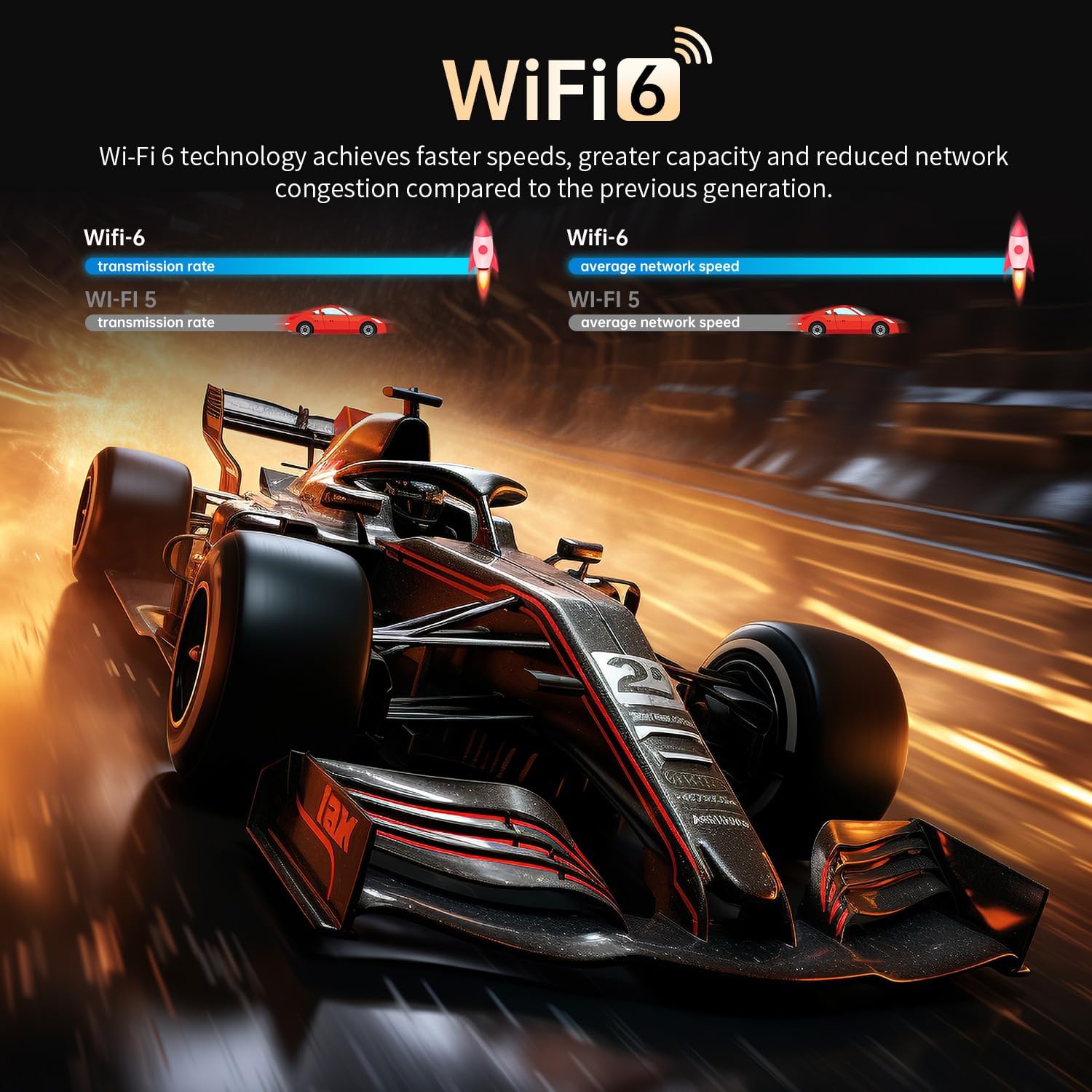
Image: A visual comparison highlighting the benefits of Wi-Fi 6 technology, showing faster speeds, greater capacity, and reduced network congestion compared to Wi-Fi 5.

Image: A visual demonstration of 4K HDR10 quality, showcasing super bright colors, sharper contrast, and richer details compared to standard 1080p.
유지 보수 및 관리
To ensure the longevity and optimal performance of your TV box, follow these maintenance guidelines:
- 청소: 부드럽고 마른 천을 사용하여 기기 외부를 닦으세요. 액체 세척제나 에어로졸은 사용하지 마세요.
- 통풍: Ensure the TV box is placed in a well-ventilated area. Do not block the ventilation holes. Proper airflow is crucial for heat dissipation.
- 온도: Operate the device within the specified temperature range (-10℃ to 45℃). Avoid exposing it to extreme heat or cold.
- 전원 끄기 : When not in use for extended periods, it is recommended to power off the device and unplug the power adapter.
열 발산
The TV box is designed with efficient heat dissipation to maintain stable operation.
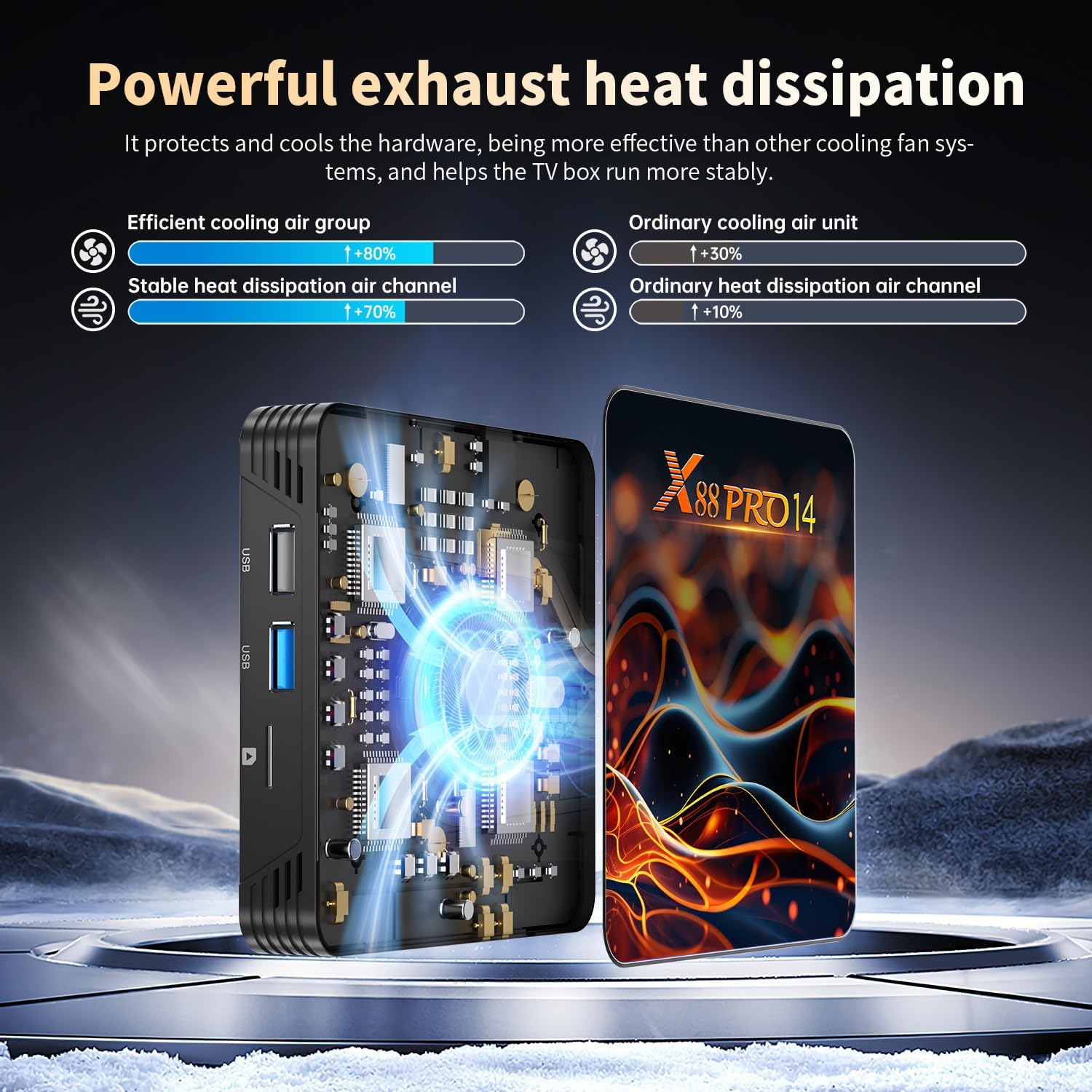
이미지: 내부 view highlighting the powerful exhaust heat dissipation system, showing how it protects hardware and ensures stable operation by being more effective than ordinary cooling solutions.
문제 해결
If you encounter issues with your Upvivi Android 14 TV Box, please refer to the following common problems and solutions:
- 전원 없음:
- Ensure the power adapter is securely connected to the TV box and a working power outlet.
- 전원 콘센트가 활성화되어 있는지 확인하세요.
- TV에 영상이 나오지 않음:
- Check if the HDMI cable is securely connected to both the TV box and the TV.
- TV가 올바른 HDMI 입력 소스로 설정되어 있는지 확인하세요.
- 다른 HDMI 케이블이나 TV의 HDMI 포트를 사용해 보세요.
- 소리 없음:
- Check the volume levels on both the TV box and your TV.
- Ensure the HDMI cable is functioning correctly.
- Verify audio output settings on the TV box (Settings > Sound).
- Wi-Fi 연결 문제:
- 와이파이 공유기가 켜져 있고 제대로 작동하는지 확인하세요.
- Wi-Fi 비밀번호를 다시 한번 정확하게 입력하세요.
- Move the TV box closer to the router or try connecting via Ethernet.
- Restart both the TV box and your router.
- 리모콘이 응답하지 않음:
- 리모컨의 배터리를 확인하고 교체하세요.
- 리모컨과 셋톱박스의 적외선 수신기 사이에 장애물이 없는지 확인하십시오.
- 시스템 지연/멈춤:
- 불필요한 백그라운드 애플리케이션을 닫습니다.
- Clear cache for frequently used apps (Settings > Apps > [App Name] > Clear cache).
- 셋톱박스를 재시작하세요.
- 충분한 저장 공간을 확보하세요.
보증 및 지원
Upvivi provides a 2년 보증 for this product, along with lifetime technical support.
If you have any questions, concerns, or require technical assistance, please do not hesitate to contact our customer support team. We are committed to providing a solution within 24 hours.
For support, please refer to the contact information provided on the product packaging or the official Upvivi web대지.
Ask a question about this manual
Ask about setup, troubleshooting, compatibility, parts, safety, or missing instructions. Manuals+ will review the question and use this page’s manual context to help answer it.