
소개
This manual provides essential information for the setup, operation, and maintenance of your Minifire MFG27C1 27-inch Curved Gaming Monitor. Please read this manual thoroughly before using the product and retain it for future reference.
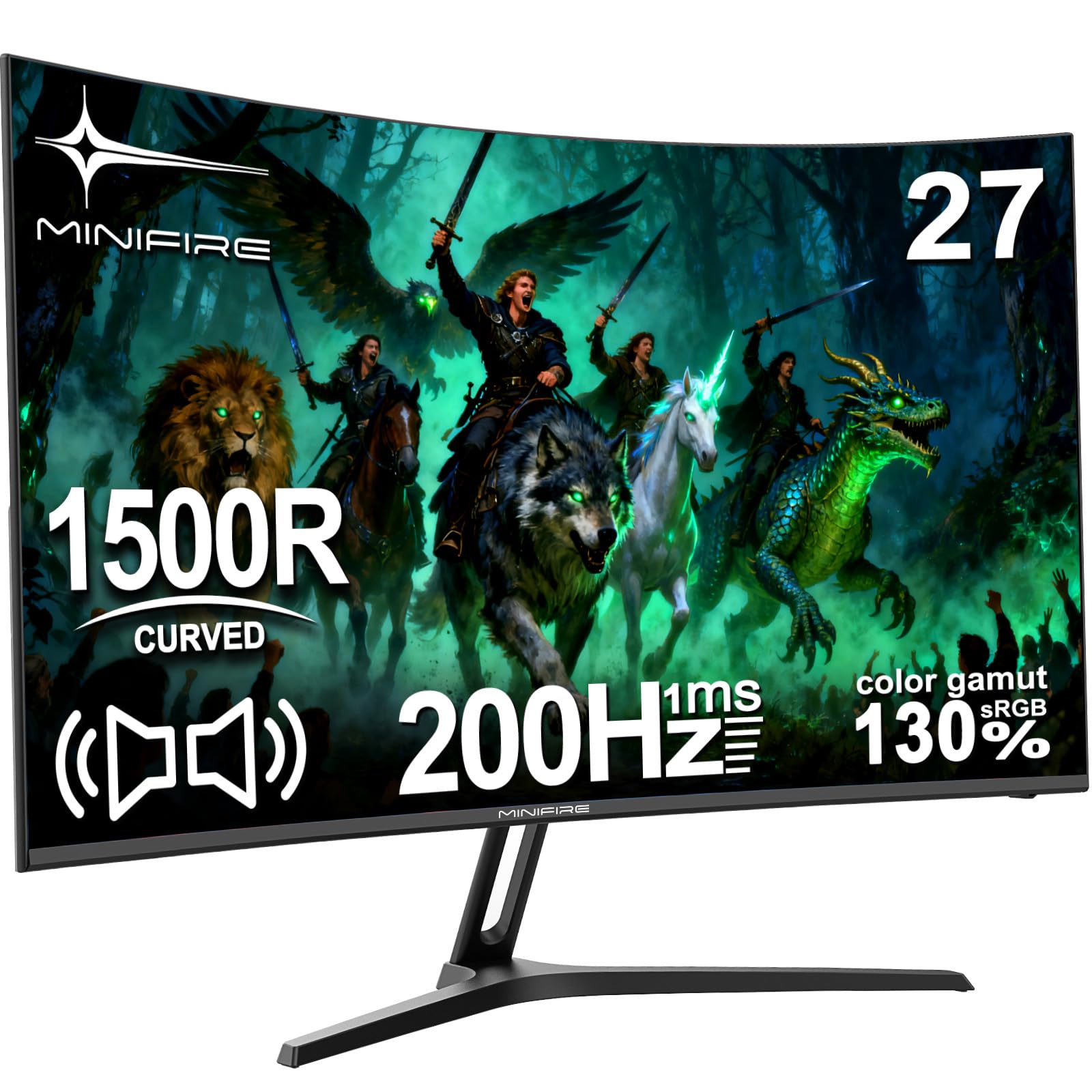
Image: The Minifire MFG27C1 27-inch Curved Gaming Monitor, showcasin세련된 디자인과 곡면 스크린이 특징입니다.
패키지 내용
아래 나열된 모든 품목이 제품 포장에 들어 있는지 확인하세요.
- Minifire MFG27C1 27-inch Curved Gaming Monitor
- HDMI 케이블
- 전원 어댑터/충전기
- Monitor Stand components
- 사용 설명서 (본 문서)
안전 정보
안전한 작동을 보장하고 손상을 방지하려면 다음 안전 예방 조치를 준수하세요.
- 화재나 감전을 예방하려면 모니터를 비나 습기에 노출시키지 마세요.
- 모니터를 열지 마세요asing. 내부에는 사용자가 수리할 수 있는 부품이 없습니다. 모든 수리는 자격을 갖춘 기술자에게 맡기십시오.
- 모니터가 떨어지지 않도록 안정적이고 평평한 표면에 놓으세요.
- 모니터 주변의 통풍이 잘 되도록 하십시오. 통풍구를 막지 마십시오.
- 모니터와 함께 제공된 전원 어댑터만 사용하세요.
- 번개 폭풍우가 칠 때나 장기간 사용하지 않을 때는 전원 케이블을 분리하세요.
- 전원 코드 위에 무거운 물건을 올려 놓지 마세요.
- 모니터를 직사광선, 열원 및 극한 온도로부터 멀리하십시오.
설정
1. 스탠드 조립
스탠드 받침대를 스탠드 목 부분에 부착한 다음, 조립된 스탠드를 모니터 뒷면에 고정하십시오. 모든 나사가 단단히 조여졌는지 확인하십시오.
2. 케이블 연결하기
Connect the provided HDMI cable from your computer's graphics card to the HDMI 2.0 port on the monitor. For power, connect the power adapter to the DC input port on the monitor, then plug the adapter into a power outlet.
The monitor also features a DisplayPort 1.4 for alternative video input and a 3.5mm audio output for external speakers or headphones.

이미지: 자세한 view of the monitor's rear panel, highlighting the HDMI 2.0, DisplayPort 1.4, 3.5mm audio output, and DC power input ports, along with the joystick control button.
3. 초기 전원 켜기
Press the power button located on the back of the monitor to turn it on. The monitor will automatically detect the active input source. If no signal is detected, ensure your computer is powered on and the video cable is securely connected.
작동 지침
1. 전원 켜기/끄기
Press the joystick button (power button) on the back of the monitor to turn it on. Press and hold the joystick button for a few seconds to turn it off.
2. OSD 메뉴 탐색
The monitor's On-Screen Display (OSD) menu is controlled using the joystick button on the back.
- Push the joystick button: OSD 메뉴로 진입하거나 선택 사항을 확인합니다.
- 조이스틱을 위/아래로 이동: Navigates through menu options or adjusts brightness/volume.
- 조이스틱을 왼쪽/오른쪽으로 이동: Navigates through menu options or adjusts contrast/input source.
Image: A diagram illustrating the joystick button functions for menu navigation, brightness, contrast, and input source selection.
3. 디스플레이 설정 조정
OSD 메뉴에 접근하여 다양한 디스플레이 설정을 조정하세요.
- 밝기/대비: Adjust these settings to your preference for optimal view주고받음.
- 색상 설정: 색온도, 감마 및 기타 색상 관련 매개변수를 수정합니다.
- 사진 모드: Select from predefined modes (e.g., Standard, Game, Movie) or customize your own.
- 입력 소스: Manually select between HDMI and DisplayPort inputs if auto-detection fails.
- 새로 고침 빈도: Ensure your graphics card settings match the monitor's 200Hz refresh rate for the smoothest experience.
- 프리싱크: Enable FreeSync in the OSD menu and your graphics card control panel for tear-free gaming.
4. 오디오 출력
The monitor includes built-in speakers. You can also connect external speakers or headphones to the 3.5mm audio output port for enhanced audio.
주요 특징
1. Immersive Curved Display
The Minifire MFG27C1 features a 27-inch VA panel with a 1500R curvature, designed to provide an immersive viewing experience, especially for gaming. This curvature helps reduce eye strain and enhances peripheral vision.

Image: The monitor displaying a vibrant gaming scene, emphasizing its 1500R curvature for an immersive experience.
2. 높은 화면 갱신율 및 빠른 응답 시간
Experience smooth, fluid visuals with a 200Hz refresh rate and a rapid 1ms (MPRT) response time. This combination minimizes motion blur and ghosting, crucial for fast-paced gaming.

Image: A graphic highlighting the monitor's 200Hz refresh rate and 1ms MPRT response time, with a racing car visual.
3. Vibrant Color Reproduction
The VA panel offers a 130% sRGB color gamut, delivering rich, accurate colors and deep blacks for a high contrast ratio (2000:1). This enhances visual fidelity for both gaming and multimedia content.

이미지: 모니터 화면asing a colorful image, demonstrating its ability to display vivid details and a wide color spectrum.
4. AMD FreeSync 기술
With AMD FreeSync technology, the monitor synchronizes its refresh rate with your graphics card's frame rate, eliminating screen tearing and stuttering for a smoother gaming experience.

Image: A visual comparison demonstrating the benefits of FreeSync technology, showing a smooth image with FreeSync enabled versus stuttering and ghosting when disabled.
5. 눈 건강 관리 기능
The monitor incorporates features to protect your eyes during extended use, including anti-flicker technology, an anti-glare screen surface, and a low blue light mode to reduce eye strain.

Image: A graphic explaining the monitor's eye care features, including anti-flicker, anti-glare, and low blue light, with visual examples of their effects.
6. Game Assist Functions
Enhance your gaming performance with built-in game assist features such as Black Level Adjustment for improved visibility in dark scenes, Pinpoint Strike for aiming assistance, and an on-screen Timer.
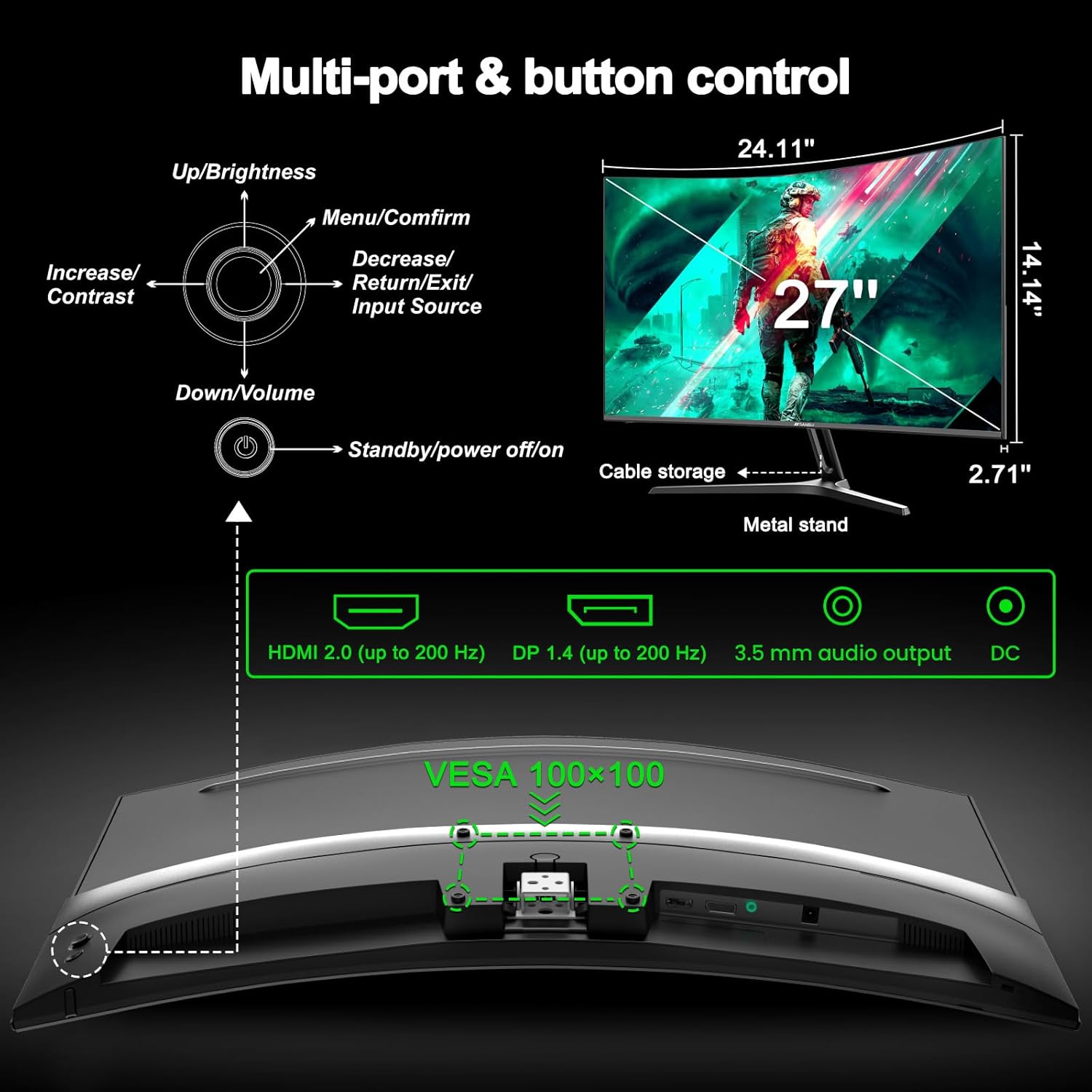
Image: A graphic detailing the monitor's game assist features, including Black Level Adjustment, Pinpoint aiming, and an on-screen Timer, shown in a first-person shooter context.
유지
모니터 청소
모니터 화면을 청소하려면 부드럽고 보풀이 없는 천으로 부드럽게 닦으세요. 잘 지워지지 않는 얼룩의 경우,amp물이나 마모성이 없는 화면 세척제를 천에 살짝 묻혀 사용하십시오. 세척제를 화면에 직접 분사하지 마십시오.
모니터 c의 경우asin예를 들어, 부드럽고 마른 천을 사용하십시오. 독한 화학 약품이나 연마재는 사용하지 마십시오.
저장
If storing the monitor for an extended period, disconnect all cables and pack it in its original packaging if possible. Store in a cool, dry place away from direct sunlight and extreme temperatures.
문제 해결
If you encounter issues with your Minifire MFG27C1 monitor, refer to the following common problems and solutions:
전원이 없습니다
- 전원 케이블이 모니터와 작동하는 전원 콘센트에 모두 단단히 연결되어 있는지 확인하세요.
- 전원 어댑터가 올바르게 작동하는지 확인하세요.
- 전원 버튼을 꼭 누르세요.
신호 없음
- Check that the HDMI or DisplayPort cable is securely connected to both the monitor and your computer.
- 컴퓨터가 켜져 있고 절전 모드가 아닌지 확인하세요.
- OSD 메뉴를 사용하여 올바른 입력 소스를 선택하세요.
- 가능하다면 다른 비디오 케이블이나 포트를 사용해 보세요.
Image Flickering or Tearing
- Ensure AMD FreeSync is enabled in both the monitor's OSD menu and your graphics card settings.
- 그래픽 카드 드라이버가 최신 버전인지 확인하십시오.
- Check the refresh rate setting in your operating system's display settings; it should be set to 200Hz.
내장 스피커에서 소리가 나지 않습니다
- Check the volume level in the monitor's OSD menu and your computer's sound settings.
- 컴퓨터의 소리 설정에서 올바른 오디오 출력 장치가 선택되어 있는지 확인하십시오.
- HDMI/DisplayPort를 사용하는 경우 그래픽 카드가 오디오를 전송하는지 확인하세요.
- If using the 3.5mm audio output, ensure external speakers/headphones are properly connected and powered.
버튼이 응답하지 않음
- Unplug the monitor's power cable, wait 30 seconds, then plug it back in to reset the monitor.
- Ensure no objects are obstructing the buttons.
명세서
| 특징 | 사양 |
|---|---|
| 상표 | 미니파이어 |
| 모델 번호 | MFG27C1-200 |
| 화면 크기 | 27 인치 |
| 해결 | FHD 1080p(1920 x 1080) |
| 종횡비 | 16시 9분 |
| 패널 유형 | VA |
| 화면 표면 | 매트 |
| 곡률 | 1500R |
| 새로 고침 빈도 | 200Hz |
| 응답 시간 | 1밀리초(MPRT) |
| 대비율 | 2000시 1분 |
| 색상 범위 값 | 130% sRGB |
| 적응형 동기화 기술 | 프리싱크 |
| 연결성 | HDMI 2.0 (up to 200 Hz), DisplayPort 1.4 (up to 200 Hz), 3.5mm Audio Output |
| 내장 스피커 | 예 |
| 파워볼tage | 240 볼트 |
| 품목 치수(D x W x H) | 68.5 x 43.5 x 12.6 센티미터 |
| 품목 무게 | 3.3 킬로그램 |
| 색상 | 검은색 |
보다 자세한 에너지 정보는 EU EPREL 데이터베이스를 참조하십시오. https://eprel.ec.europa.eu/qr/2074259
보증 및 지원
Minifire is committed to providing high-quality products and customer satisfaction. Your Minifire MFG27C1 monitor comes with the following:
- 24개월 보증: Enjoy peace of mind with a comprehensive 24-month warranty covering manufacturing defects.
- 14-Day Money-Back or Return Guarantee: If you are not satisfied with your purchase, you may be eligible for a return or refund within 14 days.
- 전문적인 고객 서비스: Our dedicated support team is available to assist you with any product-related inquiries.
- 평생 무료 기술 지원: Benefit from complimentary technical assistance for the lifetime of your product.
더 자세한 도움을 받으시려면 Minifire 공식 웹사이트를 방문하세요. web사이트를 방문하거나 고객 지원팀에 문의하세요.

Image: An infographic detailing the warranty and support services offered by Minifire, including a 24-month warranty and lifetime technical support.