
OMOTON B0FCMD15TF
OMOTON Foldable Bluetooth Keyboard with Touchpad (QWERTZ Layout)
Model: B0FCMD15TF
브랜드: 오모톤
1. 서론
Thank you for choosing the OMOTON Foldable Bluetooth Keyboard with Touchpad. This portable QWERTZ keyboard is designed for convenience and efficiency, offering multi-device connectivity and an integrated touchpad. This manual provides detailed instructions for setup, operation, and maintenance to ensure optimal performance.
2. 패키지 내용
다음 품목이 패키지에 포함되어 있는지 확인하세요.
- OMOTON 접이식 블루투스 키보드
- 핸드폰 스탠드
- Type-C 충전 케이블
- 운반 케이스
- 사용자 설명서
3. 제품 오버view
The OMOTON Foldable Bluetooth Keyboard features a compact QWERTZ layout with 78 full-size keys and a multi-touch touchpad. It supports connection to up to three devices simultaneously across iOS, Android, and Windows operating systems. Its magnetic folding design makes it highly portable.
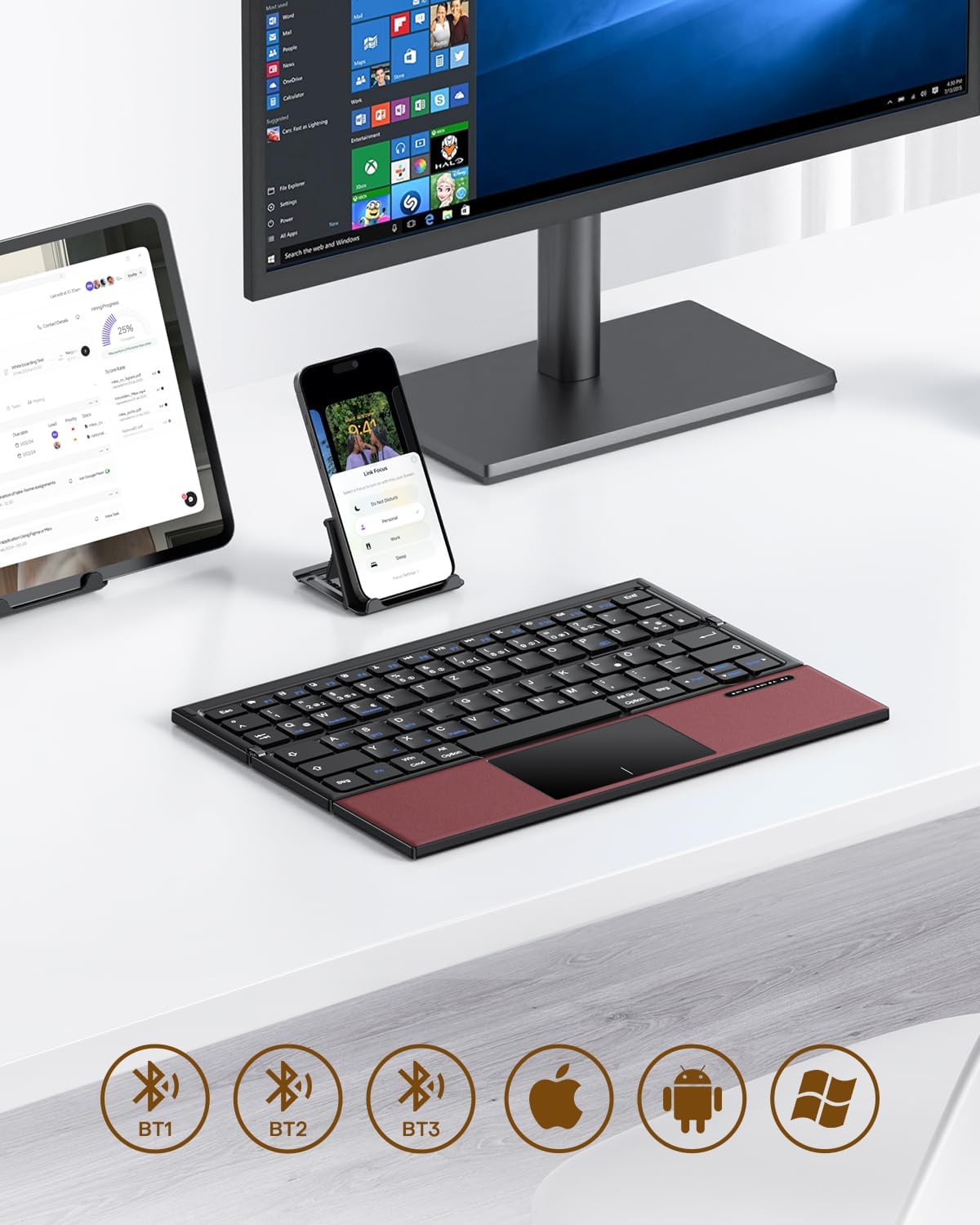
Image 3.1: The OMOTON Foldable Bluetooth Keyboard in use with a tablet, smartphone, and monitor, demonstrating multi-device connectivity via BT1, BT2, and BT3 channels.
주요 특징:
- 삼중 디자인: 작고 휴대하기 편리하여 여행에 적합합니다.
- 통합 터치패드: Multi-touch functionality for navigation without an external mouse.
- 다중 장치 연결: Connects to up to three Bluetooth-enabled devices (BT1, BT2, BT3).
- 쿼츠(QWERTZ) 레이아웃: Standard German keyboard layout with 78 full-size keys.
- 충전식 배터리: Built-in 180mAh battery with Type-C charging.

Image 3.2: Close-up details of the keyboard, highlighting its magnetic closure, indicator lights, silent scissor keys, elegant PU leather finish, and durable metal hinge.
휴대성:
The keyboard's compact, tri-fold design makes it ideal for travel and on-the-go use. It easily fits into bags and pockets, making it a convenient companion for various environments.

Image 3.3: The keyboard in use in a cafe, on an airplane, and in a meeting room, demonstrating its versatility for different work and travel scenarios.

Image 3.4: The folded keyboard being placed into a carrying case inside a bag and slipped into a jacket pocket, illustrating its compact size and ease of transport.
4. 설정
4.1 키보드 충전
Before first use, fully charge the keyboard. Use the included Type-C charging cable to connect the keyboard to a power source (e.g., computer USB port, USB wall adapter).
- 전원 표시등이 충전 상태를 보여줍니다.
- 완전 충전에는 일반적으로 2-3시간이 걸립니다.
- The keyboard offers up to 60 hours of operating time and 90 days of standby time on a full charge.

Image 4.1: The keyboard connected via its Type-C port for charging, with icons indicating charging time, working time, and standby time.
4.2 장치와의 페어링
The keyboard supports up to three Bluetooth connections (BT1, BT2, BT3). Follow these steps to pair your keyboard with a device:
- 전원 켜기: Unfold the keyboard to automatically power it on. The indicator light will flash.
- 채널 선택: 를 누르세요 FN + BT1, FN + BT2, 또는 FN + BT3 keys simultaneously to select a Bluetooth channel. The corresponding indicator light will flash slowly.
- 페어링 모드 시작: 누르다 에프앤씨 (or the Bluetooth icon key) to enter pairing mode. The selected channel indicator light will flash rapidly.
- 기기에서 블루투스를 활성화하세요: 사용하시는 기기(스마트폰, 태블릿, 노트북)에서 블루투스 설정으로 이동하여 블루투스를 켜세요.
- 키보드 선택: 검색 "OMOTON Keyboard" (or similar) in the list of available devices and select it to connect.
- 연결 확인: 연결되면 키보드의 표시등이 깜박임을 멈추고 몇 초 동안 켜진 상태를 유지한 후 꺼집니다.
Note: The Type-C cable is for charging only and does not support wired connectivity.
4.3 장치 간 전환
페어링된 기기 간 전환은 버튼을 누르기만 하면 됩니다. FN + BT1, FN + BT2, 또는 FN + BT3 to select the desired channel. The keyboard will automatically connect to the last paired device on that channel.
5. 사용 설명서
5.1 Keyboard Layout and Special Keys
The keyboard features a QWERTZ layout with 78 standard keys and 12 multimedia shortcuts. Familiarize yourself with the layout for efficient typing.

Image 5.1: The keyboard displaying its full-size keys and integrated multi-touch touchpad, designed for a laptop-like typing experience.
5.2 터치패드 사용
The multi-touch touchpad supports various gestures for navigation. This eliminates the need for an external mouse.
- 단일 손가락 탭: 왼쪽 클릭.
- 두 손가락 탭: 마우스 오른쪽 버튼을 클릭합니다(상황에 맞는 메뉴).
- 두 손가락 스크롤: 위/아래 또는 왼쪽/오른쪽으로 스크롤하세요.
- 확대/축소하려면 핀치하세요: Zoom in/out (supported on some devices/apps).
- 스와이프 제스처: Specific gestures may vary by operating system (Windows, Android, iOS).
Note for iPad users: You may need to enable "AssistiveTouch" in your iPad settings for full touchpad functionality. Some gestures may vary between applications. Scrolling direction can be adjusted in your device settings.
5.3 절전 모드
To conserve battery, the keyboard will automatically enter sleep mode after 30 minutes of inactivity. To wake it up, press any key.
5.4 인체공학적 사용
For comfortable and ergonomic typing, ensure your screen is positioned correctly to maintain a healthy posture.

Image 5.2: A visual guide showing the recommended ergonomic posture for using the keyboard with a screen, emphasizing proper neck and back alignment.
6. 유지관리
- 청소: 부드럽고 마른 천을 사용하여 키보드 표면을 닦으세요. 잘 지워지지 않는 오염의 경우, 가볍게 두드리세요.amp천에 물이나 순한 세척액을 묻혀 닦아주세요. 과도한 습기는 피하세요.
- 저장: When not in use, fold the keyboard and store it in the provided carrying case to protect it from dust and scratches.
- 배터리 관리 : Avoid fully discharging the battery frequently. Charge the keyboard regularly, especially if it will be stored for an extended period.
- 극한의 환경을 피하세요: 키보드를 극한의 온도, 직사광선 또는 높은 습도에 노출시키지 마세요.
7. 문제 해결
7.1 키보드가 연결되지 않음
- 키보드가 켜져 있는지(펼쳐져 있는지) 확인하십시오.
- 기기에서 Bluetooth가 활성화되어 있는지 확인하세요.
- Check if the keyboard is in pairing mode (indicator light flashing rapidly after pressing Fn+C).
- Ensure you have selected the correct Bluetooth channel (BT1, BT2, or BT3).
- 기기의 블루투스 설정에서 키보드 연결을 해제했다가 다시 연결해 보세요.
- 키보드 배터리가 충전되어 있는지 확인하세요.
7.2 터치패드가 응답하지 않음
- 키보드가 Bluetooth를 통해 올바르게 연결되었는지 확인하세요.
- For iPad users, verify that "AssistiveTouch" is enabled in your iPad settings.
- 키보드와 기기를 재시작하세요.
- 터치패드 표면을 깨끗이 청소하여 먼지나 이물질을 제거하세요.
7.3 Incorrect Key Output (QWERTZ vs. QWERTY)
- This keyboard has a QWERTZ layout. Ensure your device's software keyboard setting is also set to QWERTZ (German layout) for correct character output.
- If your device is set to QWERTY, some keys (e.g., Y/Z, special characters) will not match the physical keyboard. Adjust your device's input language/keyboard layout settings.
7.4 짧은 배터리 수명
- 키보드를 사용하기 전에 완전히 충전되었는지 확인하십시오.
- The keyboard automatically enters sleep mode after 30 minutes of inactivity to save power.
- Avoid leaving the keyboard unfolded and powered on when not in use for extended periods.
8. 사양
| 상표 | 오모톤 |
| 모델 | B0FCMD15TF |
| 연결 기술 | 블루투스 |
| 호환 장치 | iPadOS, iOS, Android, Windows (Laptops, PCs, Tablets, Smartphones) |
| 키보드 레이아웃 | 쿼츠(독일식 키보드) |
| 키의 개수 | 78 |
| 특별 기능 | Foldable, Portable, Rechargeable, Integrated Multi-touch Touchpad |
| 재료 | 플라스틱, 폴리우레탄(PU) |
| 배터리 용량 | 180mAh 리튬이온 |
| 충전 포트 | C타입 |
| 충전 시간 | 약 2-3시간 |
| 작동 시간 | 최대 60시간 |
| 대기 시간 | 최대 90일 |
| 접힌 치수 | 25.3 x 6 x 2.1cm |

Image 8.1: Visual representation of the keyboard's dimensions when unfolded and folded, alongside a tablet and smartphone for scale.
9. 보증 및 지원
OMOTON products come with a standard warranty. For detailed warranty information, please refer to the warranty card included in your package or visit the official OMOTON web대지.
If you encounter any issues or have questions regarding your OMOTON Foldable Bluetooth Keyboard, please contact OMOTON Customer Support:
- Web대지: 아마존에서 OMOTON 공식 스토어를 만나보세요
Please have your model number (B0FCMD15TF) and purchase details ready when contacting support.
관련 문서B0FCMD15TF


Ask a question about this manual
Ask about setup, troubleshooting, compatibility, parts, safety, or missing instructions. Manuals+ will review the question and use this page’s manual context to help answer it.