
Maxfree M4
맥스프리 듀얼 휴대용 모니터 M4 사용 설명서
모델: M4
소개
Thank you for choosing the Maxfree Dual Portable Monitor M4. This manual provides essential information for setting up, operating, and maintaining your new dual monitor system. Please read this manual thoroughly before use to ensure optimal performance and longevity of your device.
제품 끝view
The Maxfree Dual Portable Monitor M4 is designed to expand your workspace with two 15.6-inch 1080P FHD IPS displays. Its folding design enhances portability, making it ideal for travel and various work environments.

Image: The Maxfree Dual Portable Monitor M4, featuring two 15.6-inch screens in an open, stacked configuration, ready for use.
주요 특징:
- Dual 15.6-inch 1080P FHD IPS Displays
- Plug & Play USB-C Connectivity
- Folding Design for Portability
- Matte Screen with Anti-glare, No Flicker, and Eye Care Functions
- 100% sRGB 색상 영역
- Multiple Display Modes and 330° Rotation
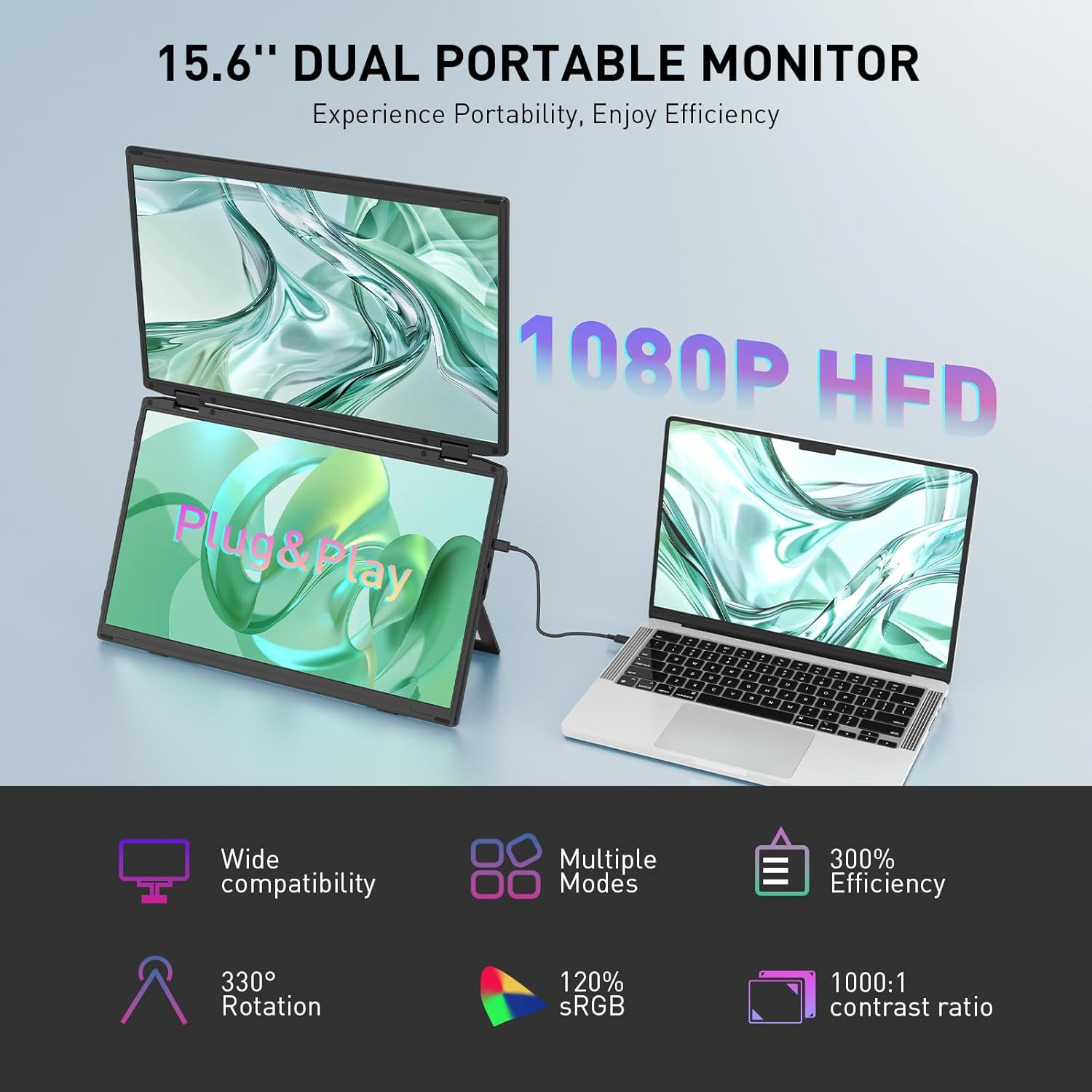
Image: The Maxfree Dual Portable Monitor M4 connected to a laptop, illustrating its plug-and-play functionality and various display modes.
설치 지침
- 모니터 풀기: 모니터와 모든 액세서리를 포장에서 조심스럽게 꺼내세요.
- 모니터 위치: 모니터를 안정적이고 평평한 표면에 놓으십시오. 내장 스탠드를 원하는 각도로 조정하십시오. view잉 각도.
- Connect to Power (Recommended): For optimal performance, connect the monitor to a power source using the provided USB-C power adapter (if included) or a compatible USB-C port on your device that supports power delivery.
- 장치에 연결:
- USB-C 연결: Connect one end of the provided USB-C cable to the monitor's USB-C port and the other end to a full-featured USB-C port on your laptop or PC. This single cable can transmit video, audio, and power.
- HDMI + USB-A Connection (if applicable): If your device does not have a full-featured USB-C port, you may need to use an HDMI cable for video and a USB-A to USB-C cable for power and touch functionality (if supported by your model). Refer to your device's manual for specific port requirements.
- 전원 켜기: Press the power button on the monitor. Your device should automatically detect and extend the display.
- 디스플레이 설정 조정: On your computer, navigate to Display Settings to configure the dual monitors (e.g., extend, duplicate, arrange displays).
작동 지침
디스플레이 모드 :
The Maxfree Dual Portable Monitor supports various display modes to enhance productivity:
- 확장 모드: Expands your desktop across both screens, providing a larger workspace. This is ideal for multitasking.
- 복제 모드: Mirrors your primary display onto the portable monitors. Useful for presentations or sharing content.
- 수직 레이아웃: The unique vertical stacking design minimizes scrolling and page switching, reducing eye and neck fatigue, especially for document review or coding.
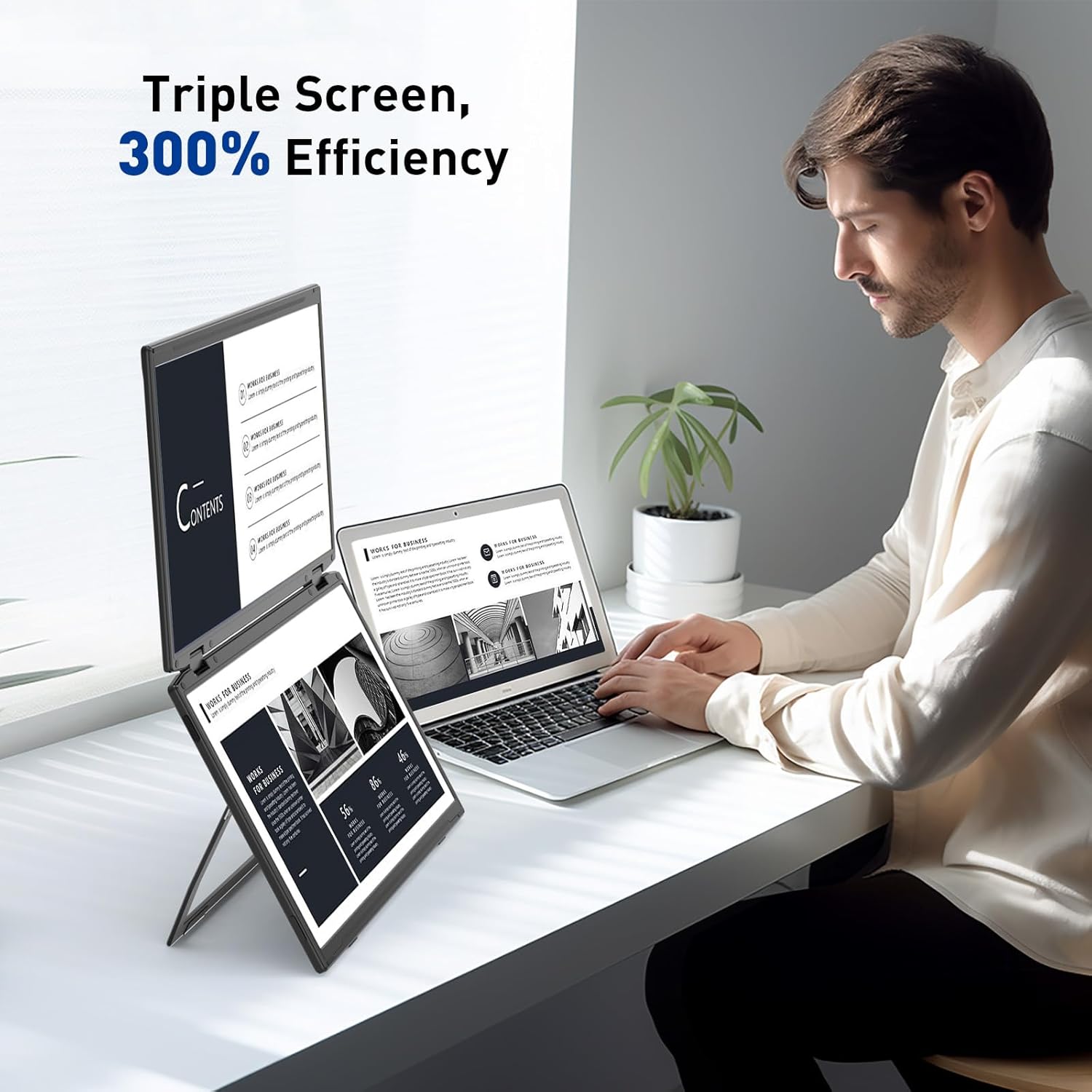
Image: A user demonstrating the Maxfree Dual Portable Monitor M4 in a vertical stacked setup, illustrating how it creates an efficient triple-screen workspace.
OSD(온스크린 디스플레이) 메뉴:
Use the buttons on the side of the monitor to access and navigate the OSD menu. This menu allows you to adjust settings such as:
- 밝기 및 대비
- Color Settings (e.g., sRGB, color temperature)
- 입력 소스 선택
- 종횡비
- Volume (if applicable)
Refer to the on-screen prompts for specific button functions (e.g., Menu, Up, Down, Exit).
명세서
| 특징 | 세부 사항 |
|---|---|
| 화면 크기 | 듀얼 15.6인치 |
| 해결 | 1920 x 1080(FHD 1080p) |
| 패널 유형 | IPS |
| 종횡비 | 16시 9분 |
| 화면 표면 | 매트 |
| 이미지 밝기 | 300 칸델라 |
| 색상 영역 | 100% sRGB |
| 연결성 | USB-C (Full-featured), HDMI (if applicable) |
| 총 USB 포트 | 1 (USB-C for main connection) |
| 권tage | 5 볼트 |
| 제품 치수 | 0.5 x 14 x 9 인치 |
| 품목 무게 | 3.5파운드 |
| 모델 번호 | M4 |
문제 해결
- 디스플레이 없음:
- Ensure the USB-C cable is securely connected to both the monitor and your device.
- Verify that your device's USB-C port supports video output (DisplayPort Alternate Mode).
- Connect the monitor to an external power source if your device cannot provide sufficient power.
- 컴퓨터의 디스플레이 설정에서 외부 모니터가 인식되고 활성화되어 있는지 확인하십시오.
- 화면 깜빡임:
- Ensure the cable connections are secure.
- 다른 USB-C 케이블을 사용해 보세요.
- Reduce the display resolution or refresh rate on your computer.
- Image Quality Issues (Blurry, Incorrect Colors):
- Adjust the brightness, contrast, and color settings via the OSD menu.
- Ensure your computer's display resolution matches the monitor's native resolution (1920x1080).
- 모니터 전원이 켜지지 않음:
- Confirm the power cable is properly connected and the power outlet is functional.
- 전원 버튼을 꼭 누르세요.
유지
- 화면 청소: 부드럽고 보풀이 없는 천으로 화면을 부드럽게 닦으세요. 잘 지워지지 않는 얼룩은 가볍게 닦아주세요.amp천에 물이나 화면 세척액을 묻혀 닦아주세요. 강한 화학 물질이나 연마재는 사용하지 마세요.
- C 청소asing: 부드럽고 마른 천을 사용하여 모니터의 c를 닦으십시오.asing.
- 저장: When not in use, fold the monitor and store it in a cool, dry place, preferably in its original packaging or a protective case to prevent damage.
- 극한의 환경을 피하세요: 모니터를 극한의 온도, 습도 또는 직사광선에 노출시키지 마세요.
보증 및 지원
For warranty information, technical support, or service inquiries, please refer to the warranty card included with your product or visit the official Maxfree web대지.
제조업체: Shenzhen Baijiayoupu Technology CO., Ltd.
Ask a question about this manual
Ask about setup, troubleshooting, compatibility, parts, safety, or missing instructions. Manuals+ will review the question and use this page’s manual context to help answer it.