
1. 서론
The Cudy AX1500 WiFi 6 Mesh Wi-Fi System (M1500) is designed to provide seamless, high-speed wireless internet coverage throughout your home or office. This system utilizes Wi-Fi 6 technology to deliver fast and reliable connections, effectively eliminating Wi-Fi dead zones. The M1500 system replaces traditional routers and extenders, creating a unified network under a single name for optimal performance and convenience.
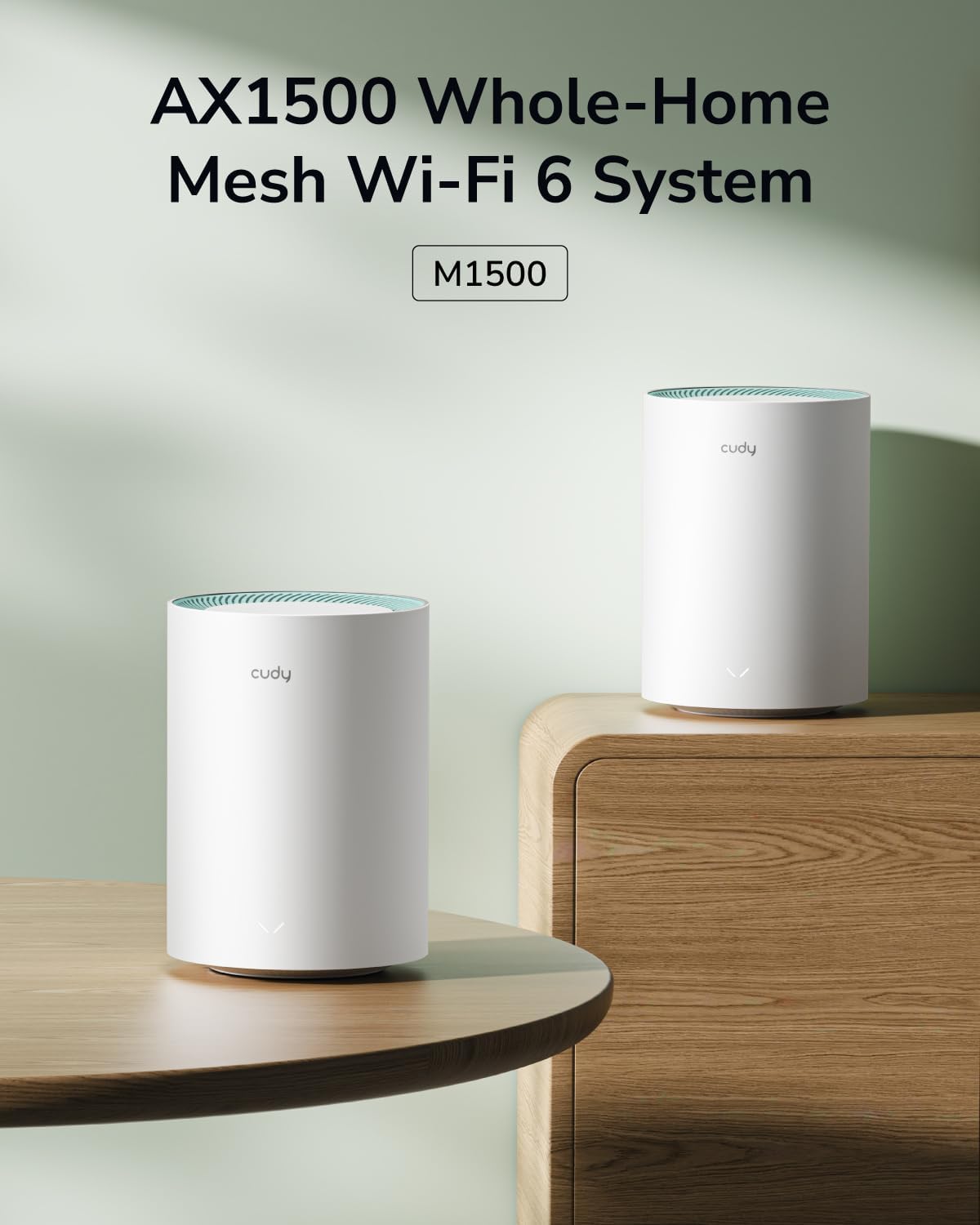
Figure 1: Cudy AX1500 WiFi 6 Mesh System M1500 Units
2. 패키지 내용
패키지에 다음 품목이 포함되어 있는지 확인하십시오.
- Cudy M1500 Mesh Wi-Fi Units (2-Pack)
- Power Adapters (one for each unit)
- 이더넷 케이블
- 빠른 설치 가이드
구성품이 누락되었거나 손상된 경우 Cudy 고객 지원팀에 문의하십시오.
3. 설정 지침
Follow these steps to set up your Cudy AX1500 Mesh Wi-Fi System:
3.1 Initial Unit Placement
Place the first M1500 unit (main unit) near your modem or internet service provider's connection point. For optimal coverage, Cudy recommends placing the main unit at a central location in your home, minimizing obstructions like thick walls between units.
3.2 Connect the Main Unit
- 전원 끄기 : 모뎀의 전원을 차단하세요.
- 이더넷 연결: Use the provided Ethernet cable to connect one of the Gigabit ports on the M1500 unit to your modem's LAN port. Any of the three Gigabit ports on the M1500 can function as a WAN port during initial setup.
- 모뎀 전원 켜기: Reconnect power to your modem and wait for it to fully boot up.
- Power On M1500: Connect the power adapter to the M1500 unit and plug it into a power outlet. The LED indicator on the unit will light up.

Figure 2: M1500 Unit Ports (LAN/WAN, Power)
3.3 Configure via Cudy App
The Cudy App provides a guided setup process:
- 앱 다운로드 : Download the Cudy App from your mobile device's app store (iOS or Android).
- Wi-Fi에 연결: Connect your mobile device to the default Wi-Fi network broadcast by the main M1500 unit. The default Wi-Fi name (SSID) and password are typically found on a label on the bottom of the unit.
- 앱 실행: Open the Cudy App and follow the on-screen instructions to configure your mesh network, including setting a new Wi-Fi name and password.
3.4 Add Satellite Units
After setting up the main unit, you can add the second M1500 unit to expand your Wi-Fi coverage:
- 놓기: Place the satellite unit in an area that requires extended Wi-Fi coverage, ensuring it is within range of the main unit or another satellite unit. Avoid placing it behind large metal objects or in enclosed spaces.
- 전원 켜기: Connect the power adapter to the satellite M1500 unit and plug it into a power outlet. Wait for the LED indicator to stabilize.
- 편성: The units should automatically connect and form a mesh network. If automatic pairing does not occur, use the Cudy App to add the new unit, or press the "Pair (WPS)" button on both the main unit and the satellite unit within two minutes.
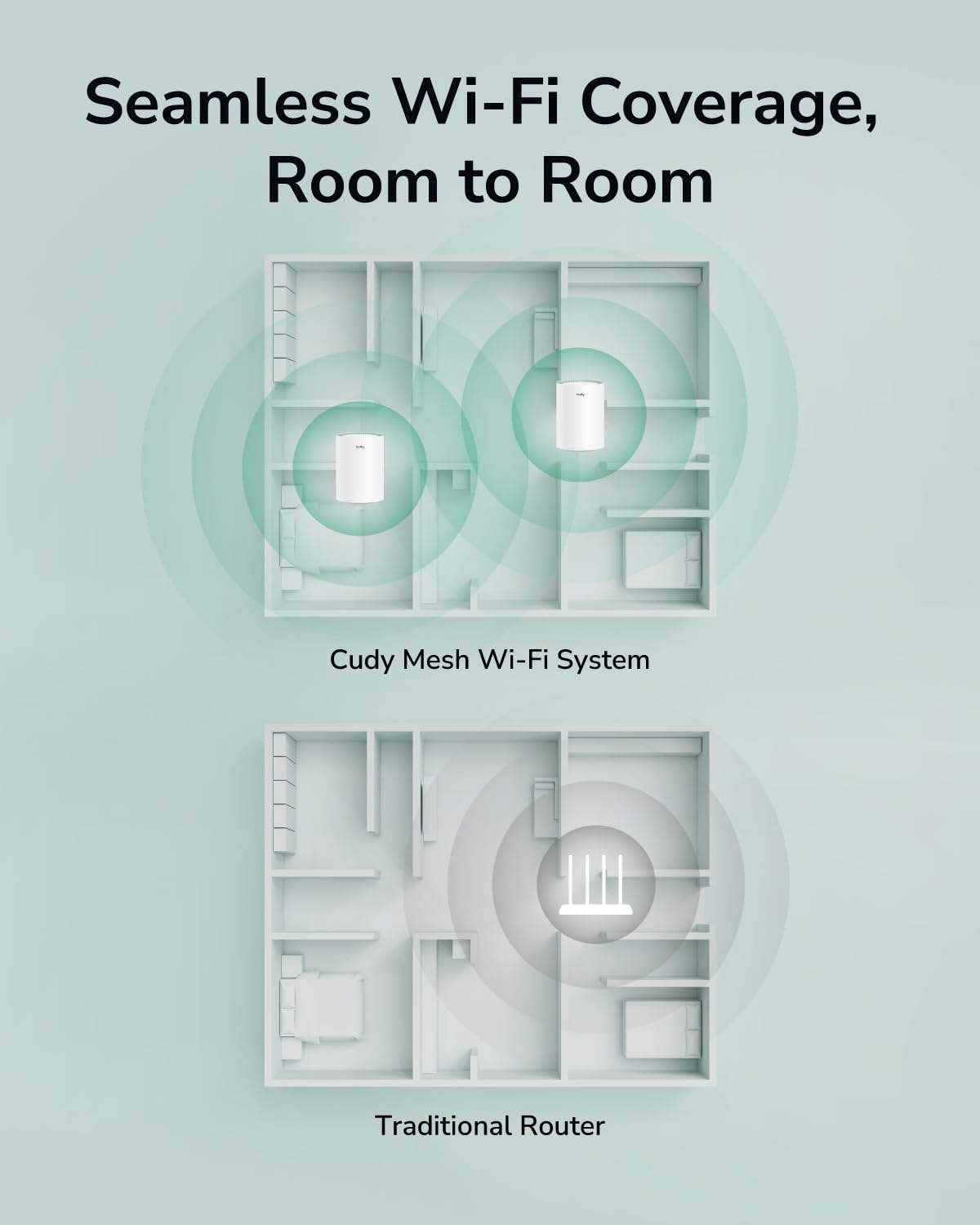
Figure 3: Seamless Wi-Fi Coverage with Cudy Mesh System
4. 사용 설명서
Once your Cudy M1500 Mesh Wi-Fi System is set up, it provides a unified and high-performance wireless network.
4.1 Wi-Fi 연결
- Single Network Name: All M1500 units operate under a single Wi-Fi network name (SSID), allowing your devices to seamlessly roam and connect to the strongest signal as you move around your home.
- 듀얼 밴드 AX1500: The system supports Wi-Fi 6 (802.11ax) with dual-band capabilities, offering speeds up to 1201 Mbps on the 5 GHz band and 300 Mbps on the 2.4 GHz band.
- 장치 용량: Designed to connect over 90 devices simultaneously, ensuring stable performance for all your smart home devices, streaming, and gaming needs.

그림 4: AX1500 Wi-Fi 6 속도 기능
4.2 유선 연결
Each M1500 unit is equipped with three Gigabit Ethernet ports. These ports can be used for:
- 이더넷 백홀: Connect mesh units to each other via Ethernet for a more stable and faster backhaul connection, improving overall network performance.
- 유선 장치: Connect devices such as smart TVs, gaming consoles, or desktop computers directly to any M1500 unit for a stable wired connection.
4.3 Cudy App Control
The Cudy App allows for comprehensive management of your mesh network:
- 네트워크 모니터링: View 연결된 장치, 네트워크 상태, 인터넷 속도.
- 보호자 관리: Manage internet access for specific devices, set time limits, and block web사이트.
- 게스트 네트워크 : 보안 강화를 위해 손님용으로 별도의 Wi-Fi 네트워크를 구축하세요.
- 펌웨어 업데이트: Easily update your M1500 units to the latest firmware for improved performance and security.

Figure 5: Cudy App Interface for Network Management
4.4 VPN Client Support
The M1500 supports multiple VPN client protocols, including PPTP, L2TP, and WireGuard. This feature allows for secure remote access and encrypted data transmission across your network.

Figure 6: VPN Client for Secure Remote Access
5. 유지관리
Regular maintenance ensures optimal performance and longevity of your Cudy M1500 Mesh Wi-Fi System:
- 펌웨어 업데이트: Periodically check for and install firmware updates via the Cudy App or web 인터페이스. 업데이트에는 성능 개선, 보안 패치, 새로운 기능이 포함되는 경우가 많습니다.
- 최적의 배치: Ensure units are placed in central locations, away from large metal objects, thick walls (more than two wooden/brick or one concrete wall), and interference sources like microwaves or cordless phones.
- 주기적 재부팅: Rebooting your mesh units every few weeks can help clear temporary issues and maintain network stability. Simply unplug the power adapter for 10 seconds and then plug it back in.
- 청소: Keep the units clean and free from dust accumulation, especially around ventilation areas, to prevent overheating. Use a soft, dry cloth.
6. 문제 해결
If you encounter issues with your Cudy M1500 Mesh Wi-Fi System, refer to the following common solutions:
6.1 인터넷 연결 없음
- 모뎀 확인: 모뎀의 전원이 켜져 있고 인터넷에 연결되어 있는지 확인하십시오.
- 케이블 연결: Verify that the Ethernet cable connecting the main M1500 unit to your modem is securely plugged in.
- 재부팅 시스템: Power cycle both your modem and the main M1500 unit. Wait for each device to fully boot before checking the connection.
- ISP 상태: 인터넷 서비스 제공업체(ISP)에 연락하여 서비스 중단이 없는지 확인하십시오.tag귀하의 지역에는 다음이 있습니다.
6.2 약하거나 끊기는 Wi-Fi 신호
- 유닛 배치: Adjust the placement of your satellite M1500 units to ensure they are within optimal range of each other and the main unit. Avoid excessive physical obstructions.
- 간섭: Move units away from potential sources of interference such as microwaves, cordless phones, or large electronic appliances.
- 펌웨어: Ensure all M1500 units are running the latest firmware version.
6.3 Difficulty Adding Satellite Unit
Some users may experience difficulty pairing additional units. If a satellite unit does not connect automatically:
- 근접성: Temporarily move the satellite unit closer to the main unit during the pairing process.
- 페어링 버튼: Press the "Pair (WPS)" button on both the main unit and the satellite unit within two minutes.
- 공장 초기화 : If pairing repeatedly fails, perform a factory reset on the satellite unit. This typically involves pressing and holding a reset button (often recessed) for several seconds until the LED behavior changes. Refer to the Quick Installation Guide for specific reset instructions. After resetting, attempt the pairing process again.
- Cudy 앱: Utilize the Cudy App's guided process for adding new mesh units, which can often simplify the procedure.
6.4 Device Cannot Connect to Wi-Fi
- 올바른 비밀번호: 올바른 Wi-Fi 비밀번호를 입력했는지 확인하세요.
- 네트워크 가시성: Ensure the Wi-Fi network (SSID) is visible. If you have hidden the SSID, manually connect your device.
- 장치 호환성: Confirm your device supports Wi-Fi 6 (802.11ax) or earlier standards (802.11ac/n/g/b/a).
- 재부팅 장치 : Reboot the device attempting to connect.
7. 사양
| 상표 | 쿠디 |
| 모델명 | M1500 2개입 |
| Wi-Fi 세대 | 와이파이 6(802.11ax) |
| 주파수 대역 클래스 | 듀얼 밴드(2.4GHz 및 5GHz) |
| 데이터 전송 속도 | 최대 1500Mbps (5GHz 대역에서 1201Mbps, 2.4GHz 대역에서 300Mbps) |
| 적용 범위 | Up to 1800 sq.ft. (for 2-Pack) |
| Number of Gigabit Ports | 단위당 3 |
| 보안 프로토콜 | WPA3 |
| RAM 메모리 설치됨 | 128메가바이트 |
| 제어 방법 | Cudy App, Web 인터페이스 |
| 특별 기능 | Access Point Mode, LED Indicator, Parental Control, QoS, Remote Access, Multi-VPN Support (PPTP/L2TP/WireGuard) |
| 치수(길이 x 너비 x 높이) | 4.33인치 길이 x 4.33인치 너비 x 6.08인치 높이 |
| 품목 무게 | 400그램 |
8. 보증 및 지원
8.1 제품 보증
The Cudy AX1500 WiFi 6 Mesh System M1500 comes with a 2년 보증 from the date of purchase. This warranty covers manufacturing defects and malfunctions under normal use. For warranty claims, please retain your proof of purchase.
8.2 기술 지원
For technical assistance, troubleshooting, or further inquiries, please visit the official Cudy website or contact their customer support. You can often find FAQs, updated manuals, and support contact information on their web대지.
쿠디 Web대지: www.cudy.com