
1. 설정
1.1 언박싱
Carefully remove the OnePlus Pad 3 Smart Keyboard from its packaging. The box contains the keyboard unit and a user guide with safety and warranty information.

Figure 1: OnePlus Pad 3 Smart Keyboard in its retail packaging.

Figure 2: The keyboard unit after removal from the box.
1.2 키보드 연결하기
Align your OnePlus Pad 3 tablet with the magnetic connector on the keyboard. The tablet will snap securely into place, establishing a physical and power connection via the Pogo pin connector.

Figure 3: OnePlus Pad 3 tablet attached to the Smart Keyboard, ready for use.
1.3 Initial Connection and Firmware Update
Upon first attachment, the keyboard will automatically connect to your OnePlus Pad 3. A firmware update may be prompted; ensure you complete this update for optimal performance. If the on-screen keyboard appears when the physical keyboard is attached, navigate to Settings > Additional settings > Keyboard & input method > Physical keyboards > OnePlus Magnetic Keyboard and disable the 'Use on-screen keyboard' option.
2. 운영
2.1 Keyboard Layout and Touchpad
The Smart Keyboard features a full six-row layout with tactile keys for a comfortable typing experience. It includes a large precision touchpad (8640mm²) that supports multi-gesture input for enhanced navigation.
2.2 각도 조정
The keyboard allows for five levels of angle adjustment, ranging from 110° to 160°, providing flexibility for various viewing and typing preferences.
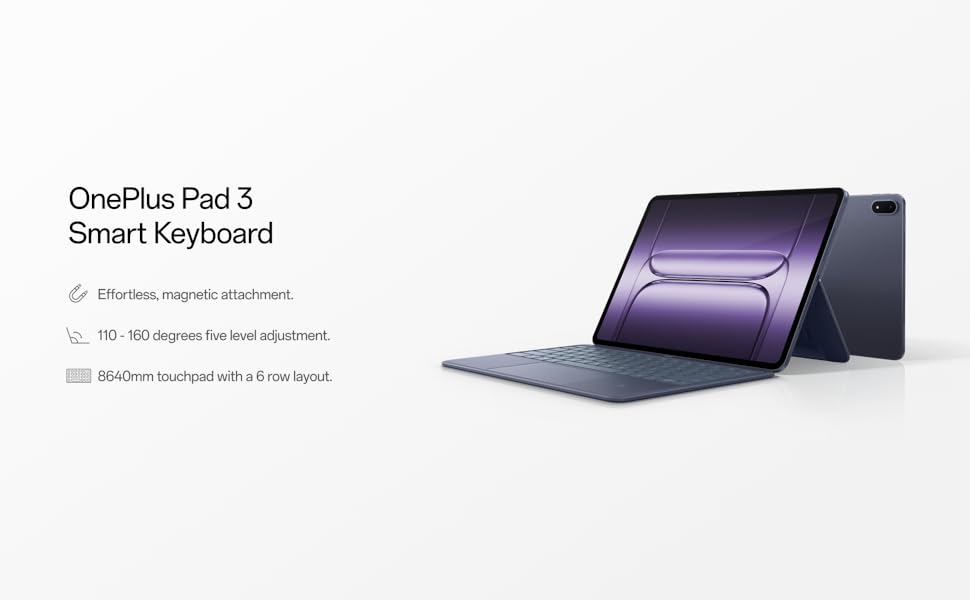
Figure 4: The keyboard offers multiple view사용자의 편의를 위해 각도를 조정했습니다.
2.3 특수 기능
- 전용 AI 키: Access integrated AI features with a dedicated key.
- NFC 지원 : Utilize one-touch NFC for fast file transfers and seamless screen projection from your phone to the tablet.
3. 유지관리
3.1 청소
To clean the keyboard, gently wipe the surfaces with a soft, damp cloth. Avoid using harsh chemicals or abrasive materials that could damage the finish or electronic components. Ensure no liquid enters the keys or touchpad.
3.2 보관
When not in use, fold the keyboard to protect both the tablet screen and the keyboard keys. Store the device in a cool, dry place away from direct sunlight and extreme temperatures.
4. 문제 해결
4.1 키보드가 응답하지 않음
- 연결 확인: Ensure the tablet is securely attached to the magnetic connector on the keyboard.
- 태블릿 재시작: A simple restart of your OnePlus Pad 3 can resolve minor connectivity issues.
- 펌웨어 업데이트 : Verify that the keyboard's firmware is up to date via the tablet's settings.
- 화면 키보드: Confirm that the 'Use on-screen keyboard' option is disabled in Settings > Additional settings > Keyboard & input method > Physical keyboards.
4.2 터치패드 문제
- 깨끗한 터치패드: 터치패드 표면이 깨끗하고 이물질이 없는지 확인하십시오.
- 소프트웨어 오류: Restarting the tablet can often resolve unresponsive touchpad behavior.
5. 사양
| 특징 | 세부 사항 |
|---|---|
| 상표 | 원플러스 |
| 모델 번호 | 오피케이2413 |
| 품목 무게 | 1.47파운드 |
| 제품 치수 | 11.4 x 8.2 x 0.3 인치 |
| 색상 | 파란색 |
| 전원 | Battery Powered (charged via Pogo pin connector from tablet) |
| 호환 장치 | 원플러스 패드 3 |
| 연결 기술 | Bluetooth (for pairing, physical connection for power/data) |
| 키보드 설명 | 기계적 |
| 재료 | 플라스틱 |
| 포함된 구성 요소 | USB-C to USB-C Cable (for tablet charging, not keyboard directly) |
6. 보증 및 지원
For detailed warranty information and technical support, please refer to the user guide included in the product packaging or visit the official OnePlus support web사이트. 보증 청구를 위해 구매 증빙 자료를 보관하세요.