
ASUS VG27AQ5A
ASUS TUF Gaming VG27AQ5A 27인치 QHD 게이밍 모니터 사용 설명서
모델: VG27AQ5A
1. 서론
This manual provides detailed instructions for setting up, operating, maintaining, and troubleshooting your ASUS TUF Gaming VG27AQ5A 27-inch QHD Gaming Monitor. Please read this manual thoroughly before using the product to ensure proper and safe operation.
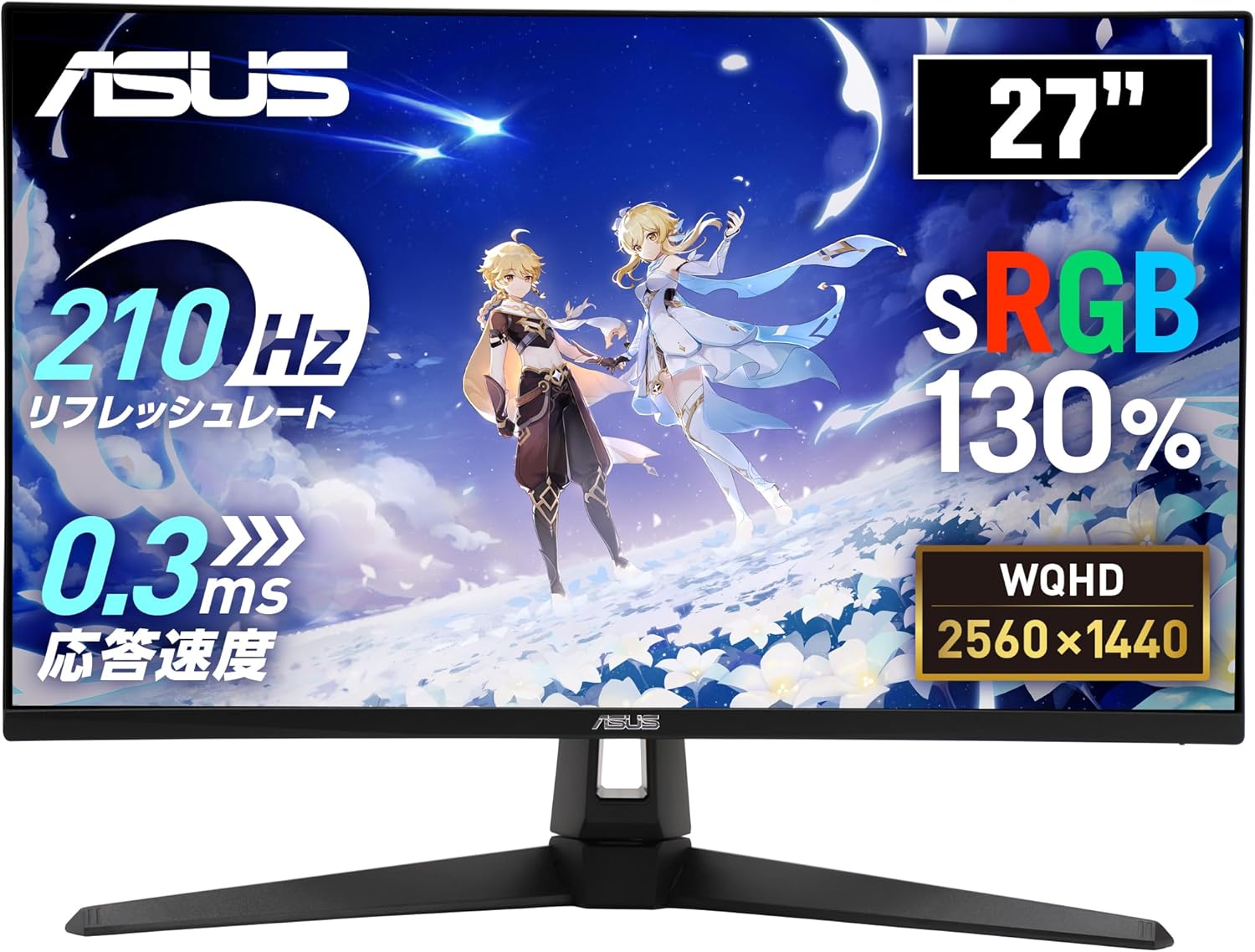
Figure 1: ASUS TUF Gaming VG27AQ5A Monitor Overview
2. 패키지 내용
Verify that all items listed below are present in your product package. If any item is missing or damaged, contact your retailer immediately.
- DisplayPort 케이블
- 전원 코드
- 빠른 시작 가이드
- 보증 카드
3. 설정
3.1 모니터 스탠드 조립
모니터에 스탠드를 부착하려면 다음 단계를 따르세요.
- 긁힘을 방지하려면 모니터를 부드럽고 깨끗한 표면에 뒤집어서 놓으세요.
- 스탠드 받침대를 스탠드 목 부분에 맞춰 정렬한 후 제공된 나사로 고정하십시오.
- 조립된 스탠드를 모니터 뒷면에 딸깍 소리가 나면서 제자리에 고정될 때까지 부착하십시오.
3.2 모니터 연결
적절한 케이블을 사용하여 모니터를 컴퓨터나 다른 장치에 연결합니다.
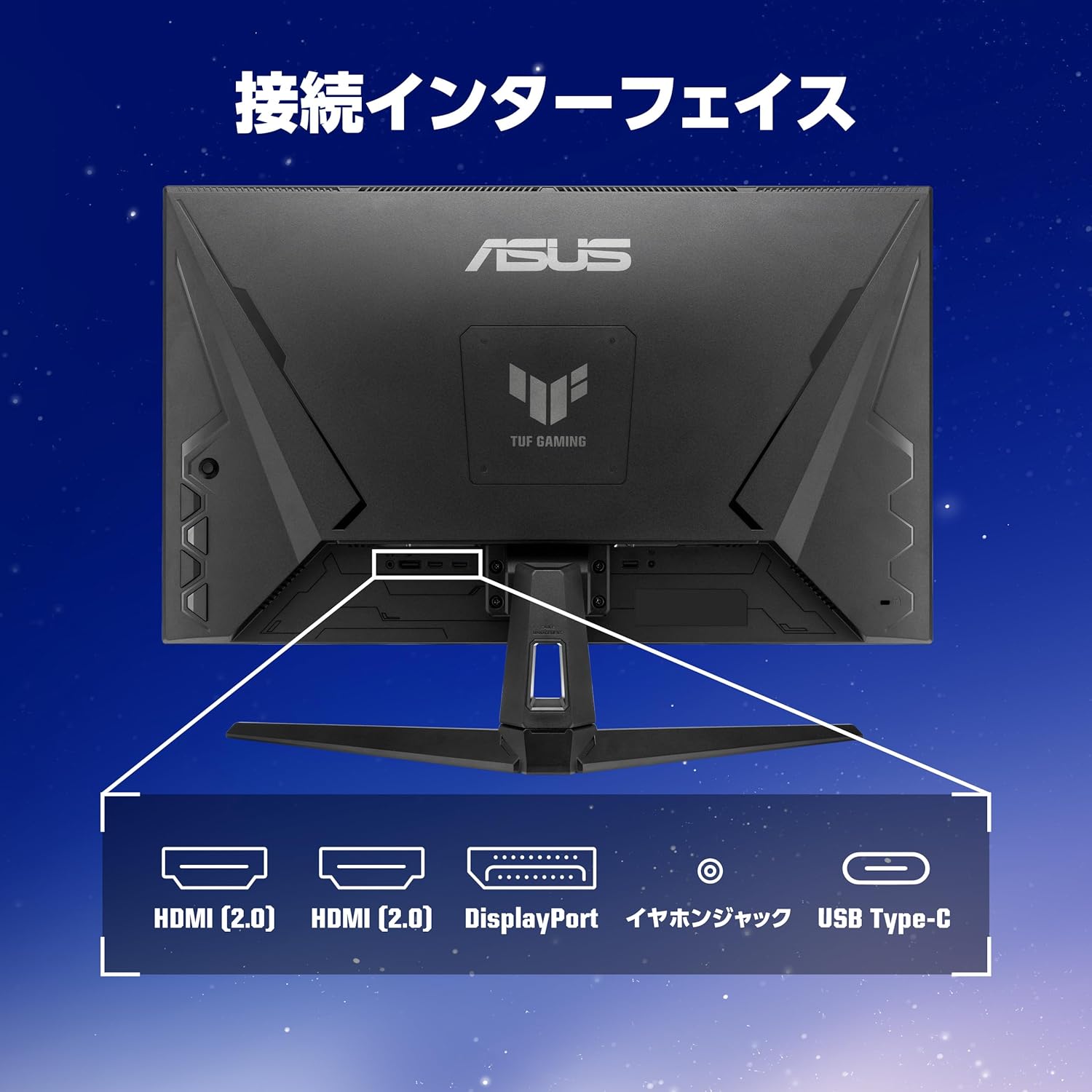
Figure 2: Monitor Connection Interfaces
- 디스플레이포트 연결: Connect one end of the DisplayPort cable to the monitor's DisplayPort 1.4 input and the other end to your computer's DisplayPort output.
- HDMI 연결: Connect one end of an HDMI cable to one of the monitor's HDMI (v2.0) inputs and the other end to your computer's HDMI output.
- USB Type-C 연결: Connect a USB 3.2 Gen 1 Type-C cable for video signal (if supported by your device) and power delivery.
- 오디오 연결: Connect headphones or external speakers to the 3.5mm stereo mini jack.
- 전원 연결: 전원 코드를 모니터의 전원 입력 단자에 연결한 다음 전원 콘센트에 꽂으십시오.
4. 모니터 작동하기
4.1 전원 켜기/끄기
모니터에 있는 전원 버튼을 눌러 모니터를 켜거나 끄세요.
4.2 온스크린 디스플레이(OSD) 메뉴
Use the joystick and buttons on the back or bottom of the monitor to navigate the OSD menu and adjust settings.
Key Features and Settings:
- Refresh Rate (210Hz OC): This monitor supports a high refresh rate of up to 210Hz (overclocked) for smoother visuals, especially in fast-paced gaming.
- 빠른 IPS 패널: 넓은 제공 viewing angles and excellent color reproduction.
- ELMB Sync (Extreme Low Motion Blur Sync): Reduces motion blur and ghosting for clearer fast-moving images.
- Adaptive-Sync (VRR Technology): 모니터의 새로 고침률과 GPU의 프레임률을 동기화하여 화면 찢김 및 끊김 현상을 제거합니다.
- 게임비주얼: Offers various display modes optimized for different content types (e.g., Scenery, Racing, Cinema, RTS/RPG, FPS, sRGB, MOBA, User Mode).
- 게임플러스: Provides in-game enhancements like crosshair overlays, timer, FPS counter, and display alignment tools.
- 섀도우 부스트: Enhances details in dark areas without overexposing bright areas.
- DisplayWidget Center: Software utility for easy adjustment of monitor settings via your PC.
- 블루 라이트 감소: Filters out harmful blue light to protect your eyes during extended use.
- 흔적 없는 기술: Improves response time to eliminate ghosting and motion blur.
- GameFast Input Technology: 입력 지연을 최소화하여 더욱 반응성 있는 게임 환경을 제공합니다.
- ASUS 전원 동기화: Manages power consumption efficiently.

Figure 3: Smooth Visuals with High Refresh Rate

Figure 4: Adaptive-Sync Technology

Figure 5: GameVisual Feature

Figure 6: Shadow Boost Levels

Figure 7: DisplayWidget Center Interface
4.3 인체공학적 조정
모니터 스탠드는 최적의 사용을 위해 각도 조절이 가능합니다. view경험.
- 경사: 화면 각도를 +20°에서 -5°까지 조절하세요.

그림 8: 기울기 조정 범위
5. 유지관리
5.1 모니터 청소
- 청소하기 전에는 항상 모니터의 플러그를 뽑으세요.
- 부드럽고 보푸라기가 없는 천을 사용하여 화면과 외부 표면을 가볍게 닦으세요.
- 완고한 자국의 경우 가볍게 dampen the cloth with water or a mild, non-abrasive cleaner specifically designed for monitors.
- 알코올, 암모니아 또는 연마성 세척제는 화면을 손상시킬 수 있으므로 사용하지 마십시오.asing.
5.2 일반 관리
- 직사광선이 닿는 곳이나 열원 근처에 모니터를 두지 마십시오.
- 과열을 방지하려면 모니터 주변에 적절한 환기가 이루어지도록 하세요.
- 모니터나 케이블 위에 무거운 물건을 올려놓지 마세요.
- 모니터를 과도한 먼지와 습기로부터 보호하십시오.
6. 문제 해결
| 문제 | 가능한 원인 | 해결책 |
|---|---|---|
| 화면에 이미지가 없습니다. | 전원 케이블이 분리되었습니다. 비디오 케이블이 분리되었습니다. 잘못된 입력 소스가 선택되었습니다. | Check power and video cable connections. Press the OSD menu button to select the correct input source. |
| 이미지가 흐릿하거나 왜곡됩니다. | Incorrect resolution; Video cable issues. | Set the display resolution to 2560x1440. Ensure the video cable is securely connected and not damaged. |
| 화면 찢김 또는 끊김 | Adaptive-Sync not enabled; Refresh rate mismatch. | Enable Adaptive-Sync in the monitor's OSD menu and your graphics card settings. Ensure your system's refresh rate is set to 210Hz (OC) or lower, matching the monitor's capabilities. |
| 스피커/헤드폰에서 소리가 나지 않습니다 | 오디오 케이블이 분리되었습니다. 볼륨이 너무 낮습니다. PC에서 잘못된 오디오 출력을 선택했습니다. | Check audio cable connection. Adjust monitor and PC volume. Select the monitor as the default audio output device on your PC. |
7. 사양
| 특징 | 설명 |
|---|---|
| 상표 | 아수스 |
| 모델 번호 | VG27AQ5A |
| 화면 크기 | 27인치 |
| 패널 유형 | 빠른 IPS |
| 해결 | HD(2560 x 1440) |
| 종횡비 | 16시 9분 |
| 새로 고침 빈도 | 210Hz (오버클럭) |
| 응답 시간 | 0.3ms GTG (minimum), 1ms GTG |
| 명도 | 300칸델라/제곱미터 |
| 대비율 | 1,300:1 (일반) |
| View잉 각도 | 178°(수평) / 178°(수직) |
| 픽셀 피치 | 0.233mm |
| 연결성 | DisplayPort 1.4 x 1 (HBR2), HDMI (v2.0) x 2, USB 3.2 Gen 1 Type-C x 1 (Service Port), 3.5mm Stereo Mini Jack x 1 |
| 기울기 조정 | +20° ~ -5° |
| VESA 마운트 호환성 | 100mm x 100mm |
| 켄싱턴 잠금 | 지원됨 |
| 치수(폭x높이x깊이) | 61.50 x 45.50 x 21.40cm (스탠드 포함) |
| 무게 | 약 5.0kg |

그림 9: 제품 치수
8. 보증 및 지원
8.1 제품 보증
This product comes with a 3-year domestic warranty from the date of purchase.
8.2 ASUS 고객 지원
For technical support or inquiries, please contact the ASUS Call Center:
- 무료 전화 번호: 0800-123-2787 (Available from landlines)
- Paid Number: 0570-783-886 (Charges apply for mobile phones, PHS, public phones, and calls from overseas)
- 영업 시간: 9:00 - 19:00, 365 days a year.
Additional information can be found on the official ASUS web대지.
Ask a question about this manual
Ask about setup, troubleshooting, compatibility, parts, safety, or missing instructions. Manuals+ will review the question and use this page’s manual context to help answer it.