
소개
This manual provides essential information for the safe and efficient use of your SUPVAN T50M Pro Label Maker. Please read these instructions carefully before operating the device and retain them for future reference.
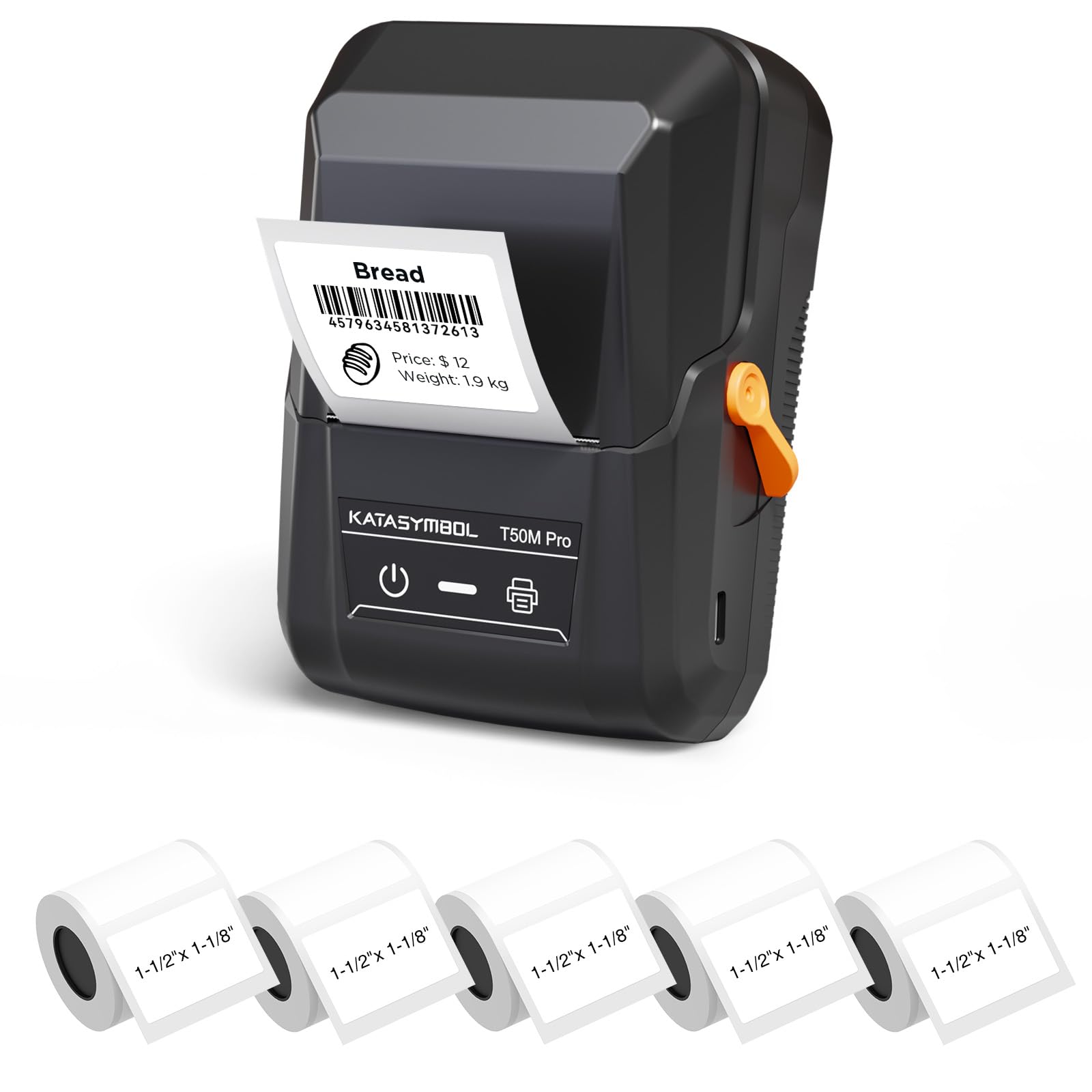
Image: The SUPVAN T50M Pro Label Maker, a compact thermal printer.
패키지 내용
패키지에 모든 품목이 들어 있는지 확인하세요.
- SUPVAN T50M 프로 라벨 메이커
- 5 rolls of 1.57'' × 1.18'' (40mm × 30mm) white labels (250 labels/roll)
- USB 케이블 (충전 및 연결용)
- 사용 설명서 (본 문서)
설치 가이드
1. 장치 충전
Before first use, fully charge the label maker using the provided USB cable. The device features a 1200 mAh built-in rechargeable battery, offering extended use on a single charge.
2. 라벨 롤 설치
The T50M Pro uses thermal paper, eliminating the need for ink or toner. Follow these steps to install a label roll:
- 라벨 칸 덮개를 여세요.
- 라벨 롤을 인쇄면이 위를 향하도록 삽입하십시오.
- Ensure the label edge is aligned with the printer's feed mechanism.
- Close the cover. The device's Smart RFID Auto-Detection will recognize the label size automatically.

Image: Illustration of loading thermal paper into the label maker. The device uses thermal printing technology, requiring no ink or toner.
3. 앱 설치 및 연결
Download the official SUPVAN app from your device's app store. The app provides all editing functions and is free to use.
- 라벨 프린터를 켜세요.
- Open the SUPVAN app on your smartphone or tablet.
- Follow the in-app instructions to connect to your T50M Pro via Bluetooth or USB.
작동 지침
1. 앱을 이용한 라벨 생성
The SUPVAN app offers a comprehensive suite of editing tools:
- 텍스트 편집: Choose from over 40 fonts.
- Image & Picture Integration: Add custom images and logos.
- 템플릿: Access over 140 free, constantly updated templates for various uses.
- 라벨 크기 자동 인식: The app automatically detects the loaded label size, reducing errors.

Image: The SUPVAN app's editing interface, demonstrating font choices, image integration, and automatic label size detection.

Image: A selection of over 140 free templates available within the SUPVAN app, suitable for diverse labeling needs.
2. 라벨 인쇄
After designing your label in the app, select the "Print" option. Ensure the label maker is connected and has sufficient battery. The T50M Pro supports various label styles and sizes, printing 3/4 to 2-inch wide labels.

이미지: 전amples of labels created with the T50M Pro, including address labels, price tags, and decorative labels, demonstrating support for various styles.

Image: A visual comparison highlighting the high-quality image output from the SUPVAN T50M Pro's app compared to other label makers.
3. 일반적인 응용 프로그램
The SUPVAN T50M Pro is suitable for a wide range of labeling tasks:
- 소규모 사업체: Shipping addresses, product information, QR codes, brand logos.
- 사무실 및 학교: 이름 tags, folder labels, documentation, asset tag갔다.
- 홈 정리: Pantry labels, storage bins, personal items.

Image: Demonstrates diverse uses for the label maker, such as labeling containers in a pantry, creating product labels, printing shipping labels, and organizing school supplies.
유지
1. 프린트 헤드 청소
최적의 인쇄 품질을 유지하려면 주기적으로 감열 프린트 헤드를 청소하십시오. 부드럽고 보풀 없는 천으로 가볍게 닦아주세요.ampened with isopropyl alcohol. Do not use abrasive cleaners or sharp objects.
2. 배터리 관리
Recharge the device when the battery indicator is low. Avoid fully discharging the battery frequently to prolong its lifespan. Store the device in a cool, dry place when not in use for extended periods.
3. 라벨 보관
라벨 롤은 직사광선과 열을 피해 서늘하고 건조한 곳에 보관하여 열 감응 소재의 손상을 방지하십시오.
문제 해결
1. 장치가 켜지지 않음
- 기기가 완전히 충전되었는지 확인하십시오. USB 케이블을 사용하여 전원에 연결하십시오.
- 전원 버튼을 몇 초간 길게 누르세요.
2. Printing Issues (Blank or Faint Prints)
- Check if the label roll is installed correctly with the printing surface facing up.
- Ensure the label roll is not empty.
- 유지관리 섹션에 설명된 대로 프린트 헤드를 청소하세요.
- Verify that the label type is compatible with the T50M Pro.
3. 앱 연결 문제
- 모바일 장치에서 Bluetooth가 활성화되어 있는지 확인하십시오.
- Make sure the label maker is turned on and within range.
- Restart both the label maker and the app.
- 문제가 지속되면 앱을 다시 설치해 보세요.
4. Label Misalignment
- Ensure the label roll is properly seated and aligned in the compartment.
- The Smart RFID Auto-Detection should prevent most misalignment issues; if not, try re-seating the roll.
명세서
| 특징 | 세부 사항 |
|---|---|
| 모델명 | T50M 프로 |
| 상표 | 수반 |
| 인쇄 기술 | 열의 |
| 연결 기술 | USB, 블루투스 |
| 하드웨어 인터페이스 | USB |
| 프린터 출력 | Monochrome (Black Ink Color) |
| 최대 미디어 크기 | 1.57'' × 1.18'' (40mm × 30mm) - 3/4 to 2-inch wide labels supported |
| 특징 | Portable, Smart RFID Auto-Detection, BPA-free labels |
| 배터리 | 1200mAh 내장 충전식 배터리 |
| 치수 | 약 5" x 3.7" x 2.3" |
| 무게 | 대략. 0.6 파운드 |
| 포함된 구성 요소 | Label Maker, Labels, USB Cable |

Image: The compact design of the T50M Pro, highlighting its portability, lightweight nature, and 1200 mAh rechargeable battery.
보증 및 지원
보증 정보
For detailed warranty information, please refer to the warranty card included with your product or visit the official SUPVAN web사이트. 보증 약관은 지역 및 소매업체에 따라 다를 수 있습니다.
고객 지원
If you encounter any issues or have questions regarding your SUPVAN T50M Pro Label Maker, please contact SUPVAN customer support through their official web제품을 구매한 사이트 또는 소매업체.
또한 방문할 수 있습니다 아마존에서 SUPVAN 스토어를 만나보세요 추가 제품 정보 및 지원 리소스를 확인하세요.