
1. 서론
The OREI SplitExtend Laptop Docking Station SX-2C1080-D100W is a versatile and compact solution designed to expand the connectivity and display capabilities of your laptop. This manual provides detailed instructions for setup, operation, maintenance, and troubleshooting to ensure optimal performance and user experience.

Figure 1: OREI SplitExtend Docking Station Overview
2. 제품 특징
- Dual HDMI Display Output: Extend or duplicate your laptop screen to up to two external displays. Supports 4K@30Hz on a single monitor or 1080p@60Hz across two screens.
- USB 3.0 연결: Includes two USB 3.0 Type-A ports and one USB 3.0 Type-C port for high-speed data transfer and peripheral connectivity.
- 통합 카드 리더기: Features dedicated SD and Micro SD card slots for convenient access to memory cards.
- 100W 전력 공급(PD): Allows for pass-through charging of your laptop while using the docking station, ensuring your device remains powered.
- 컴팩트하고 내구성 있는 디자인: Constructed with aluminum alloy housing for enhanced durability and portability.
- 폭넓은 호환성: Supports Windows (11, 10, 7, 8.1) and macOS (Ventura 13, Monterey 12, Big Sur 11, Catalina 10.15, Mojave 10.14) operating systems. Compatible with USB-C, USB-A, Thunderbolt 3/4, and USB 4 devices.

그림 2: 주요 제품 기능

Figure 3: Detailed Port Overview
3. 사양
| 특징 | 사양 |
|---|---|
| 모델 | SX-2C1080-D100W |
| 하드웨어 인터페이스 | HDMI, USB 3.0 Type A, USB 3.0 Type C |
| 호환 장치 | 노트북, 모니터 |
| 총 USB 포트 | 3개 (USB 3.0 타입 A 2개, USB 3.0 타입 C 1개) |
| 총 HDMI 포트 | 2 |
| 전력 공급 | 100와트 |
| 치수(길이 x 너비 x 높이) | 5.12" x 1.7" x 0.4"(130mm x 43.2mm x 10.4mm) |
| 무게 | 2.68온스(76g) |
| 재료 | 알루미늄 및 ABS |
| 색상 | 검은색 |

그림 4: 기술 사양
4. 설정 가이드
Follow these steps to set up your OREI SplitExtend Docking Station:
- 노트북에 연결: Plug the integrated USB-C cable from the docking station into an available USB-C port on your laptop. Ensure your laptop's USB-C port supports video output (DP Alt Mode).
- 모니터 연결: Use HDMI cables (not included) to connect your external monitors to the two HDMI output ports on the docking station.
- 전원 연결(선택 사항): If your laptop requires charging or if you are connecting power-intensive peripherals, connect your laptop's USB-C power adapter to the dedicated USB-C PD port on the docking station. This port supports up to 100W Power Delivery.
- 주변기기 연결: Plug your USB devices (e.g., mouse, keyboard, external hard drive) into the USB 3.0 Type-A and Type-C ports on the docking station. Insert SD or Micro SD cards into their respective slots if needed.

Figure 5: Docking Station Connected to Laptop and Monitors
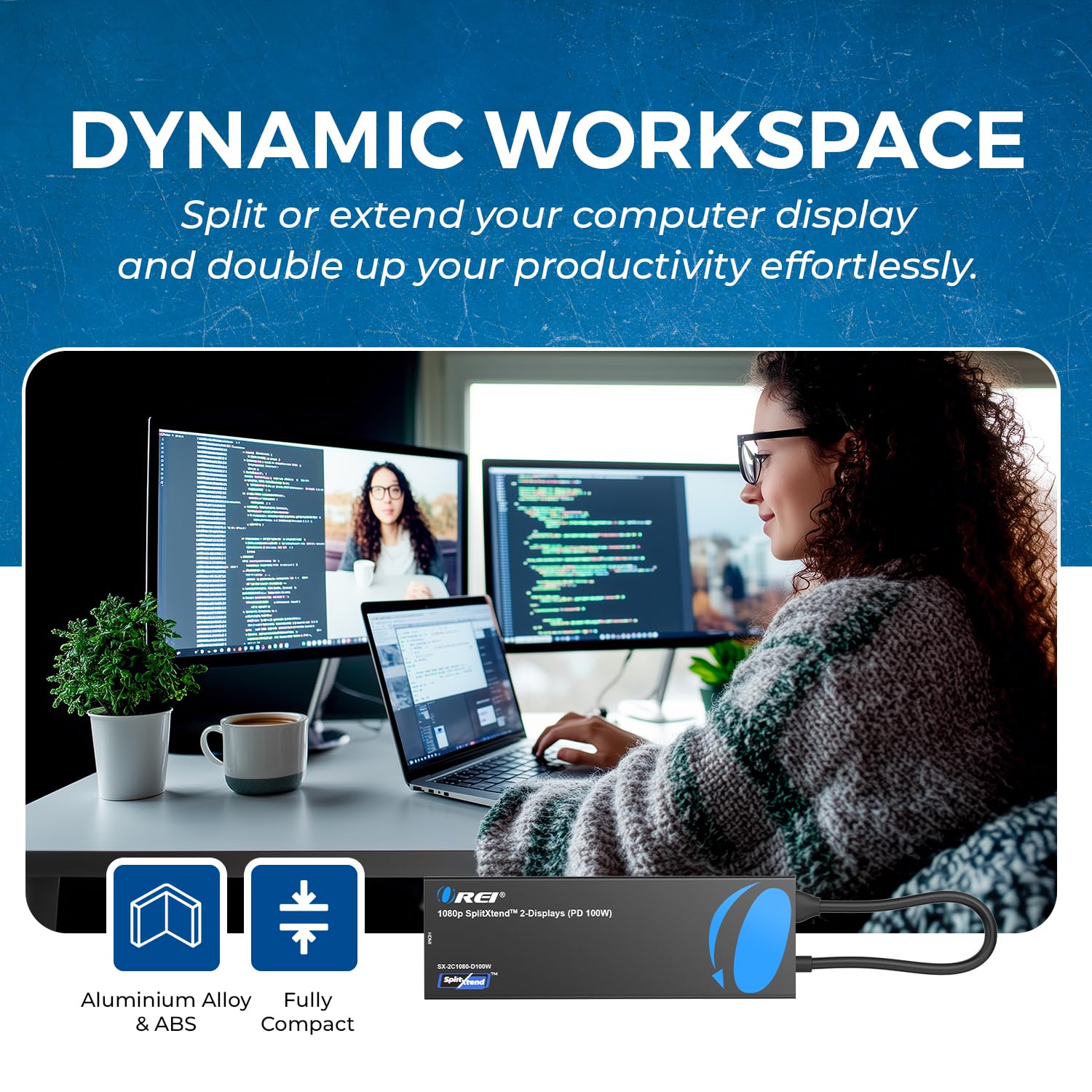
Figure 6: Close-up of Docking Station Ports
설정 비디오 가이드
Video 1: How to Use SplitExtend Docking Station Dual Monitor. This video provides a visual guide on connecting and setting up the docking station with your laptop and external monitors.
5. 작동 모드
The OREI SplitExtend Docking Station supports various display modes to enhance your productivity:
- Extended Display Mode (Windows MST): Allows you to extend your desktop across multiple screens, providing more screen real estate for multitasking. Each monitor can display different content.
- Mirror Display Mode (Windows/macOS SST): Duplicates your laptop's screen onto the external monitors, showing the same content on all displays. This is ideal for presentations or sharing your screen.
Note: Your laptop must support video output through USB-C (DP Alt Mode) for the adapter to function correctly.

Figure 7: Split or Extend Display Options

Figure 8: Mirror and Extend Mode Compatibility
Operating Mode Video Guide
Video 2: OREI SplitExtend Laptop Docking Station 4K Overview. This video demonstrates the various operating modes and capabilities of the docking station.
6. 호환성
The OREI SplitExtend Docking Station is designed for broad compatibility:
- 운영 체제: Windows 11, 10, 7, 8.1 and macOS Ventura 13, Monterey 12, Big Sur 11, Catalina 10.15, Mojave 10.14.
- 노트북 호환성: Works with M1/M2 & Intel-based MacBook Air/Pro, Dell XPS, Precision, Latitude, Lenovo Yoga, Thinkbook, Ideapad, HP Spectre, X360, ENVY, and other laptops with compatible USB-C ports.

Figure 9: Broad Compatibility with Various Operating Systems and Laptops
7. 문제 해결
- 디스플레이 출력 없음:
- Ensure your laptop's USB-C port supports video output (DP Alt Mode). Not all USB-C ports have this capability.
- Check all cable connections (USB-C to laptop, HDMI to monitors). Try re-plugging them firmly.
- Verify monitor input settings are set to the correct HDMI input.
- 문제를 파악하기 위해 한 번에 모니터를 하나씩만 연결해 보세요.
- Update your laptop's graphics drivers and operating system.
- 화면 깜빡임 또는 불안정한 화면 표시:
- Ensure you are using high-quality HDMI cables.
- Reduce the display resolution or refresh rate in your laptop's display settings.
- Ensure adequate power supply if using power-intensive peripherals or charging your laptop through the dock.
- USB 장치가 인식되지 않음:
- USB 장치를 노트북에 직접 연결하여 정상 작동하는지 확인해 보세요.
- 도킹 스테이션이 노트북에 제대로 연결되었는지 확인하세요.
- If it's a power-intensive device, ensure the docking station is connected to a 100W PD power source.
- 노트북이 충전되지 않음:
- Ensure your laptop's original USB-C power adapter is connected to the docking station's USB-C PD port.
- 전원 어댑터가 올바르게 작동하는지 확인하세요.
- 노트북이 USB-C 전원 공급을 지원하는지 확인하세요.
8. 유지관리
To ensure the longevity and optimal performance of your OREI SplitExtend Docking Station, follow these maintenance tips:
- 부드럽고 마른 천으로 닦아 기기를 깨끗하게 유지하세요. 강한 화학 물질이나 연마재는 사용하지 마세요.
- 도킹 스테이션은 직사광선과 극한의 온도를 피해 시원하고 건조한 곳에 보관하세요.
- Avoid bending or straining the integrated USB-C cable excessively. Utilize the built-in storage slot for the cable when not in use to prevent damage.
- 장치를 물이나 기타 액체에 노출시키지 마십시오.
- Handle the ports gently when connecting or disconnecting cables to prevent physical damage.
9. 보증 및 지원
The OREI SplitExtend Laptop Docking Station SX-2C1080-D100W comes with a 12개월 보증 from the date of purchase. This warranty covers manufacturing defects and ensures reliable use.
For technical support, warranty claims, or any inquiries regarding your product, please contact OREI Direct customer service. Refer to the contact information provided in your product packaging or visit the official OREI web도움이 필요한 경우 사이트를 방문하세요.
Thank you for choosing OREI products.