
1. 서론
그만큼 Rapoo E900T Portable Wireless Keyboard with Touchpad is designed for seamless multi-device and multi-operating system control. This versatile keyboard offers tri-mode wireless connectivity (Bluetooth 5.0/4.0 and 2.4GHz) allowing you to effortlessly navigate and type across various devices such as PC-connected TVs, tablets, Steam Decks, gaming consoles, Raspberry Pi, Mini PCs, and smartphones. Its ultra-thin design and integrated touchpad with gesture support enhance convenience and productivity for both Windows and Mac users.
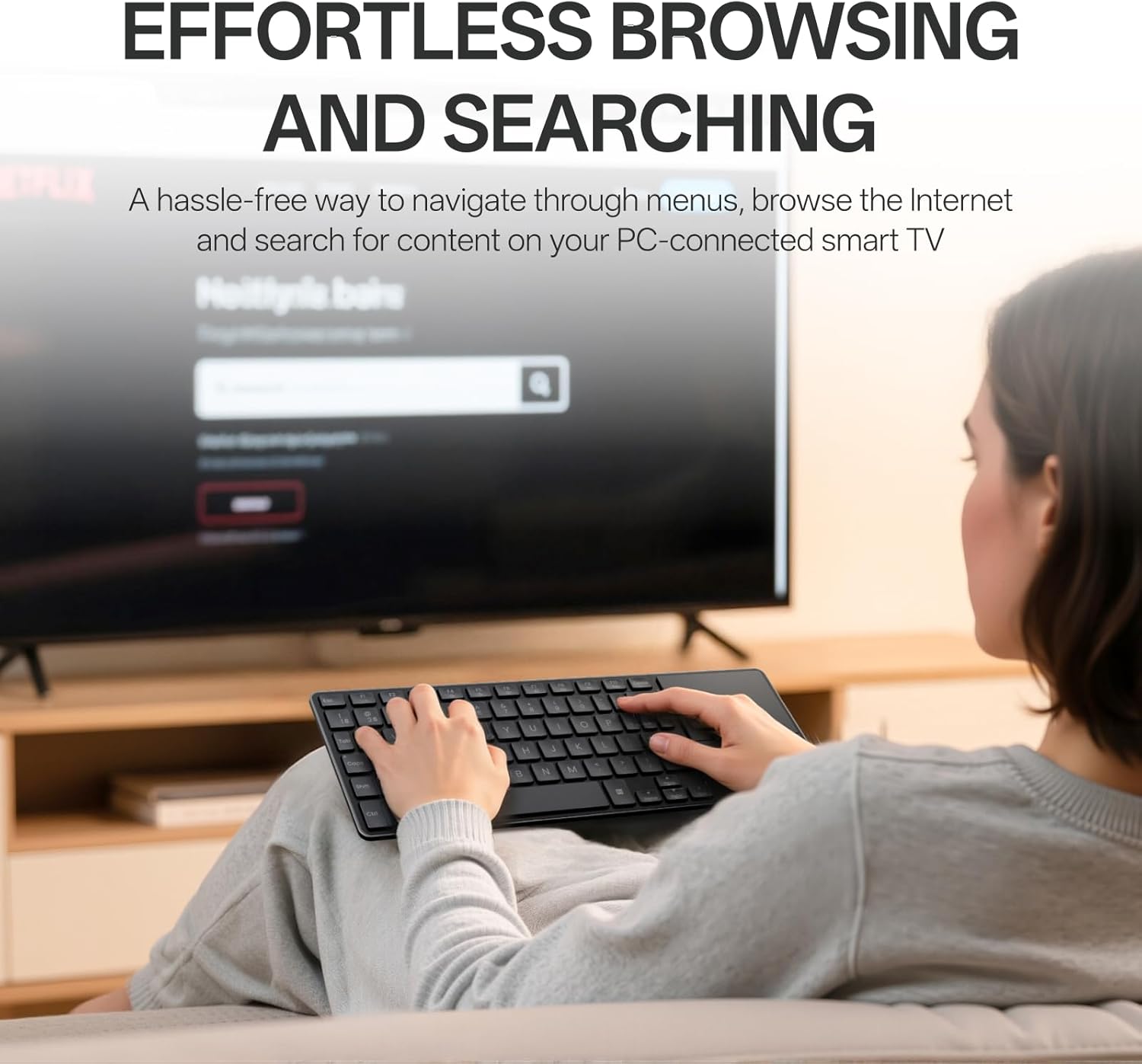
Image: The Rapoo E900T keyboard being used by a person relaxing on a couch, effortlessly browsing content on a large screen television. This highlights the keyboard's suitability for HTPC setups.
2. 상자 안에 무엇이 들어있나요?
- 1 x Rapoo E900T Portable Wireless Keyboard
- 1 x 사용자 가이드
- AAA 배터리 2개
3. 주요 특징
- All-in-one Solution for Multi Media and OS: Features Bluetooth 5.0/4.0 + 2.4GHz tri-mode wireless connectivity, providing a versatile way to navigate, browse, search, or type on various devices including PC-connected TVs, tablets, Steam Decks, gaming consoles, SBCs, mini PCs, and phones.
- Ultra-Thin and Portable Design: With a length of 11.09 inches (281.6mm) and a thickness of 0.15 inches (3.9mm), the E900T is highly portable and fits easily with most tablets, ideal for on-the-go use.
- Built-in Touchpad and Gestures Support for Windows & Mac: Eliminates the need for a separate mouse by integrating a touchpad that supports multi-finger gestures for both Windows and Mac OS. (Note: Press FN+W to enter Windows mode / FN+Q to enter Mac mode).
- Multi-Device and Multi-OS Support: Connects up to 4 devices across various operating systems including Windows, Mac, Chrome, and Android.
- 73키 컴팩트 레이아웃: Space-saving and portable, this layout is convenient for school, travel, and business. Integrated multimedia hotkeys provide quick access to control entertainment functions such as play/pause and volume adjustments.
- 낮은 전력 소모: Upgraded low-power technology allows the E900T to operate for up to 13 months with 1 or 2 AAA batteries.

Image: The Rapoo E900T keyboard positioned on a wooden desk alongside a laptop, smartphone, and an external mouse, demonstrating its 'All-in-one for Multi Media & OS' capability.

Image: A hand performing a multi-finger gesture on the integrated touchpad of the Rapoo E900T keyboard, highlighting its gesture support for navigation.
4. 설정 지침
4.1 전원 켜기
- 키보드 아랫부분에서 배터리 칸을 찾으세요.
- Insert the two provided AAA batteries, ensuring correct polarity.
- Locate the ON/OFF switch, usually on the side or top edge of the keyboard, and slide it to the 'ON' position.
4.2 2.4GHz Wireless Connection (USB-A Receiver)
- Locate the USB-A receiver, typically stored in the battery compartment or a dedicated slot on the keyboard.
- Plug the USB-A receiver into an available USB port on your device (PC, TV, console, etc.).
- The keyboard should automatically connect to your device. No additional drivers are usually required.
4.3 블루투스 연결
- 키보드의 전원이 켜져 있는지 확인하세요.
- Press and hold the dedicated Bluetooth pairing key (often labeled B1 or B2, or an Fn key combination like 에프앤씨) until the Bluetooth indicator light starts flashing. This indicates the keyboard is in pairing mode.
- On your device (tablet, smartphone, laptop), go to Bluetooth settings and search for available devices.
- Select "Rapoo E900T" or a similar name from the list of found devices to pair.
- If prompted, enter the pairing code displayed on your device.
- Once paired, the Bluetooth indicator light on the keyboard will stop flashing and remain solid or turn off, indicating a successful connection.
4.4 Switching Between Devices/OS Modes
- To switch between paired Bluetooth devices (B1, B2), press the corresponding dedicated button.
- To switch between Windows and Mac OS modes for optimal key functionality, press FN + 승 for Windows mode or FN+Q 맥 모드용입니다.
Video: A short demonstration of the Rapoo E900T Portable Wireless Keyboard with Touchpad, showcasing its compact size and ease of use for basic navigation. This video is a brief preview 판매자로부터.
Video: A user demonstrating how the Rapoo E900T keyboard integrates into a 'couch setup' for controlling a smart TV or other media devices, highlighting its convenience and functionality in a home entertainment environment. This video is from a seller.
5. 사용 설명서
5.1 터치패드 제스처
The integrated touchpad supports various multi-finger gestures for efficient navigation. Ensure multi-finger touch gestures are switched on in your device's settings for full functionality.
Windows Gesture Shortcuts (Press FN+W to enter Windows mode):
- One-finger glide: Cursor control.
- One-finger tap: 왼쪽 클릭.
- 두 손가락으로 탭하기: 마우스 오른쪽 버튼을 클릭하세요.
- Two-finger slide (vertical/horizontal): 스크롤.
- 두 손가락으로 집기: 확대하거나 축소합니다.
- 세 손가락 탭: Open the search box.
- Three-finger slide (left/right): Switch between tabs.
- Three-finger slide (up): Show thumbnails of all open apps.
- Three-finger slide (down): 데스크탑을 보여주세요.
- 네 손가락으로 탭하기: 스크린샷.

Image: A visual guide detailing multi-finger touchpad gestures for Windows operating systems, including cursor control, clicking, scrolling, zooming, and app management.
Mac OS Gesture Shortcuts (Press FN+Q to enter Mac mode):
- One-finger glide: Cursor control.
- One-finger tap: 왼쪽 클릭.
- 두 손가락으로 탭하기: 마우스 오른쪽 버튼을 클릭하세요.
- Two-finger slide (vertical/horizontal): 스크롤.
- 두 손가락으로 집기: 확대하거나 축소합니다.
- 세 손가락 탭: Middle-click.
- Three-finger slide (left/right): Switch between tabs.
- 네 손가락으로 탭하기: 스크린샷.

Image: A visual guide detailing multi-finger touchpad gestures for Mac operating systems, including cursor control, clicking, scrolling, zooming, and app management.
5.2개의 멀티미디어 단축키
The keyboard features dedicated multimedia hotkeys (F1-F7) that provide quick access to control your entertainment. Use the Fn key in combination with the F-keys for these functions:
- Fn+F1: 음소거/음소거 해제
- Fn+F2: 볼륨 낮추기
- Fn+F3: 볼륨을 높이다
- Fn+F4: 이전 트랙
- Fn+F5: 재생/일시정지
- Fn+F6: 다음 트랙
- Fn+F7: 미디어 플레이어 열기

이미지: 클로즈업 view of the Rapoo E900T keyboard, specifically showing the function keys F1 through F7 with their corresponding multimedia icons, and the 'Fn' key used for activating these functions.
5.3 Caps Lock 표시기
A dedicated LED indicator for Caps Lock is located on the keyboard, providing visual confirmation of its status to prevent typing errors.

이미지: 자세한 view of the Caps Lock key on the Rapoo E900T keyboard, showing the illuminated green LED indicator when Caps Lock is active.
6. 유지관리
6.1 배터리 교체
When the keyboard's performance degrades or the battery indicator light (if present) signals low power, replace the two AAA batteries. Always use fresh, high-quality batteries for optimal performance.
6.2 청소
To clean the keyboard, power it off and use a soft, dry, lint-free cloth. For stubborn dirt, a slightly damp cloth can be used, but ensure no moisture enters the keyboard. Avoid using harsh chemicals, abrasive cleaners, or solvents.
6.3 보관
장기간 사용하지 않을 때는 배터리 수명 절약을 위해 키보드를 끄십시오. 직사광선과 극한 온도 변화를 피해 서늘하고 건조한 곳에 보관하십시오.
7. 문제 해결
7.1 No Connection / Unresponsive Keyboard
- 배터리 확인: 배터리가 올바르게 삽입되었는지, 그리고 충분한 전력이 충전되었는지 확인하십시오. 필요한 경우 교체하십시오.
- 전원 스위치: Verify the keyboard's ON/OFF switch is in the 'ON' position.
- 2.4GHz 연결: For 2.4GHz mode, ensure the USB-A receiver is securely plugged into your device. Try a different USB port.
- 블루투스 연결 : For Bluetooth mode, ensure Bluetooth is enabled on your device and the keyboard is properly paired. Re-pair the keyboard if the connection is lost.
- Distance & Interference: Move the keyboard closer to your device and away from potential sources of interference (e.g., other wireless devices, large metal objects).
7.2 Incorrect Key Functions / Layout Issues
- OS Mode: Ensure the keyboard is in the correct operating system mode. Press FN + 승 Windows 또는 FN+Q Mac용.
7.3 터치패드가 반응하지 않거나 정확하지 않음
- 깨끗한 터치패드: Ensure the touchpad surface is clean and free from dirt or moisture.
- 제스처 설정: Check your device's operating system settings to ensure multi-finger gestures are enabled and configured as desired.
- Disable/Enable Touchpad: Some keyboards have a function to disable/enable the touchpad (check user guide for specific key combination if available).
8. 사양
| 특징 | 세부 사항 |
|---|---|
| 상표 | 라푸 |
| 모델 번호 | E900T |
| 제품 치수 | 11.09 x 4.09 x 0.15인치(281.6 x 103.9 x 3.9mm) |
| 품목 무게 | 7.7 온스(218g) |
| 연결 기술 | Bluetooth 5.0/4.0, RF (2.4GHz) |
| 호환 장치 | Laptop, PC, Smart TV, Tablet, Steam Deck, Gaming Console, Raspberry Pi, Mini PC, Phone |
| 키보드 설명 | Multimedia, 73-Key Compact Layout |
| 특별 기능 | 가볍고, 로우프로file Key, Portable, Trackpad, Wireless, Multi-Device, Multi-OS |
| 색상 | 검은색 |
| 재료 | 플라스틱 |
| 배터리 | AAA 배터리 2개 필요(포함) |
| 배터리 수명 | 최대 13개월 (사용량에 따라 다름) |

Image: A diagram illustrating the physical dimensions of the Rapoo E900T keyboard and its broad compatibility across Windows, Mac OS, and Android operating systems.
9. 보증 및 지원
The Rapoo E900T Portable Wireless Keyboard comes with a 2년 보증. For technical support, warranty claims, or any inquiries, please contact Rapoo customer service. You can typically find support information on the official Rapoo web제품을 구매한 소매업체나 사이트를 통해서도 구매 가능합니다.
지원 이메일: support@rapoo.com