
DOMO SLP9
DOMO Slate SLP9 OS12 T310 Tablet PC User Manual
모델: SLP9
소개
This manual provides essential information for the proper use and maintenance of your DOMO Slate SLP9 OS12 T310 Tablet PC. Please read it thoroughly before operating the device to ensure optimal performance and longevity.
상자 안에 무엇이 들어있나요?
- 1 Pc DOMO Slate SLP9 OS12 T310 Tablet PC
- 1 Pc Charging Power Adapter
- 1 Pc Type-C USB Cable
- 1 Pc Type-C OTG Cable
- 1 Sim Card Tray Eject Pin
- 사용 설명서 (본 문서)
제품 끝view
Familiarize yourself with the physical components of your DOMO Slate SLP9 OS12 T310 Tablet PC.
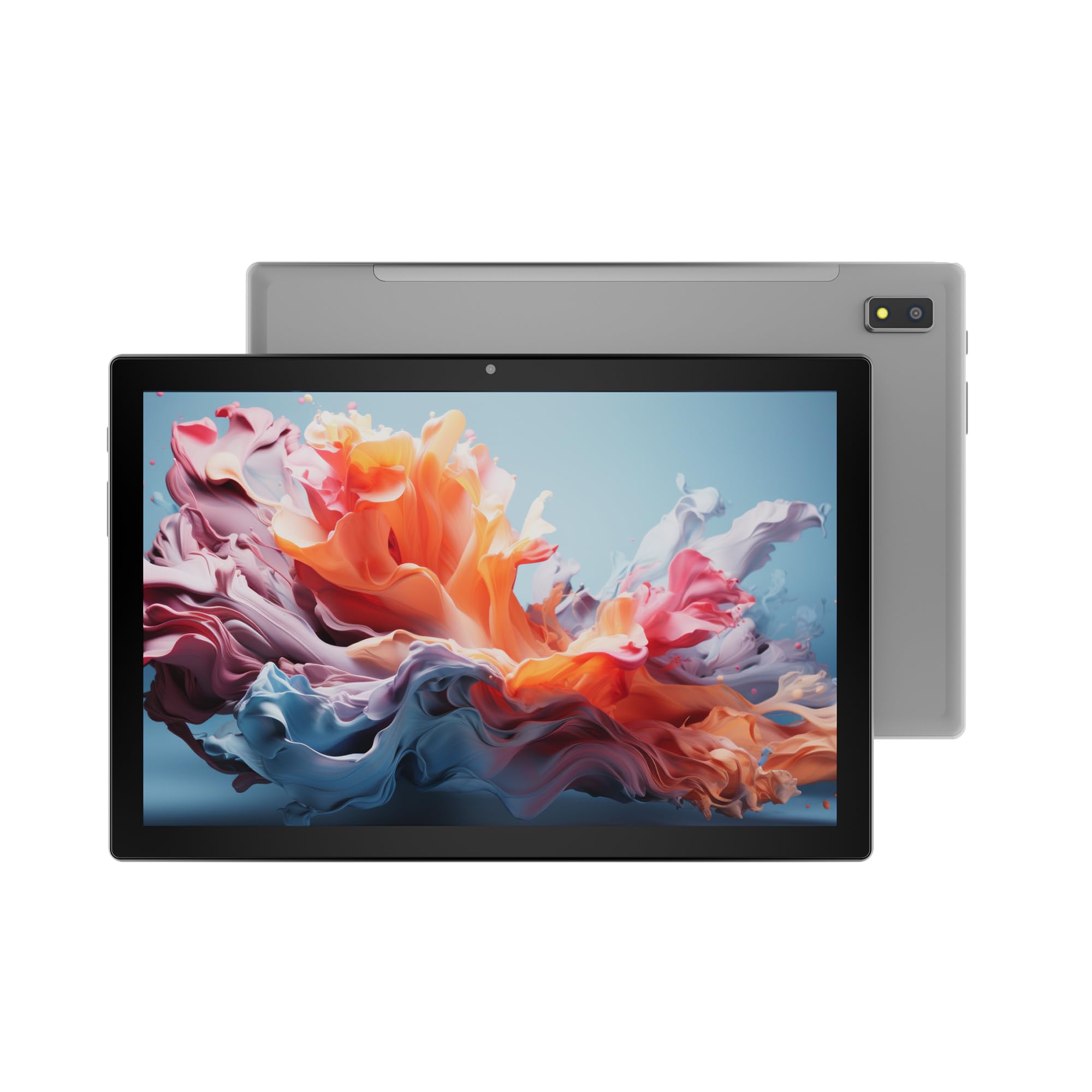
그림 1: 앞쪽 view of the DOMO Slate SLP9 OS12 T310 Tablet PC, showcasing the 10.1-inch IPS LCD display.

그림 2: 각진 view 태블릿의 슬림한 디자인을 강조하며,file 그리고 화면.

그림 3: 옆 view of the tablet, showing the placement of buttons and ports.

그림 4: 뒤쪽 view of the tablet, displaying the camera module and branding.
주요 구성 요소
- 10.1-inch IPS HD LCD Display: 선명한 영상을 위한 고해상도 화면.
- 전면 카메라: Located above the screen for video calls and selfies.
- Rear Camera with LED Flash: 사진과 비디오를 촬영하는 데 사용합니다.
- 전원 버튼: 기기를 켜거나 끄거나 절전 모드로 전환합니다.
- 볼륨 버튼: 오디오 레벨을 조정합니다.
- Type-C USB 포트: 충전 및 데이터 전송용입니다.
- Dual SIM Slot: Supports 4G, 3G, and 2G SIM cards for cellular connectivity and voice calling.
- MicroSD 카드 슬롯: 최대 1TB까지 저장 용량을 확장할 수 있습니다.
- Dual Box Type Speakers: 오디오 출력용.
설정
1. 태블릿 충전하기
Before first use, fully charge your tablet. Connect the provided Type-C USB cable to the tablet's Type-C port and the other end to the charging power adapter. Plug the adapter into a wall outlet. The battery indicator on the screen will show charging status.
2. SIM 및 MicroSD 카드 삽입
- 태블릿 측면에서 SIM/MicroSD 카드 트레이를 찾으세요.
- Insert the provided SIM eject pin into the small hole next to the tray to open it.
- Carefully place your 4G/3G/2G SIM card(s) and/or MicroSD card into the designated slots on the tray. Ensure correct orientation as indicated on the tray.
- 트레이를 태블릿에 다시 살짝 밀어 넣어 딸깍 소리가 나면서 제자리에 고정되도록 합니다.
3. 초기 전원 켜기 및 설정
- 를 누르고 계세요 전원 버튼 until the DOMO logo appears on the screen.
- 화면 안내에 따라 언어를 선택하고, Wi-Fi 네트워크에 연결하고, Google 계정을 설정하고, 기타 초기 설정을 구성하세요.
- Once setup is complete, your tablet is ready for use.
작동 지침
기본 탐색
- 만지다: 앱을 열거나 항목을 선택하려면 아이콘을 탭하세요.
- 길게 터치: 항목을 길게 누르면 상황별 메뉴에 접근하거나 아이콘을 이동할 수 있습니다.
- 강타: 화면을 가로질러 손가락을 끌어서 페이지나 목록을 스크롤하세요.
- 꼬집기: 두 손가락을 사용하여 사진을 확대하거나 축소합니다. web 페이지.
네트워크에 연결
Wi-Fi 연결
- 이동하다 설정 > 네트워크 및 인터넷 > 와이파이.
- Wi-Fi 전환 On.
- 목록에서 원하는 네트워크를 선택하고 메시지가 표시되면 비밀번호를 입력하세요.
블루투스 페어링
- 이동하다 설정 > 연결된 장치 > 블루투스.
- 블루투스 전환 On.
- Select the device you wish to pair with from the list of available devices. Confirm the pairing code if prompted.
Cellular Data and Voice Calling (4G)
With a valid SIM card inserted, your tablet supports 4G cellular data and voice calling (VoLTE). Ensure your SIM card is activated for these services.
- To enable/disable mobile data, go to 설정 > 네트워크 및 인터넷 > 모바일 네트워크.
- 전화를 걸려면 다음을 엽니다. 핸드폰 app and dial the number.
카메라 작동
열기 카메라 홈 화면이나 앱 서랍에서 앱을 실행하세요.
- 탭하세요 셔터 사진을 찍으려면 버튼을 클릭하세요.
- 탭하세요 동영상 동영상 녹화 모드로 전환하는 아이콘입니다.
- 사용하세요 카메라 전환 icon to toggle between the front and rear cameras.
GPS 기능
The tablet has an inbuilt GPS chip and antenna. To use location services, ensure GPS is enabled in 설정 > 위치. You can then use navigation apps or other location-based services.
유지
장치 청소
- 부드럽고 보푸라기가 없는 천을 사용하여 태블릿의 화면과 본체를 닦으세요.
- 강한 화학 물질, 연마 세척제 또는 에어로졸 스프레이는 사용하지 마세요.
- 틈새로 습기가 들어가지 않도록 하십시오.
배터리 관리
- 극한의 온도는 배터리 수명을 단축시킬 수 있으므로 피하세요.
- 제공된 충전기와 케이블만 사용하세요.
- 태블릿을 완전히 충전한 후에도 장시간 충전 상태로 두지 마세요.
소프트웨어 업데이트
Periodically check for system updates to ensure your tablet has the latest features and security enhancements. Go to 설정 > 체계 > 시스템 업데이트.
문제 해결
| 문제 | 가능한 해결책 |
|---|---|
| 태블릿의 전원이 켜지지 않습니다. | 배터리가 충전되어 있는지 확인하십시오. 충전기를 연결하고 다시 시도하십시오. 반응이 없으면 전원 버튼을 10~15초 동안 길게 눌러 강제로 재시작하십시오. |
| Wi-Fi에 연결할 수 없습니다. | Check if Wi-Fi is enabled in settings. Ensure the Wi-Fi password is correct. Restart your router and the tablet. |
| SIM 카드가 감지되지 않았습니다. | Ensure the SIM card is correctly inserted into the tray. Restart the tablet. Check if the SIM card is active with your service provider. |
| 성능이 느립니다. | Close unused applications. Clear cache. Consider uninstalling unnecessary apps. Perform a factory reset as a last resort (backup data first). |
| 카메라가 작동하지 않습니다. | Ensure the camera app has necessary permissions. Restart the tablet. |
명세서
| 특징 | 세부 사항 |
|---|---|
| 상표 | 도모 |
| 모델명 | Slate SLP9 OS12 T310 |
| 표시하다 | 10.1-inch IPS HD LCD, 1920 x 1200 Pixels, 400 NITS Brightness, 2.5D Corning Glass Touch Screen |
| 프로세서 | UNISOC Tiger T310 - 64-bit Quadcore @ 3.8Ghz |
| 숫양 | 4GB LPDDR4 |
| 내부 저장소 | 64GB |
| 확장 가능한 스토리지 | MicroSD 카드를 통해 최대 1TB까지 |
| 운영 체제 | 안드로이드 12 |
| 후방 카메라 | 13MP 카메라 (LED 플래시 포함) |
| 전면 카메라 | 5MP |
| 배터리 | 5020 mAh rechargeable polymer battery |
| 연결성 | Dual SIM (4G VoLTE, 3G, 2G), DualBand Wi-Fi (2.4GHz & 5GHz), Bluetooth 5.0, GPS, FM Radio |
| 포트 | Type-C USB Port, POGO Connector |
| 크기 (길이 x 너비 x 두께) | 24.4L x 16.2W x 1Th Centimeters |
| 무게 | 505그램 |
| 주택 | 금속 |
| 원산지 | 인도 |
보증 및 지원
보증 정보
The DOMO Slate SLP9 OS12 T310 Tablet PC comes with a 1년 보증 for the device and 3개월 보증 for accessories. The warranty type is Onsite, which includes free pickups and deliveries for service.
보증 제외 사항: Physical damages, water damages, moisture damages, seal tampering, and burnout cases are not covered under warranty.
고객 지원
For technical assistance, troubleshooting, or warranty claims, please contact DOMO customer support. Support options include an online knowledge base, support tickets, and phone support. Post-warranty services are available as paid onsite services.
자세한 내용은 공식을 방문하세요. DOMO Store on Amazon.
Ask a question about this manual
Ask about setup, troubleshooting, compatibility, parts, safety, or missing instructions. Manuals+ will review the question and use this page’s manual context to help answer it.