소개
This manual provides essential information for setting up, operating, maintaining, and troubleshooting your Thunderobot Zero 18 Pro 5070 Ti Gaming Laptop. Please read this guide thoroughly to ensure optimal performance and longevity of your device.
상자 안에 무엇이 들어있나요?
포장을 풀 때 아래 나열된 품목이 모두 있는지 확인하세요.
- THUNDEROBOT Zero Laptop
- 전원 어댑터
- 사용 설명서 (본 문서)
- 보증 카드
If any items are missing or damaged, contact your retailer or Thunderobot customer support immediately.
설정
초기 전원 켜기
- 전원 어댑터를 노트북의 전원 입력 포트에 연결한 다음 벽면 콘센트에 연결하십시오.
- 노트북 덮개를 엽니다.
- 전원 버튼을 눌러 노트북을 켭니다.
- 화면의 지시에 따라 Windows 11 Home 설치를 완료하십시오.
주변 장치 연결
Utilize the available ports to connect external devices such as a mouse, keyboard, external display, or other accessories. Refer to the "Connectivity (Ports)" section for port details.
작동 지침
전원 켜기/끄기
- To power on: Press the power button located on the keyboard deck.
- To shut down: Click the Start button, then Power, and select "Shut down".
- To restart: Click the Start button, then Power, and select "Restart".
- To sleep: Close the laptop lid or click the Start button, then Power, and select "Sleep".
Keyboard and RGB Lighting
The laptop features a full-size keyboard with per-key customizable RGB backlighting and a dedicated numeric keypad.
- Per-Key RGB Backlight: Customize individual key lighting through the AI Intelligent Control Center software.
- 기능 키: 사용하세요 Fn key in combination with other keys for various functions (e.g., volume control, screen brightness, keyboard backlight adjustment).
- Performance Mode Switching: Dedicated keys (Fn+Space) allow for quick toggling between performance profiles.
- One-Click Cooling: A dedicated key (often near the numeric keypad) can activate maximum cooling. Ensure cooling mode is exited before using the first three keys to switch modes.
디스플레이 기능
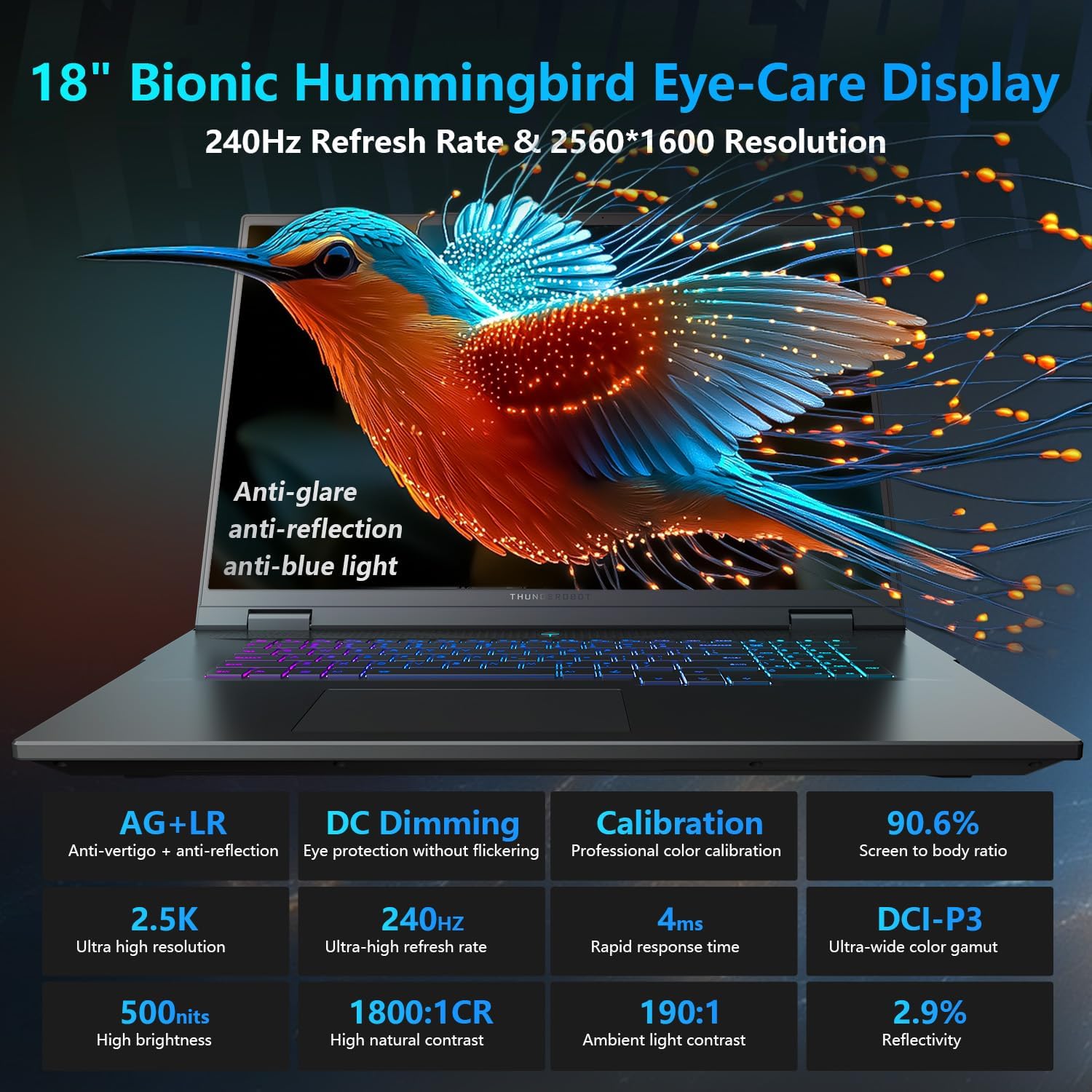
The 18-inch QHD+ (2560x1600) Bionic Hummingbird Eye-Care display offers a 240Hz refresh rate and 4ms response time for clear and fluid visuals. It includes anti-glare, anti-reflection, and anti-blue light technologies for eye comfort.

Connectivity (Ports)
The laptop is equipped with various ports for extensive connectivity:
- 3개의 초고속 USB Type-A 포트
- 2 x Superspeed USB Type-C ports (including Thunderbolt 5 support)
- 1 x HDMI port (HDMI 2.1)
- 1 x RJ-45 이더넷 포트
- 1 x Audio Port (3.5mm)
- UHS-II SD 카드 리더
- Wi-Fi 6E for high-speed wireless internet
- Bluetooth for wireless peripheral connections

냉각 시스템
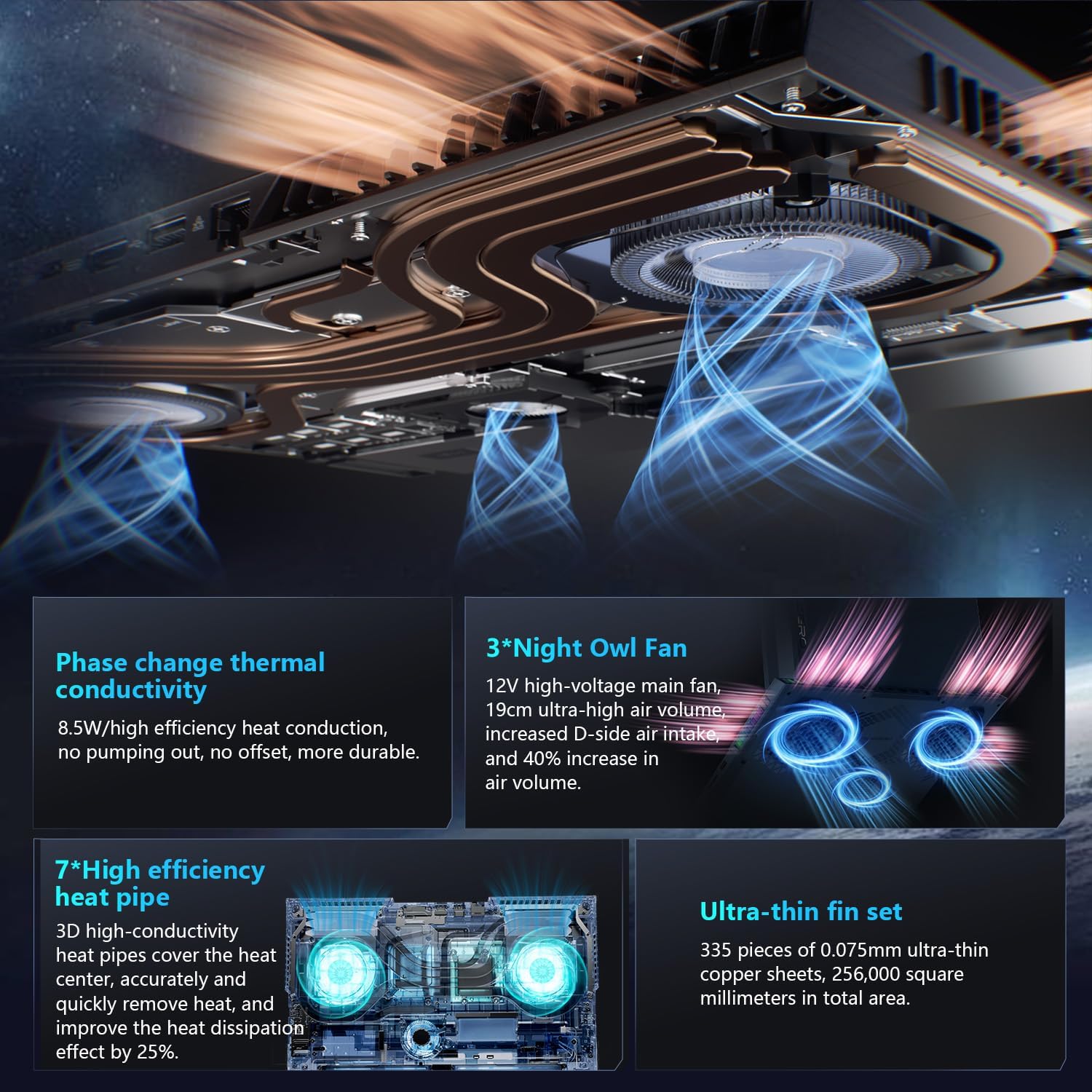
The advanced cooling system features 3 Night Owl fans, 7 high-efficiency heat pipes, and 338 ultra-thin copper fins to ensure optimal thermal management during intensive use, allowing for 270W super performance release.
AI Intelligent Control Center
The AI Intelligent Control Center software allows for comprehensive system management, including performance tuning, intelligent light adjustment, and personalized customization. This includes monitoring CPU/GPU temperatures and fan speeds.
- Performance Tuning: Adjust power settings for quiet, balanced, or turbo modes.
- Intelligent Light Adjustment: Customize keyboard, strip, and logo RGB lighting effects.
- 시스템 모니터링: View real-time CPU and GPU status.
참고: 제어 센터에서 시스템 모드를 전환하려면 기기를 전원에 연결해야 합니다.
유지
노트북 청소
- 화면: 부드럽고 보풀이 없는 천을 살짝 사용하십시오. damp물이나 화면 세척제로 닦으세요. 강한 화학 물질은 피하세요.
- 키보드 및 섀시: 부드러운 천으로 표면을 닦으십시오. 틈새의 먼지는 압축 공기를 사용하십시오.
- 통풍구 : 냉각 통풍구에 먼지가 쌓이는 것을 방지하고 성능 저하를 막기 위해 주기적으로 압축 공기를 사용하여 청소하십시오.
배터리 관리
- 배터리를 자주 완전히 방전시키지 마세요.
- 장시간 사용하지 않을 경우 노트북을 서늘하고 건조한 곳에 보관하세요.
- 배터리 수명을 최적화하려면 극한의 온도 변화를 피하십시오.
소프트웨어 업데이트
Regularly check for and install operating system updates (Windows Update) and driver updates (via Thunderobot's official website or the AI Intelligent Control Center) to ensure system stability and performance.
문제 해결
| 문제 | 가능한 원인 | 해결책 |
|---|---|---|
| 노트북의 전원이 켜지지 않습니다. | 전원이 안 들어오거나, 배터리가 방전되었거나, 하드웨어에 문제가 있는 경우입니다. |
|
| 화면이 비어 있거나 검은색입니다. | Display settings, external monitor connected, or hardware issue. |
|
| 사용 중 과열. | Blocked vents, high performance settings, or dust buildup. |
|
| Wi-Fi 연결 문제. | Wi-Fi disabled, driver issues, or router problems. |
|
For further assistance, please contact Thunderobot customer support.
명세서
| 특징 | 세부 사항 |
|---|---|
| 모델명 | 제로 18 프로 |
| 프로세서 | Intel Core Ultra 9 275HX(24코어, 24스레드, 최대 5.40GHz) |
| 제도법 | NVIDIA GeForce RTX 5070 Ti (8 GB GDDR6 Dedicated) |
| 숫양 | 32GB DDR5(4800MHz) |
| 저장 | 2 TB PCIe M.2 SSD |
| 표시하다 | 18-inch QHD+ (2560x1600) 240Hz Bionic Hummingbird Eye-Care Display |
| 운영 체제 | 윈도우 11 홈 |
| 연결성 | Wi-Fi 6E, Bluetooth, 3x USB-A, 2x USB-C (Thunderbolt 5), HDMI 2.1, RJ-45, Audio Port |
| 건반 | Per-Key RGB Backlit, Numeric Keypad |
| 치수(길이x너비x높이) | 16.04 x 11.78 x 1.41 인치 |
| 품목 무게 | 15파운드 |
| 전원 | AC 및 배터리 |
보증 및 지원
모든 Thunderobot 노트북에는 다음이 포함됩니다. 12개월 보증수리가 필요한 경우 전문가 지원, 철저한 진단 및 정품 부품을 제공합니다. 또한, 90일 보증 모든 보증 교체 부품에는 보증이 제공되어 번거로움 없는 수리를 보장합니다. 고객 만족을 최우선으로 생각합니다.
For technical support, warranty claims, or service inquiries, please visit the official Thunderobot website or contact their customer service department. Keep your purchase receipt and serial number handy for faster service.