
소개
This manual provides detailed instructions for the FIDECO M.2 NVMe SATA SSD Cloner Dock, Model M2082. It covers product features, setup, operation modes (data transfer and offline cloning), maintenance, and troubleshooting to ensure optimal performance and longevity of your device.
제품 특징
- 지원되는 SSD: Compatible with M.2 PCIe NVMe SSDs (M-Key or M+B Key) and M.2 SATA SSDs (M+B Key). Supports M.2 SSD sizes: 2230, 2242, 2260, 2280, 22110.
- High Transfer Speed: Utilizes USB 3.2 Gen 2x2 standard with UASP support, offering theoretical speeds up to 20Gbps.
- 오프라인 복제 기능: Enables direct SSD cloning without a computer connection.
- Foldable Cooling Fan: Integrated fan helps maintain optimal SSD temperatures, extending lifespan.
- 범용 연결: Includes a USB-C to USB-C/A cable for broad compatibility with desktops and laptops.
- 플러그 앤 플레이: No driver installation required for Windows, Mac OS, and Linux systems.
패키지 내용
- FIDECO M.2 NVMe SATA SSD Cloner Dock (Model M2082)
- USB-C-USB-C/A 케이블
- 전원 어댑터
- 사용자 설명서
장치 레이아웃
Familiarize yourself with the ports and indicators on the cloner dock.

영상: 위에view of the FIDECO M.2 NVMe SATA SSD Cloner Dock, highlighting its various ports, buttons, and LED indicators for Source, Target, PC mode, Power, Clone status, and clone progress (25%, 50%, 75%, 100%). The back panel shows the Power Switch, USB-C port, DC 5V power port, and Fan Switch.
설치 지침
- 전원 연결: Connect the provided power adapter to the DC 5V port on the cloner dock and plug it into a power outlet.
- SSD 삽입:
- Ensure the cloner dock is powered off.
- Carefully insert your M.2 NVMe or SATA SSDs into the designated 'Source' (S1) and 'Target' (S2) slots. Ensure they are fully seated.

영상: This diagram illustrates the types of M.2 SSDs supported by the dock, including NVMe (M-Key and M+B Key) and SATA (M+B Key), along with compatible physical sizes ranging from 2230 to 22110.
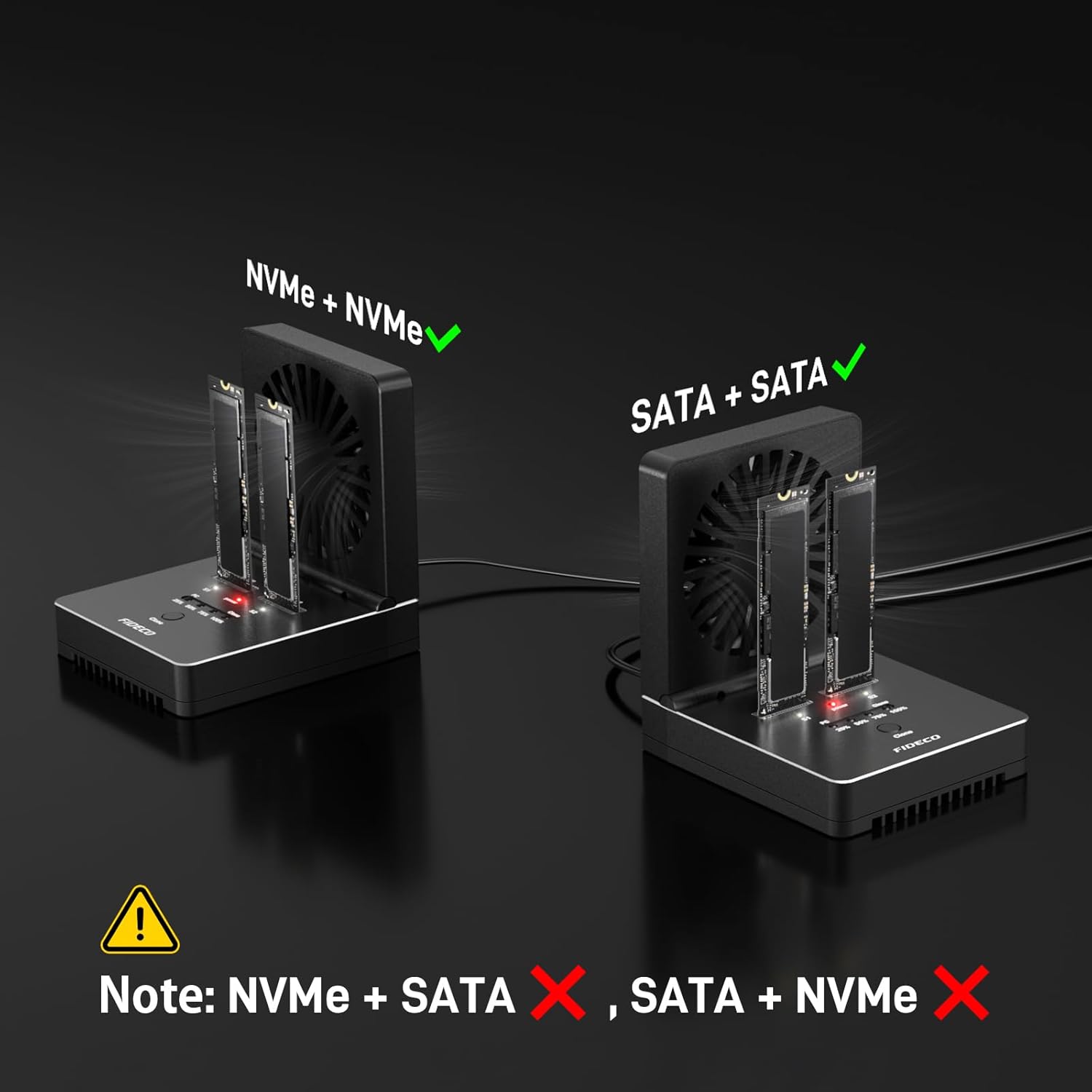
영상: This image demonstrates correct SSD configurations: two NVMe SSDs or two SATA SSDs. It explicitly warns against mixing NVMe and SATA SSDs simultaneously in the dock.
- 팬 작동 : The foldable cooling fan can be turned on or off using the fan switch on the back panel. It is recommended to keep the fan on during operation to prevent overheating.
- Connectivity (for Data Transfer Mode): If using the dock for data transfer to a computer, connect the USB-C to USB-C/A cable from the dock's USB-C port to your computer.
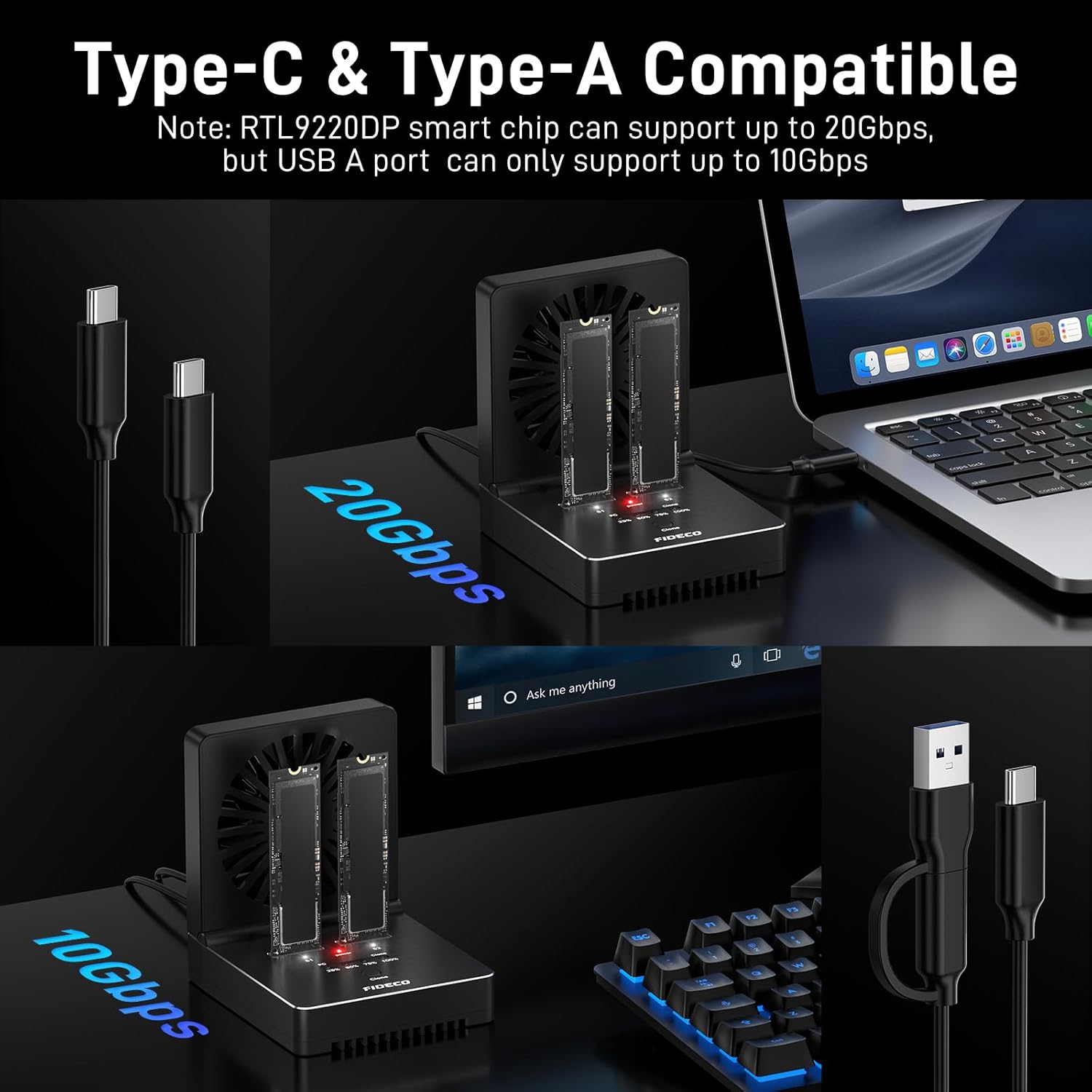
영상: This image illustrates the dual compatibility of the FIDECO dock, showing connections to both Type-C and Type-A ports. It highlights that a USB-C connection can achieve 20Gbps, while a USB-A connection supports up to 10Gbps.
작동 지침
A. Data Transfer Mode (PC Mode)
- Ensure the cloner dock is connected to your computer via the USB-C cable.
- Insert one or two compatible M.2 SSDs into the 'Source' (S1) and/or 'Target' (S2) slots.
- Turn on the power switch. The 'PC' blue light will illuminate, indicating the dock is in data transfer mode.
- Your computer should recognize the SSD(s) as external drives. You can now transfer data to and from the SSDs.
- 새 SSD 초기화: For new SSDs, they must be initialized and formatted before they can be recognized by your computer. Refer to the video below for detailed instructions.
동영상: This video provides a step-by-step guide on how to initialize a new hard drive under both Windows and Mac OS operating systems, making it ready for use with the FIDECO M.2 NVMe SATA SSD Cloner Dock.
B. Offline Clone Mode
The offline clone function allows you to duplicate an SSD without connecting to a computer.
- 준비:
- Ensure the cloner dock is disconnected from any computer.
- Insert the source SSD into the 'Source' (S1) slot.
- Insert the target SSD into the 'Target' (S2) slot.
- 중요한: The target SSD's capacity must be equal to or larger than the source SSD's capacity. Verify this in your computer's 'Disk Management' before cloning.
- 전원 스위치를 켜세요.
- 복제 시작: Press and hold the 'Clone' button for 5 seconds until the first blue light (25%) begins to flash. This indicates the cloning process has started.
- 진행 상황 모니터링: The four blue LED indicators (25%, 50%, 75%, 100%) will illuminate sequentially to show the cloning progress.
- 완성: Once all four blue lights are steadily lit, the cloning process is complete.

영상: This image demonstrates the offline cloning process, showing the source (S1) and target (S2) SSDs inserted. It emphasizes the 20Gbps cloning speed and the critical requirement that the target SSD's capacity must be equal to or larger than the source SSD's capacity. Instructions for initiating the clone by holding the button are also included.
동영상: This video demonstrates the physical setup and operation of the FIDECO M.2 NVMe SATA SSD Cloner Dock, including inserting SSDs, connecting power, and initiating the cloning process. It also highlights the integrated foldable cooling fan.
유지
- 청소: 기기 외부를 닦을 때는 부드럽고 마른 천을 사용하십시오. 액체 세척제나 용제는 사용하지 마십시오.
- 저장: Store the cloner dock in a cool, dry place away from direct sunlight and extreme temperatures.
- 팬 케어: Periodically check the cooling fan for dust accumulation and gently clean it to ensure proper airflow.
- SSD Handling: Always handle SSDs by their edges to avoid touching the connectors or components.
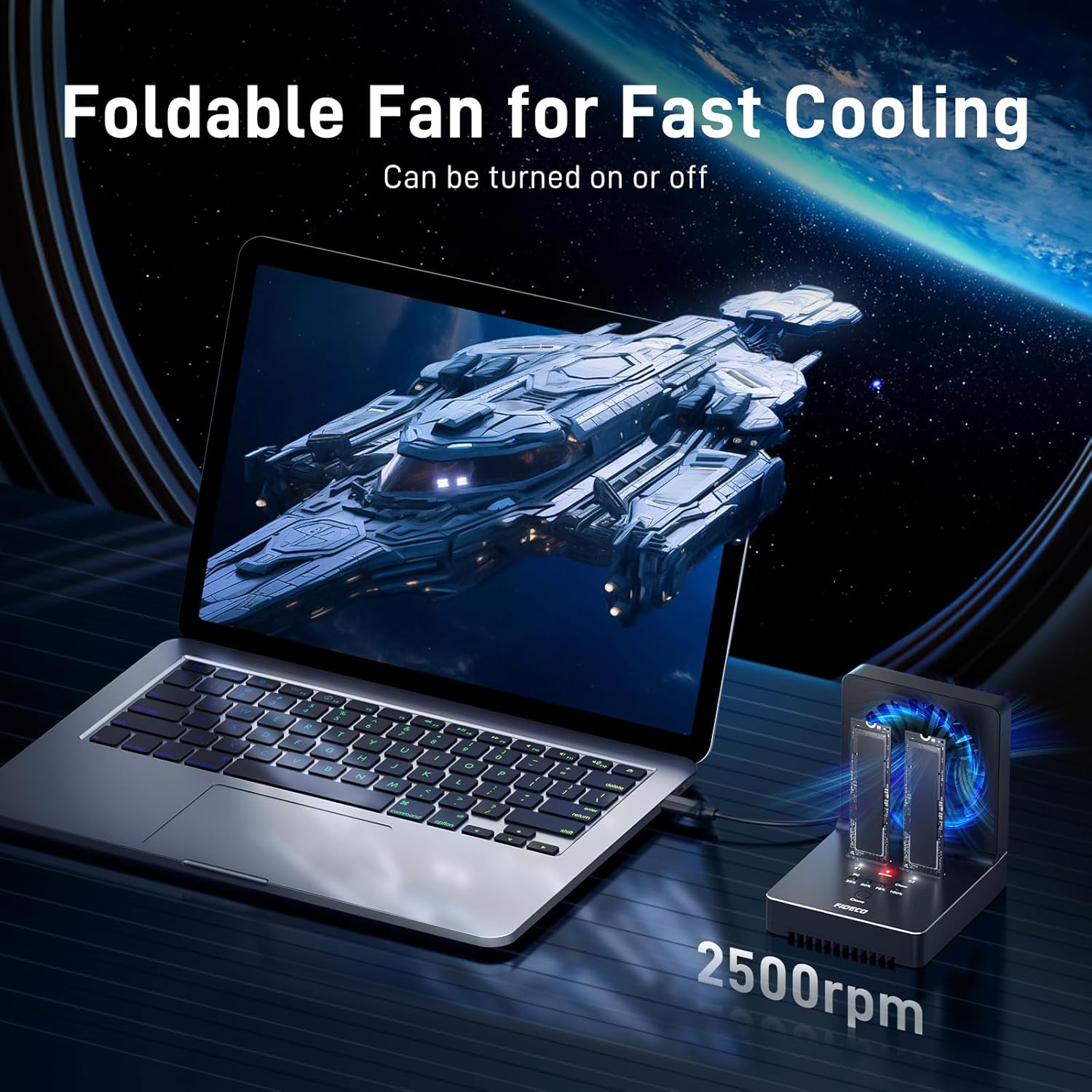
영상: This image highlights the foldable cooling fan feature of the FIDECO dock, showing it in operation at 2500rpm to effectively cool the SSDs during use, which helps prolong their lifespan.
문제 해결
- SSD가 인식되지 않습니다:
- Ensure the SSD is correctly inserted into the slot.
- For new SSDs, they need to be initialized and formatted in your operating system's Disk Management utility. Refer to the initialization video in the Operating Instructions section.
- Verify that the USB cable is securely connected to both the dock and the computer.
- If using both slots, ensure you are not mixing NVMe and SATA SSDs simultaneously for data transfer, as only SSD S1 might be recognized.
- Offline Clone Failure (4 blue lights flashing):
- The target SSD's capacity must be equal to or larger than the source SSD's capacity. Check this in Windows "Disk Management" or Mac "Disk Utility" before attempting to clone.
- Ensure the dock is disconnected from any computer during offline cloning.
- Verify that both SSDs are securely inserted.
- 느린 전송 속도:
- Ensure your computer's USB port supports USB 3.2 Gen 2x2 for maximum 20Gbps speed. USB-A ports typically support up to 10Gbps.
- Confirm the USB cable used is rated for the desired speed.
- 과열: Ensure the foldable cooling fan is turned on during extended use or high-speed operations.
명세서
| 상표 | 피데코 |
| 모델 번호 | M2082 |
| 지원되는 SSD 유형 | M.2 PCIe NVMe (M-Key, M+B Key), M.2 SATA (M+B Key) |
| 지원되는 SSD 크기 | 2230, 2242, 2260, 2280, 22110 |
| 지원되는 최대 장치 수 | 2 |
| 데이터 전송 속도 | Up to 20 Gigabits Per Second (USB 3.2 Gen 2x2) |
| 하드웨어 인터페이스 | USB 3.2 2x2세대 |
| 특징 | Offline Clone, UASP, Trim, Foldable Cooling Fan |
| 호환 시스템 | 윈도우, 맥 OS, 리눅스 |
| 재료 | 아크릴로니트릴 부타디엔 스티렌(ABS), 알루미늄 |
| 품목 무게 | 1.25파운드 |
보증 및 지원
FIDECO offers firmware updates and technical support for this product. For any questions or assistance, please contact us at support@fideco.cn.


