
Pisichen 21.5INTS-White-NEW
피시첸 21.5인치 터치스크린 모니터 사용 설명서
Model: 21.5INTS-White-NEW
소개
This user manual provides comprehensive instructions for the setup, operation, maintenance, and troubleshooting of your Pisichen 21.5-Inch Touchscreen Monitor. Please read this manual thoroughly before using the product to ensure proper functionality and to prevent damage.
The Pisichen 21.5-inch touch monitor is designed to enhance your work efficiency and provide an interactive experience with its responsive 10-point capacitive touchscreen. It features a Full HD 1920x1080 resolution display, built-in speakers, and versatile connectivity options including HDMI, VGA, and USB for touch functionality.
주요 특징
- Sensitive 10-Point Capacitive Touchscreen: Offers seamless and responsive interaction, allowing direct engagement with content and simultaneous multi-finger input.
- Stunning FHD 1080P Display: A 21.5-inch Full HD (1920x1080) resolution screen with a 1000:1 contrast ratio, 250cd/㎡ brightness, 170° viewing angle, and 60Hz refresh rate for clear and smooth visuals. Includes low-blue-light and eye-care technology.
- 광범위한 장치 호환성: Equipped with USB2.0 (for touch), HDMI, VGA, and DC ports for easy connection to PCs, laptops, PS3/4, and gaming consoles.
- 다양한 디스플레이 모드: Supports duplicate, extend, and second-screen modes to enhance productivity and workspace.
- Built-in Speakers and VESA Mounting: Integrated speakers provide audio, and the 75x75mm VESA mount allows for flexible installation options.
패키지 내용
설치를 진행하기 전에 패키지에 모든 구성품이 포함되어 있는지 확인하십시오.

The package includes the Pisichen 21.5-inch touchscreen monitor, a user manual, an HDMI cable, a USB cable, and a power adapter, ensuring it is ready for immediate use.
- Pisichen 21.5-Inch Touchscreen Monitor
- 전원 어댑터
- HDMI 케이블
- USB Cable (for touch function)
- 사용자 설명서
설치 지침
1. 모니터 연결하기
The monitor offers various connection options to suit your needs. Ensure all connections are secure before powering on the device.

상세한 view of the monitor's input/output ports, including HDMI, VGA, headphone, DC power, and USB 2.0 touch ports.
- 전원 연결: Connect the provided power adapter to the DC power port on the monitor and then plug it into a wall outlet.
- 비디오 연결(HDMI): Use the HDMI cable to connect the monitor's HDMI port to the HDMI output port on your computer, laptop, or gaming console.
- 비디오 연결(VGA): Alternatively, use a VGA cable to connect the monitor's VGA port to the VGA output port on your computer or laptop.
- Touch Function Connection: To enable the touch function, connect the included USB cable from the monitor's USB 2.0 touch port to an available USB port on your computer. This step is crucial for touch signal transmission.
- 오디오 출력(선택 사항): If you prefer external audio, you can connect headphones or external speakers to the headphone jack. The monitor also has built-in speakers.
2. 장착 옵션
The Pisichen monitor supports both desktop placement and VESA wall mounting for flexible setup.
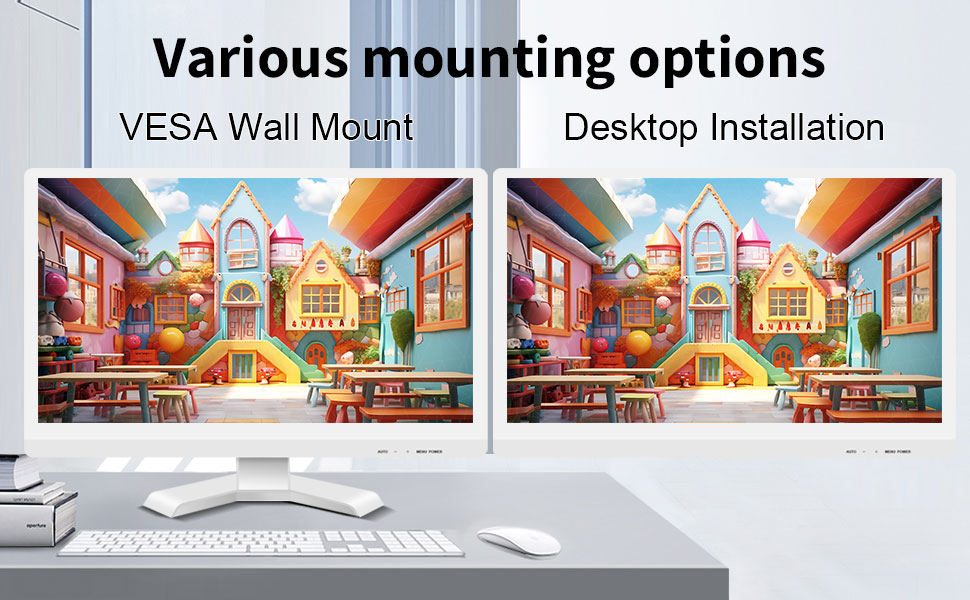
The monitor can be set up on a desktop stand or mounted on a wall using a VESA compatible bracket.
- 데스크탑 설치: Attach the provided stand to the monitor base and place it on a stable, flat surface.
- VESA 벽걸이: The monitor features a 75x75mm VESA mounting pattern. Use a compatible VESA bracket (not included) to mount the monitor on a wall or an adjustable arm. Ensure the mount can support the monitor's weight (9.88 pounds).

뒤쪽 view of the monitor highlighting the VESA 75x75mm mounting pattern and overall dimensions.
작동 지침
1. 전원 켜기 / 끄기
Locate the power button on the monitor. Press it to turn the monitor on or off. The power indicator light will illuminate when the monitor is on.
2. Using the Touchscreen Function
Once the USB cable is connected to your computer, the 10-point capacitive touch function will be active. You can interact with the screen using your fingers or a passive capacitive stylus.

The monitor supports direct touch interaction for intuitive control.
- 싱글 터치: 마우스 클릭과 동일합니다.
- 길게 누르기 : 마우스 오른쪽 버튼을 클릭하는 것과 같습니다.
- 견인: Move items by touching and dragging.
- 핀치 투 줌: 두 손가락을 사용하여 콘텐츠를 확대하거나 축소하세요.
- 멀티 터치: The monitor supports up to 10 simultaneous touch points, enabling collaborative work or complex gestures.

The 10-point multi-touch feature allows for multiple users or complex interactions simultaneously.
중요 참고 사항: The touch functionality is disabled on Mac OS, iPad OS, and iOS. This monitor only supports passive capacitive styluses.
3. 디스플레이 모드
이 모니터는 컴퓨터에 연결했을 때 다양한 표시 모드를 지원합니다.
- 복제 모드: Displays the same content on both your primary screen and the Pisichen monitor.
- 확장 모드: 데스크톱을 두 화면으로 확장하여 더 넓은 작업 공간을 제공합니다.
- 두 번째 화면 전용 모드: Displays content only on the Pisichen monitor, turning off your primary screen.
You can typically switch between these modes through your operating system's display settings (e.g., Windows Display Settings).
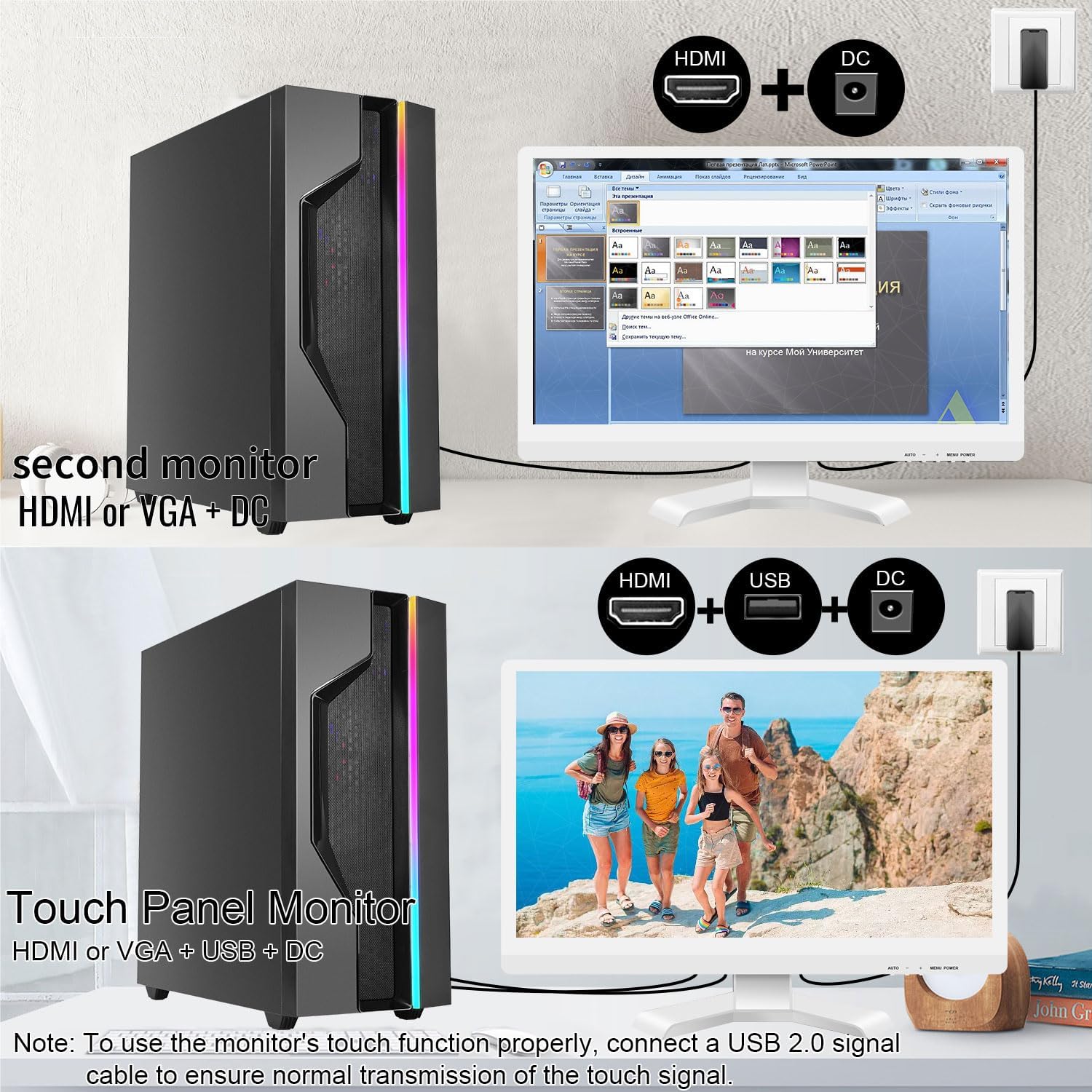
Illustrations of connecting the monitor as a secondary display or as a touch-enabled display.
4. 화면 디스플레이(OSD) 메뉴
The monitor features an OSD menu for adjusting display settings. Use the buttons located on the monitor's frame (usually on the bottom right) to navigate and select options.
- 메뉴 버튼: OSD 메뉴를 엽니다.
- 위/아래 버튼: 메뉴 옵션을 탐색합니다.
- 입력/선택 버튼: 선택을 확인하거나 하위 메뉴로 들어갑니다.
- 종료 버튼 : 현재 메뉴나 OSD를 종료합니다.
Common OSD settings include brightness, contrast, color temperature, input source selection, and aspect ratio.
유지 보수 및 관리
- 화면 청소:
Always power off the monitor and unplug it before cleaning. Use a soft, lint-free cloth lightly dampened with water or a non-abrasive, monitor-specific cleaning solution. Do not spray liquid directly onto the screen. Avoid using alcohol, ammonia, or abrasive cleaners, as they can damage the screen surface.
- C 청소asing:
모니터를 닦으세요asin부드럽고 마른 천으로 닦아주세요. 필요한 경우, 약간 부드러운 천으로 닦아주세요.amp cloth can be used, but ensure no moisture enters the vents or ports.
- 저장:
When not in use for extended periods, store the monitor in a cool, dry place, away from direct sunlight and extreme temperatures. If possible, use the original packaging for protection.
- 통풍:
Ensure the monitor's ventilation openings are not blocked. Proper airflow is essential to prevent overheating.
- 손질:
모니터를 조심스럽게 다루십시오. 떨어뜨리거나 강한 충격을 가하지 마십시오. 모니터 위에 무거운 물건을 올려놓지 마십시오.
문제 해결
| 문제 | 가능한 원인 | 해결책 |
|---|---|---|
| 화면에 이미지가 없습니다. |
|
|
| 터치스크린이 응답하지 않음 |
|
|
| 이미지가 흐릿하거나 왜곡됩니다. |
|
|
| 내장 스피커에서 소리가 나지 않습니다 |
|
|
명세서
| 모델 번호 | 21.5INTS-White-NEW |
| 화면 크기 | 21.5 인치 |
| 해결 | 1920 x 1080 픽셀(FHD 1080p) |
| 종횡비 | 16시 9분 |
| 명도 | 250 Candela (cd/㎡) |
| 대비율 | 1000시 1분 |
| View잉 각도 | 170° |
| 새로 고침 빈도 | 60Hz |
| 터치 기술 | 10포인트 정전식 터치 |
| 입력 포트 | HDMI, VGA, USB 2.0 (for touch), DC Power |
| 오디오 | 내장 스피커, 헤드폰 잭 |
| VESA 마운트 호환성 | 75x75mm |
| 제품 크기(L x W x H) | 0.78 x 20.4 x 14.9 인치 |
| 품목 무게 | 9.88파운드 |
| 제조업체 | Shenzhen Konowa Electronics Co., LTD |
| 원산지 | 중국 |
보증 및 지원
For warranty information and technical support, please refer to the official Pisichen web해당 웹사이트를 방문하거나 고객 서비스 센터에 직접 문의하십시오. 자세한 내용은 일반적으로 제품 포장이나 제조업체의 공식 지원 채널에서 확인할 수 있습니다.
방문할 수 있습니다 Pisichen Store on Amazon for more product information and potential support contacts.
Ask a question about this manual
Ask about setup, troubleshooting, compatibility, parts, safety, or missing instructions. Manuals+ will review the question and use this page’s manual context to help answer it.