
1. 제품 오버view
The Amazon Basics Multi-Touch Trackpad is a wireless input device designed for Windows PCs, offering enhanced navigation and control through multi-touch gestures. It features dual device connectivity and a rechargeable battery for convenience.
주요 특징:
- 멀티터치 제스처: Supports up to four-finger gestures for intuitive control.
- 듀얼 디바이스 제어: Connects to two devices via Bluetooth with easy switching.
- Integrated Buttons: Built-in left and right mouse button functionality.
- 슬림한 디자인: Portable and sleek with colored indicator lights for enhanced functionality.
- 충전식 배터리: Equipped with a lithium battery, rechargeable via USB-C.
- 호환성: Designed for Windows OS. Not compatible with macOS, Chrome OS, or Linux.

이미지 1.1: 상단 view of the Amazon Basics Multi-Touch Trackpad.
2. 설정 및 설치
2.1 패키지 내용
모든 항목이 있는지 확인하세요.
- Amazon Basics Multi-Touch Trackpad
- USB-C 충전 케이블
- 사용 설명서 (본 문서)
2.2 Charging the Trackpad
- Locate the USB-C port on the trackpad.
- Connect the provided USB-C cable to the trackpad and the other end to a USB power source (e.g., computer USB port, USB wall adapter).
- The indicator light will show charging status. A full charge typically takes [X] hours (Note: Specific charging time not provided in source data, user should refer to product packaging or quick start guide for exact duration).
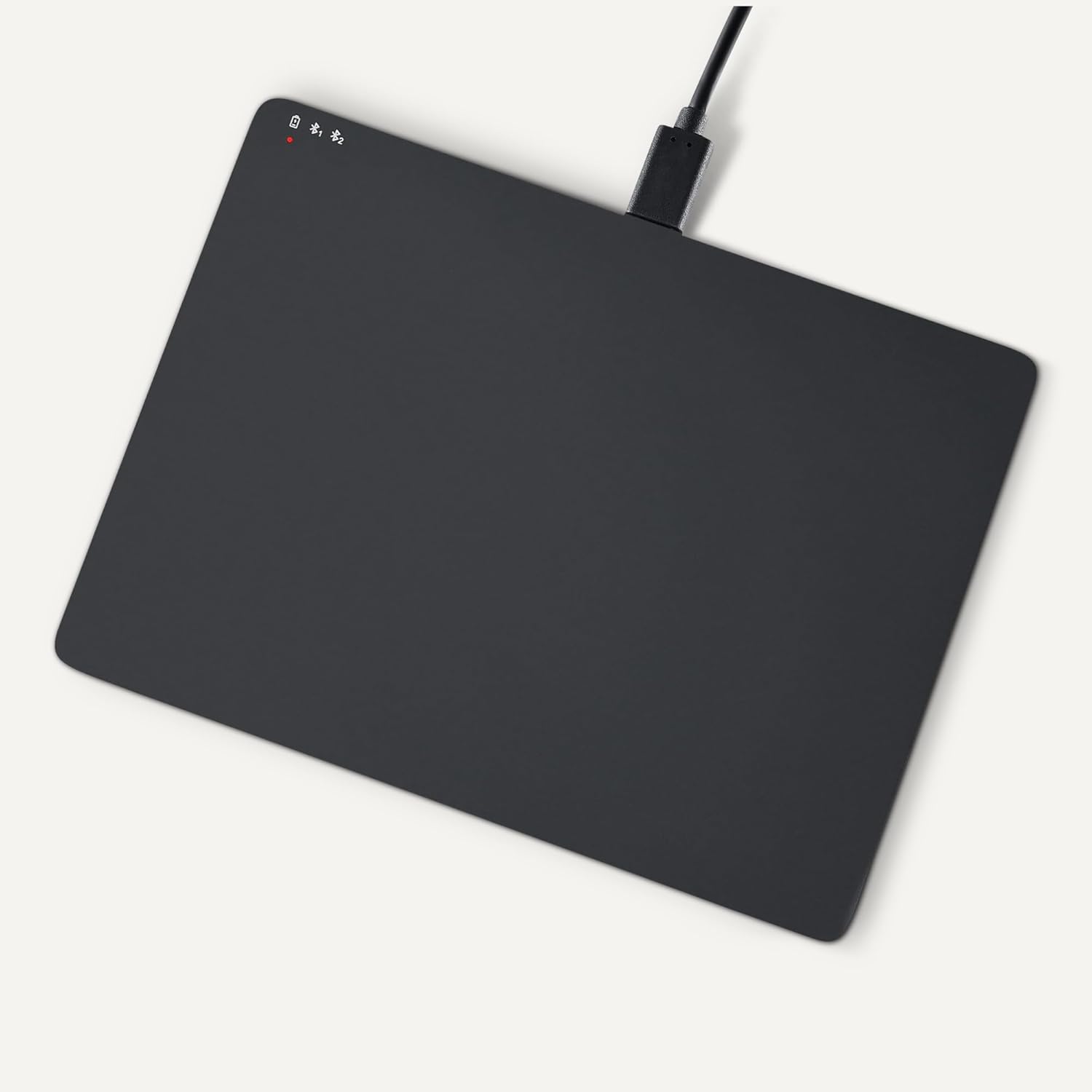
Image 2.1: Trackpad connected for charging via USB-C.
2.3 전원 켜기/끄기
Locate the power switch on the side of the trackpad. Slide it to the "ON" position to power on, and "OFF" to power off.

이미지 2.2: 측면 view illustrating the power switch and USB-C port.
2.4 블루투스 페어링
- Ensure the trackpad is powered on.
- Windows PC에서 다음 경로로 이동하세요. 설정 > 기기 > Bluetooth 및 기타 기기.
- 블루투스를 켜고 "블루투스 또는 기타 장치 추가"를 클릭하세요.
- 옵션에서 "블루투스"를 선택하세요.
- The trackpad should appear in the list of available devices (e.g., "Amazon Basics Trackpad"). Select it to pair.
- Follow any on-screen prompts to complete the pairing process. The indicator light on the trackpad will confirm successful connection.
3. Operating the Trackpad
3.1 기본 탐색
- 커서 이동: Slide one finger across the trackpad surface.
- 좌 클릭: Press down on the lower-left area of the trackpad or tap with one finger.
- 마우스 오른쪽 버튼으로 클릭: Press down on the lower-right area of the trackpad or tap with two fingers (if configured in Windows settings).
3.2 Multi-Touch Gestures (Windows OS)
The trackpad supports various multi-touch gestures for enhanced productivity. These gestures are typically configured within Windows settings (Settings > Devices > Touchpad).
- 스크롤: Place two fingers on the trackpad and slide them up or down to scroll vertically, or left or right to scroll horizontally.
- 확대/축소: Place two fingers on the trackpad and pinch them together to zoom out, or spread them apart to zoom in.
- Show All Open Windows (Task View): Swipe three fingers upwards.
- 바탕 화면 표시: Swipe three fingers downwards.
- Switch Between Open Windows: Swipe three fingers left or right.
- 액션 센터 열기: Tap with four fingers.
- 데스크톱 전환: Swipe four fingers left or right.
Note: Gesture functionality may vary based on your Windows version and specific settings. Refer to your Windows documentation for detailed customization options.
3.3 Dual Device Control
The trackpad can be paired with two different devices. To switch between connected devices:
- Ensure both devices are paired with the trackpad.
- Press the mode switch button located on the trackpad (refer to Image 2.2 for location).
- The indicator light will change to show which device is currently active.
4. 유지관리 및 관리
- 청소: Use a soft, dry, lint-free cloth to clean the trackpad surface. For stubborn marks, slightly damp천에 물을 묻혀 닦으세요. 강한 화학 물질이나 연마재는 사용하지 마세요.
- 저장: When not in use for extended periods, power off the trackpad to conserve battery life. Store in a cool, dry place.
- 배터리 관리 : To prolong battery life, avoid fully discharging the trackpad frequently. Recharge when the low battery indicator appears.
- 액체를 피하세요: Keep the trackpad away from liquids and excessive moisture.
5. 문제 해결
| 문제 | 가능한 원인 | 해결책 |
|---|---|---|
| Trackpad does not power on. | 배터리가 방전되었습니다. | Charge the trackpad using the provided USB-C cable. |
| Trackpad does not connect via Bluetooth. |
|
|
| Gestures are not working or inconsistent. |
|
|
| Trackpad is unresponsive. |
|
|
이러한 해결 방법을 시도한 후에도 문제가 지속되면 보증 및 지원 섹션을 참조하세요.
6. 사양
| 특징 | 세부 사항 |
|---|---|
| 상표 | 아마존 기본 정보 |
| 모델 번호 | 티케이053 |
| 연결성 | 블루투스 |
| 치수(길이x너비x높이) | 6.39 x 4.78 x 0.42 인치 |
| 품목 무게 | 9.2온스(261.2그램) |
| 색상 | 검은색 |
| 배터리 | 1개의 리튬 이온 배터리(포함) |
| 충전 포트 | USB-C |
| 호환성 | Windows OS (Not compatible with macOS, Chrome OS, or Linux) |
| 한국어: | 840324434217 |
7. 보증 및 지원
보증 정보 및 고객 지원에 대해서는 아마존 베이직스 공식 웹사이트를 참조하십시오. website or the documentation included with your purchase. You can typically find support resources, FAQs, and contact information on the product's dedicated page on Amazon.com.
온라인 지원: 아마존 베이직스 스토어를 방문하세요