
1. 이상view 및 주요 특징
The Techkey Bluetooth Adapter 5.3 is a compact USB dongle designed to add or upgrade Bluetooth functionality to your desktop PC or laptop. It offers enhanced stability and faster data transmission for a seamless wireless experience.
- Upgraded Bluetooth 5.3 + EDR: Features the latest Bluetooth 5.3 + EDR technology for enhanced anti-interference ability and stability, reducing transmission efficiency loss in the 2.4 GHz frequency band.
- 초소형 크기: Stylish and compact design allows it to remain plugged into a laptop or PC without obstructing adjacent USB ports.
- More Stable Connection: Offers a stable connection with a transmission rate of up to 3Mbps. Supports Bluetooth Low Energy (BLE) and dual-mode Bluetooth transmission for faster data transfer. Achieves a transmission distance of up to 30m in open areas.
- 시스템 지원: Real Plug & Play functionality, requiring no driver installation on Windows 11 / 10 / 8.1 (32/64-bit). Not compatible with Mac, Linux, Unraid, TV, car stereo, PS4, or Xbox. Backward compatible with Bluetooth 5.2/4.2/4.0/3.0/2.1.
- 광범위한 응용 분야: Connects multiple Bluetooth devices simultaneously, including speakers, keyboards, headsets, and mice, enabling wireless file transfer and audio streaming.
2. 설정 가이드
Follow these steps to properly set up your Techkey Bluetooth Adapter.
2.1. Ensure Windows Automatic Updates are Enabled (Recommended)
For optimal performance and driver compatibility, ensure your Windows operating system is set to automatically update.
- Click the 'Start' icon in the bottom-left corner of your screen.
- Select 'Settings'.
- Navigate to 'Update & Security'.
- Click on 'Windows Update'.
- If updates are paused, click 'Resume updates' to enable automatic updates.
2.2. Disable Built-in Bluetooth (If Applicable)
If your computer has a pre-existing built-in Bluetooth module, it is crucial to disable it to prevent conflicts with the new adapter. Do not uninstall, only disable.
- Right-click on 'This PC' (or 'My Computer') icon on your desktop.
- '관리'를 선택하세요.
- In the 'Computer Management' window, click 'Device Manager' in the left pane.
- '블루투스' 항목을 확장하세요.
- Identify your computer's built-in Bluetooth device (e.g., 'Intel Wireless Bluetooth').
- Right-click on the built-in Bluetooth device and select 'Disable device'. Confirm your choice if prompted.
2.3. Plug & Play Installation
The Techkey Bluetooth Adapter is designed for easy installation.
- Insert the Techkey Bluetooth Adapter into an available USB port on your desktop PC or laptop.
- Allow 3 to 5 minutes for your system to automatically detect, download, and install the necessary drivers. A notification will confirm when the device is ready.
비디오 설명: This official seller video provides a step-by-step guide for setting up your Techkey Bluetooth Adapter. It covers essential preliminary steps like ensuring Windows automatic updates are enabled, disabling any pre-existing built-in Bluetooth functionality on your computer, and finally, the process of pairing new Bluetooth devices with your adapter.

이미지 설명: This image illustrates the plug-and-play convenience of the Techkey Bluetooth adapter. A user is shown enjoying a video game on a desktop PC, with the adapter seamlessly integrated, requiring no manual driver installation.

이미지 설명: This image displays the supported operating systems for the Techkey Bluetooth adapter, including Windows 11, Windows 10, and Windows 8.1, indicating compatibility with both 32-bit and 64-bit versions.
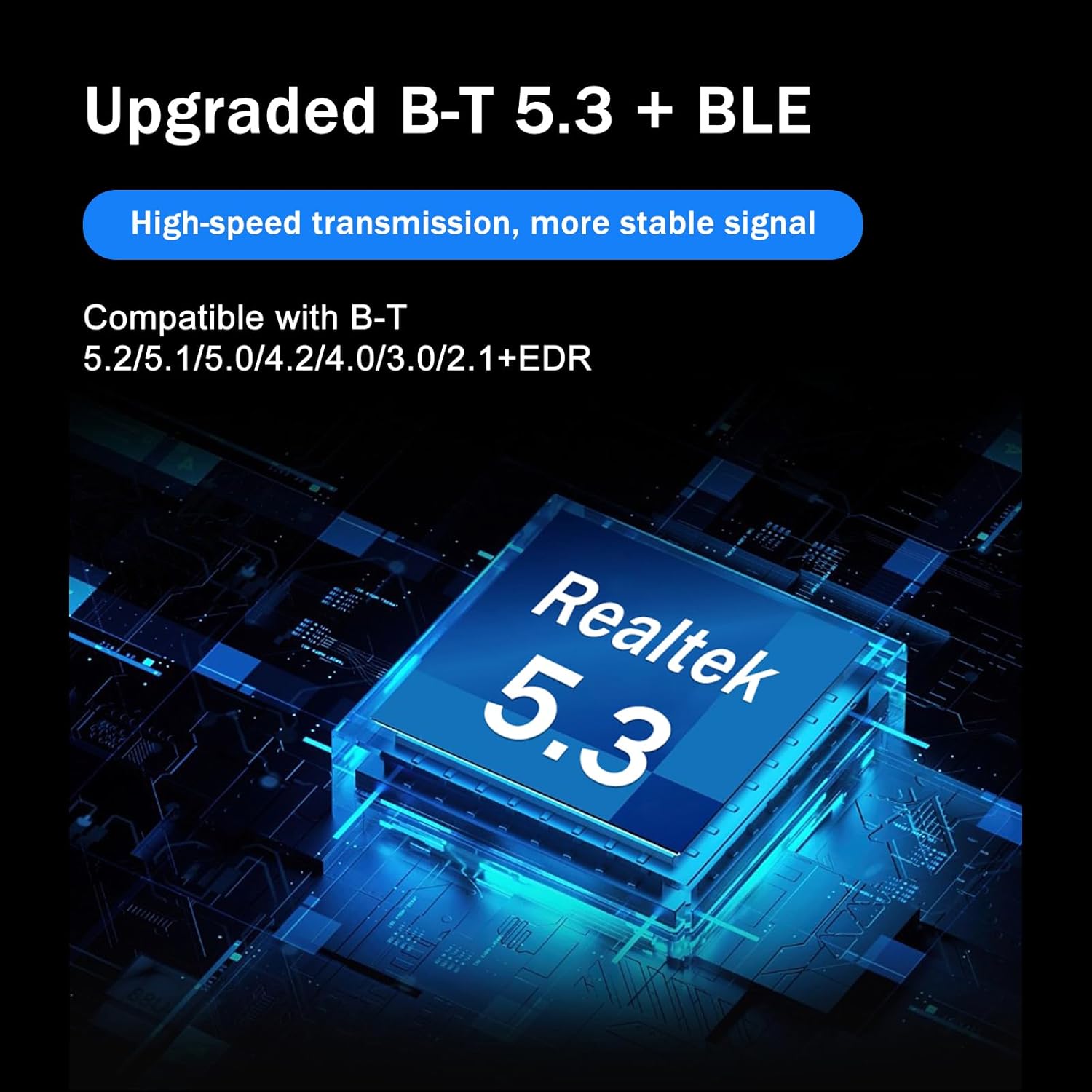
이미지 설명: This graphic emphasizes the advanced features of the Techkey adapter, including upgraded Bluetooth 5.3 + BLE technology powered by a Realtek 5.3 chip, ensuring high-speed transmission, stable signal, and backward compatibility with older Bluetooth versions.
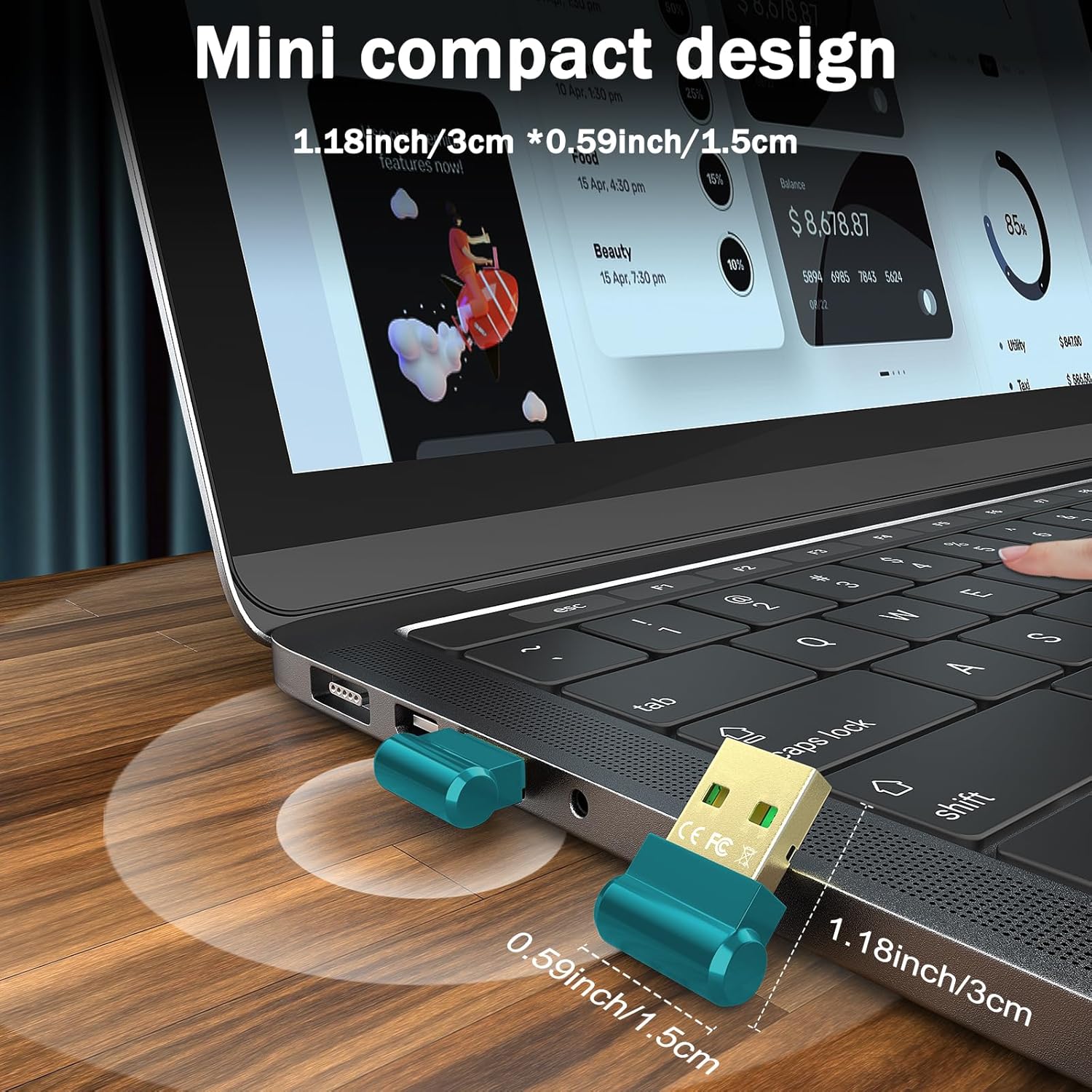
이미지 설명: This image illustrates the ultra-compact design of the Techkey Bluetooth adapter, shown plugged into a laptop. Its small dimensions (1.18 inches x 0.59 inches) ensure it does not obstruct adjacent USB ports, making it ideal for portable use.
3. 사용 설명서
Once the adapter is installed, you can begin pairing your Bluetooth devices.
3.1. Pairing Your Devices
- Locate the Bluetooth icon in the system tray (bottom-right corner of your screen). If not visible, click the 'Show hidden icons' arrow.
- Right-click on the Bluetooth icon and select 'Add a Bluetooth Device'.
- In the 'Bluetooth & other devices' settings, click 'Add Bluetooth or other device'.
- 옵션에서 '블루투스'를 선택하세요.
- 블루투스 기기(예: 헤드폰, 마우스, 키보드)가 페어링 모드인지 확인하십시오.
- 표시되는 목록에서 기기를 선택하고 화면의 안내에 따라 페어링 과정을 완료하세요.

이미지 설명: This diagram demonstrates the versatility of the Techkey Bluetooth adapter, capable of connecting up to five different Bluetooth devices concurrently, such as a mouse, headphones, keyboard, and game controller, to a laptop.
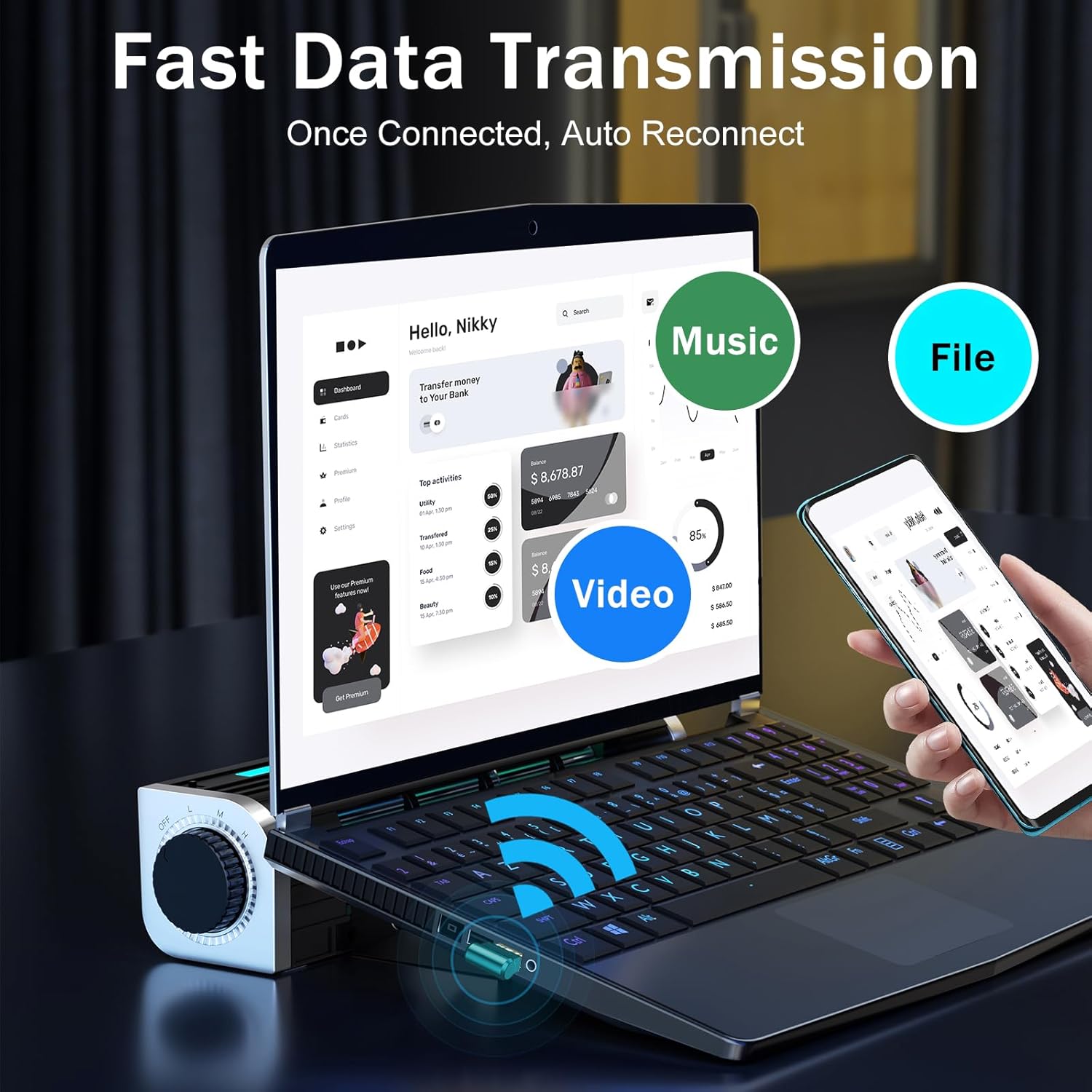
이미지 설명: This visual highlights the fast data transmission capabilities of the adapter, showing a laptop wirelessly connected to a smartphone, enabling quick transfer of music, videos, and files with an automatic reconnection feature.
4. 유지관리
To ensure the longevity and optimal performance of your Techkey Bluetooth Adapter, consider the following:
- 어댑터를 깨끗하고 먼지가 없는 상태로 유지하세요. 청소 시에는 부드럽고 마른 천을 사용하세요.
- 어댑터를 극심한 온도나 습기에 노출시키지 마십시오.
- Do not apply excessive force when inserting or removing the adapter from a USB port.
- Regularly check for Windows updates to ensure your system has the latest drivers and security patches, which can improve Bluetooth performance.
5. 문제 해결
If you encounter issues with your Bluetooth adapter, try the following solutions:
- 인식되지 않는 장치: Try unplugging the adapter and re-inserting it into a different USB port. Restart your computer.
- 페어링 문제: Ensure your external Bluetooth device is in pairing mode. Verify that any built-in Bluetooth on your computer is disabled (refer to Section 2.2). Make sure the adapter is correctly installed in Device Manager.
- 간헐적인 연결: Ensure the adapter is not obstructed by other devices or metal objects. Try moving closer to the adapter. Check for potential interference from other 2.4 GHz wireless devices.
- No Bluetooth Icon: Refer to the video in Section 2.3 for instructions on how to locate or enable the Bluetooth icon in the system tray.
- 드라이버 문제: Although plug-and-play, if issues persist, check Device Manager for any error indicators next to the Bluetooth adapter. You may need to manually update or reinstall drivers via Windows Update.
6. 사양
| 상표 | 테크키 |
| 모델 | Bluetooth Adapter 5.3 USB Mini EDR Dongle |
| 블루투스 버전 | 5.3 + EDR (Backward compatible with 5.2/5.1/5.0/4.2/4.0/3.0/2.1) |
| 데이터 전송 속도 | 초당 최대 3메가비트 |
| 전송 거리 | Up to 30m (in open areas) |
| 하드웨어 인터페이스 | 마이크로 USB 2.0 B형 |
| 호환 장치 | Headphones, Keyboards, Mice, Speakers |
| 지원되는 OS | Windows 11 / 10 / 8.1 (32/64-bit) |
| 제품 치수 | 1.18 x 0.59 x 0.2 인치 |
| 품목 무게 | 1.06온스(0.03킬로그램) |
7. 보증 및 지원
For warranty information and technical support, please refer to the product packaging or contact the seller directly. Specific warranty terms and support contact details may vary.