
1. 서론
This manual provides detailed instructions for the setup, operation, maintenance, and troubleshooting of your OMOTON Bluetooth Keyboard. Please read this manual thoroughly before using the product to ensure proper functionality and longevity.
2. 패키지 내용
패키지에 모든 품목이 들어 있는지 확인하세요.
- OMOTON 블루투스 키보드 1개
- 1 x Type-C 충전 케이블
- 1 x 사용자 매뉴얼(이 문서)
3. 제품 특징
- 다중 시스템 호환성: Supports iOS, Windows, and Android operating systems.
- 소형 및 휴대성: Ultra-thin design (6.6mm thickness) and lightweight (0.42 pounds) for easy transport. Dimensions: 9.7"L x 5.9"W x 0.2"H.
- 향상된 타이핑 경험: Features large keycaps for comfortable and precise typing.
- 충전식 배터리: Built-in 500mAh lithium battery provides up to 200 hours of working time on a 2-3 hour charge.
- 7색 백라이트: Adjustable backlight with 7 color options and 3 brightness levels for typing in various lighting conditions.
- 자동 절전 모드: Conserves battery by entering sleep mode after 30 minutes of inactivity.
4. 설정 지침
4.1 키보드 충전
Before initial use, fully charge the keyboard. Connect the provided Type-C charge cable to the keyboard's charging port and to a USB power source. The charge indicator light will illuminate during charging and turn off when fully charged.
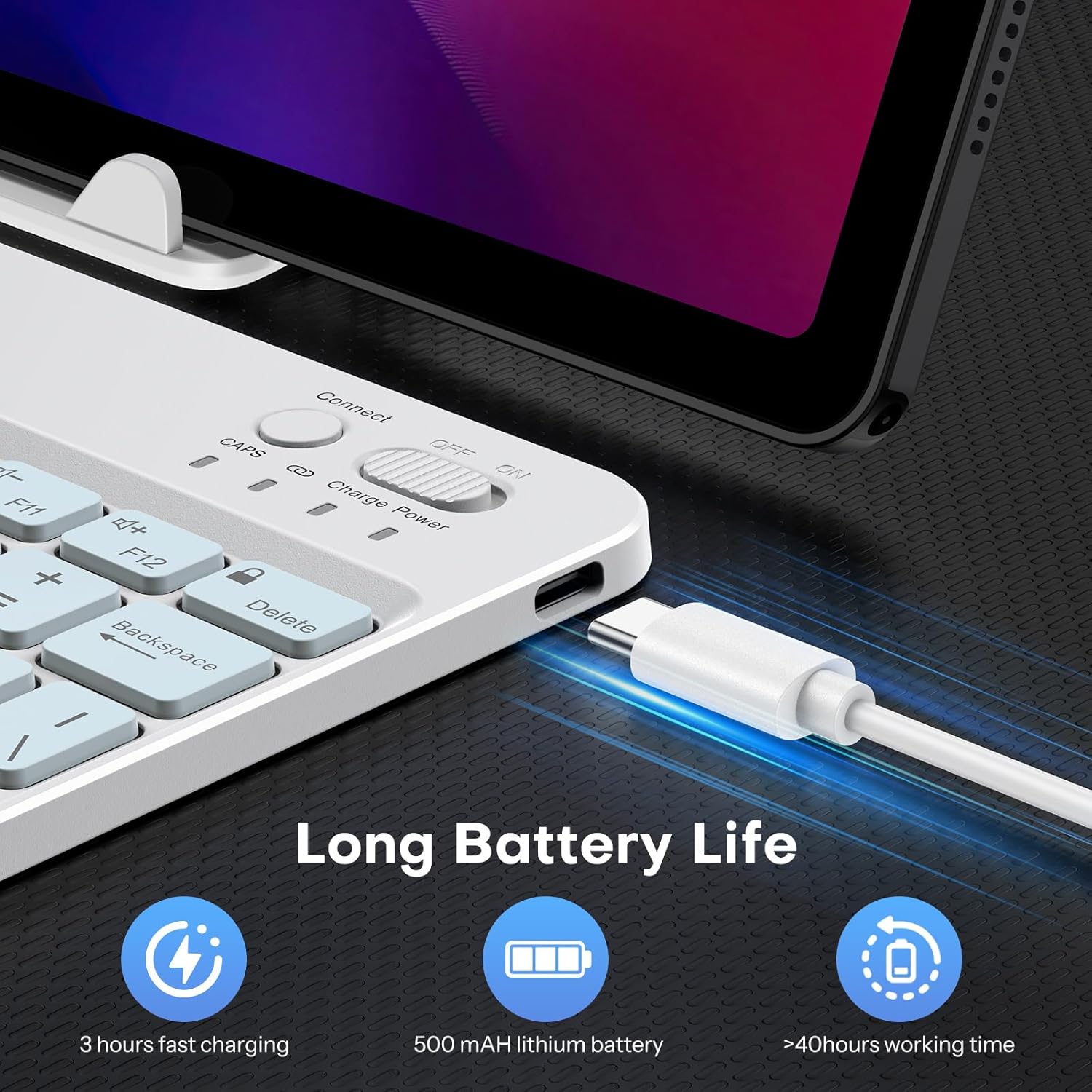
Image: Close-up of the keyboard showing the Type-C charging port and cable connected. The image highlights the charging process and the port location.
4.2 블루투스 페어링
- 전원 스위치를 'ON' 위치로 밀어 키보드를 켜십시오. 전원 표시등이 잠시 켜집니다.
- Press the 'Connect' button (usually located near the power switch) to enter pairing mode. The Bluetooth indicator light will flash, indicating it is ready to pair.
- On your device (tablet, phone, computer), enable Bluetooth and search for available devices.
- Select 'OMOTON Keyboard' (or similar name) from the list of found devices.
- 메시지가 표시되면 OMOTON 키보드를 사용하여 기기에 표시된 페어링 코드를 입력하고 Enter 키를 누르십시오.
- Once paired, the Bluetooth indicator light on the keyboard will stop flashing and remain solid for a few seconds, then turn off. The keyboard is now connected.

이미지: 오버헤드 view of the OMOTON Bluetooth Keyboard, highlighting the power switch and the 'Connect' button, which are essential for initiating Bluetooth pairing.
4.3 운영 체제 전환
The keyboard is compatible with multiple operating systems. It is crucial to switch to the correct system mode for optimal functionality. Press the following key combinations:
- FN + A: For iOS / iPadOS / macOS devices
- FN + S: Windows 장치의 경우
- FN + D: Android 기기의 경우

Image: A visual guide on the keyboard showing the FN key combined with A, S, or D keys to switch between iOS, Windows, and Android operating system modes.
5. 사용 설명서
5.1 백라이트 제어
The keyboard features a 7-color adjustable backlight with 3 brightness levels.
- To turn the backlight on/off or adjust brightness, press the Fn 동시에 키를 누르세요 전구 아이콘 키 (usually located near the right Ctrl key). Repeated presses will cycle through brightness levels or turn off the backlight.
- 백라이트 색상을 변경하려면 누르세요. Fn 동시에 키를 누르세요 color palette icon key (usually located next to the lightbulb icon key). Repeated presses will cycle through the 7 available colors.

Image: The OMOTON Bluetooth Keyboard displaying various backlight colors, illustrating the 7-color and 3-brightness level adjustment feature.
5.2 자동 슬립 모드
To conserve battery life, the keyboard will automatically enter sleep mode after 30 minutes of inactivity. To wake the keyboard, press any key. There may be a slight delay as the keyboard reconnects to your device.
5.3 기능 키
The top row of keys (F1-F12) can be used as standard function keys or as multimedia/shortcut keys. To access the secondary function (e.g., volume control, media playback), press the Fn 원하는 기능 키와 동시에 키를 누릅니다.
6. 유지관리
OMOTON 블루투스 키보드의 수명 연장 및 최적의 성능을 보장하려면 다음 유지 관리 지침을 따르십시오.
- 청소: 부드럽고 마른 보풀 없는 천을 사용하여 키보드 표면을 닦으세요. 잘 지워지지 않는 오염의 경우, 가볍게 두드리세요.amp천에 물이나 순한 세척액을 묻혀 닦아주세요. 과도한 습기는 피하세요.
- 저장: 사용하지 않을 때는 키보드를 직사광선과 극한의 온도를 피해 서늘하고 건조한 곳에 보관하세요.
- 액체를 피하세요: 키보드에 액체가 닿지 않도록 하십시오. 액체를 쏟으면 영구적인 손상이 발생할 수 있습니다.
- 조심스럽게 다루십시오: 키보드를 떨어뜨리거나 강한 충격을 주지 마세요. 내부 부품이 손상될 수 있습니다.
7. 문제 해결
7.1 Keyboard Keys Not Working or Responding
- Confirm Device's Operating System: Ensure you have selected the correct operating system mode on the keyboard. Press FN+A iOS의 경우, 에프엔+에스 Windows의 경우 또는 FN+D 안드로이드용.
- Bluetooth 연결 확인: Verify that the keyboard is properly paired and connected to your device. If not, re-initiate the pairing process (Section 4.2).
- 배터리 수준: Ensure the keyboard has sufficient battery charge. Recharge if necessary.
- 장치 재시작: Try turning off and on both the keyboard and your device, then attempt to reconnect.

Image: A troubleshooting graphic explaining how to fix issues with keyboard keys not working, emphasizing confirming the device's operating system and switching modes.
7.2 블루투스 연결 문제
- 거리: Ensure the keyboard is within the effective range of your device's Bluetooth signal (typically up to 10 meters).
- 간섭: 간섭을 일으킬 수 있는 다른 무선 장치에서 멀리 떨어지세요.
- 장치 삭제 : On your device, 'forget' or 'remove' the keyboard from your Bluetooth device list, then attempt to pair again.
8. 사양
| 상표 | 오모톤 |
| 모델 | B0F65RJ45J |
| 연결 기술 | 블루투스 |
| 호환 장치 | Tablet, Android, Windows, iOS |
| 키보드 레이아웃 | 쿼티 |
| 특별 기능 | Backlit (7 colors, 3 brightness levels), Ergonomic, Lightweight |
| 배터리 용량 | 500mAh 리튬 배터리 |
| 충전 시간 | 2-3시간 |
| 근무시간 | 최대 200시간 |
| 제품 크기(L x W x H) | 9.7" x 5.9" x 0.2"(247mm x 150mm x 6.6mm) |
| 무게 | 0.42파운드 |
| 재료 | 플라스틱 |

Image: A visual comparison of the OMOTON Bluetooth Keyboard's dimensions against a smartphone and a tablet, illustrating its compact and portable size.
9. 보증 정보
OMOTON 블루투스 키보드는 다음과 같은 기능을 제공합니다. 12개월 보증 구매일로부터 적용됩니다. 본 보증은 정상적인 사용 조건에서 발생하는 제조상의 결함 및 오작동에 한해 적용됩니다. 단, 오용, 사고, 무단 개조 또는 외부 요인으로 인한 손상은 보증 대상에서 제외됩니다.
보증 청구를 위해 구매 증명서를 보관하십시오.
10. 고객 지원
If you encounter any issues or have questions regarding your OMOTON Bluetooth Keyboard that are not addressed in this manual, please contact OMOTON customer support through the retailer's platform or the official OMOTON website. Our support team is available to assist you.
자세한 내용은 다음을 방문하세요. 아마존에서 OMOTON 스토어를 만나보세요.


