
소개
Welcome to your Synido Live Dock A20 Portable Audio Interface user manual. This guide provides essential information for setting up, operating, and maintaining your device. The Live Dock A20 is designed to offer high-fidelity audio recording and streaming capabilities for musicians, DJs, and content creators using various devices like smartphones, tablets, and computers.
주요 특징
- 휴대용 오디오 녹음: Offers ultra-clear loopback and monitor functions, ideal for music enthusiasts.
- Unique Instrument Gain Control: Adapts output levels for different instruments to ensure optimal recording quality.
- 고성능 오디오: Features studio-grade 24-bit/96kHz resolution for capturing every detail.
- 고급 사운드 처리: Dual-core chip and sound processing system minimize delays and noise.
- 세련된 디자인: Integrated design with built-in wire storage, pocket-sized, compact, and portable.
- 무선 반주: One-touch wireless switch to connect a second mobile phone for backing tracks.
- USB-C 연결: Direct connection to cell phones, tablets, and computers.
- 충전 지원: Functions as a docking station to charge your phone during mobile live broadcasts.
- Wider Instrument Compatibility: Adaptive gain control optimizes sound for electric guitars, MIDI keyboards, digital pianos, electric bass, and electric drum sets.
- Direct Audio Embedding: Records audio directly into video files, eliminating the need for post-production synchronization.
패키지 내용
- Synido Live Dock A20 Audio Interface
- 오디오 케이블(3.5mm~3.5mm)
- 1/4인치 어댑터
- 빠른 연결 가이드
장치 오버view
Familiarize yourself with the ports and controls of your Live Dock A20.

Image Description: A diagram of the Synido Live Dock A20 highlighting its various ports and controls. These include a Type-C Charging Port, 1/8" Headphone Output, 1/4" Instrument Input, 1/8" Mic Input, Bluetooth button, Loopback button, Mono/Stereo switch, Mic Gain Adjustment, Monitor Volume Control Dial, Instrument Gain Adjustment, and 5V 2A Power Supply port.
설치 가이드
Connecting to a Smartphone/Tablet
- Connect the built-in USB-C cable from the Live Dock A20 to your smartphone or tablet's USB-C port.
- Plug your instrument into the 1/4" Instrument Input.
- Connect your microphone to the 1/8" Mic Input (if applicable).
- Plug in headphones to the 1/8" Headphone Output for monitoring.
- Ensure your device supports USB-C audio input.
Connecting to a Computer/Laptop
- Connect the built-in USB-C cable from the Live Dock A20 to your computer or laptop's USB-C port.
- The device should be recognized automatically as an audio interface (plug-and-play).
- Plug your instrument into the 1/4" Instrument Input.
- Connect your microphone to the 1/8" Mic Input (if applicable).
- Plug in headphones to the 1/8" Headphone Output for monitoring.
장치 전원 공급
The Live Dock A20 is bus-powered via the USB-C connection. For extended use or to charge your connected mobile device, use the dedicated 5V 2A Power Supply port with a charging cable.

Image Description: The Synido Live Dock A20 connected to a smartphone via its built-in USB-C cable, with an additional charging cable plugged into the 5V 2A Power Supply port, indicating simultaneous use and charging.
작동 지침
게인 레벨 조정
Use the dedicated gain controls on the side of the device to adjust input levels for your microphone and instrument. This helps prevent distortion and signal overload, ensuring optimal audio quality.

Image Description: A close-up of the Synido Live Dock A20 showing the microphone gain and instrument gain adjustment sliders on the side of the device.
오디오 모니터링
Connect headphones to the 1/8" Headphone Output. Use the Monitor Volume Control Dial to adjust your monitoring level.
루프백 함수
Press the "LOOPBACK" button to activate the loopback function. This allows you to record or stream your instrument and microphone audio along with any audio playing on your connected device (e.g., backing tracks, system sounds).
모노/스테레오 스위치
Use the "M/S" switch to select between Mono (M) and Stereo (S) input modes.
- Mono (Red Light): Select this mode when connecting a single mono audio source. If a stereo source is connected in mono mode, you may only hear sound in one ear during monitoring and recording.
- Stereo (Green Light): Select this mode when connecting a stereo audio source. If a mono source is connected in stereo mode, sounds in the left and right channels may cancel each other out.

Image Description: A diagram illustrating the Mono/Stereo switch on the Synido Live Dock A20, showing the red light for Mono input and green light for Stereo input, with explanations for each mode.
Wireless Accompaniment (Bluetooth)
Activate the "BT" (Bluetooth) button to enable wireless accompaniment. This feature allows you to connect a second mobile phone via Bluetooth to play backing tracks or other audio, which can then be mixed with your live performance for streaming or recording.

Image Description: The Synido Live Dock A20 connected to one smartphone for live streaming/recording, and wirelessly connected via Bluetooth to a second smartphone providing accompaniment music.
미디어 갤러리
제품 이미지
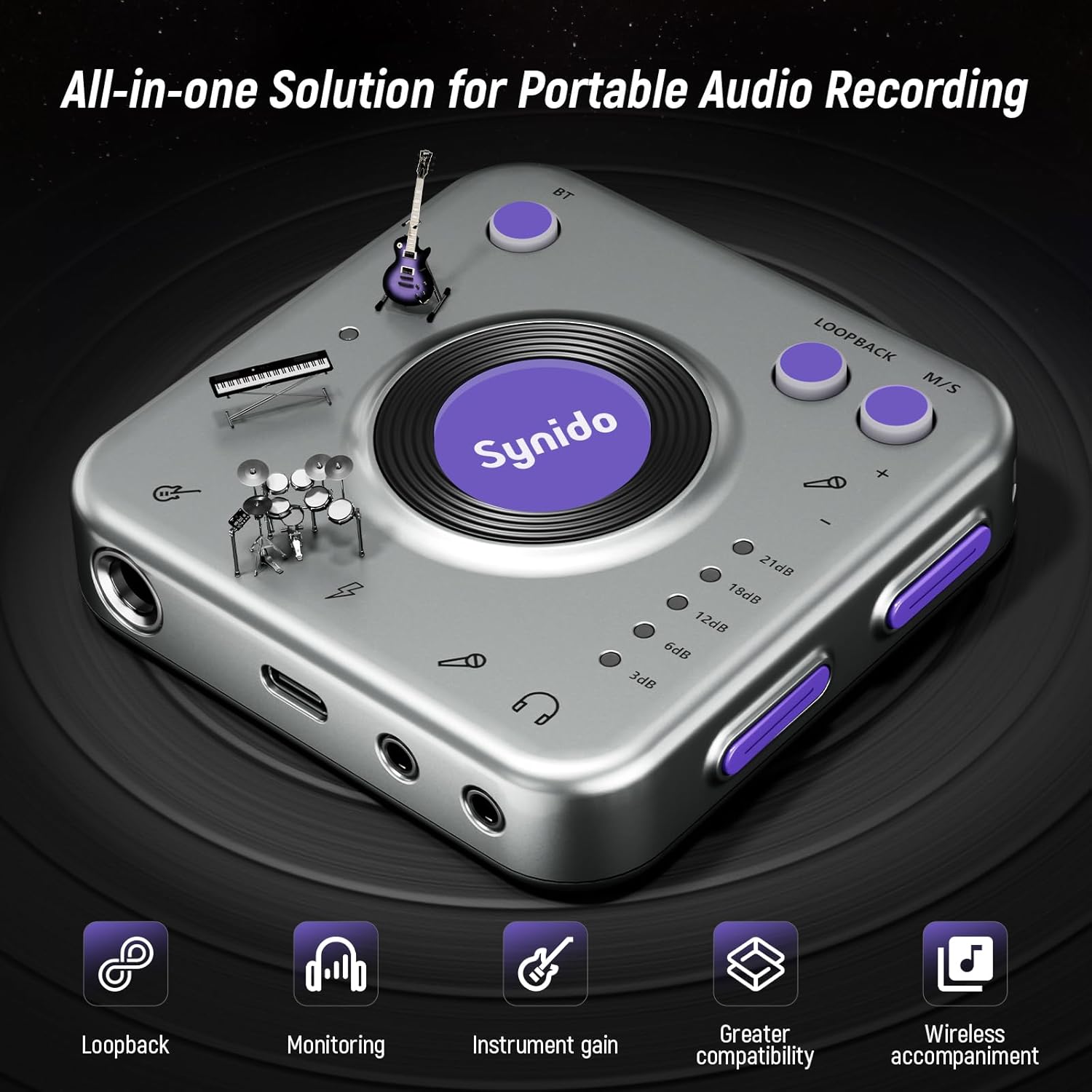
Image Description: The Synido Live Dock A20, a compact silver square device with purple accents, showcasing its various inputs and controls. Text overlay highlights features like Loopback, Monitoring, Instrument Gain, Greater Compatibility, and Wireless Accompaniment.

Image Description: A close-up of the Synido Live Dock A20 emphasizing its Hi-Fi 3D Audio capabilities, with text indicating 24-Bit Sampling Depth and 96 kHz Sampling Rate, and a graph comparing 44.1kHz to 96kHz audio quality.

Image Description: The Synido Live Dock A20 with its built-in USB-C cable extended, demonstrating its ultra-portable design and reinforced slot for cable storage. Text highlights "Plug and play, streaming even while charging."

Image Description: A collage of images showing various instruments (Electric Guitars, Electronic Wind Instruments, Digital Pianos, Midi Keyboards, Electric Bass, Electric Drums, Guitars) that are compatible with the Live Dock A20's adaptive gain control.
공식 제품 영상
Video Description: An official Synido video demonstrating the Live Dock A20 audio interface for recording music with instrument gain control. It highlights its portability and use for live streaming.
Video Description: An official Synido video showcasing the portable recording capabilities of the Live Dock A20 audio interface.
Video Description: An official Synido video demonstrating how to record DJ set audio directly into a camera using the Live Dock A20, eliminating the need for post-production syncing.
문제 해결
No Sound Output/Input
- 모든 케이블 연결이 안전한지 확인하십시오.
- Verify that the correct input and output devices are selected in your recording software or device settings.
- Adjust the gain controls for your instrument and microphone to appropriate levels.
- Ensure the monitor volume is turned up.
왜곡 된 오디오
- Reduce the input gain for the instrument or microphone.
- Check the audio levels in your recording software to ensure they are not clipping.
호환성 문제
- Ensure your smartphone or action camera supports USB-C audio input.
- For iOS devices, ensure you are using a compatible adapter if needed.
명세서
| 특징 | 세부 사항 |
|---|---|
| 상표 | 시니도 |
| 모델 번호 | 라이브 독 A20 |
| 연결 기술 | USB |
| 채널 수 | 2 |
| 최대 Samp르 레이트 | 96 kHz (XNUMX kHz) |
| 비트 깊이 | 24비트 |
| 악기 이득 | 0-21데시벨 |
| 마이크 이득 | 32데시벨 |
| 다이나믹 레인지 | >90dB |
| 호환 장치 | Guitar, Headphone, Personal Computer, Smartphone, Tablet |
| 운영 체제 | 안드로이드, iOS |
| 품목 무게 | 0.01 킬로그램 |
보증 및 지원
The Synido Live Dock A20 comes with service support. For any inquiries or assistance, please refer to the official Synido web해당 웹사이트를 방문하거나 구매 플랫폼을 통해 고객 서비스에 문의하세요.
또한 방문할 수 있습니다 Synido Store on Amazon for more information and to ask questions directly to the seller.