
1. 서론
The Rapoo MT760 PRO is a versatile multi-mode wireless mouse designed for enhanced productivity across various devices and operating systems. Featuring advanced NearLink technology, Bluetooth 5.0, and a wired option, it offers seamless connectivity and high-precision tracking. This manual provides detailed instructions for setup, operation, and maintenance to help you maximize your mouse's capabilities.
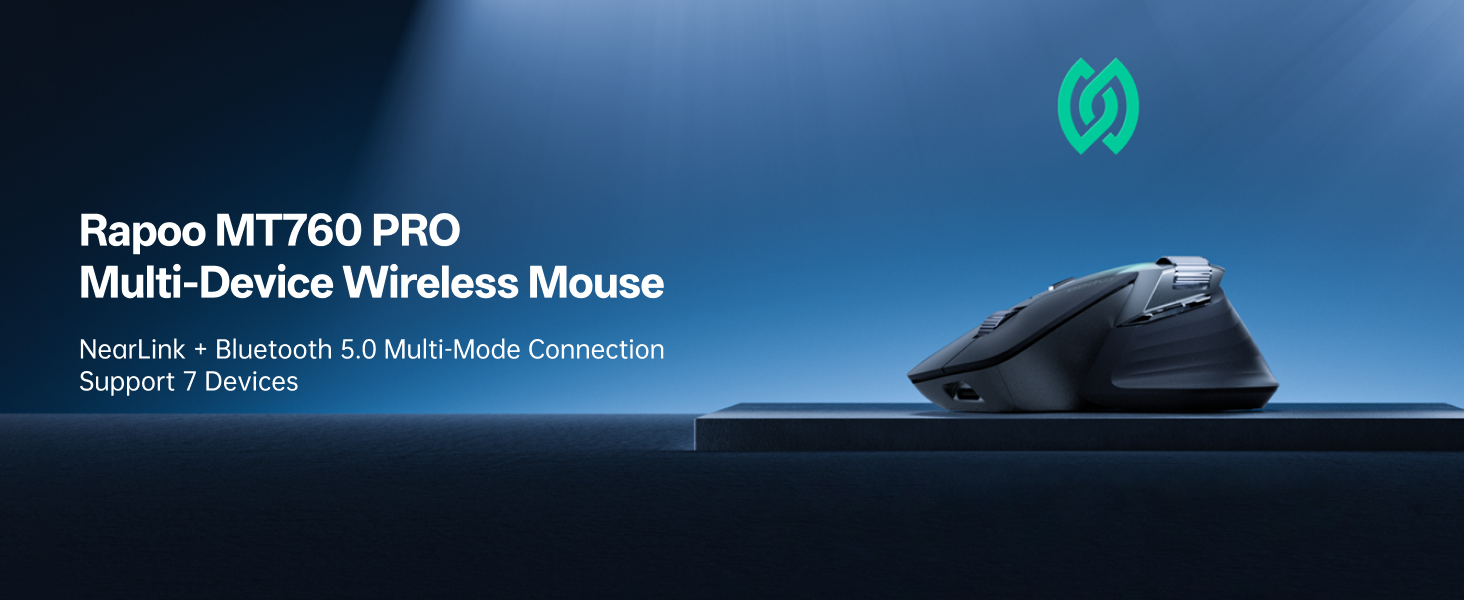
Image: The Rapoo MT760 PRO mouse shown connected to various devices, highlighting its multi-device capability.
2. 패키지 내용
패키지에 모든 품목이 들어 있는지 확인하세요.
- Rapoo MT760 PRO 무선 마우스 1개
- NearLink USB 동글 2개
- USB-C 충전 케이블 1개 (USB-A-USB-C)
- 1 x 사용자 매뉴얼(이 문서)

Image: The Rapoo MT760 PRO mouse, USB-C charging cable, and two NearLink USB dongles laid out on a wooden surface.
3. 설정 및 연결
3.1 전원 켜기/끄기
Locate the power switch on the underside of the mouse. Slide it to the 'ON' position to power on the device. Slide it to 'OFF' when not in use to conserve battery.
3.2 Connecting via NearLink USB Dongle (2.4GHz)
- Remove one of the NearLink USB dongles from its storage slot on the underside of the mouse.
- USB 동글을 컴퓨터의 사용 가능한 USB 포트에 꽂습니다.
- On the underside of the mouse, select the 2.4G mode (indicated by '1' or '2' for the two dongles). The mouse will automatically connect to the dongle.
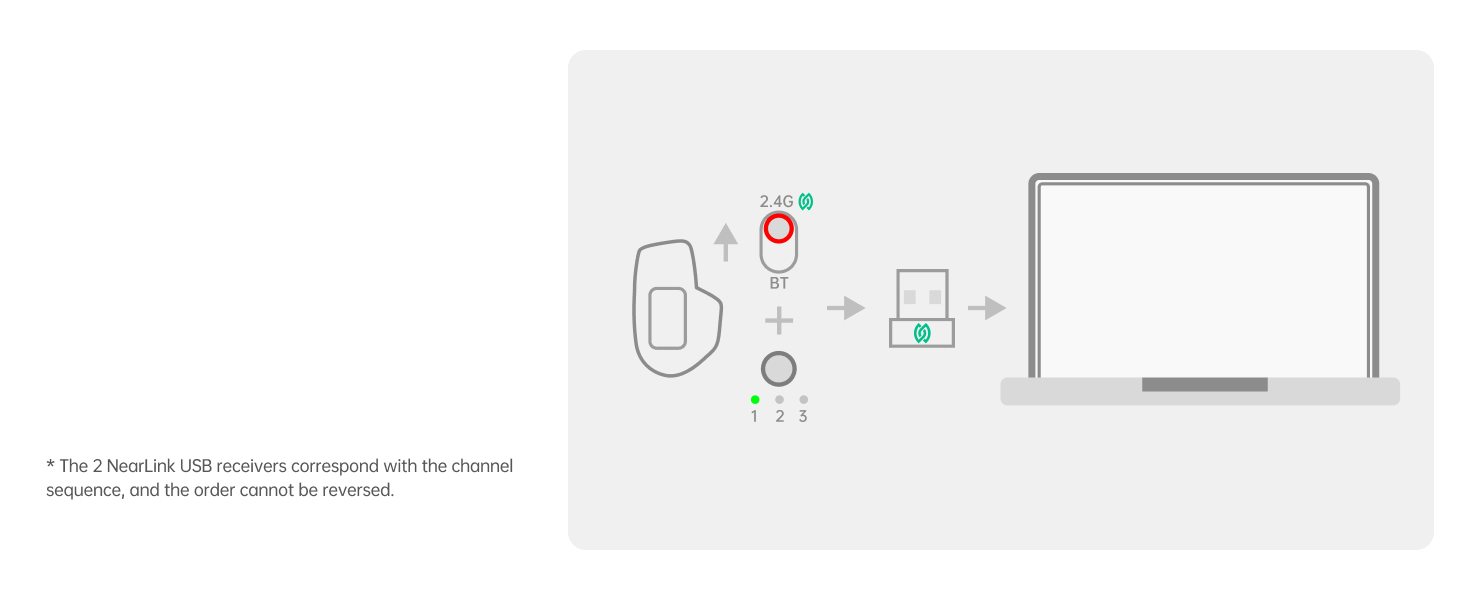
Image: Diagram illustrating the connection of the NearLink USB dongle to a laptop and selecting the corresponding channel on the mouse.
3.3 Connecting via NearLink Wireless (Direct)
- Ensure your device supports NearLink wireless direct connection.
- On the underside of the mouse, select the NearLink Wireless mode (indicated by '3').
- Follow your device's instructions to pair with the mouse.
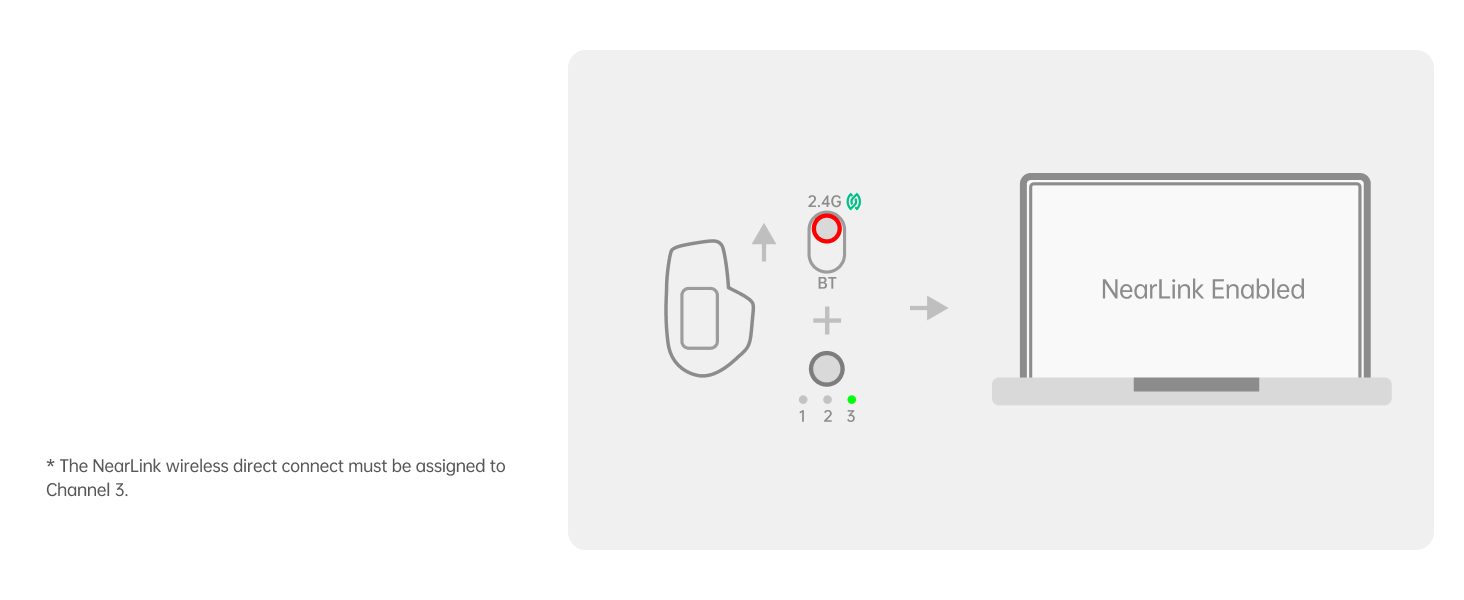
Image: Diagram showing the NearLink Wireless connection process, with the mouse set to channel 3.
3.4 Connecting via Bluetooth (BT1, BT2, BT3)
- On the underside of the mouse, select one of the Bluetooth modes (BT1, BT2, or BT3).
- Press and hold the selected Bluetooth button until the indicator light flashes rapidly, indicating pairing mode.
- On your device (computer, laptop, tablet, phone), go to Bluetooth settings and search for 'Rapoo MT760 PRO'. Select it to pair.
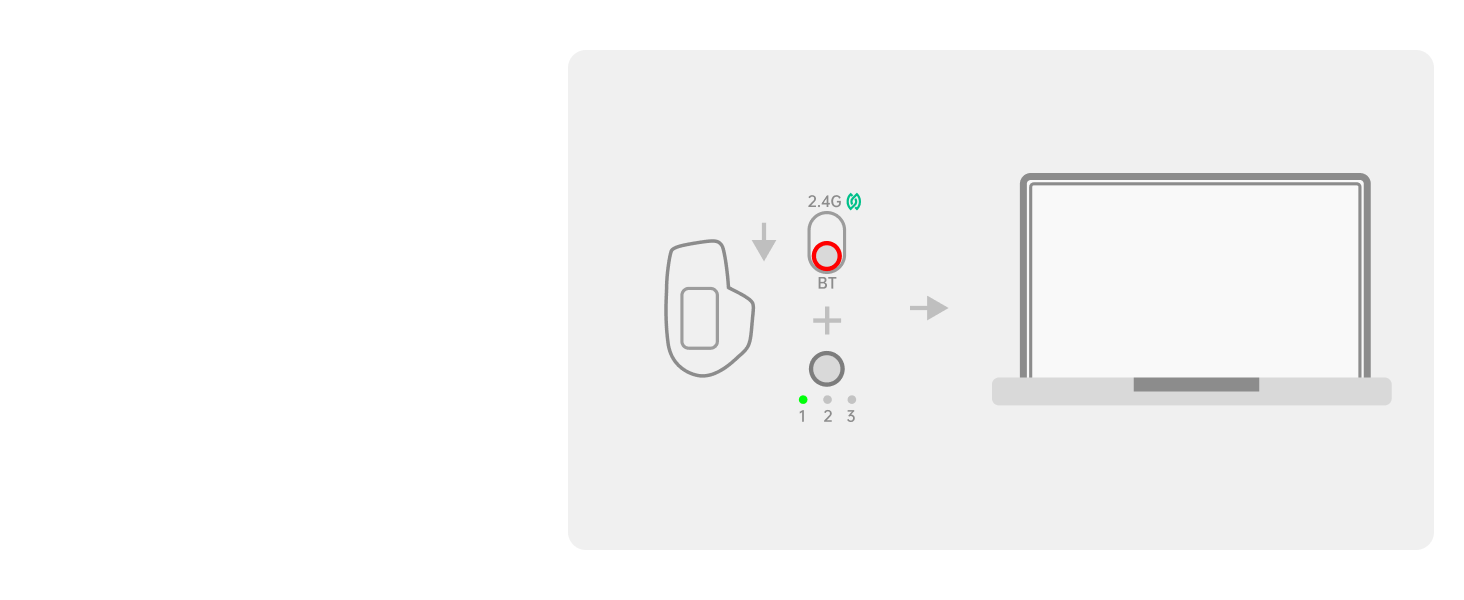
Image: Diagram illustrating the Bluetooth connection process, showing the mouse in pairing mode and connecting to a laptop.
3.5 유선 연결
Connect the USB-C charging cable from the mouse to your computer. The mouse will automatically switch to wired mode. The wired option has protocol priority over NearLink and Bluetooth connections.
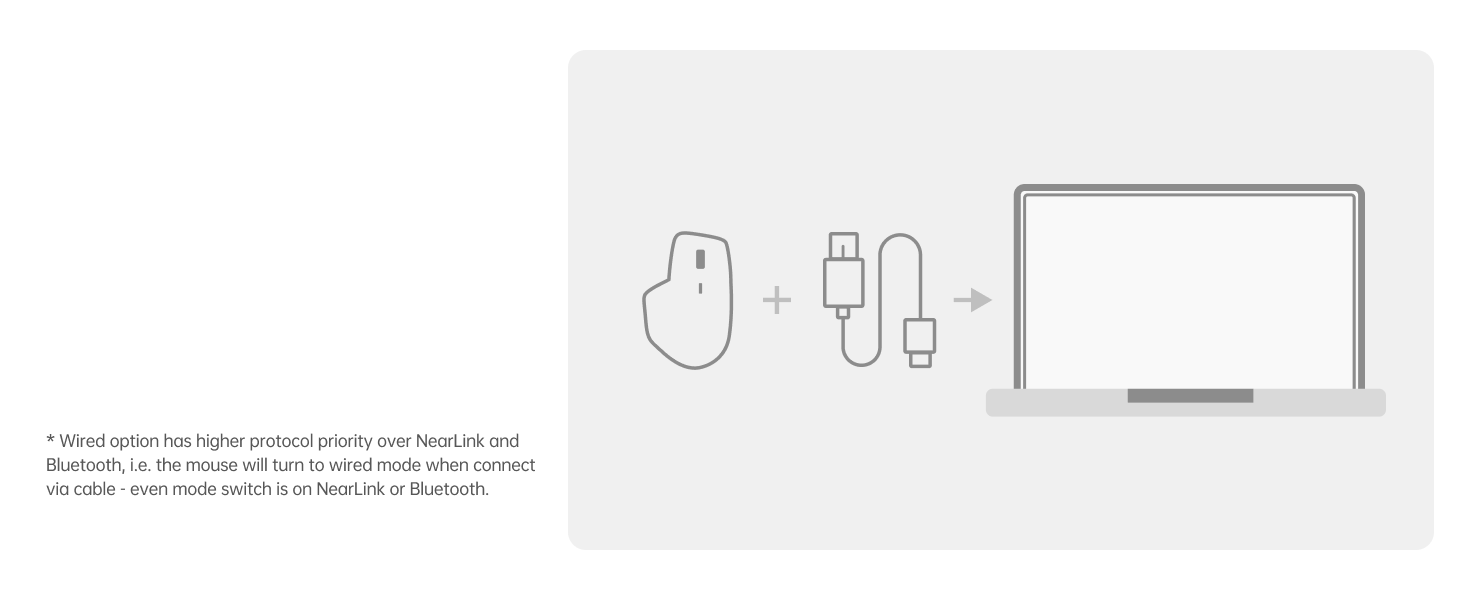
Image: Diagram showing the mouse connected to a laptop via a USB-C cable, indicating wired mode.
3.6 드라이버 설치
For full functionality, including customizing programmable buttons, adjusting DPI with 50-interval adjustments, and utilizing M+ Cross-Computer technology, install the Rapoo mouse driver software. This software is primarily compatible with Windows systems. The on-board memory stores your settings, eliminating the need for reconfiguration after reboot or on other devices.
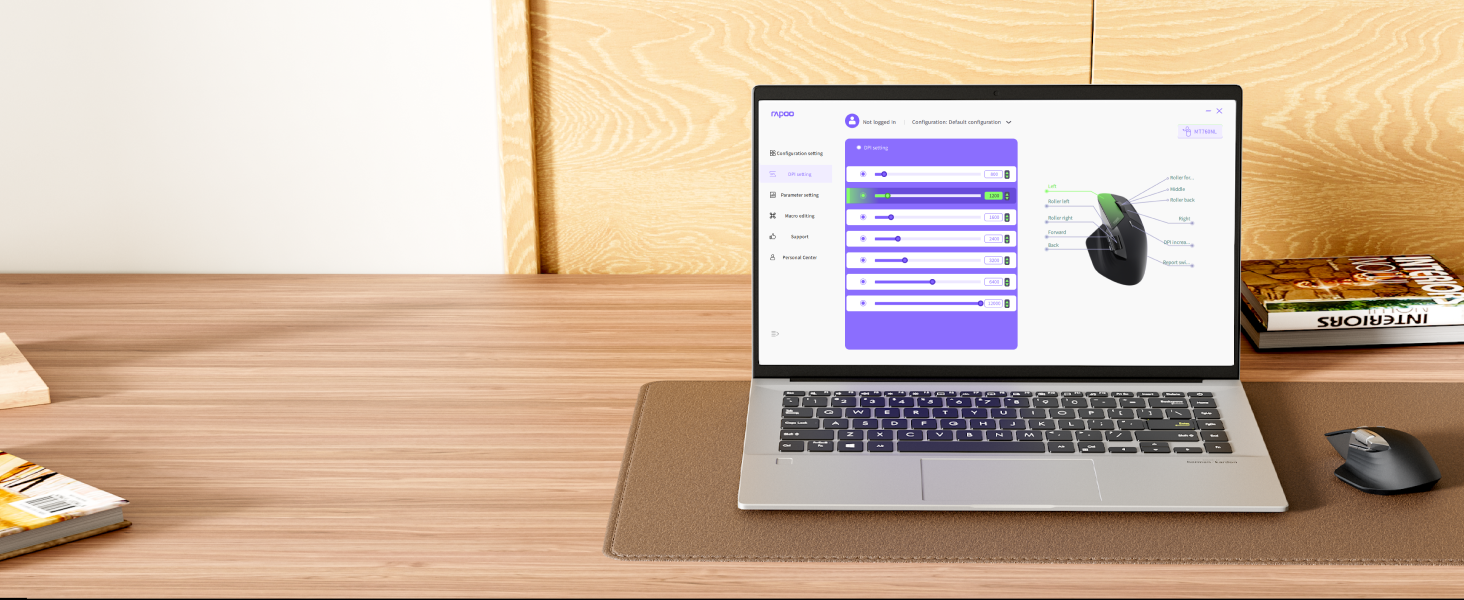
Image: Screenshot of the Rapoo software interface showing options for customizing the 11 programmable buttons.
4. 사용 설명서
4.1 DPI 조정
The mouse features 7 adjustable DPI levels: 800, 1200, 1600, 2400, 3200, 6400, and 12000. Press the dedicated DPI button on the mouse to cycle through these preset levels. Fine-tune DPI settings in 50-interval adjustments using the driver software.
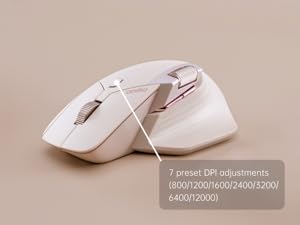
Image: Visual representation of the 7 adjustable DPI levels (800-12000) available on the Rapoo MT760 PRO mouse.
4.2개의 프로그래밍 가능한 버튼
The MT760 PRO has 11 programmable buttons. Use the Rapoo driver software to assign shortcuts, media keys, or macros to these buttons, streamlining your workflow and boosting efficiency. Settings are saved to the mouse's on-board memory.
4.3만 개 이상의 크로스 컴퓨터 기술
This feature allows seamless control across multiple computers. By simply moving your cursor to the edge of one screen, it will automatically appear on the adjacent screen of another connected computer. You can also wirelessly transfer files by copying from one computer and pasting on the other. Ensure the mouse driver is installed and all devices are connected to the same Wi-Fi or Ethernet network for this function.
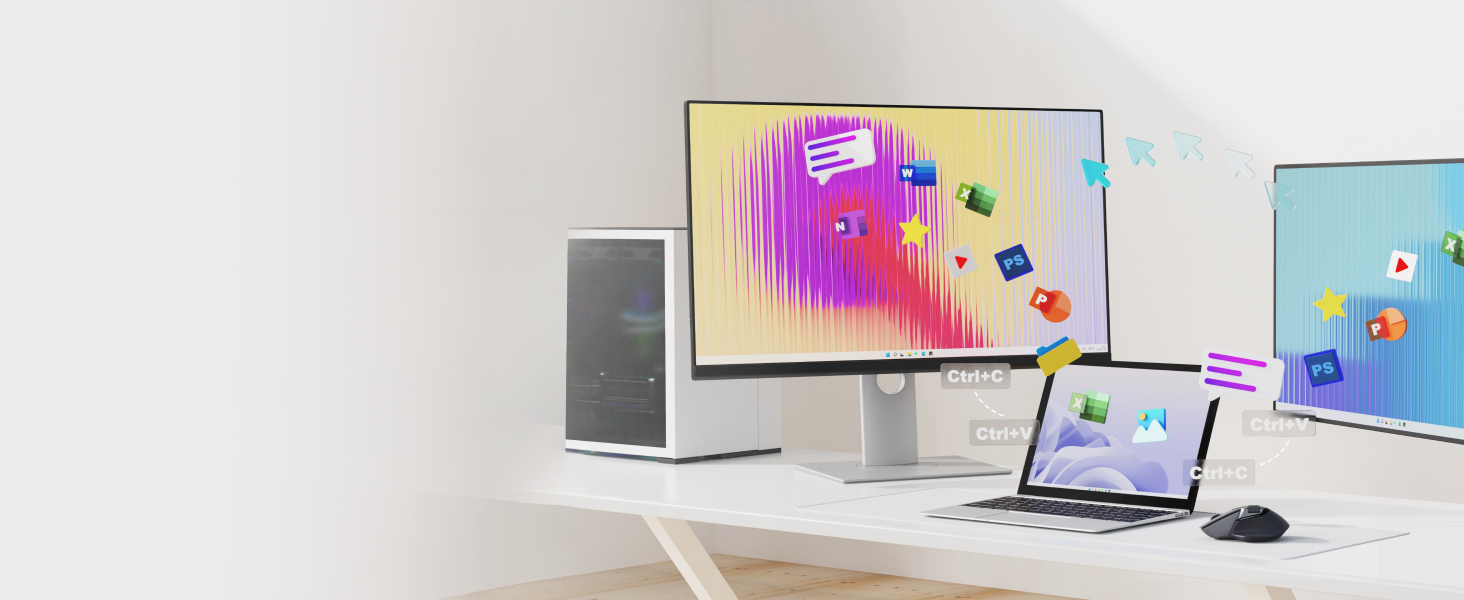
Image: Illustration of the M+ Cross-Computer feature, showing a cursor moving between two computers and file전송 중입니다.
4.4 Scroll Wheels
The mouse features a Hall magnetic induction side scroll wheel and a center scroll wheel, designed for smooth and precise scrolling. These provide a comfortable and efficient experience for navigating documents and web 페이지.
5. 충전 및 배터리 수명
5.1 충전 중
The Rapoo MT760 PRO is equipped with an 800mAh Li-Po battery and supports USB-C quick charging. Connect the provided USB-C cable to the mouse and a power source (e.g., computer USB port, wall adapter) to charge. A 5-minute quick charge can provide a full day of use.
5.2 무선 충전
The mouse is wireless charging enabled and works with most Qi wireless charging mouse pads. For continuous wireless charging during use, the P3 Wireless Charging Module can be purchased separately.
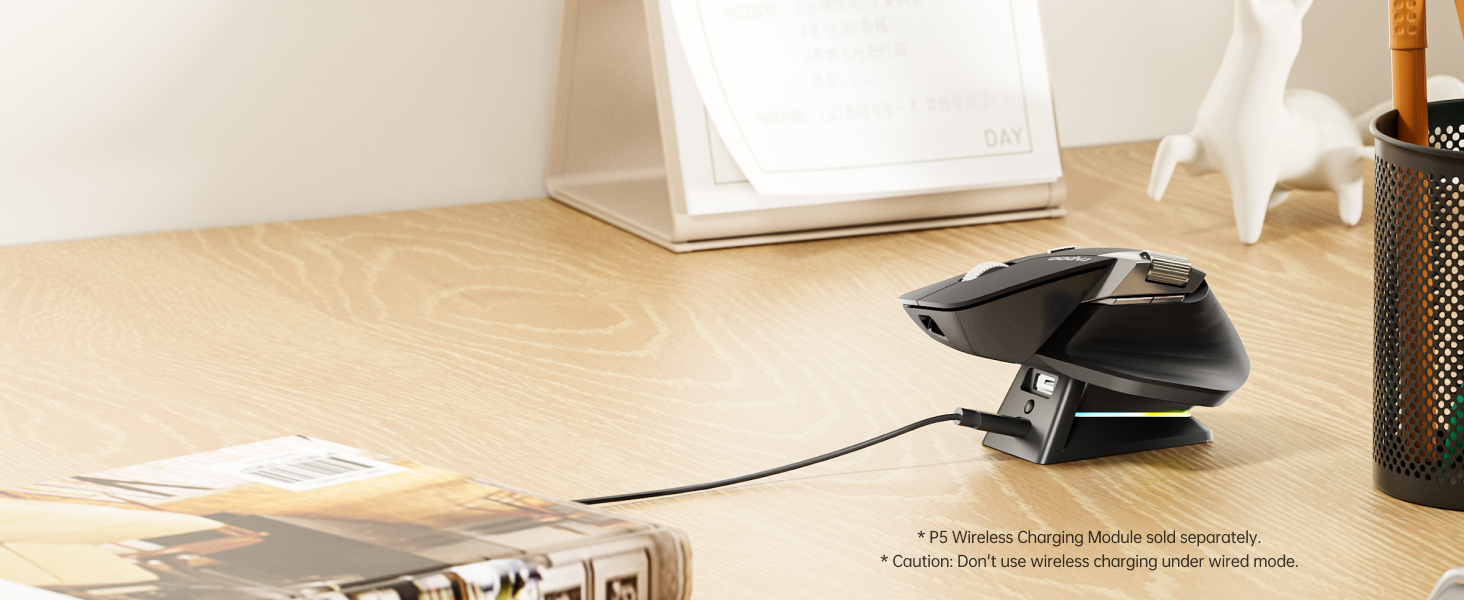
Image: The Rapoo MT760 PRO mouse resting on a wireless charging pad, illustrating its Qi wireless charging capability.
5.3 배터리 수명
Utilizing NearLink’s low-power access mode, the mouse can achieve a battery life of up to 120 days on a single charge. Actual battery life may vary based on usage frequency, device conditions, and environmental factors.
6. 유지관리
To ensure the longevity and optimal performance of your Rapoo MT760 PRO mouse, follow these maintenance guidelines:
- 청소: Use a soft, dry cloth to clean the mouse surface. For stubborn dirt, lightly damp천에 물이나 순한 세척액을 묻혀 닦아주세요. 강한 화학 물질이나 연마재는 사용하지 마세요.
- 센서 관리: 마우스 아랫면에 있는 광학 센서를 깨끗하게 유지하고 먼지나 이물질이 끼지 않도록 하십시오.
- 저장: When not in use for extended periods, store the mouse in a cool, dry place. If storing for a long time, ensure the mouse is fully charged and powered off.
- 극한의 환경을 피하세요: 마우스를 극한의 온도, 직사광선 또는 높은 습도에 노출시키지 마세요.
7. 문제 해결
If you encounter issues with your Rapoo MT760 PRO mouse, please refer to the following common solutions:
- 연결 없음:
- 마우스의 전원이 켜져 있는지 확인하세요.
- Check if the correct connection mode (2.4G, BT1/2/3, or Wired) is selected on the mouse.
- For 2.4G, ensure the USB dongle is securely plugged in. Try a different USB port.
- 블루투스를 사용하는 경우, 기기의 블루투스가 활성화되어 있고 마우스가 페어링 모드인지 확인하십시오.
- For M+ Cross-Computer, verify the driver is installed and all devices are on the same network.
- 커서가 느리게 움직이거나 응답하지 않는 경우:
- 배터리 수준을 확인하고 필요한 경우 마우스를 충전하세요.
- Ensure the optical sensor is clean.
- 다른 표면에서 마우스를 사용해 보십시오.
- If using wireless, ensure there are no strong interferences (e.g., other wireless devices, metal objects) nearby.
- 버튼이 작동하지 않거나 사용자 지정이 안 되는 경우:
- Ensure the Rapoo driver software is installed and up to date.
- Verify that button assignments are correctly configured in the software.
If problems persist, please contact Rapoo customer support.
Video: An official product video demonstrating the multi-device and 12K DPI features of the Rapoo MT760 PRO Wireless Mouse.
8. 사양
| 특징 | 세부 사항 |
|---|---|
| 모델 번호 | MT760 프로 |
| 연결 기술 | Bluetooth 5.0, NearLink (2.4GHz USB Dongle & Wireless), Wired (USB-C) |
| DPI 레벨 | 800/1200/1600/2400/3200/6400/12000 (Adjustable in 50-interval steps via software) |
| 폴링 속도 | 최대 2K(2000Hz) |
| 프로그래밍 가능한 버튼 | 11 |
| 배터리 유형 | 리튬 폴리머 1개(포함) |
| 배터리 용량 | 800mAh |
| 배터리 수명 | 최대 120일 |
| 충전 포트 | USB-C |
| 무선 충전 | Qi-enabled (P3 Wireless Charging Module sold separately) |
| 움직임 감지 기술 | 광학 |
| 제품 치수 | 6.73 x 4.4 x 0.1 인치 |
| 품목 무게 | 3.88 온스 |
| 운영 체제 | Windows, Mac, Linux, Chrome, Android |
9. 보증 및 지원
Rapoo products are designed for reliability and performance. For warranty information, please refer to the warranty card included with your purchase or visit the official Rapoo website. For technical support, troubleshooting assistance, or further inquiries, please contact Rapoo customer service through their official channels.