
소개
This manual provides essential information for setting up, operating, and maintaining your UPERFECT 15.6-inch FHD Portable Touchscreen Monitor. Please read it thoroughly before using the product to ensure optimal performance and longevity. This monitor is designed to enhance your productivity and entertainment experience with its versatile connectivity and intuitive touchscreen functionality.
패키지 내용
다음 항목에 대한 상자를 체크해 주세요.
- 15.6인치 휴대용 모니터
- Smart Cover (doubles as a stand)
- USB-C to USB-C 케이블
- USB-A to USB-C 케이블
- 미니 HDMI-HDMI 케이블
- 전원 어댑터(5V 3A)
- M3*5mm VESA Screws (4 pcs)

제품 특징
- 10-Point Capacitive Touchscreen: Provides precise and fluid interaction for various tasks.
- 15.6인치 풀 HD(1920x1080) IPS 디스플레이: Offers clear images, vivid colors, and a wide 178-degree view잉 각도.
- HDR 지원: Enhances contrast and color range for a more immersive visual experience.
- 아이 케어 기술: Includes a blue light filter to reduce eye strain during prolonged use.
- 매우 휴대하기 편리한 디자인: With only 0.4 inches thickness and 1.5 lbs weight, it is ideal for travel and remote work.
- Integrated Smart Cover: Protects the screen and functions as a stable stand for desktop use.
- VESA 마운트 호환: Supports 75x75mm VESA mounting for fixed installations or multi-monitor setups.
- 다양한 연결성: Features two full-function USB-C ports, one Mini HDMI port, and a 3.5mm audio jack for wide device compatibility.
- 듀얼 통합 스피커: Delivers clear and balanced audio for an enhanced multimedia experience.
- 다중 디스플레이 모드: Supports Mirror, Extend, and Second Monitor modes, as well as horizontal and vertical display orientations.


설정 및 연결
The UPERFECT portable monitor offers flexible connectivity options. No drivers are required for most connections.
Understanding the Ports

- 미니 HDMI 포트: HDMI 출력이 있는 장치에서 비디오 및 오디오 입력을 받습니다.
- Type C 3.1 Ports (x2): Full-function ports for power, video, audio, and touch signal transmission.
- 3.5mm 오디오 잭: 외부 헤드폰이나 스피커를 연결하는 데 사용합니다.
- 풀리 버튼: Used to navigate the On-Screen Display (OSD) menu and adjust settings.
- 전원/뒤로 가기 버튼: 모니터 전원을 켜고 끄거나 OSD 메뉴에서 뒤로 돌아가는 데 사용됩니다.
장치에 연결하기
Refer to the diagram below for common connection methods:
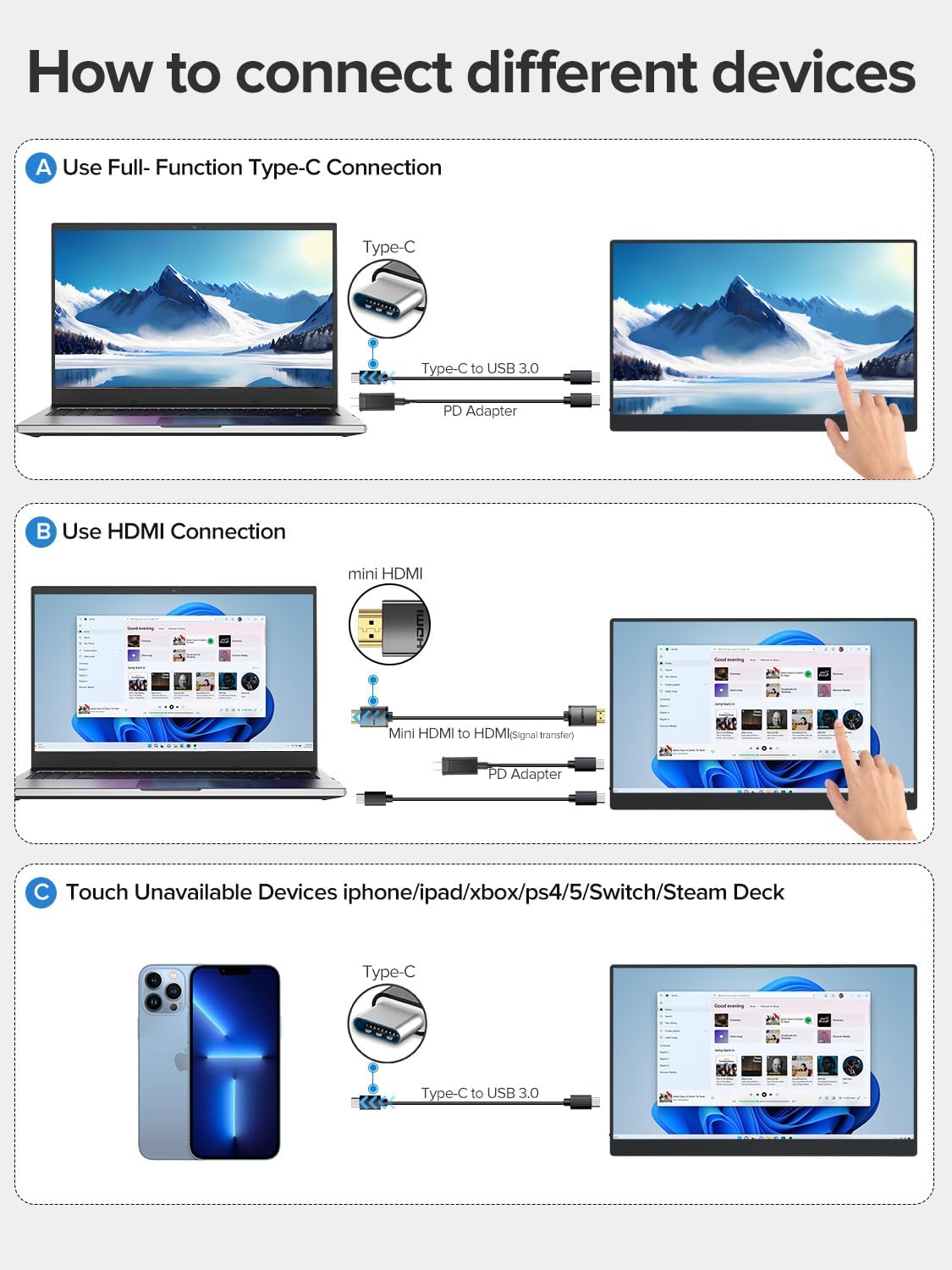
- Using a Full-Function USB-C Cable: Connect one end of the USB-C to USB-C cable to your device's full-function USB-C port and the other end to one of the monitor's Type C 3.1 ports. This single cable can transmit power, video, audio, and touch signals. An additional power adapter may be needed for some devices or if the monitor requires more power.
- Using HDMI and USB-A to USB-C Cables: Connect the Mini HDMI to HDMI cable from your device's HDMI port to the monitor's Mini HDMI port for video and audio. Then, connect the USB-A to USB-C cable from your device's USB-A port to one of the monitor's Type C 3.1 ports for power and touch functionality. An additional power adapter may be required.
- Devices Without Touch Support: For devices like iPhones, iPads, Xbox, PS5, Nintendo Switch, or Steam Deck, you can connect for display and audio using the appropriate cables (e.g., USB-C for video/power or HDMI for video/audio). Touch functionality will not be available for these devices.
Using the Protective Case as a Stand
The included smart cover can be folded to create a stable stand for your monitor. Watch the video below for a demonstration.
작동 지침
전원 켜기/끄기
- 모니터를 켜려면 버튼을 누르세요. 전원/뒤로 버튼.
- 모니터 전원을 끄려면 버튼을 길게 누르세요. 전원/뒤로 버튼 화면이 꺼질 때까지 몇 초 동안 지속됩니다.
온스크린 디스플레이(OSD) 메뉴
OSD 메뉴를 사용하면 다양한 디스플레이 설정을 조정할 수 있습니다. 풀리 버튼 to navigate and select options, and the 전원/뒤로 버튼 to exit or go back.
- 를 누르세요 풀리 버튼 OSD 메뉴를 엽니다.
- 롤하다 풀리 버튼 위 또는 아래로 스크롤하여 메뉴 옵션을 탐색하세요.
- 를 누르세요 풀리 버튼 옵션을 선택하거나 설정을 확인하려면.
- 를 누르세요 전원/뒤로 버튼 이전 메뉴로 돌아가거나 OSD를 종료하려면.
터치 기능
The monitor features a 10-point capacitive touchscreen for intuitive interaction. Touch functionality depends on the connected device.

- 멀티터치 지원: Fully supported for Windows PCs, Android phones, and tablets, allowing for gestures like pinch-to-zoom, scrolling, and swiping.
- Single-Touch Support: For Mac devices (MacBook, iMac, Mac mini), single-touch gestures are supported.
- No Touch Support: Devices such as iPhones, iPads, Xbox, PS5, Nintendo Switch, and Steam Deck do not support touch input on this monitor. The monitor will function as a non-touch display for these devices.

디스플레이 모드
The monitor supports various display configurations to suit your needs:

- 미러 모드: Duplicates your primary screen's content onto the portable monitor.
- 확장 모드: Extends your desktop across both screens, providing more workspace. You can set the portable monitor as your main screen.
- 보조 화면 모드: Uses the portable monitor as a secondary display. Note that touch functionality may be limited or unavailable in this mode for certain operating systems or devices.
- 정위: The monitor supports both horizontal (landscape) and vertical (portrait) orientations. Adjust settings on your connected device as needed.
유지
- 화면 청소: 부드럽고 털이 없는 천을 살짝 사용하세요.amp물이나 화면 세척액으로 닦으십시오. 강한 화학 물질이나 연마재는 사용하지 마십시오.
- 본체 청소: 부드럽고 마른 천으로 모니터 본체를 닦으세요.
- 저장: When not in use, store the monitor in its protective case in a cool, dry place away from direct sunlight and extreme temperatures.
- 손질: 모니터를 떨어뜨리거나 강한 충격을 가하지 마십시오. 모니터 위에 무거운 물건을 올려놓지 마십시오.
문제 해결
| 문제 | 가능한 원인 | 해결책 |
|---|---|---|
| 화면 안 나옴/신호 없음 | Incorrect cable connection; Insufficient power; Incorrect input source selected. | Ensure cables are securely connected. Connect the power adapter. Check your device's display settings. Use the OSD menu to select the correct input source. |
| 터치 기능이 작동하지 않습니다 | Incorrect cable connection; Device does not support touch; Operating system limitations. | Ensure the USB-C cable (or USB-A to USB-C for HDMI) is connected and supports touch data. Verify your device's compatibility with touch input. Some devices/OS configurations may limit touch functionality. |
| 화면 깜박임 | Cable issue; Power instability. | Try a different cable. Ensure the monitor is receiving stable power, especially if using a single USB-C connection. Connect the dedicated power adapter. |
| 소리가 나지 않습니다 | Volume too low; Incorrect audio output selected on device; Faulty cable. | Adjust monitor volume via OSD. Check your device's audio output settings. Ensure cables are properly connected. |
명세서
| 특징 | 사양 |
|---|---|
| 모델 번호 | 업15605 |
| 화면 크기 | 15.6 인치 |
| 해결 | FHD 1080p(1920 x 1080 픽셀) |
| 패널 유형 | IPS LCD |
| 새로 고침 빈도 | 60Hz |
| 응답 시간 | 1밀리초 |
| 종횡비 | 16시 9분 |
| 대비율 | 2000시 1분 |
| 명도 | 300 lm (nits) |
| View잉 각도 | 178도 |
| 화면 표면 | 매트 |
| 색상 범위 값 | 125% |
| 특별 기능 | USB Hub, Touchscreen, Portable, Flicker-Free, Ultra-Thin, HDR, Eye Care, Contrast Enhancement, G-Sync Compatible |
| 하드웨어 인터페이스 | Mini HDMI, USB-C (x2) |
| 제품 크기(DxWxH) | 35 x 22 x 1cm |
| 무게 | 2킬로그램(약 1.5파운드) |
| 호환 장치 | Desktop PC, Laptop, Smartphone, Tablet, Game Consoles |
보증 및 지원
Your UPERFECT monitor comes with a 1년 보증 구매일로부터 제조상의 결함에 대한 보증을 제공합니다. 보증 청구를 위해 구매 증빙 서류를 보관해 주세요.
For technical support, warranty inquiries, or any questions regarding your product, please contact UPERFECT customer service through the retailer's platform or the official UPERFECT website. Our support team is available to assist you with any issues you may encounter.