
1. 제품 오버view
The Meetion BTM005 is a versatile wireless mouse designed for office and portable use. It offers dual connectivity options: 2.4G wireless via a USB dongle and dual Bluetooth for connecting to multiple devices. Key features include silent clicks and adjustable DPI settings for precise control.
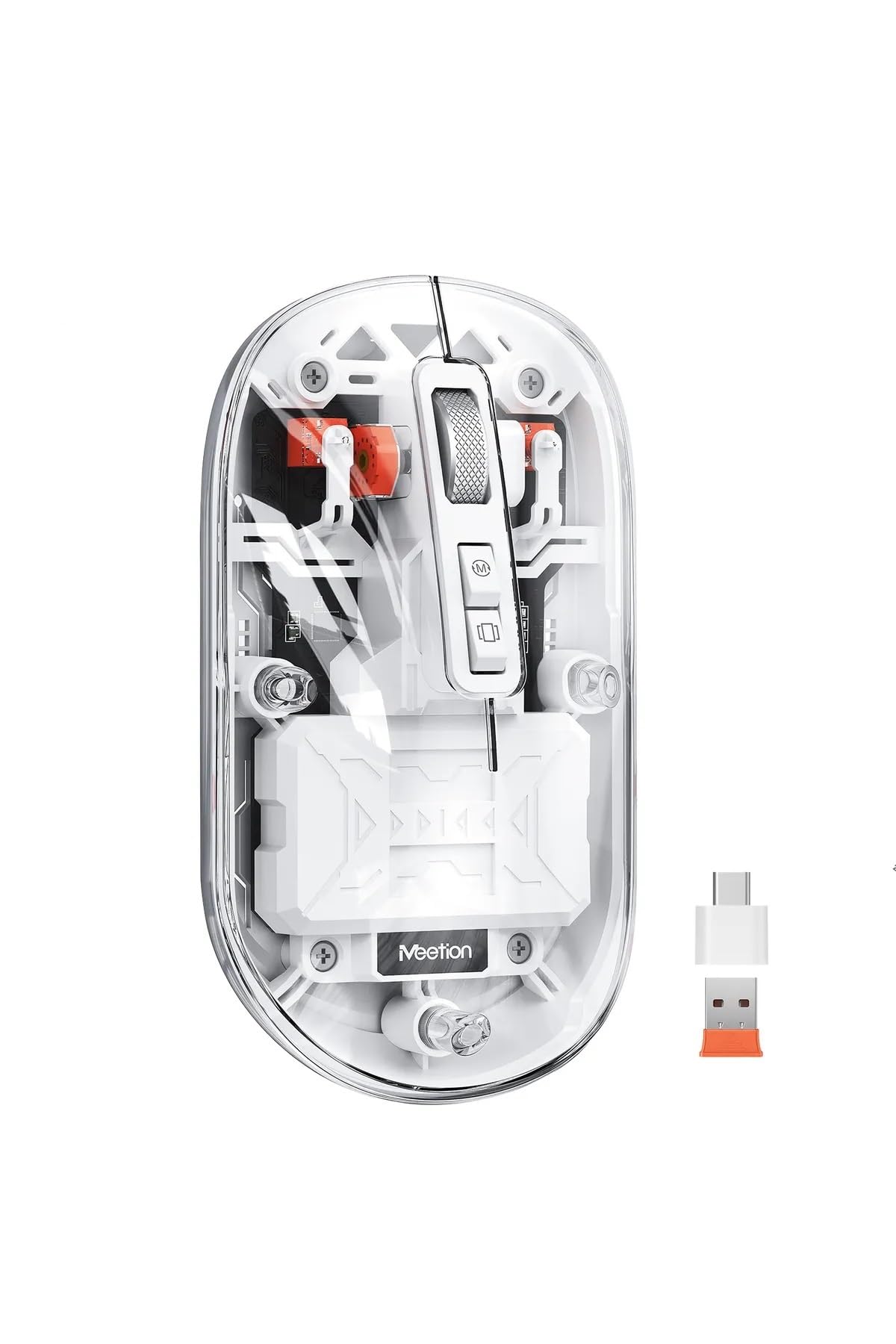
Figure 1: Meetion BTM005 Wireless Mouse (White)
2. 패키지 내용
다음 품목이 패키지에 포함되어 있는지 확인하세요.
- Meetion BTM005 Wireless Mouse
- USB-C to USB 충전 케이블
- USB 2.4G Wireless Receiver (dongle) - located inside the mouse
- 사용 설명서 (본 문서)

Figure 2: Mouse with top cover removed, showing internal components and USB receiver storage.
3. 설정
3.1 마우스 충전
The Meetion BTM005 mouse features a built-in rechargeable battery. Before first use, or when the battery is low, connect the mouse to a USB power source using the provided USB-C charging cable.
- 마우스 앞면에 있는 USB-C 포트를 찾으세요.
- Connect the USB-C end of the cable to the mouse and the USB-A end to a computer's USB port or a USB wall adapter.
- 표시등은 충전 상태를 표시하고, 완전히 충전되면 꺼집니다.

Figure 3: Mouse connected for charging via USB-C cable.
3.2 2.4G 무선을 통한 연결
- 마우스의 자석식 상단 덮개를 조심스럽게 제거하세요.
- Take out the USB 2.4G wireless receiver (dongle) stored inside the mouse.
- USB 수신기를 컴퓨터의 사용 가능한 USB 포트에 삽입합니다.
- 자석식 상단 덮개를 교체하세요.
- 마우스 바닥에 있는 ON/OFF 스위치를 사용하여 마우스를 켭니다.
- Press the mode switch button (located behind the scroll wheel) until the indicator light shows 2.4G mode (usually a specific color or pattern).
- 컴퓨터가 마우스를 자동으로 감지하고 연결해야 합니다.

Figure 4: USB 2.4G receiver stored inside the mouse.
3.3 블루투스를 통한 연결
The mouse supports dual Bluetooth connections (BT1 and BT2).
- 마우스 하단에 있는 전원 스위치를 사용하여 마우스를 켜세요.
- Press the mode switch button (behind the scroll wheel) to select either BT1 or BT2 mode. The indicator light will flash, indicating pairing mode.
- 사용하시는 기기(컴퓨터, 태블릿 등)에서 블루투스 설정으로 이동하여 새 기기를 검색하세요.
- Select "Meetion BTM005" from the list of available devices to pair.
- 페어링되면 표시등이 깜박임을 멈추고 계속 켜져 있습니다.
- Repeat steps 2-5 to connect to a second device using the other Bluetooth channel (BT2).
4. 사용 설명서
4.1 전원 켜기/끄기
Use the physical ON/OFF switch located on the bottom of the mouse to conserve battery when not in use.
4.2 연결 모드 전환
The button located directly behind the scroll wheel allows you to switch between 2.4G wireless, Bluetooth 1 (BT1), and Bluetooth 2 (BT2) modes. Press the button once to cycle through the modes. The indicator light will change to reflect the active mode.
4.3 DPI 감도 조정
The mouse offers adjustable DPI (Dots Per Inch) settings to control cursor speed. The DPI button is located on the bottom of the mouse, next to the optical sensor.
- Press the DPI button to cycle through the available sensitivities: 1200, 1600, and 2400 DPI.
- Each press will change the DPI level, allowing you to find the most comfortable speed for your tasks.

Figure 5: Bottom of the mouse with ON/OFF switch and DPI button.
4.4 무음 클릭 기능
The left and right mouse buttons are designed for silent operation, reducing click noise in quiet environments.
5. 유지관리
5.1 청소
To clean the mouse, gently wipe the exterior with a soft, damp cloth. Avoid using harsh chemicals or abrasive materials. The magnetic top cover can be removed for easier cleaning of the internal transparent surfaces if necessary.

Figure 6: Mouse with top cover open, illustrating easy access for cleaning.
5.2 배터리 관리
배터리 수명을 연장하려면 마우스를 자주 완전히 방전시키지 마십시오. 배터리 부족 표시등이 켜지면 마우스를 충전하십시오. 장기간 사용하지 않을 때는 마우스를 서늘하고 건조한 곳에 보관하십시오.
6. 문제 해결
- 마우스가 응답하지 않습니다.
- 마우스가 켜져 있는지 확인하세요.
- 배터리 수준을 확인하고 필요한 경우 충전하세요.
- Verify the correct connection mode (2.4G, BT1, or BT2) is selected.
- 2.4G 모드의 경우 USB 수신기가 컴퓨터에 제대로 연결되어 있는지 확인하십시오. 다른 USB 포트를 사용해 보십시오.
- For Bluetooth mode, ensure Bluetooth is enabled on your device and re-pair if necessary.
- 커서가 불규칙적으로 움직이거나 부드럽게 움직이지 않습니다.
- 마우스 바닥의 광학 센서를 청소하세요.
- 마우스를 적절한 표면(반사되지 않고 불투명한 표면)에서 사용하고 있는지 확인하세요.
- 커서 속도가 너무 빠르면 DPI 설정을 낮추고, 너무 느리면 높이세요.
- Buttons making squeaking noises:
- This can sometimes occur due to manufacturing tolerances. If the noise is persistent and bothersome, contact customer support.
- Difficulty switching between devices:
- Ensure you are pressing the mode switch button firmly and briefly to cycle through modes.
- If a device is not connecting, try unpairing and re-pairing the mouse in your device's Bluetooth settings.
7. 사양
| 상표 | 회의 |
| 모델명 | BTM005 |
| 연결 기술 | 2.4G Wireless, Dual Bluetooth |
| 움직임 감지 기술 | 광학 |
| 최대 DPI | 2400 (Adjustable: 1200, 1600, 2400) |
| 버튼의 수 | 5 |
| 특징 | Rechargeable, Silent Click |
| 전원 | Battery Powered (Built-in Rechargeable) |
| 제품 무게 | 150그램 |
| 호환 장치 | 컴퓨터 |
8. 보증 및 지원
For warranty information, please refer to the documentation provided with your purchase or contact your retailer. For technical support or further assistance, please reach out to the manufacturer, Meetion, or the seller from whom you purchased the product.


