
1. 서론
This manual provides detailed instructions for the Vgate iCar3 ELM327 OBD2 Diagnostic Scanner. This device is designed to read diagnostic trouble codes (DTCs) and display real-time vehicle performance data when connected to a vehicle's On-Board Diagnostics II (OBD2) port. It supports both Bluetooth and WiFi connectivity for use with compatible Android applications.
2. 제품 오버view
The Vgate iCar3 is a compact OBD2 interface. It features a standard OBD2 connector for direct plug-in to your vehicle's diagnostic port and provides wireless communication capabilities.
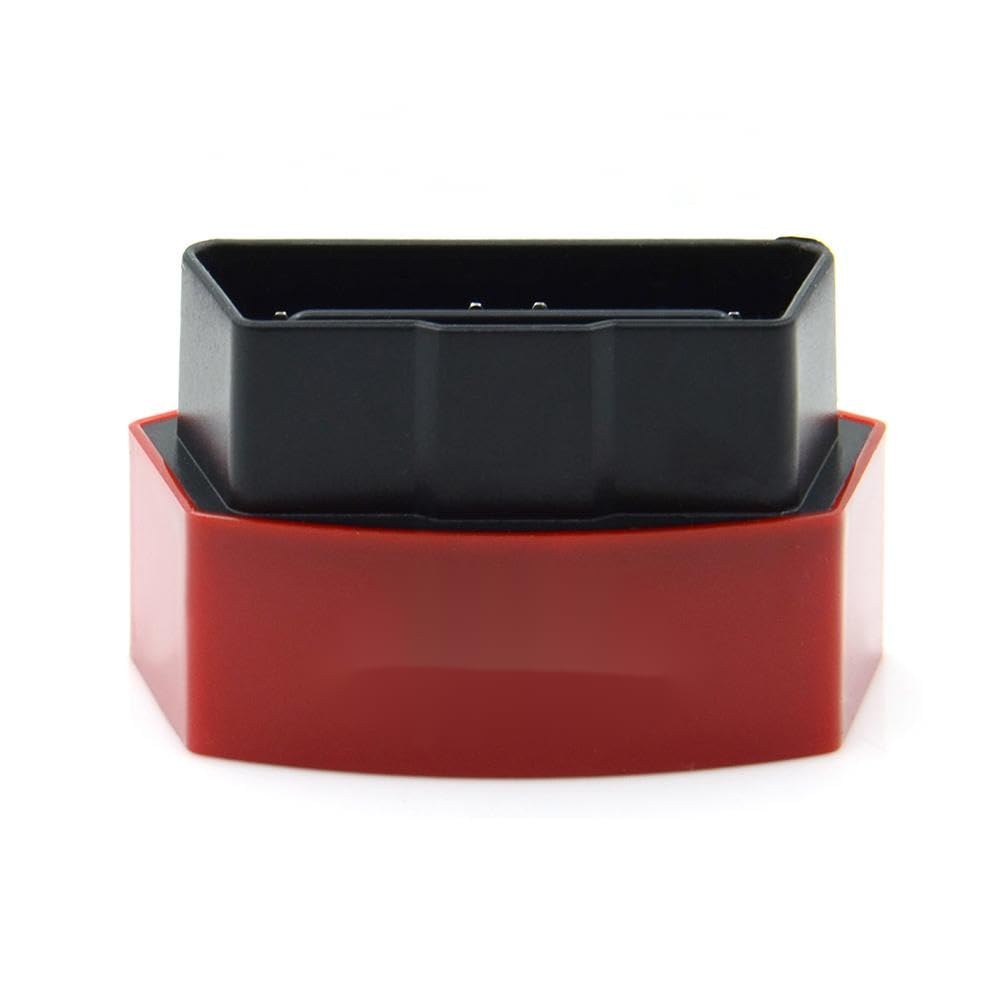
그림 1: The Vgate iCar3 ELM327 OBD2 Diagnostic Scanner. This image shows the compact red and black device, with the black OBD2 connector visible on top of the red base.
3. 설정 지침
3.1. 장치 설치
- OBD2 포트를 찾으세요: The OBD2 port is typically located under the dashboard on the driver's side of the vehicle. Refer to your vehicle's owner's manual for the exact location.
- 장치 연결: Firmly plug the Vgate iCar3 scanner into the vehicle's OBD2 port. Ensure a secure connection.
- 시동 켜짐: Turn the vehicle's ignition to the 'ON' position (do not start the engine unless required by your diagnostic application). The device's indicator lights should illuminate, indicating power.
3.2. Software Setup (Android)
The Vgate iCar3 requires a compatible OBD2 diagnostic application on your Android device. Popular applications include Torque Lite/Pro, OBD Fusion, Car Scanner ELM OBD2, etc. Download your preferred application from the Google Play Store.
3.3. 무선 연결
Depending on your iCar3 model (Bluetooth or WiFi), follow the respective connection steps:
For Bluetooth Models:
- 블루투스 활성화: On your Android device, go to Settings > Bluetooth and ensure Bluetooth is enabled.
- 페어링 장치: Scan for available devices. The scanner should appear as 'Vgate' or 'OBDII'. Select it to pair. The default pairing code is usually '1234' or '0000'.
- Configure App: Open your chosen OBD2 application. Go to its settings and select 'Bluetooth' as the connection type, then choose the paired 'Vgate' or 'OBDII' device.
For WiFi Models:
- WiFi 활성화: On your Android device, go to Settings > Wi-Fi and ensure Wi-Fi is enabled.
- 네트워크에 연결: Scan for available Wi-Fi networks. The scanner will broadcast a network named 'V-LINK', 'OBDII', or similar. Connect to this network. No password is typically required.
- Configure App: Open your chosen OBD2 application. Go to its settings and select 'Wi-Fi' as the connection type. Ensure the correct IP address (usually 192.168.0.10 or 192.168.0.11) and port (usually 35000) are configured.
4. 사용 설명서
Once the Vgate iCar3 is connected to your vehicle and paired with your Android device and OBD2 application, you can begin diagnostics.
- Start the Application: Launch your chosen OBD2 diagnostic application on your Android device.
- 연결 설정: The application should automatically attempt to connect to the iCar3 scanner. Confirm that the connection status in the app indicates a successful link.
- 진단 문제 코드(DTC)를 읽으십시오: Navigate to the 'Read Codes' or 'DTCs' section of your application. This will display any active or pending fault codes stored in your vehicle's Engine Control Unit (ECU).
- DTC 지우기: If necessary, and after addressing the underlying issue, you can use the 'Clear Codes' function in the app to turn off the Check Engine Light (CEL). 경고: Do not clear codes without understanding and fixing the problem, as this can mask serious issues.
- View 라이브 데이터 : Access the 'Live Data' or 'Dashboard' section to monitor various vehicle parameters in real-time, such as engine RPM, vehicle speed, coolant temperature, fuel system status, and more.
- Perform Sensor Tests: Some applications allow you to perform specific sensor tests or view freeze frame data, which captures vehicle conditions at the moment a DTC was set.
5. 유지관리
The Vgate iCar3 scanner requires minimal maintenance to ensure longevity and proper function.
- 청소: 부드럽고 마른 천으로 기기를 닦으십시오. 독한 화학 약품이나 연마성 세척제 사용은 피하십시오.
- 저장: 사용하지 않을 때에는 직사광선이나 극한의 온도를 피해 서늘하고 건조한 곳에 장치를 보관하십시오.
- 펌웨어 업데이트: Check the Vgate official website or your diagnostic application's support page for any available firmware updates for the iCar3.
6. 문제 해결
If you encounter issues with your Vgate iCar3 scanner, refer to the following common troubleshooting steps:
- 장치 전원이 켜지지 않음:
- Ensure the device is securely plugged into the OBD2 port.
- 차량의 시동 스위치가 'ON' 위치에 있는지 확인하십시오.
- Check the vehicle's OBD2 port for any damage or blown fuses (refer to your vehicle's manual).
- Cannot Connect via Bluetooth/WiFi:
- Ensure Bluetooth/WiFi is enabled on your Android device.
- For Bluetooth: Unpair and re-pair the device. Try default codes '1234' or '0000'.
- For WiFi: Ensure you are connected to the 'V-LINK' or 'OBDII' network and not your home Wi-Fi. Verify app settings for IP and port.
- Close and restart the diagnostic application.
- Android 기기를 다시 시작하세요.
- Application Not Reading Data:
- Confirm the iCar3 is properly connected to the vehicle and your Android device.
- Ensure the correct connection type (Bluetooth/WiFi) and device are selected in the app settings.
- Try a different OBD2 diagnostic application to rule out app-specific issues.
- Verify your vehicle supports the ELM327 protocol (most vehicles manufactured after 1996 do).
7. 사양
| 특징 | 세부 사항 |
|---|---|
| 모델명 | iCar3 |
| 제조업체 부품 번호 | lzqcsf-25215-469 |
| 연결성 | Bluetooth / WiFi (model dependent) |
| 지원되는 프로토콜 | OBD2 (ISO15765-4 (CAN), ISO14230-4 (KWP2000), ISO9141-2, J1850 VPW, J1850 PWM) |
| 운영 볼륨tage | 9V ~ 16V |
| 작동 전류 | 45mA |
| 작동 온도 | -40°C ~ 85°C |
| 지원 장치 | 안드로이드 스마트폰 및 태블릿 |
8. 보증 및 지원
Specific warranty information for this product is not provided in the available data. For warranty claims or technical support, please refer to the retailer or manufacturer's official support channels where the product was purchased.