
1. 서론
The Amazon Basics 4G LTE WiFi USB Dongle Stick provides fast and reliable internet access. This compact, plug-and-play data card is designed for both personal and professional use, offering seamless connectivity wherever you go. It supports all major SIM networks and can create a WiFi hotspot for multiple devices.
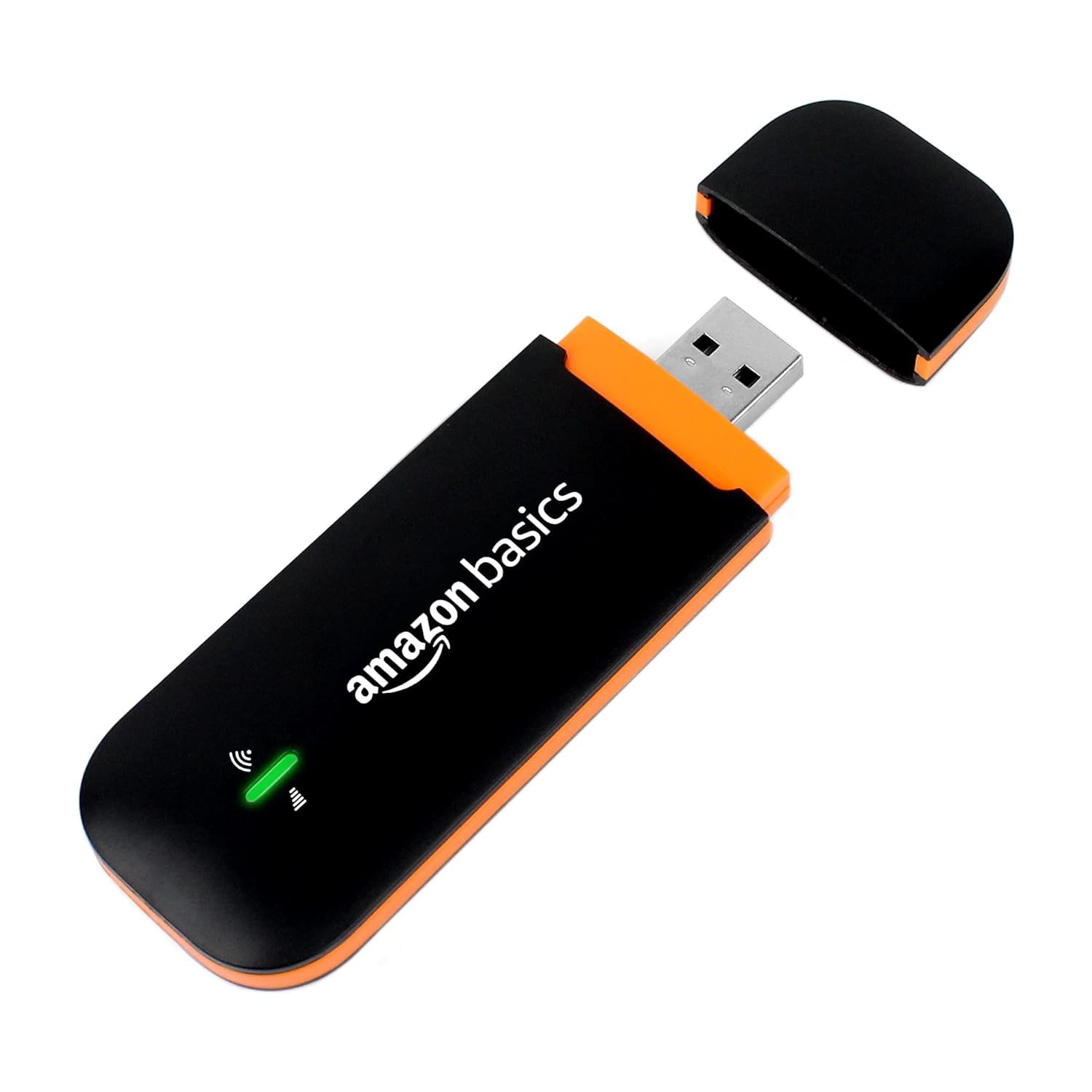
Figure 1: Amazon Basics 4G LTE WiFi USB Dongle Stick. The device is shown with its protective cap removed, revealing the USB connector. Status indicator lights are visible on the device body.
2. 제품 특징
- Universal SIM Support: Compatible with all major 4G SIM cards.
- 고속 연결: Offers download speeds up to 150Mbps and upload speeds up to 50Mbps.
- 와이파이 핫스팟: Capable of creating a WiFi hotspot for up to 10 connected devices.
- Premium Qualcomm Chipset: Equipped with a Qualcomm MSM8916 chipset for enhanced performance and stability.
- 플러그 앤 플레이: Requires no complex driver installation; simply plug into a USB port to begin.
- 휴대성 있는 디자인: Lightweight and compact for easy transport and use on the go.
- Single-Band Operation: Operates on the 2.4GHz frequency band.
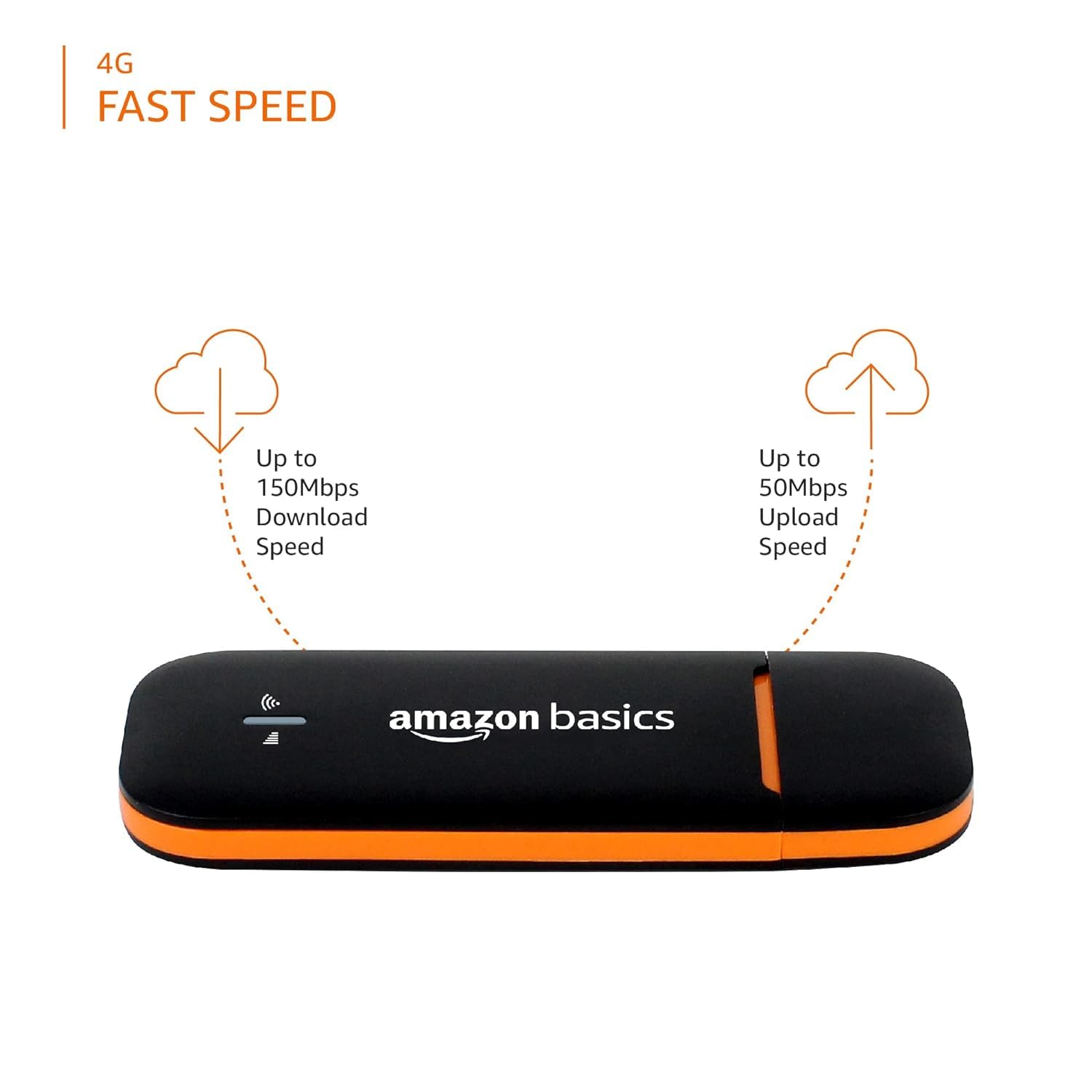
Figure 2: Speed capabilities of the dongle. This image illustrates the maximum download speed of up to 150Mbps and upload speed of up to 50Mbps.

Figure 3: Connectivity features. The image highlights that the device operates on a 2.4GHz frequency band, supports up to 10 WLAN devices, and provides high-speed internet.
3. 설정 지침
- SIM 카드 삽입: Carefully open the dongle's cover to access the SIM card slot. Insert your activated 4G SIM card into the designated slot. Ensure it is correctly oriented and securely seated. The dongle supports standard, micro, and nano SIM cards (adapters may be required for smaller SIMs, often included with your SIM card).
- USB 포트에 연결: Plug the dongle into an available USB port on your computer, laptop, or a compatible USB power adapter. The device will power on automatically.
- 드라이버 설치(자동): For most operating systems (Windows, macOS), the necessary drivers will install automatically upon first connection. If prompted, follow the on-screen instructions.
- Wi-Fi에 연결: Once the dongle is powered on and recognized, it will broadcast a WiFi network. On your computer or mobile device, search for available WiFi networks. The network name (SSID) and password (WiFi Key) are typically printed on a sticker on the dongle itself (refer to Figure 5). Select the network and enter the password to connect.
- 입장 Web 인터페이스(선택 사항): 고급 설정을 보려면 다음을 열어보세요. web browser and navigate to the default login IP address (e.g., 192.168.8.1), also found on the dongle's sticker. Enter the default username and password (e.g., admin/admin) to access the device's configuration page.

Figure 4: Dongle components and SIM compatibility. This diagram illustrates the location of the SIM slot, reset button, and indicates where to find default login details. It also shows compatibility with various SIM providers like Jio, VI, Airtel, and BSNL.

그림 5: 뒤로 view of the dongle. This image provides a detailed view of the SIM card slot and a sticker containing essential information such as SSID, WiFi Key, Login IP, Username, Password, MAC address, and Serial Number.

Figure 6: Dongle connected to a laptop. The image shows the USB dongle securely inserted into a laptop's USB port, demonstrating its direct connectivity.
4. 사용 설명서
4.1 전원 켜기/끄기
The dongle powers on automatically when plugged into a powered USB port. To turn it off, simply remove it from the USB port.
4.2 Connecting Devices to the WiFi Hotspot
Once the dongle is active and broadcasting its WiFi network:
- On your device (smartphone, tablet, laptop), go to WiFi settings.
- Select the SSID (network name) of your Amazon Basics dongle.
- Enter the WiFi Key (password) when prompted.
- Your device will now be connected to the internet via the dongle's hotspot.
4.3 상태 표시기
The dongle features LED indicators to show its operational status:
- 녹색등(점등): Device is powered on and connected to the 4G network.
- 녹색 표시등(깜박임): Device is powered on and searching for a 4G network.
- 빨간불: Indicates an error or no SIM card detected.

Figure 7: Multipurpose usage. This image depicts the dongle being used in various settings, including business meetings, working from home, online classes, and while traveling, highlighting its versatility.
5. 유지관리
- 청소: Use a soft, dry cloth to clean the exterior of the dongle. Avoid using liquid cleaners or solvents.
- 저장: Store the dongle in a cool, dry place away from direct sunlight and extreme temperatures. When not in use, keep the protective cap on the USB connector.
- 손질: Handle the device with care. Avoid dropping it or exposing it to excessive force, moisture, or dust.
- 재설정 버튼: In case of persistent issues, a small reset button is located near the SIM slot (refer to Figure 4). Use a pin or a straightened paperclip to press and hold the reset button for approximately 5-10 seconds to restore factory default settings. This will erase any custom configurations.

Figure 8: Portable design. The dongle is shown held in a hand, illustrating its small size and ease of portability.
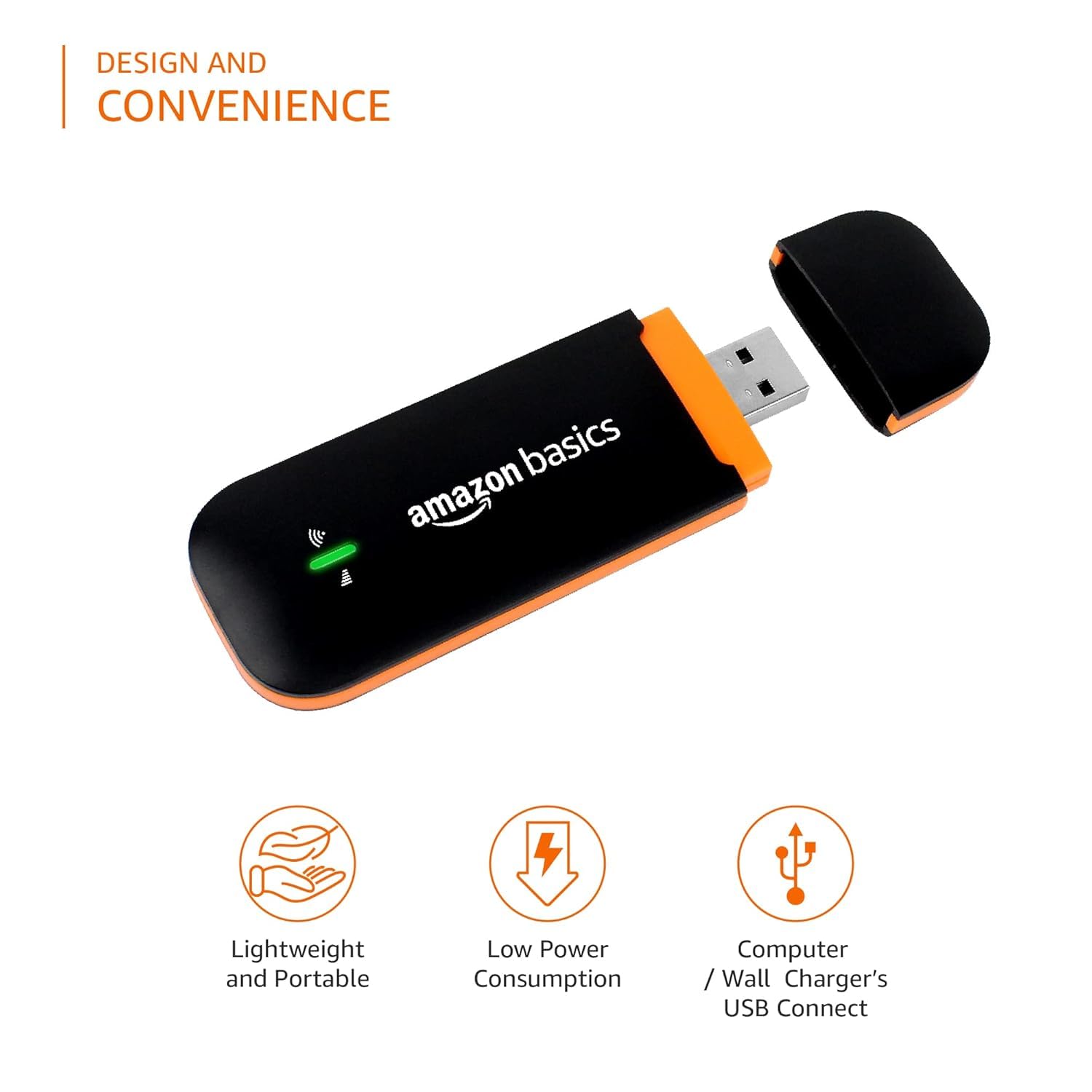
Figure 9: Design and convenience features. This image highlights the dongle's lightweight and portable nature, low power consumption, and its ability to connect via USB to computers or wall chargers.
6. 문제 해결
| 문제 | 가능한 원인 | 해결책 |
|---|---|---|
| 인터넷 연결 없음 | SIM card not activated or incorrectly inserted; no 4G signal; incorrect WiFi password. | Ensure SIM is active and correctly inserted. Check for 4G signal strength. Verify WiFi password. Try moving to an area with better signal. |
| 인터넷 속도가 느림 | Weak 4G signal; too many devices connected; network congestion. | Relocate the dongle for better signal. Disconnect unnecessary devices. Contact your SIM provider for network status. |
| Cannot connect to WiFi hotspot | Incorrect WiFi password; dongle not powered on; WiFi disabled. | Double-check the WiFi password. Ensure the dongle is plugged into a powered USB port. Reset the dongle to factory defaults if necessary. |
| Dongle not recognized by computer | USB 포트 불량; 드라이버 문제. | Try a different USB port. Restart your computer. If drivers don't install automatically, check the manufacturer's website for manual driver installation. |
| 빨간색 LED 표시등 | No SIM card; SIM card error; device malfunction. | Ensure SIM card is properly inserted. Try a different SIM card if available. Perform a factory reset. If the issue persists, contact customer support. |
7. 기술 사양
| 특징 | 사양 |
|---|---|
| 상표 | 아마존 기본 |
| 모델 | Design_3 |
| 무선형 | 802.11ac |
| 무선 통신 표준 | 802.11ac |
| 주파수 대역 클래스 | 단일 대역(2.4GHz) |
| 최대 데이터 속도 | Up to 150Mbps (Download) |
| Hotspot Capacity | 최대 10개 장치 |
| 칩셋 | Premium Qualcomm MSM8916 |
| 호환 장치 | 개인용 컴퓨터 |
| 권tage | 5 볼트 |
| 품목 무게 | 60g |
| 패키지 크기 | 13.2 x 7.7 x 2.9cm |
| 특징 | All SIM Support |
8. 보증 정보
This Amazon Basics product is covered by a limited warranty. Please refer to the warranty card included in your product packaging or visit the official Amazon Basics web자세한 보증 약관은 해당 웹사이트를 참조하십시오. 보증 청구를 위해서는 구매 영수증을 증빙 자료로 보관하십시오.
9. 고객 지원
For further assistance, technical support, or to report any issues with your Amazon Basics 4G LTE WiFi USB Dongle Stick, please contact Amazon Basics customer service. Contact details can typically be found on the Amazon web사이트의 '도움말' 또는 '고객 서비스' 섹션을 참조하십시오.