
1. 서론
Welcome to the Valerion StreamMaster Plus 4K Projector user manual. This guide provides essential information for setting up, operating, and maintaining your new projector. Please read it thoroughly before use to ensure safe and optimal performance of your device.
2. 안전 정보
Always follow these basic safety precautions when using your projector:
- 환기구를 막지 마십시오. 프로젝터 주변에 충분한 공간을 확보하여 공기가 원활하게 흐르도록 하십시오.
- 화재나 감전을 방지하려면 프로젝터를 비나 습기에 노출시키지 마십시오.
- 프로젝터 렌즈를 직접 쳐다보지 마십시오.amp 눈 손상을 유발할 수 있으므로 꺼져 있습니다.
- 프로젝터와 함께 제공된 전원 어댑터만 사용하세요.
- 프로젝터를 열원과 직사광선으로부터 멀리 두십시오.
- 프로젝터를 분해하거나 개조하지 마십시오. 모든 서비스는 자격을 갖춘 전문가에게 맡기십시오.
3. 패키지 내용
패키지에 모든 품목이 들어 있는지 확인하세요.
- Valerion StreamMaster Plus 4K Projector
- 전원 케이블
- 원격 제어
- 사용 설명서 (본 문서)
4. 제품 오버view
The Valerion StreamMaster Plus is a high-performance 4K projector designed for versatile indoor and outdoor use. It features a native 3840 x 2160 resolution, 3D-ready capabilities, built-in speakers, and extensive connectivity options.
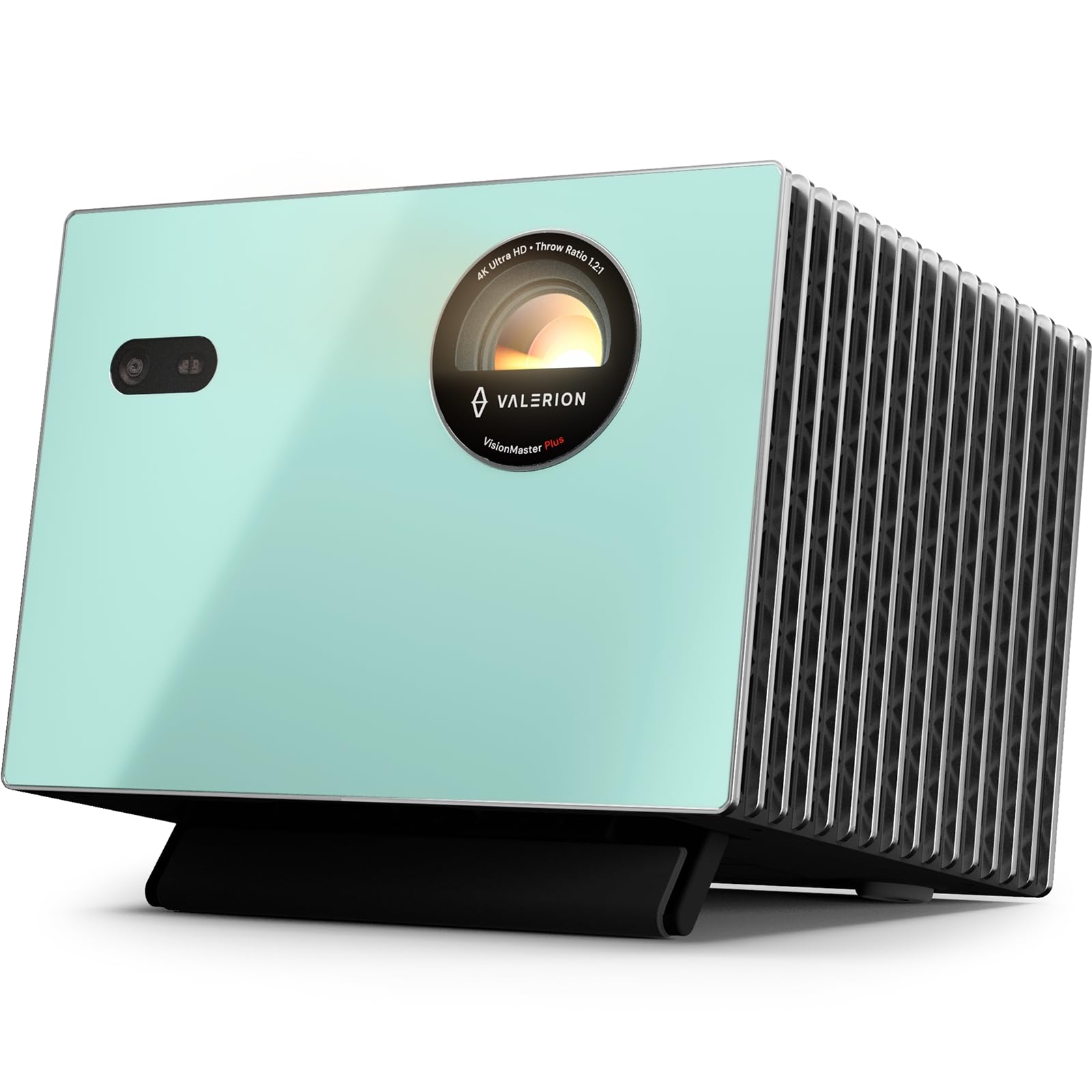
그림 4.1: 전면 view of the Valerion StreamMaster Plus 4K Projector. This image highlights the projector's lens and compact design, showcasin매끄러운 외관을 가지고 있습니다.
주요 특징:
- 디스플레이 해상도: 3840 x 2160(4K UHD)
- 디스플레이 유형: 디엘피(DLP)
- 특별 기능: 3D-Ready, Built-In 3D, Internet Ready, Integrated Speakers
- 연결성: HDMI, S/PDIF, USB 3.0, Ethernet
- 추천 용도: 실내/실외
5. 설정
5.1 배치
The StreamMaster Plus is suitable for both indoor and outdoor environments. For optimal view다음 사항을 고려하세요.
- 이미지 크기: The projector can produce an image size ranging from 40 inches to a maximum of 300 inches diagonally. Adjust the distance from the projection surface to achieve your desired screen size.
- 설치: The projector supports wall mounting. Ensure the mounting surface is sturdy and capable of supporting the projector's weight (7 Kilograms).
- 환경: Place the projector on a stable, level surface or mount it securely. Ensure proper ventilation and avoid placing it near heat sources or in direct sunlight.
5.2 전원 연결
- 프로젝터의 전원 입력 포트에 전원 케이블을 연결하십시오.
- 전원 케이블의 다른 쪽 끝을 접지된 전기 콘센트에 꽂습니다.
5.3 장치 연결
The StreamMaster Plus offers multiple connectivity options:
- HDMI : Connect your video sources (e.g., Blu-ray player, gaming console, laptop) using an HDMI cable to the HDMI input ports.
- USB 3.0: Use the USB 3.0 port for connecting external storage devices to play media directly.
- S/PDIF: 외부 사운드 시스템으로 디지털 오디오를 출력하기 위한 용도입니다.
- 이더넷: Connect an Ethernet cable for wired internet access, enabling smart features and streaming.
6. 운영
6.1 전원 켜기/끄기
- 전원 켜기: Press the power button on the projector or the remote control. The indicator light will illuminate.
- 전원 끄기 : 전원 버튼을 다시 누르십시오. 종료하라는 메시지가 나타나면 확인하십시오. 프로젝터가 식을 때까지 기다린 후 전원 코드를 뽑으십시오.
6.2 입력 소스 선택
Use the 'Source' button on the remote control or projector to cycle through available input sources (HDMI 1, HDMI 2, USB, etc.) until your desired source is displayed.
6.3 디스플레이 설정 조정
Access the projector's on-screen menu to adjust settings such as:
- 해결: The native resolution is 3840 x 2160. Ensure your source device is set to output at this resolution for the best picture quality.
- 종횡비: Adjust to match your content (e.g., 16:9, 4:3).
- 사진 모드: Select from various presets (e.g., Standard, Dynamic, Cinema) or customize brightness, contrast, and color settings.
6.4 3D 기능
The StreamMaster Plus is 3D-ready and features built-in 3D capabilities. To enjoy 3D content:
- Ensure your 3D source content and player are compatible.
- Wear compatible active 3D glasses (sold separately).
- Activate 3D mode through the projector's menu if it doesn't automatically detect 3D content.
6.5 오디오 출력
The projector includes integrated speakers for direct audio playback. For enhanced audio, connect external speakers or a sound system via the S/PDIF port.
6.6 인터넷 연결
With its Internet Ready feature and Ethernet connectivity, you can access online streaming services and updates directly through the projector. Navigate the smart interface using the remote control.
7. 유지관리
7.1 렌즈 청소
프로젝터 렌즈는 광학 표면용으로 특별히 제작된 부드럽고 보풀이 없는 천으로 부드럽게 닦으세요. 연마성 세제를 사용하거나 과도한 힘을 가하지 마세요.
7.2 프로젝터 본체 청소
프로젝터 외부를 닦을 때는 부드럽고 마른 천을 사용하십시오. 잘 지워지지 않는 얼룩은 약간 거친 천으로 닦아내십시오.amp 천을 사용한 후 마른 천으로 닦아주세요. 강한 화학 물질은 사용하지 마세요.
7.3 환기
Regularly check that the ventilation openings are clear of dust and debris to prevent overheating. Use a soft brush or compressed air to gently clean the vents.
7.4 보관
When not in use for extended periods, store the projector in a cool, dry place, protected from dust and extreme temperatures. Use the original packaging if available.
8. 문제 해결
프로젝터에 문제가 발생하면 다음의 일반적인 문제와 해결 방법을 참조하세요.
| 문제 | 가능한 원인 | 해결책 |
|---|---|---|
| 이미지가 표시되지 않음 | 잘못된 입력 소스가 선택되었습니다. 케이블 연결이 느슨합니다. 프로젝터 전원이 켜져 있지 않습니다. | Select the correct input source. Check all cable connections. Ensure the projector is powered on. |
| 이미지가 흐릿함 | Focus ring not adjusted; Projector too close/far from screen. | Adjust the focus ring on the lens. Reposition the projector to achieve optimal image size and clarity. |
| 소리가 나지 않습니다 | 볼륨이 너무 낮습니다. 음소거되었습니다. 잘못된 오디오 출력이 선택되었습니다. | Increase volume. Unmute the projector. Check audio settings and external speaker connections. |
| 리모컨이 작동하지 않습니다 | 배터리 방전; 리모컨과 프로젝터 사이에 장애물이 있음. | Replace batteries. Ensure a clear line of sight to the projector's IR receiver. |
If the problem persists after trying these solutions, please contact Valerion customer support.
9. 사양
| 특징 | 사양 |
|---|---|
| 상표 | 발레리온 |
| 모델 번호 | StreamMaster Plus |
| 디스플레이 해상도 | 3840 x 2160(4K UHD) |
| 네이티브 해상도 | 3840 x 2160 |
| 디스플레이 유형 | 디엘피(DLP) |
| 연결 기술 | 이더넷 |
| 하드웨어 연결 | HDMI, S/PDIF, USB 3.0 |
| 특별 기능 | 3D-Ready, Built-In 3D, Internet Ready, Speakers |
| 추천 용도 | 실내/실외 |
| 장착 유형 | 벽걸이형 |
| 최소 이미지 크기 | 40 인치 |
| 최대 이미지 크기 | 300 인치 |
| 품목 치수(L x W x H) | 18인치 길이 x 23인치 너비 x 26인치 높이 |
| 품목 무게 | 7 킬로그램 |
| 제조업체 | 발레리온 테크놀로지 USA 주식회사 |
| 한국어: | 850067089872 |
10. 보증 및 지원
Valerion products are manufactured to the highest quality standards. For warranty information, please refer to the warranty card included with your purchase or visit the official Valerion website. For technical support or service inquiries, please contact Valerion customer service through the contact information provided on our web대지.
온라인 지원: Valerion Official Store