
소개
Thank you for choosing the Phomemo M221 Bluetooth Thermal Label Printer. This manual provides essential information for the safe and efficient operation of your device. Please read it thoroughly before use and retain it for future reference. The Phomemo M221 is designed for fast, clear, and smart label printing, supporting various label types and applications for small businesses, home, and school use.
안전 정보
안전한 작동을 보장하고 손상을 방지하려면 다음 예방 조치를 준수하세요.
- 프린터를 분해, 수리 또는 개조하지 마십시오.
- 프린터를 물, 습기, 직사광선으로부터 멀리 두세요.
- Use only Phomemo-approved power adapters and accessories.
- 인쇄 직후에는 프린트 헤드가 뜨거울 수 있으므로 만지지 마십시오.
- 프린터와 라벨은 서늘하고 건조한 곳에 보관하십시오.
패키지 내용
패키지에 모든 품목이 들어 있는지 확인하세요.
- Phomemo M221 라벨 프린터
- USB Type-C 충전 케이블
- 1 roll of 40 x 30 mm thermal labels
- 1 roll of 50 x 80 mm thermal labels
- 1 roll of 70 x 80 mm thermal labels
- 휴대용 휴대용 케이스
- 사용 설명서 (본 문서)
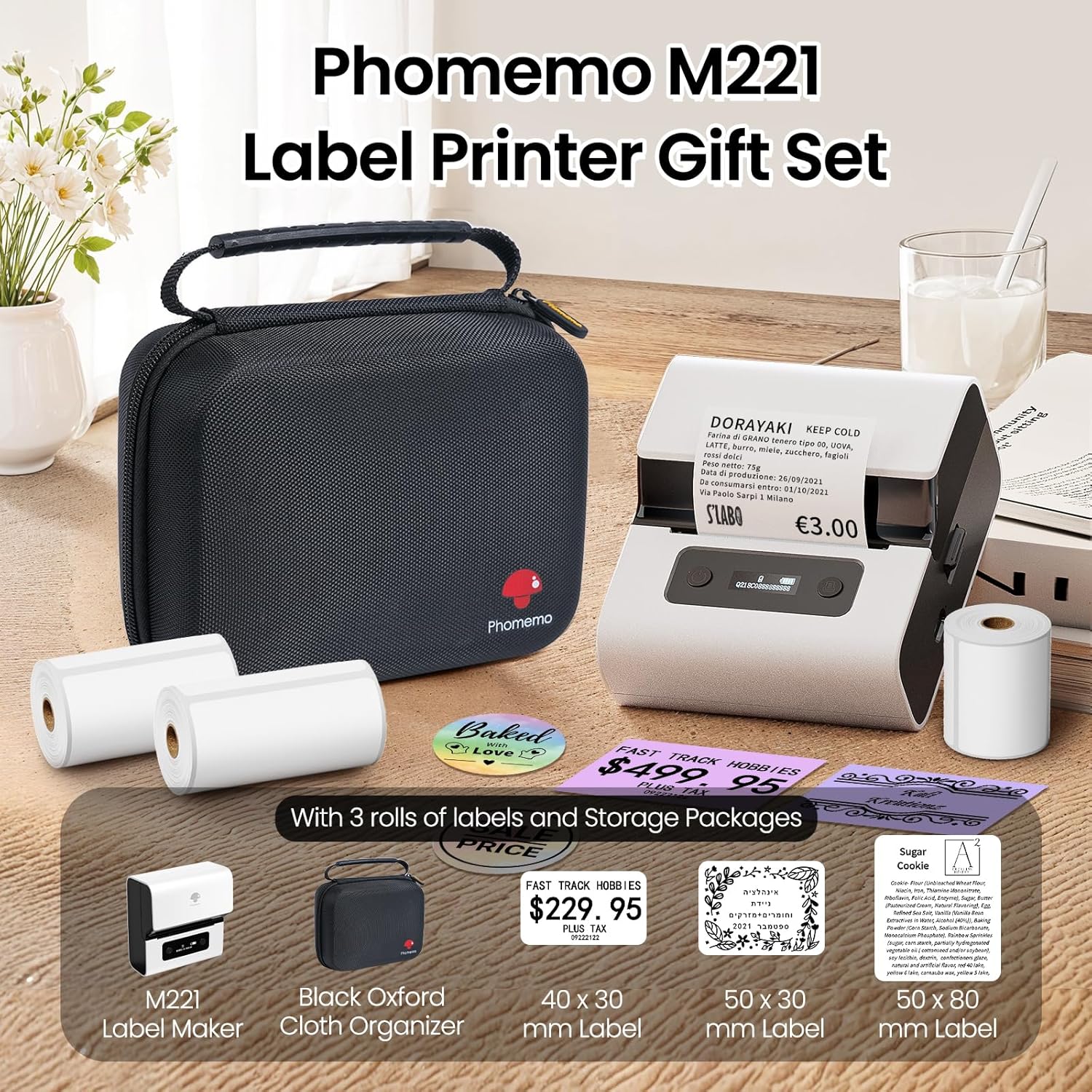
Image: Phomemo M221 Label Printer Gift Set, showing the printer, a black carrying case, and three rolls of white thermal labels.
제품 끝view
The Phomemo M221 is a compact and efficient thermal label printer. Key features include:
- 열 인쇄 기술: No ink or toner required.
- 광범위한 라벨 호환성: Supports labels from 20mm to 80mm (0.78" to 3.14") wide, including rectangular, round, transparent, and colored types.
- 연결성: Bluetooth for iOS/Android smartphones and tablets, USB for Windows PCs.
- 대용량 배터리: 2200 mAh battery with Type-C fast charging.
- 빠르고 조용한 작동: Prints at 50 mm/s with reduced noise.
- 사용자 친화적인 디자인: Easy label loading and automatic gap detection.

Image: Phomemo M221 Label Maker Set, illustrating its features such as no ink requirement, large battery capacity, Bluetooth wireless printing, and its suitability as a gift.
설정
1. 프린터 충전하기
Before first use, fully charge the Phomemo M221 printer.
- Connect the provided USB Type-C cable to the printer's charging port.
- Connect the other end of the cable to a 5V USB power adapter (not included) or a computer's USB port.
- The indicator light will show charging status. A full charge typically takes several hours. The 2200 mAh battery supports extended use.
2. 로딩 레이블
The M221 features an integrated label fixing structure for easy loading.
- 프린터 덮개를 엽니다.
- Insert the label roll into the compartment, ensuring the printing side faces upwards and the labels feed smoothly.
- Adjust the side guide plates to secure the label roll in place.
- Close the printer cover. The printer will automatically detect and calibrate the label gap.
3. 기기에 연결하기
The Phomemo M221 supports both Bluetooth and USB connections.
Bluetooth Connection (Smartphones/Tablets)
- iOS 또는 Android 기기에서 블루투스가 활성화되어 있는지 확인하십시오.
- Download and install the "Print Master" application from your device's app store.
- Open the "Print Master" app and follow the on-screen instructions to search for and connect to your M221 printer.

Image: Phomemo M221 printer demonstrating Bluetooth wireless connection with a tablet and a smartphone.
USB Connection (Windows PC)
- Connect the USB Type-C cable from the printer to an available USB port on your Windows PC.
- Download and install the "Labelife" software and printer drivers from the official Phomemo web대지.
- Follow the software installation prompts. Once installed, you can select the M221 as your printer.

Image: Phomemo M221 printer connected to a laptop using a USB cable, indicating wired connectivity.
작동 지침
1. Basic Printing with "Print Master" App (Mobile)
- Ensure your M221 printer is connected via Bluetooth to your mobile device.
- Open the "Print Master" app.
- Select a template or create a new label design. The app offers various templates for text, images, barcodes, QR codes, and more.
- Customize your label content.
- Tap the print icon. Confirm print settings such as quantity.
- The printer will begin printing your labels.
2. Printing with "Labelife" Software (PC)
- Ensure your M221 printer is connected via USB to your Windows PC.
- Open the "Labelife" software.
- Design your label using the software's features, including text, images, barcodes, and QR codes.
- "로 이동하세요File" > "인쇄"를 클릭하거나 인쇄 아이콘을 클릭하세요.
- Select the Phomemo M221 from the list of available printers and adjust any necessary print settings.
- Click "Print" to start printing.
3. 일괄 인쇄
Both "Print Master" and "Labelife" support batch printing for efficiency.
- In the print dialogue, specify the desired number of copies.
- The printer will automatically print multiple labels consecutively.

Image: Phomemo M221 printer demonstrating its versatility with examples of address labels, price tags, ingredient labels, and gift tags.

Image: Phomemo M221 printer showcasing its compatibility with over 50 types of thermal labels, including various shapes and designs.
유지
1. 프린트 헤드 청소
정기적으로 프린트 헤드를 청소하면 최적의 인쇄 품질을 보장할 수 있습니다.
- 프린터 전원을 끄고 전원 케이블을 분리하세요.
- 프린터 덮개를 엽니다.
- 면봉으로 프린트 헤드를 부드럽게 닦아주세요.amp이소프로필 알코올로 소독함.
- 프린트 헤드가 완전히 마를 때까지 기다린 후 덮개를 닫고 프린터를 켜십시오.
2. 보관
Store the printer in a clean, dry environment, away from extreme temperatures and direct sunlight. When not in use for extended periods, ensure the printer is fully charged and then powered off.

Image: A man holding the Phomemo M221 printer's carrying case, illustrating its portable design.
문제 해결
Printer Does Not Turn On or Charge
- 전원 연결을 확인하세요. Ensure the USB Type-C cable is securely connected to both the printer and a working power source (5V adapter or PC USB port).
- 전원 어댑터 확인: Use a reliable 5V USB power adapter.
- 충전 시간: Allow sufficient time for charging. The battery indicator should show charging status.
No Printing or Blank Output
- Check Label Orientation: Ensure the thermal labels are loaded correctly with the printing side facing upwards.
- 라벨 유형: Confirm you are using thermal labels. The M221 does not use ink.
- Print Head Cleanliness: A dirty print head can cause blank lines or poor print quality. Refer to the Maintenance section for cleaning instructions.
- 라벨 정렬: Ensure the label roll is properly seated and aligned by the side guide plates to prevent misalignment errors.
블루투스 연결 문제
- Printer On: 프린터 전원이 켜져 있고 기기의 블루투스 범위 내에 있는지 확인하십시오.
- 블루투스 사용: Verify Bluetooth is active on your smartphone or tablet.
- 앱 연결: Connect through the "Print Master" app, not directly through your device's Bluetooth settings.
- 장치 재시작: 프린터와 모바일 기기를 모두 재시작해 보세요.
인쇄 품질 불량
- Print Head Cleanliness: 유지관리 섹션에 설명된 대로 프린트 헤드를 청소하세요.
- 라벨 품질: Use high-quality thermal labels.
- 인쇄 밀도 설정: Adjust print density settings within the "Print Master" app or "Labelife" software if available.
명세서
| 특징 | 세부 사항 |
|---|---|
| 모델 번호 | M221 |
| 상표 | 포메모 |
| 연결 기술 | 블루투스, USB 타입 C |
| 인쇄 기술 | 열의 |
| 인쇄 출력 | 단색화 |
| 최대 인쇄 속도(흑백) | 15.0 pages per minute (50 mm/s) |
| 최대 인쇄 해상도(흑백) | 203dpi |
| 지원되는 레이블 너비 | 20mm - 80mm (0.78" - 3.14") |
| 배터리 | 2200 mAh (1 D - included) |
| 품목 무게 | 820그램 |
| 제품 크기(L x W x H) | 12.9 x 6.7 x 11.9 센티미터 |
| Control Device Type | Smartphone/PC |
| 미디어 유형 | 라벨 |
보증 및 지원
보증 정보 및 기술 지원에 대해서는 Phomemo 공식 웹사이트를 참조하십시오. web사이트에서 확인하거나 고객 서비스에 직접 문의하세요. 구매 증빙 자료로 구매 영수증을 보관하세요.
온라인 리소스: 방문하세요 아마존의 Phomemo 스토어 for product updates and FAQs.