
1. 서론
구매해주셔서 감사합니다asing the KTC 24-inch WQHD 100Hz IPS Monitor. This manual provides essential information for the safe and efficient use of your new monitor. Please read it thoroughly before use and keep it for future reference.
This monitor features a 24-inch IPS panel with WQHD (2560x1440) resolution, offering stunning visual clarity and vibrant colors with 122% sRGB coverage. A 100Hz refresh rate and FreeSync & G-Sync compatibility ensure smooth, tear-free visuals, ideal for both office work and casual gaming. Advanced eye care technologies, including blue light reduction and flicker-free operation, provide a comfortable viewing experience even during extended use. The monitor also supports HDR10 for enhanced dynamic range and features flexible connectivity options with HDMI and DisplayPort.
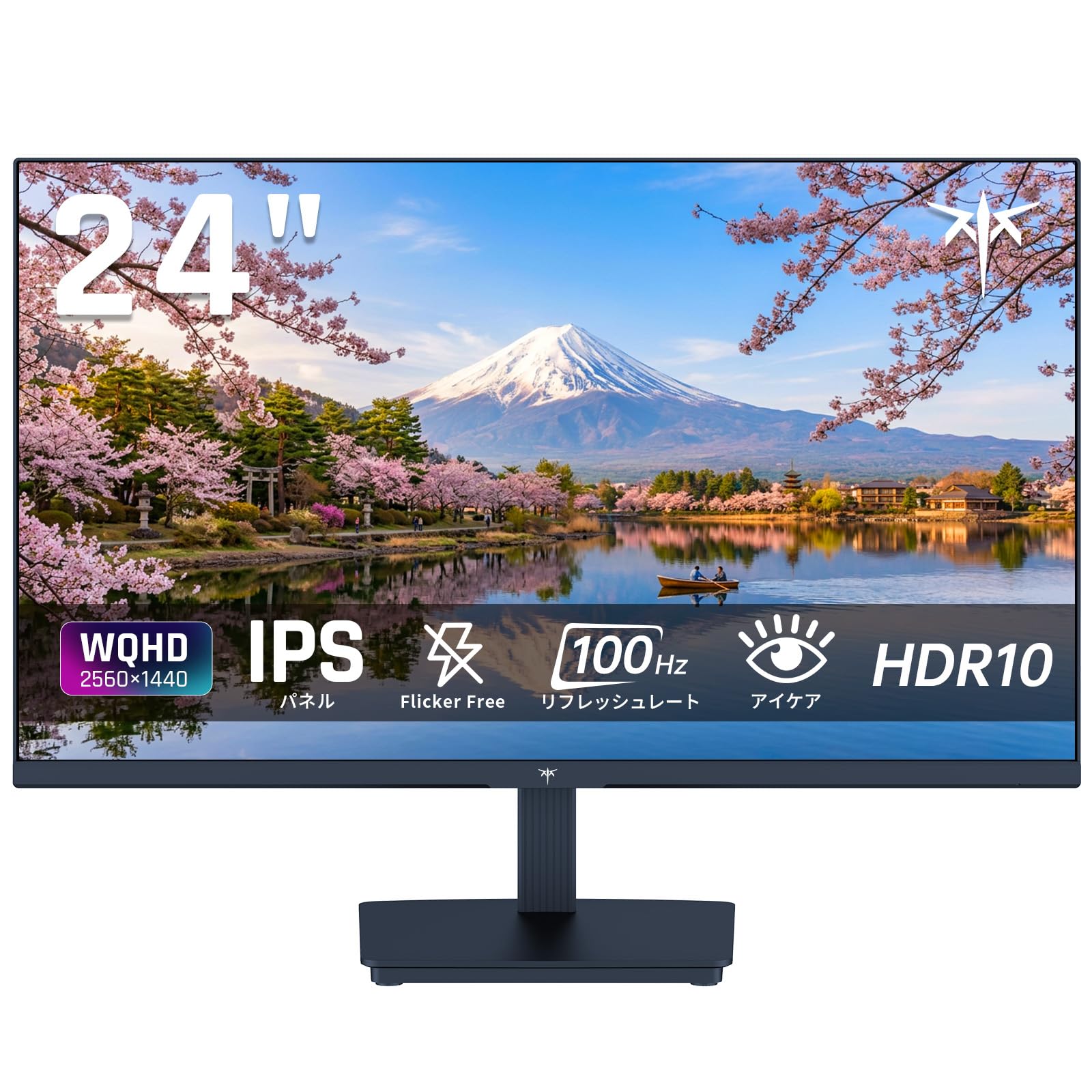
Image: KTC 24-inch WQHD 100Hz IPS Monitor.
2. 안전 정보
Please observe the following safety precautions to prevent damage to the monitor or injury to yourself or others:
- 모니터를 비, 습기 또는 극한의 온도에 노출시키지 마세요.
- 과열을 방지하려면 모니터 주위에 적절한 환기가 이루어지도록 하십시오.
- 모니터와 함께 제공된 전원 어댑터만 사용하세요.
- 전원 코드나 모니터 위에 무거운 물건을 올려놓지 마세요.
- 모니터를 직접 분해하거나 수리하지 마십시오. 자격을 갖춘 서비스 담당자에게 문의하십시오.
- 모니터를 강한 자기장으로부터 멀리하세요.
3. 패키지 내용
패키지에 모든 품목이 들어 있는지 확인하세요.
- KTC 24-inch WQHD 100Hz IPS Monitor (H24T27)
- 모니터베이스
- HDMI 케이블
- 전원 어댑터
- 사용자 설명서
4. 설정
4.1 스탠드 조립
- 모니터와 받침대를 포장에서 조심스럽게 꺼내세요.
- 스탠드 넥을 모니터 패널에 부착합니다.
- Secure the base to the stand neck using the provided screws.
4.2 모니터 연결
적절한 케이블을 사용하여 모니터를 컴퓨터나 다른 장치에 연결합니다.
- 전원 연결: 전원 어댑터를 모니터의 DC 입력 단자에 연결한 다음 전원 콘센트에 꽂으십시오.
- 비디오 연결: Use the supplied HDMI cable or a DisplayPort cable to connect your computer's video output to the corresponding port on the monitor.
- 오디오 출력: If desired, connect headphones or external speakers to the 3.5mm audio output jack.

Image: Close-up of the KTC monitor's rear ports, including DC power, HDMI, DisplayPort, and audio out.
5. 사용 설명서
5.1 전원 켜기/끄기
모니터에 있는 전원 버튼을 눌러 모니터를 켜거나 끄세요.
5.2 온스크린 디스플레이(OSD) 메뉴
The OSD menu allows you to adjust various monitor settings. Use the control buttons (usually located on the back or bottom of the monitor) to navigate the menu and make selections.
5.3 디스플레이 설정
- 해결: The monitor supports WQHD (2560x1440) resolution for sharp and detailed images. Ensure your graphics card is set to this resolution for optimal display.
- 새로 고침 빈도: Enjoy smooth visuals with a 100Hz refresh rate. This can be configured in your operating system's display settings.
- 색상 영역: The monitor offers 122% sRGB coverage for rich and accurate colors.

Image: KTC monitor highlighting key features like IPS panel, 100Hz, WQHD, 24-inch, Adaptive Sync, and blue light reduction.

Image: Comparison of WQHD (2560x1440) and FHD (1920x1080) resolutions, demonstrating enhanced detail with WQHD.

Image: Comparison of 100Hz and 60Hz refresh rates, showing smoother motion with 100Hz.
5.4 Adaptive Sync (FreeSync & G-Sync)
The monitor supports both FreeSync and G-Sync technologies to eliminate screen tearing and stuttering, providing a fluid gaming experience. Ensure this feature is enabled in your graphics card settings and the monitor's OSD.

Image: Monitor display showing HDR10 content on one side and standard HDR on the other, along with FreeSync & G-Sync comparison (ON/OFF).
5.5 눈 관리 기능
The monitor includes Flicker-Free technology and a Blue Light Reduction mode to minimize eye strain during prolonged use. These settings can be adjusted via the OSD menu.

Image: KTC monitor displaying eye care features: Low Blue Light (ON/OFF) and Flicker-Free (ON/OFF).
5.6 HDR10 지원
This monitor supports HDR10, providing a wider range of colors and contrasts for a more immersive viewing experience. Ensure HDR is enabled in your device's display settings for compatible content.
5.7 조정 가능한 스탠드
The monitor stand allows for tilt adjustment from -5° to 15°, enabling you to find the most comfortable view잉 각도.

이미지: 측면 view of the KTC monitor demonstrating the tilt-adjustable stand (-5° to 15°).
5.8 와이드 View잉 각도
The IPS panel provides a wide 178-degree view다양한 각도에서 촬영이 가능하여 거의 모든 시점에서 일관된 색상과 이미지 품질을 보장합니다.

Image: KTC monitor showcasing a wide 178-degree viewing angle with consistent color.
6. 유지관리
6.1 모니터 청소
- 청소하기 전에는 항상 모니터의 플러그를 뽑으세요.
- 부드럽고 보풀이 없는 천을 살짝 사용하십시오. damp물이나 부드럽고 연마성이 없는 화면 세척제로 닦으세요.
- 세척제를 화면에 직접 뿌리지 마세요.
- 가혹한 화학물질이나 연마재의 사용은 피하세요.
6.2 일반 관리
- 모니터를 깨끗하고 건조한 환경에 보관하십시오.
- 날카로운 물체로부터 화면을 보호하세요.
- When moving the monitor, handle it carefully and avoid putting pressure on the screen.
7. 문제 해결
모니터에 문제가 발생하면 다음의 일반적인 문제와 해결 방법을 참조하세요.
| 문제 | 가능한 해결책 |
|---|---|
| 화면에 이미지가 없습니다. | Check power connections. Ensure video cable is securely connected to both monitor and computer. Select correct input source via OSD. |
| 이미지가 흐릿하거나 왜곡됩니다. | Ensure the display resolution is set to 2560x1440. Check video cable for damage. |
| 화면 찢김 또는 끊김 | Verify FreeSync/G-Sync is enabled in both monitor OSD and graphics card settings. |
| 헤드폰/스피커에서 소리가 나지 않습니다 | Check audio cable connection. Ensure volume is not muted on monitor or computer. |
| 모니터가 켜지지 않습니다 | Check power outlet and power adapter connection. Try a different power outlet. |
위 해결 방법을 시도해 보신 후에도 문제가 지속되면 KTC 고객 지원팀에 문의해 주십시오.
8. 사양
KTC H24T27 모니터의 상세 기술 사양:
| 특징 | 사양 |
|---|---|
| 상표 | KTC |
| 모델 번호 | H24T27 |
| 화면 크기 | 24인치 |
| 해결 | WQHD (2560 x 1440 픽셀) |
| 종횡비 | 16시 9분 |
| 패널 유형 | IPS |
| 화면 표면 | 눈부심 방지 |
| 새로 고침 빈도 | 100Hz |
| 응답 시간 | 7밀리초 |
| 대비율 | 1300시 1분 |
| 명도 | 300칸델라/제곱미터 |
| 색상 영역 | 122% sRGB |
| View잉 각도 | 178도 |
| HDR 기술 | HDR10 |
| 적응형 동기화 | FreeSync, G-Sync |
| 연결성 | HDMI 1개, DisplayPort 1개, 오디오 출력 |
| 전력 소비 | 12 와트 |
| 권tage | 100 볼트 |
| 치수(D x W x H) | 18.3 x 54 x 40.5cm |
| 추가 기능 | Adaptive Sync, Eye Care, Flicker-Free, Blue Light Filter, Tilt Adjustment |
| 호환 장치 | Game Consoles, Laptops |
| 색상 | 검은색 |
| 모양 | 평평한 |
| 기원 | 중국 |
9. 보증 및 지원
9.1 보증 정보
Your KTC monitor comes with a 3년 제조사 보증. In the event of a product defect, a free replacement will be provided. Please note that this warranty does not cover loss or damage caused by customer negligence.

Image: KTC's 3-year free replacement warranty details and contact information.
9.2 고객 지원
For any inquiries or concerns, please feel free to contact us. We are committed to providing full support to ensure your satisfaction.
핸드폰: 050-3606-8990
이메일: support@ktcplay.com
You can also contact support through Amazon:

Image: Step-by-step guide on how to contact customer support via Amazon.
10. 제품 오버view 동영상
이 영상을 시청하여 시각적으로 살펴보세요.view of the KTC QHD computer monitor and its features.
Video: This video showcases the KTC QHD computer monitor, highlighting its 2560x1440 (2K) resolution, 100Hz refresh rate, FreeSync and G-Sync compatibility, flicker-free and low blue light features, 8-bit & 116% sRGB color gamut, 3-side frameless design, -5° to 15° tilt adjustable stand, and available sizes (24, 27, 32 inches). It emphasizes its suitability for professional office use.