
1. 서론
Thank you for choosing the KOORUI N07 27-inch 4K UHD Monitor. This monitor is designed to provide a superior visual experience with its 3840x2160 resolution, IPS panel, 60Hz refresh rate, HDR10 support, and Adaptive Sync technology. This manual provides essential information for setting up, operating, and maintaining your monitor to ensure optimal performance and longevity. Please read this manual thoroughly before using the product.
2. 안전 정보
- 모니터는 항상 안정적이고 평평한 표면에 놓으십시오.
- 환기구를 막지 마십시오.
- 제조업체에서 제공한 전원 어댑터만 사용하세요.
- 모니터를 물과 과도한 습기로부터 멀리하세요.
- Avoid exposing the monitor to direct sunlight or high temperatures.
- 번개 폭풍우가 칠 때나 장기간 사용하지 않을 때는 전원 케이블을 분리하세요.
3. 패키지 내용
개봉 시 포장 내용물을 확인해 주세요. 내용물이 누락되었거나 손상된 경우 판매점에 문의하세요.
- KOORUI N07 27-inch 4K UHD Monitor
- 모니터 스탠드(베이스 및 넥)
- 전원 어댑터 및 전원 케이블
- HDMI 케이블
- DisplayPort 케이블
- 사용자 설명서
4. Monitor Assembly and Setup
4.1 스탠드 부착하기
- 긁힘을 방지하려면 부드럽고 깨끗한 천 위에 모니터를 뒤집어서 조심스럽게 놓으세요.
- 스탠드 목 부분을 모니터 뒷면에 부착하고 장착 지점을 맞춰주세요.
- 제공된 나사를 사용하여 스탠드 목 부분을 고정하십시오.
- 스탠드 받침대를 스탠드 목 부분에 부착하고 엄지 나사를 조입니다.

그림 4.1: 후면 view of the monitor showing VESA mount and tilt adjustment.
4.2 연결 케이블
The KOORUI N07 monitor offers versatile connectivity options. Ensure your computer is turned off before making any connections.
- 전원 연결: 전원 어댑터를 모니터의 DC 입력 포트에 연결한 다음 전원 케이블을 전원 콘센트에 꽂으십시오.
- 비디오 연결: Connect one end of the HDMI or DisplayPort cable to the corresponding port on your computer's graphics card and the other end to an HDMI (HDMI1 or HDMI2) or DisplayPort (DP) input on the monitor.
- 오디오 출력: If desired, connect external speakers or headphones to the 3.5mm audio output port on the monitor.

Figure 4.2: Connectivity options for the KOORUI N07 monitor.
4.3 전원 켜기
After connecting all necessary cables, press the power button on the monitor to turn it on. The monitor will automatically detect the active input source.
5. 사용 설명서
5.1 온스크린 디스플레이(OSD) 메뉴
The OSD menu allows you to adjust various monitor settings. Use the buttons located on the bottom right of the monitor to navigate and select options.
- 전원 버튼: 모니터를 켜거나 끕니다.
- 메뉴 버튼: OSD 메뉴를 엽니다.
- 탐색 버튼: Used to move through menu options and adjust values.
- 종료 버튼 : OSD 메뉴를 종료합니다.
5.2 키 OSD 설정
- 사진 설정: 밝기, 대비, 선명도, 색온도를 조정합니다.
- 색상 모드: Select from various preset modes like Standard, Movie, Game, and Eye Care.
- 입력 소스: Manually select between HDMI1, HDMI2, or DisplayPort inputs.
- 적응 동기화: 더욱 부드러운 게임 플레이를 위해 어댑티브 싱크를 활성화 또는 비활성화하세요.
- HDR10: Activate HDR10 for enhanced dynamic range with compatible content.
6. 기능 이상view
6.1 4K UHD Resolution (3840x2160)
Experience incredible detail and clarity with a resolution four times higher than Full HD. This monitor provides 8.3 million pixels for a sharper and more colorful image.

Figure 6.1: 4K UHD resolution detail comparison.
6.2 IPS Panel Technology
The IPS panel offers a wide 178° viewing angle and vibrant color reproduction (90% DCI-P3, 99% sRGB), ensuring consistent image quality from almost any perspective. This is ideal for graphic designers, gamers, and movie enthusiasts.

Figure 6.2: IPS panel with 99% sRGB color accuracy.
6.3 HDR10 지원
Enjoy content with enhanced dynamic range. HDR10 provides brighter whites, deeper blacks, and more vivid colors, bringing your favorite movies and games to life with greater realism.

Figure 6.3: HDR10 technology for improved image quality.
6.4 어댑티브 싱크 기술
Adaptive Sync eliminates screen tearing and stuttering, providing a smoother and more fluid visual experience, especially during fast-paced gaming or video playback.

그림 6.4: 화면 찢김 현상을 방지하는 어댑티브 싱크 기능 작동 모습.
6.5 안과 진료 기술
The monitor features a Blue Light Filter and Flicker-Free technology to reduce eye strain during prolonged use. The Eye Care mode optimizes settings to minimize blue light emission, promoting visual comfort.
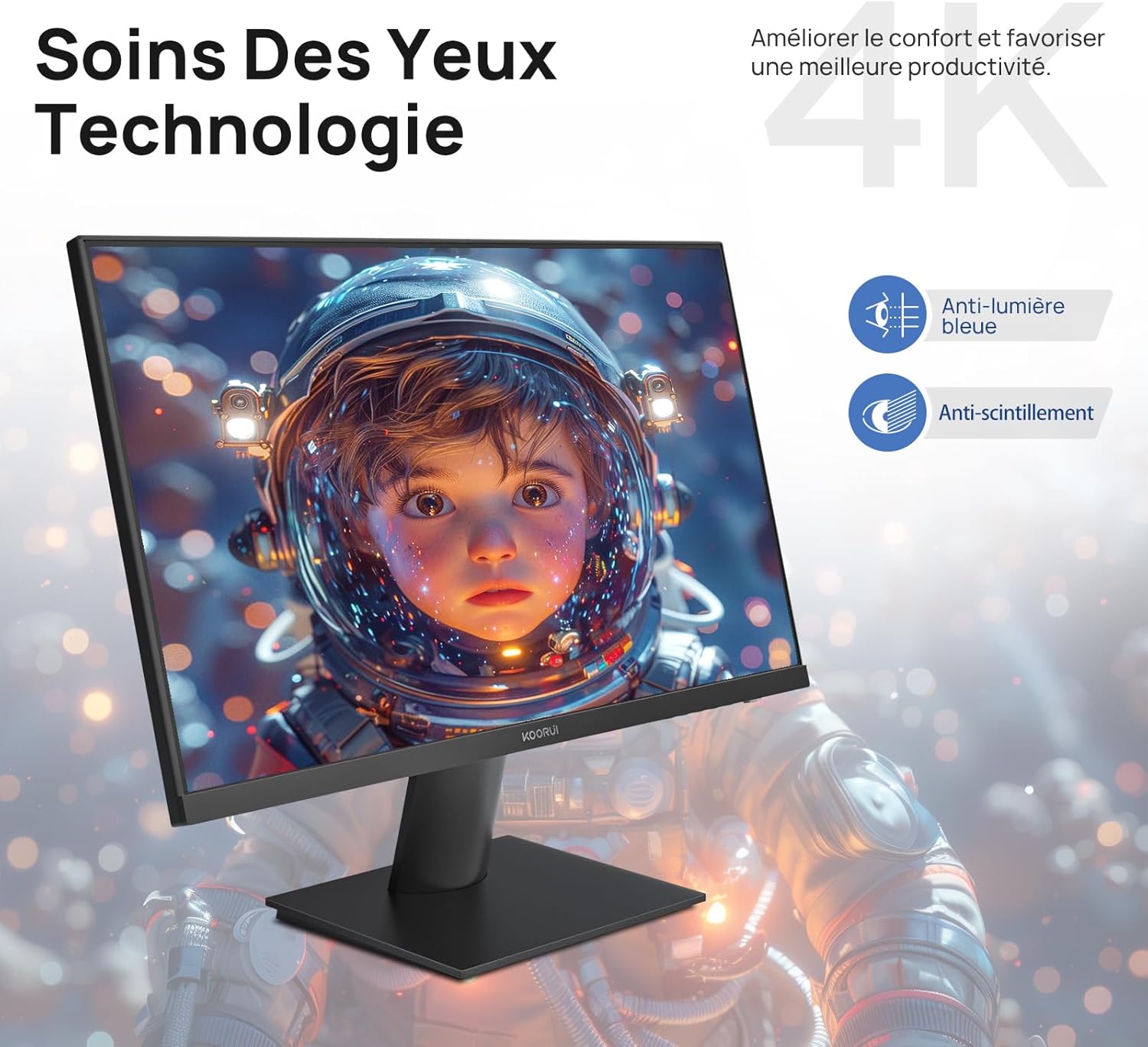
Figure 6.5: Eye Care technology for reduced eye strain.
6.6 인체공학적 디자인
The monitor stand allows for tilt adjustment from -5° to 20°, enabling you to find the most comfortable viewing angle for your posture.
6.7 VESA 마운트 호환성
The KOORUI N07 supports 100x100mm VESA mounting, allowing you to easily attach it to a wall mount or an articulated monitor arm for a flexible and clutter-free workspace.

그림 6.6: 유연한 설치를 위한 VESA 마운트 호환성.
7. 제품 비디오 끝view
비디오 7.1: 오버view of the KOORUI N07 27-inch 4K UHD monitor, highlighting its key features such as 4K resolution, DCI-P3 color gamut, HDR10 support, versatile usage for creation, viewing, and gaming, adjustable tilt, and VESA mounting capabilities.
8. 문제 해결
모니터에 문제가 발생하면 다음의 일반적인 문제와 해결 방법을 참조하세요.
| 문제 | 가능한 해결책 |
|---|---|
| 화면에 이미지가 없습니다. | Ensure power cable is securely connected. Check video cable connection (HDMI/DP) to both monitor and computer. Verify correct input source is selected in OSD. |
| 이미지가 흐릿하거나 왜곡됩니다. | Check display resolution settings on your computer. Ensure it is set to 3840x2160. Adjust sharpness in the OSD menu. |
| 색상이 잘못 표시됩니다 | Adjust color temperature and color settings in the OSD menu. Try resetting picture settings to factory defaults. |
| 화면 깜박임 | Ensure the video cable is securely connected. Disable Adaptive Sync if enabled, or update your graphics card drivers. |
9. 사양
| 특징 | 세부 사항 |
|---|---|
| 상표 | 쿠루이 |
| 모델 번호 | N07 |
| 화면 크기 | 27 인치 |
| 해결 | 4K UHD(3840 x 2160 픽셀) |
| 패널 유형 | IPS |
| 새로 고침 빈도 | 60Hz |
| 응답 시간 | 4 밀리초 |
| 종횡비 | 16시 9분 |
| 대비율 | 1000시 1분 |
| 명도 | 300칸델라/제곱미터 |
| View잉 각도 | 178도 |
| 연결성 | HDMI 2.0 2개, DisplayPort 1.4 1개, 오디오 출력 1개 |
| VESA 호환성 | 100x100mm |
| 특별 기능 | Blue Light Filter, Tilt Adjustment, Frameless, Flicker-Free, Adaptive Sync, HDR10 |
| 치수(D x W x H) | 20.5P x 61l x 45H 센티미터 |
| 무게 | 3 킬로그램 |
10. 유지관리
To ensure the longevity and optimal performance of your KOORUI N07 monitor, follow these maintenance guidelines:
- 화면 청소: 부드럽고 보풀이 없는 천으로 화면을 부드럽게 닦으세요. 잘 지워지지 않는 얼룩의 경우,amp물이나 전용 화면 세척제를 천에 살짝 묻혀 닦아주세요. 절대로 액체를 화면에 직접 분사하지 마세요.
- C 청소asing: 부드럽고 마른 천을 사용하여 모니터를 청소하십시오.asing. 연마성 세척제나 용제 사용을 피하세요.
- 통풍: 과열을 방지하려면 모니터의 통풍구가 막히지 않았는지 확인하세요.
- 전원 끄기 : 장기간 사용하지 않을 때는 모니터를 꺼 두십시오.
11. 보증 및 지원
The KOORUI N07 monitor comes with a 2년 제조사 보증. This warranty covers defects in materials and workmanship under normal use. For warranty claims or technical support, please contact KOORUI customer service or your retailer with your proof of purchase.
For additional support, troubleshooting guides, and driver downloads, please visit the official KOORUI web대지.