
1. 서론
This manual provides detailed instructions for the setup, operation, and maintenance of your EBTOOLS 2K Video Calling Smart Camera. Please read this manual thoroughly before using the device to ensure proper functionality and to maximize your user experience. This camera is designed for indoor security, monitoring family members, children, pets, or the elderly, offering two-way video communication and smart features.
2. 패키지 내용
다음 품목이 패키지에 포함되어 있는지 확인하세요.
- 1 x EBTOOLS 2K Video Calling Smart Camera
- 1 x 사용자 매뉴얼(이 문서)
- 1 x Power Supply Cord (USB Type-C)
3. 제품 오버view
Familiarize yourself with the various components of your smart camera:

영상: 앞쪽 view of the EBTOOLS Smart Camera with key features labeled. This includes the PTZ (Pan-Tilt-Zoom) camera head, 400W HD lens, infrared night vision, Call Key 1, Call Key 2, Dual MIC array, and the IPS 4.3-inch HD screen.
- PTZ350° Camera Head: Allows for pan, tilt, and zoom functionality to cover a wider area.
- 400W HD 렌즈: Provides clear 2K resolution video.
- 적외선 밤 Viewing: Enables clear vision up to 8 meters in low-light conditions.
- Call Key 1 & 2: Dedicated buttons for initiating video calls to pre-assigned contacts.
- Dual MIC Array: Enhances audio clarity for two-way communication.
- IPS 4.3in HD Screen: Displays video calls, clock, and other information.

영상: 뒤쪽 view of the EBTOOLS Smart Camera showing the TF (Micro SD card) slot, Type-C power port, and Reset button.
- TF 카드 슬롯 : Supports Micro SD cards up to 128GB for local video storage.
- C 형 포트 : For connecting the power supply cord.
- 재설정 버튼: Used to restore the device to factory settings.
4. 설정
Follow these steps to set up your EBTOOLS Smart Camera:
- 전원 연결: Connect the provided USB Type-C power supply cord to the Type-C port on the back of the camera and plug the other end into a power adapter (not included) or a compatible USB power source. The camera will power on automatically.
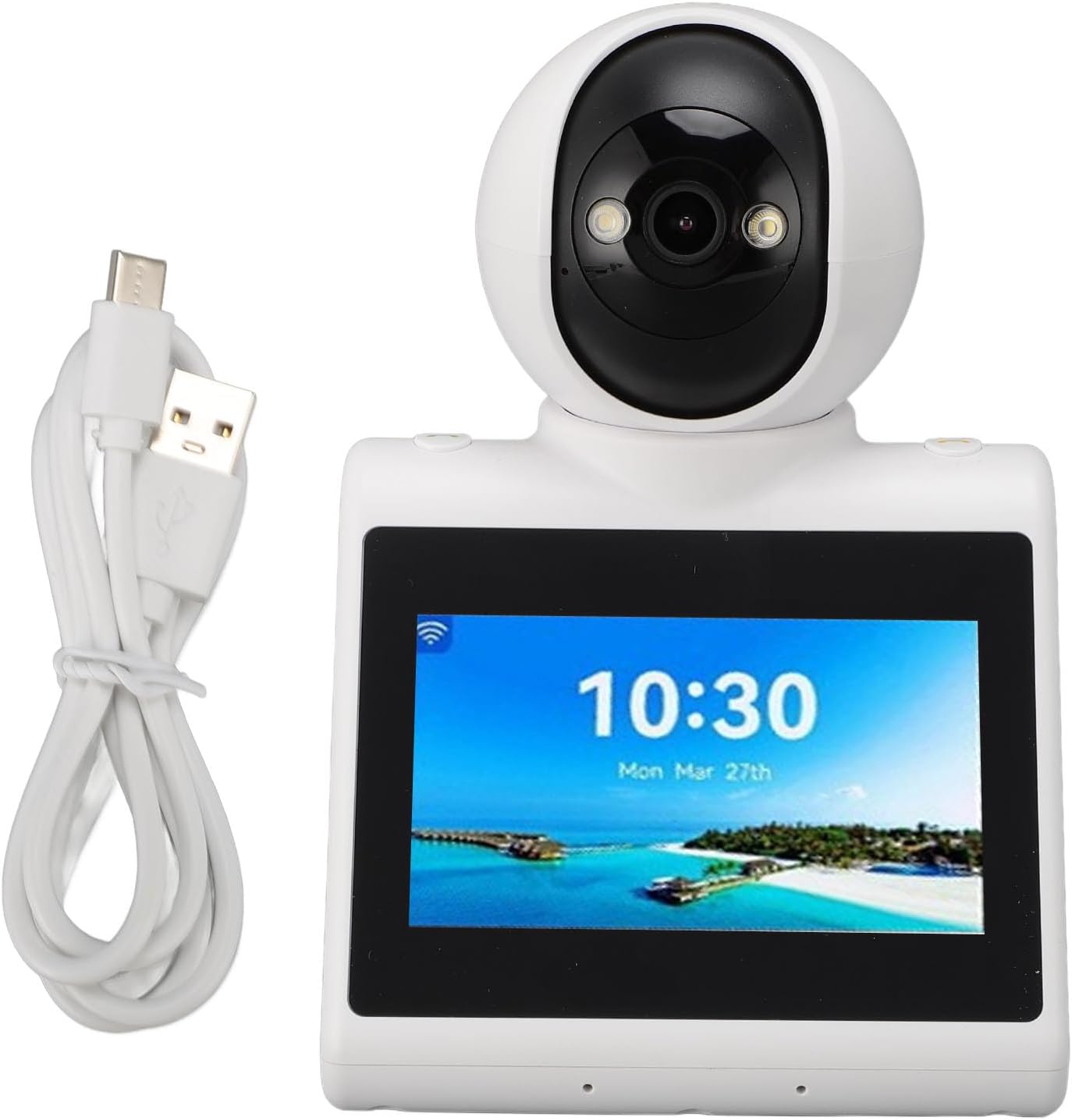
영상: The EBTOOLS Smart Camera with its USB Type-C power cable connected, ready for use.
- 마이크로 SD 카드 설치(선택 사항): If you wish to store recordings locally, gently insert a Micro SD card (up to 128GB, not included) into the TF card slot on the back of the camera until it clicks into place.
- 네트워크 연결 : Follow the on-screen prompts or refer to the accompanying app instructions (if applicable) to connect the camera to your home Wi-Fi network. This step is crucial for video calling and smart features.
- 앱 페어링: Download the dedicated mobile application (details typically found in a separate quick start guide or on-screen QR code) and follow the instructions to pair your camera with your smartphone. This enables remote control and access to advanced features.
5. 사용 설명서
Your EBTOOLS Smart Camera offers a range of intelligent features:
5.1 AI Voice Function
Engage with the camera's AI for interactive learning and entertainment. You can ask questions, request jokes, or listen to stories. Simply activate the AI voice function through the camera's interface or paired app and speak your command.
5.2 Intelligent Voice Call
The camera supports voice calls to specified family roles or names. This feature simplifies communication, allowing users to initiate calls easily. If a call is not answered, the system will send a voice reminder to the phone, ensuring no important calls are missed.
5.3 Daily Clock Reminder
Set up accurate daily reminders for various activities. This intelligent reminder system helps maintain an organized daily routine. Manage and customize reminders via the camera's screen or the paired mobile application.

영상: The EBTOOLS Smart Camera screen showing a time display (08:00) and a smartphone interface demonstrating how to set and manage daily clock reminders.
5.4 원클릭 영상 통화
Initiate a video call with ease by pressing a designated call key on the camera. This feature allows for direct connection to your mobile phone without complex setup procedures, facilitating quick and convenient communication.
5.5 Video Call Between Devices
The camera supports two-way video communication, allowing users to see and speak with individuals on the other end. This is ideal for checking in on family members or pets remotely.

영상: Two EBTOOLS Smart Cameras positioned to show a video call in progress, illustrating the two-way communication capability between devices.
5.6 Automatic Video Switching
The camera features automatic video switching, which can enhance the viewing experience, especially when monitoring multiple subjects or in dynamic environments.

영상: The EBTOOLS Smart Camera screen showing a video call with two individuals, while a child observes the screen, demonstrating the camera's video display capabilities.
5.7 Missed Call Notifications
If a video call is missed on the camera, a notification will be sent to the paired smartphone, ensuring you are always aware of attempted communications.

영상: The EBTOOLS Smart Camera displaying a missed call icon, with an arrow pointing to a smartphone receiving a call notification, illustrating the missed call alert feature.
6. 유지관리
카메라의 수명과 최적의 성능을 보장하려면 다음 사항을 고려하십시오.
- 청소: 카메라 렌즈와 본체를 닦을 때는 부드럽고 마른 천을 사용하십시오. 액체 세척제나 연마성 재질은 사용하지 마십시오.
- 놓기: 카메라를 직사광선, 열원, 과도한 습기를 피해 실내의 안정된 표면에 놓으세요.
- 저장: 장기간 카메라를 보관할 경우, 전원을 끄고 서늘하고 건조한 곳에 보관하세요.
7. 문제 해결
카메라에 문제가 발생하면 다음의 일반적인 문제와 해결 방법을 참조하세요.
- 카메라 전원이 켜지지 않음:
- Ensure the power supply cord is securely connected to both the camera and a working power source.
- 다른 전원 어댑터나 USB 포트를 사용해 보세요.
- No video feed or poor video quality:
- Check your internet connection. A stable Wi-Fi connection is essential for clear video.
- 카메라 렌즈가 깨끗하고 이물질이 없는지 확인하십시오.
- 카메라의 전원 코드를 뽑았다가 다시 꽂아 카메라를 재시작하십시오.
- Video calls not connecting:
- Verify that both the camera and the receiving device (smartphone) have a stable internet connection.
- Ensure the camera is properly paired with the mobile application.
- Check app permissions on your smartphone for microphone and camera access.
- 마이크로 SD 카드가 인식되지 않습니다.
- Ensure the Micro SD card is inserted correctly into the TF slot.
- Check if the card is formatted correctly (usually FAT32).
- 카드 고장 여부를 확인하기 위해 다른 마이크로 SD 카드를 사용해 보세요.
- 카메라가 응답하지 않습니다:
- Press the Reset button on the back of the camera using a small pin or paperclip. This will restore factory settings.
8. 사양
| 특징 | 세부 사항 |
|---|---|
| 모델명 | EBTOOLSkbvc84gapy |
| 비디오 해상도 | 1920 x 1080(2K) |
| 재료 | ABS |
| Small Memory Card Slot | Supports up to 128GB (Micro SD card) |
| 전원 | 교류/직류 |
| 연결 프로토콜 | Ethernet (Note: Wireless Wi-Fi connectivity is typically also supported for smart cameras) |
| 컨트롤러 유형 | Android (Implies mobile app control) |
| 패키지 크기 | 7.87 x 5.51 x 5.51 인치 |
| 품목 무게 | 1.29파운드 |
| 권장 사용 | 실내 |
| 특징 | Adjustable (PTZ functionality) |
9. 보증 및 지원
For warranty information and customer support, please refer to the warranty card included in your product packaging or contact EBTOOLS customer service directly through their official website or the retailer where the product was purchased. Please have your model number (EBTOOLSkbvc84gapy) and purchase details ready when contacting support.