
1. 서론
The CHROX X96Q PRO+ is an advanced Android 14.0 TV Box designed to transform your television into a smart entertainment hub. Featuring an H728 Quad-Core ARM Cortex-A55 processor and Mali G31 MP2 GPU, it delivers high-performance media playback, including 8K and 4K resolutions. This device supports dual-band Wi-Fi (2.4G/5.8GHz), Bluetooth 4.1, and offers various connectivity options for a comprehensive multimedia experience.
2. 패키지 내용
아래 나열된 모든 품목이 패키지에 포함되어 있는지 확인하세요.
- 1 x CHROX X96Q PRO+ TV Box
- 1 x 원격 제어
- 1 x HD 케이블(HDMI)
- 1 x 전원 어댑터(DC 5V/2A)
- 1 x 사용자 설명서

Image: Contents of the CHROX X96Q PRO+ TV Box package, including the TV box, remote control, HDMI cable, power adapter, and user manual.
3. 설정 가이드
3.1 TV 박스 연결
- TV에 연결: Use the provided HDMI cable to connect the HDMI port on the TV Box to an available HDMI input on your television.
- 전원 연결: Plug the power adapter into the DC 5V port on the TV Box, then connect the adapter to a power outlet.
- 네트워크 연결(선택 사항):
- 이더넷: 유선 연결을 하려면 라우터에서 TV 박스의 LAN 포트로 이더넷 케이블을 연결하십시오.
- 와이파이: For a wireless connection, you will configure Wi-Fi after initial power-on.
- 주변 장치 연결(선택 사항): Insert USB devices such as a mouse, keyboard, or external storage into the available USB 2.0 or USB 3.0 ports.

Image: Diagram showing the various ports and dimensions of the CHROX X96Q PRO+ TV Box, including USB 2.0, USB 3.0, Ethernet, HD (HDMI), Audio, Optical, DC/5V, and Card slot.
3.2 초기 전원 켜기
After connecting all necessary cables, the TV Box should power on automatically. If not, press the power button on the device or the remote control. Select the correct HDMI input on your television to display the TV Box interface.
4. 사용 설명서
4.1 사용자 인터페이스 탐색
Use the provided remote control to navigate the Android 14.0 interface. The directional buttons allow you to move between icons and menus, the 'OK' button confirms selections, and the 'Back' button returns to the previous screen. A connected USB mouse or keyboard can also be used for easier navigation and text input.
4.2 네트워크 연결
To access online content, connect your TV Box to the internet.
- 와이파이: 이동하다 Settings > Network > Wi-Fi. Select your desired network from the list, enter the password if prompted, and connect. The device supports dual-band 2.4G and 5.8GHz Wi-Fi for stable and fast connections.
- 이더넷: If an Ethernet cable is connected, the device should automatically detect and connect to the wired network. Verify the connection status in Settings > Network > Ethernet.

Image: Illustration highlighting the Wi-Fi 6 technology of the CHROX X96Q PRO+ TV Box, indicating faster speed and lower latency compared to Wi-Fi 5.
4.3 미디어 재생
The CHROX X96Q PRO+ supports high-resolution video playback:
- 8K/4K Resolution: Enjoy ultra-high-definition content with support for up to 8Kx4K @60fps output.
- 비디오 디코딩 : Compatible with H.265 HEVC, H.264 AVC, and VP9 codecs for efficient and high-quality video streaming.
- HDR 지원: Experience enhanced color and contrast with HDR technology.
4.4 멀티스크린 상호작용
Share content from your mobile devices to your TV screen using the built-in multi-screen features:
- 에어플레이: iOS 기기용.
- DLNA: For compatible devices and media servers.
- Miracast : 안드로이드 기기용입니다.
Ensure your mobile device and the TV Box are connected to the same Wi-Fi network for these features to function.

Image: Depiction of multi-screen interaction, showing a smartphone and laptop casting content to a TV via the CHROX X96Q PRO+ TV Box using Airplay, DLNA, and Miracast.
4.5 3D Display
The TV Box supports 3D display, offering an immersive viewing experience with compatible 3D content and a 3D-enabled television.
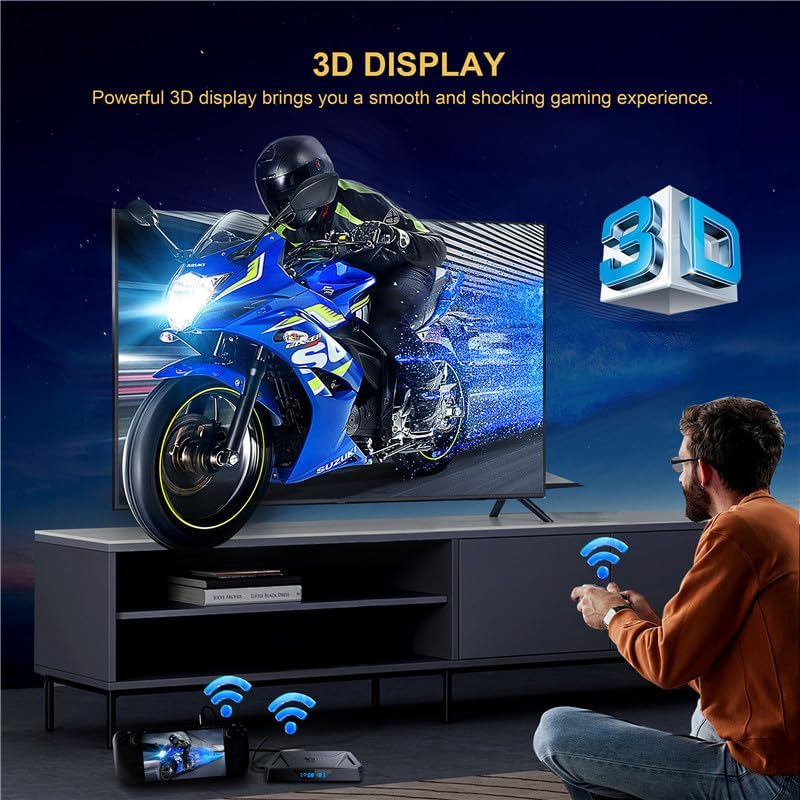
Image: A person playing a 3D game on a TV, demonstrating the 3D display capability of the CHROX X96Q PRO+ TV Box.
4.6 외부 장치 연결
Expand your storage and connectivity options:
- USB 포트: Connect USB flash drives, external hard drives (up to 1TB), game controllers, or other USB peripherals.
- 마이크로 SD 카드 슬롯: Insert a Micro SD card (up to 64GB) to expand storage for apps and media.
5. 유지관리
5.1 소프트웨어 업데이트(OTA)
The TV Box supports Over-The-Air (OTA) updates. When connected to the internet, the device can automatically download and install the latest firmware updates to improve performance and add new features. It is recommended to keep your device updated for optimal functionality.
5.2 청소
기기를 청소할 때는 부드럽고 마른 천을 사용하십시오. 액체 세척제나 연마성 물질은 표면이나 내부 부품을 손상시킬 수 있으므로 사용하지 마십시오.
6. 문제 해결
- 전원 없음: 전원 어댑터가 TV 박스와 작동하는 콘센트에 제대로 연결되어 있는지 확인하십시오. 다른 콘센트에 연결해 보십시오.
- TV에 신호가 없습니다: Verify the HDMI cable is properly connected to both the TV Box and the TV. Ensure your TV is set to the correct HDMI input source.
- Wi-Fi 연결 문제: Check if your router is working correctly. Restart the TV Box and your router. Re-enter the Wi-Fi password in settings.
- 리모콘이 응답하지 않음: 리모컨의 배터리를 확인하고 필요하면 교체하세요. 리모컨과 TV 박스 사이에 장애물이 없는지 확인하세요.
- 앱이 작동하지 않습니다: Ensure the device has a stable internet connection. Try clearing the app's cache or reinstalling the app.
7. 사양
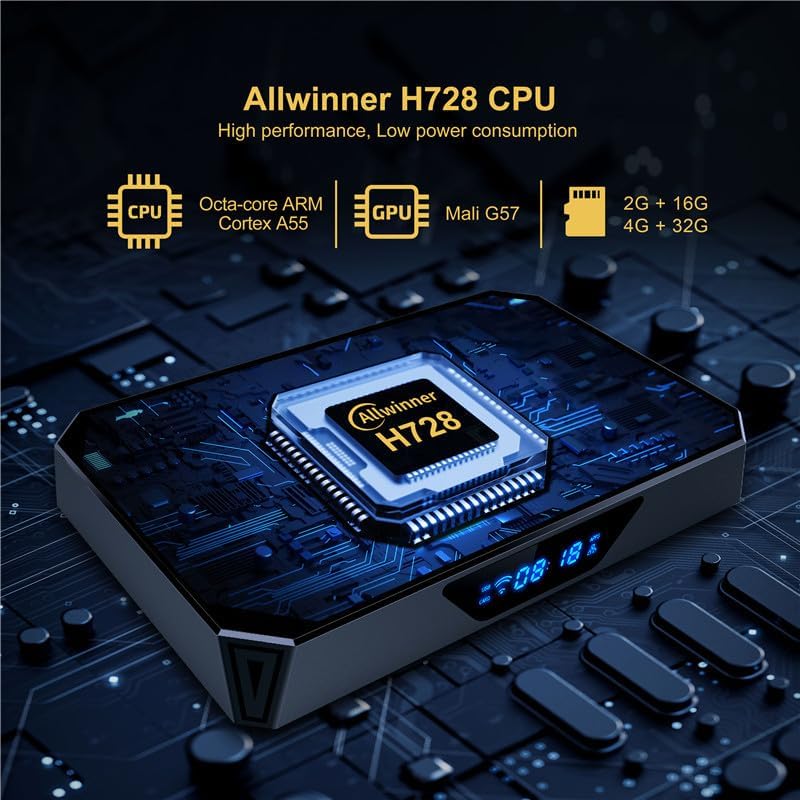
Image: Close-up of the CHROX X96Q PRO+ TV Box highlighting the Allwinner H728 CPU, Octa-core ARM Cortex A55, and Mali G57 GPU.
| 특징 | 설명 |
|---|---|
| 운영 체제 | 안드로이드 14.0 |
| CPU | H728 Quad-Core ARM Cortex-A55 64-bit |
| 그래픽 카드 | 말리 G31 MP2 |
| 숫양 | 4GB (XNUMX기가바이트) |
| 내부 저장소(플래시) | 64GB (XNUMX기가바이트) |
| 와이파이 | 2.4G / 5.8GHz Dual-Band |
| 블루투스 | BT4.1 |
| 이더넷 | 10/100/1000M RJ-45 |
| HDMI 출력 | HDMI 2.0, supports 8Kx4K @60fps max resolution |
| USB 포트 | 1 X USB 2.0, 1 X USB 3.0 |
| 카드 슬롯 | 마이크로 SD(최대 64GB) |
| 비디오 디코더 | H.265 HEVC/MVC, H.264 AVC/MVC, VP9, VP8 |
| 특별 기능 | 8K Resolution, HDR, 3D Display, Multi-screen (Airplay, DLNA, Miracast) |
| 지원되는 인터넷 서비스 | 넷플릭스, 훌루, 아마존 프라임 비디오 |
8. 보증 및 지원
For any questions or issues regarding your CHROX X96Q PRO+ TV Box, please contact the seller, MYYGZQ. They are committed to resolving your problem within 24 hours. Please refer to your purchase documentation for specific warranty terms and contact details.