
1. 서론
Thank you for choosing the MEETION BTM011 Ergonomic Wireless Bluetooth Vertical Mouse. This device is designed to provide a comfortable and efficient computing experience by promoting a natural hand position, reducing wrist strain. It offers versatile connectivity options for multiple devices and adjustable precision to suit various tasks.

The ergonomic design of the MEETION vertical mouse helps maintain a natural hand and wrist posture, reducing discomfort compared to traditional mice.
2. 패키지 내용
- MEETION BTM011 Ergonomic Wireless Bluetooth Vertical Mouse
- USB 2.4G Receiver (stored in the mouse battery compartment)
- USB-A to USB-C 어댑터
- 사용자 설명서
3. 제품 오버view
Familiarize yourself with the various components and buttons of your MEETION BTM011 mouse.

상세한 view of the mouse components, including the Mode Switching Button, Power Switch (ON/OFF), Low Battery Indicator, Charging Indicator, DPI Speed Switch Button, 2.4G Connection Indicator, Bluetooth 1 Connection Indicator, and Bluetooth 2 Connection Indicator.
- 왼쪽 버튼: 표준 왼쪽 클릭 기능.
- 오른쪽 버튼: 표준 마우스 오른쪽 클릭 기능.
- 스크롤 휠: 위아래로 스크롤하려면.
- 앞으로 버튼: 앞으로 이동합니다 web 브라우저 또는 file 탐험가.
- 뒤로가기 버튼: 뒤로 탐색합니다 web 브라우저 또는 file 탐험가.
- DPI 전환 버튼: 커서 감도를 조정합니다.
- 모드 전환 버튼: Switches between 2.4G, Bluetooth 1, and Bluetooth 2 modes.
- 전원 스위치(켜기/끄기): 마우스를 켜거나 끕니다.
- 배터리 칸: Located at the bottom, for 1x AA battery and USB receiver storage.
4. 설정 지침
4.1 배터리 설치
The mouse requires one AA battery (not included).
- 마우스 바닥에서 배터리 덮개를 찾으세요.
- 덮개를 밀어 엽니다.
- AA 배터리 1개를 올바른 극성(+/-)에 맞춰 삽입하세요.
- 배터리 덮개를 단단히 닫으세요.

Insert one AA battery into the compartment. The USB receiver is also stored here.
4.2 전원 켜기/끄기
Slide the power switch located on the bottom of the mouse to the "ON" position to turn it on. Slide to "OFF" to conserve battery when not in use.
4.3 연결 모드
The MEETION BTM011 mouse supports three connection modes: 2.4GHz wireless (via USB receiver) and two independent Bluetooth 5.3 channels (BT1 and BT2). You can connect to up to three devices simultaneously and switch between them.

The mouse supports 2.4G wireless and two Bluetooth 5.3 connections for seamless switching between devices.
4.4 2.4GHz USB Connection
- 마우스 배터리 칸에서 USB 수신기를 꺼냅니다.
- Insert the USB receiver into an available USB-A port on your computer. If your computer only has USB-C ports, use the provided USB-A to USB-C adapter.
- 전원 스위치를 사용하여 마우스를 켭니다.
- Press the Mode Switching Button until the 2.4G Connection Indicator (green light) lights up. The mouse should now be connected.
4.5 블루투스 연결(BT1 / BT2)
- 전원 스위치를 사용하여 마우스를 켭니다.
- Press the Mode Switching Button to select either Bluetooth 1 (BT1) or Bluetooth 2 (BT2). The corresponding blue indicator light will blink, indicating pairing mode.
- On your device (computer, laptop, tablet, smartphone), go to Bluetooth settings.
- 검색 new devices. You should find "Meetion_MS_BT1" or "Meetion_MS_BT2".
- Select the device to pair. Once paired, the blue indicator light will stop blinking and remain solid for a few seconds.

Visual guide for connecting the mouse via 2.4G USB receiver and Bluetooth modes.
5. 사용 설명서
5.1 DPI 조정
The mouse features 4 adjustable DPI levels: 1200, 1600, 2400, and 3200. Press the DPI Switch Button (located behind the scroll wheel) to cycle through these settings. Each press changes the cursor speed, allowing you to select the precision suitable for your task.
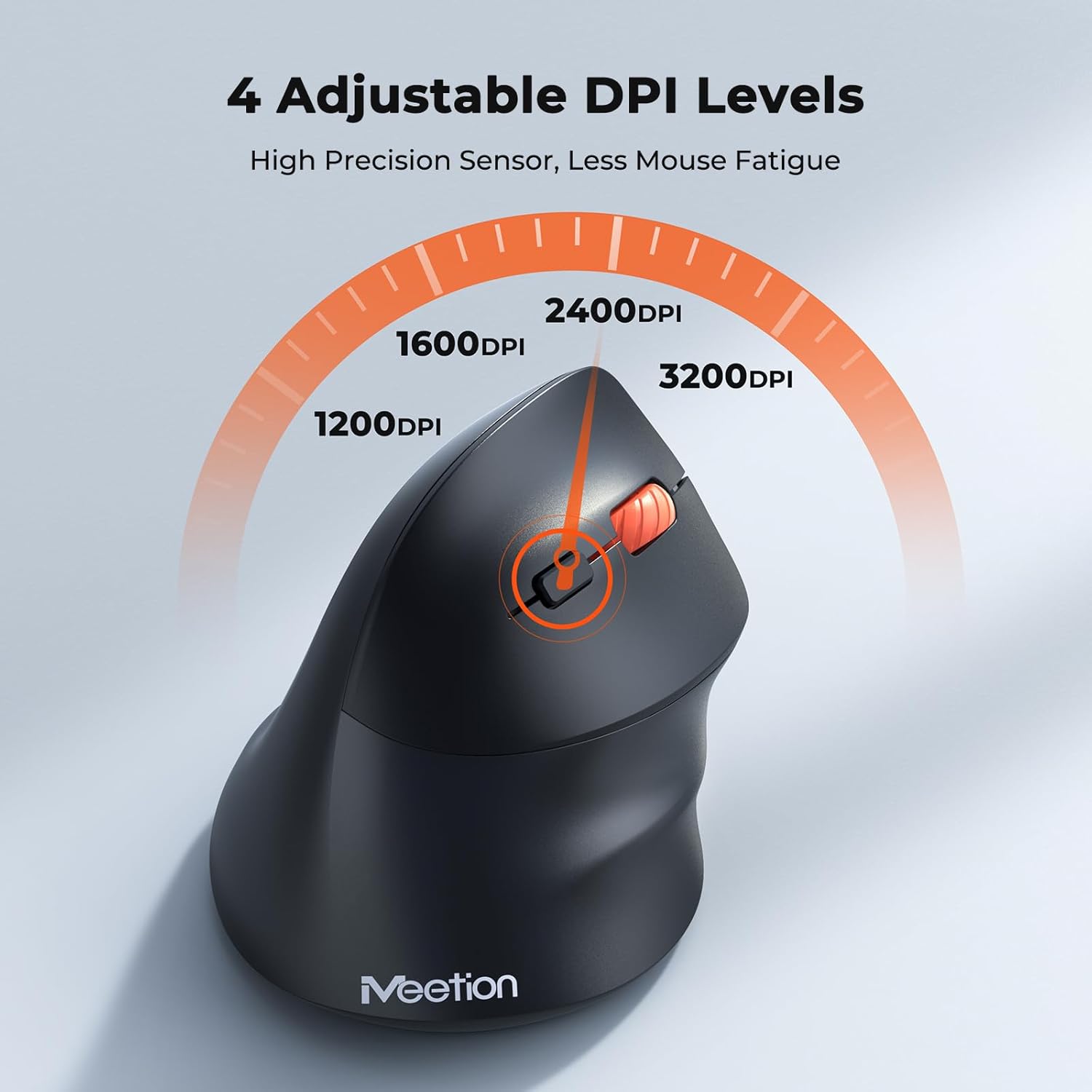
Adjust the DPI to match your preference for cursor speed and precision.
5.2 다중 장치 전환
To switch between connected devices, simply press the Mode Switching Button located on the bottom of the mouse. The corresponding indicator light (green for 2.4G, blue for BT1/BT2) will illuminate to show the active connection.
5.3 앞/뒤 버튼
Use the Forward and Back buttons, conveniently located on the side of the mouse, for quick navigation in web 브라우저, file 탐색기 및 이러한 기능을 지원하는 기타 응용 프로그램.
6. 전원 관리
6.1 자동 절전 모드
To conserve battery life, the mouse will automatically enter sleep mode after 20 minutes of inactivity. This intelligent feature helps extend the battery's operational time.
6.2 Waking the Mouse
To wake the mouse from sleep mode, simply press any button. It will instantly reconnect to the last active device.
6.3 배터리 수명
With typical usage, a single AA battery can power the mouse for up to 3 months. Actual battery life may vary based on usage patterns and battery quality.
7. 유지관리
마우스의 최적의 성능과 수명을 보장하려면 다음 유지 관리 지침을 따르세요.
- 청소: 부드럽고 마른 천으로 마우스 표면을 닦으세요. 잘 지워지지 않는 얼룩은 약간 부드러운 천으로 닦아내세요.amp 천을 사용할 수 있지만, 기기 내부로 습기가 들어가지 않도록 주의하세요. 강한 화학 물질이나 연마성 세척제는 사용하지 마세요.
- 배터리 교체: Replace the AA battery when the low battery indicator lights up or when mouse performance degrades. Always dispose of used batteries responsibly.
- 저장: When not in use for extended periods, turn off the mouse and store it in a dry, cool place.
8. 문제 해결
If you encounter issues with your MEETION BTM011 mouse, refer to the following solutions:
| 문제 | 해결책 |
|---|---|
| 마우스가 응답하지 않음 |
|
| 커서 움직임이 불규칙하거나 느립니다. |
|
| 블루투스로 연결할 수 없습니다 |
|
| Forward/Back buttons not working |
|
9. 사양
| 특징 | 세부 사항 |
|---|---|
| 모델 | BTM011 |
| 연결성 | 2.4GHz Wireless, Bluetooth 5.3 (BT1, BT2) |
| DPI 레벨 | 1200 / 1600 / 2400 / 3200 |
| 버튼 | 7 (Left, Right, Scroll Wheel, Forward, Back, DPI Switch, Mode Switch) |
| 전원 | AA 배터리 1개 (미포함) |
| 자동 수면 | 20분간 활동이 없는 경우 |
| 호환성 | Windows, Mac OS, Linux, Android, iOS (for iPad/iPhone) |
| 재료 | 플라스틱 |
| 크기(대략) | 4.4 x 3.29 x 2.74인치(11.18 x 8.36 x 6.96cm) |
10. 보증 및 지원
10.1 보증 정보
MEETION products are designed and manufactured to the highest quality standards. This product is covered by a limited warranty against defects in materials and workmanship. Please retain your proof of purchase for warranty claims. Specific warranty terms may vary by region; refer to your local retailer or the official MEETION web자세한 내용은 사이트.
10.2 고객 지원
For technical assistance, troubleshooting, or general inquiries, please contact MEETION customer support:
- 이메일: service@meetion.com
- Web대지: Visit the official MEETION webFAQ 및 추가 리소스는 해당 사이트에서 확인하세요.