
1. 서론
This manual provides detailed instructions for the operation and maintenance of your Vormooi V71 Digital Voice Recorder. Please read this manual thoroughly before using the device to ensure proper functionality and to maximize your user experience. Keep this manual for future reference.
2. 패키지 내용
패키지를 열면 아래 나열된 모든 품목이 들어 있는지 확인하세요.
- 1 x Vormooi V71 Digital Voice Recorder
- 1 x USB-C to USB-C 케이블
- 1 x 3.5mm External Microphone
- 64GB TF 메모리 카드 1개
- 1 x USB-C Cable (USB-A to USB-C)
- 3.5mm 전사 케이블 1개
- 1 x 넥 스트랩
- 1 x 사용자 매뉴얼(이 문서)

Image: The Vormooi V71 Digital Voice Recorder shown with its various accessories, including the external microphone, USB-C cables, and the 64GB TF memory card, alongside a diagram illustrating the device's dimensions.
3. 제품 오버view
장치의 구성 요소와 제어 장치를 숙지하세요.

이미지: 자세한 앞면 view of the Vormooi V71 Digital Voice Recorder, highlighting its 2.15-inch color screen, control buttons (MENU, PREV, NEXT, DEL/BACK, POWER/PLAY), built-in speakers, and the included external microphone.
주요 구성 요소:
- 2.15인치 컬러 화면: Displays menus, recording status, and file 정보.
- 내장 마이크: For standard audio capture.
- 내장 스피커: For direct playback of recordings.
- 녹화 슬라이더: Located on the side for quick record/save actions.
- USB-C 포트: 충전 및 데이터 전송용입니다.
- 3.5mm 오디오 잭: For connecting external microphone or headphones.
- TF 카드 슬롯 : 메모리 확장을 위해서입니다.
4. 설정
4.1 장치 충전
처음 사용하기 전에 기기를 약 2시간 동안 완전히 충전하세요.
- Connect the provided USB-C cable to the recorder's USB-C port.
- USB-C 케이블의 다른 쪽 끝을 USB 전원 어댑터(포함되지 않음) 또는 컴퓨터의 USB 포트에 연결합니다.
- The screen will indicate charging status. The battery icon will show full when charging is complete.

Image: The Vormooi V71 Digital Voice Recorder displaying a full battery icon, indicating its 1100mAh battery capacity and 110 hours of continuous recording time after a 2-hour charge.
4.2 Inserting and Formatting the TF Memory Card
The device comes with 32GB internal memory and a 64GB TF card. For optimal performance, format the TF card using the device itself.
- Locate the TF card slot on the side of the recorder.
- Gently insert the 64GB TF memory card into the slot until it clicks into place.
- 장치의 전원을 켭니다.
- 기기의 '설정' 메뉴로 이동하세요.
- Select 'Format Card' or a similar option.
- 서식 지정 프로세스를 확인하십시오. Warning: Formatting will erase all data on the TF card.
Important: Do not format the voice recorder or memory cards on a computer. Always format within the device's menu for proper functionality. The device only supports exFAT format for SD cards from 8GB to 128GB.
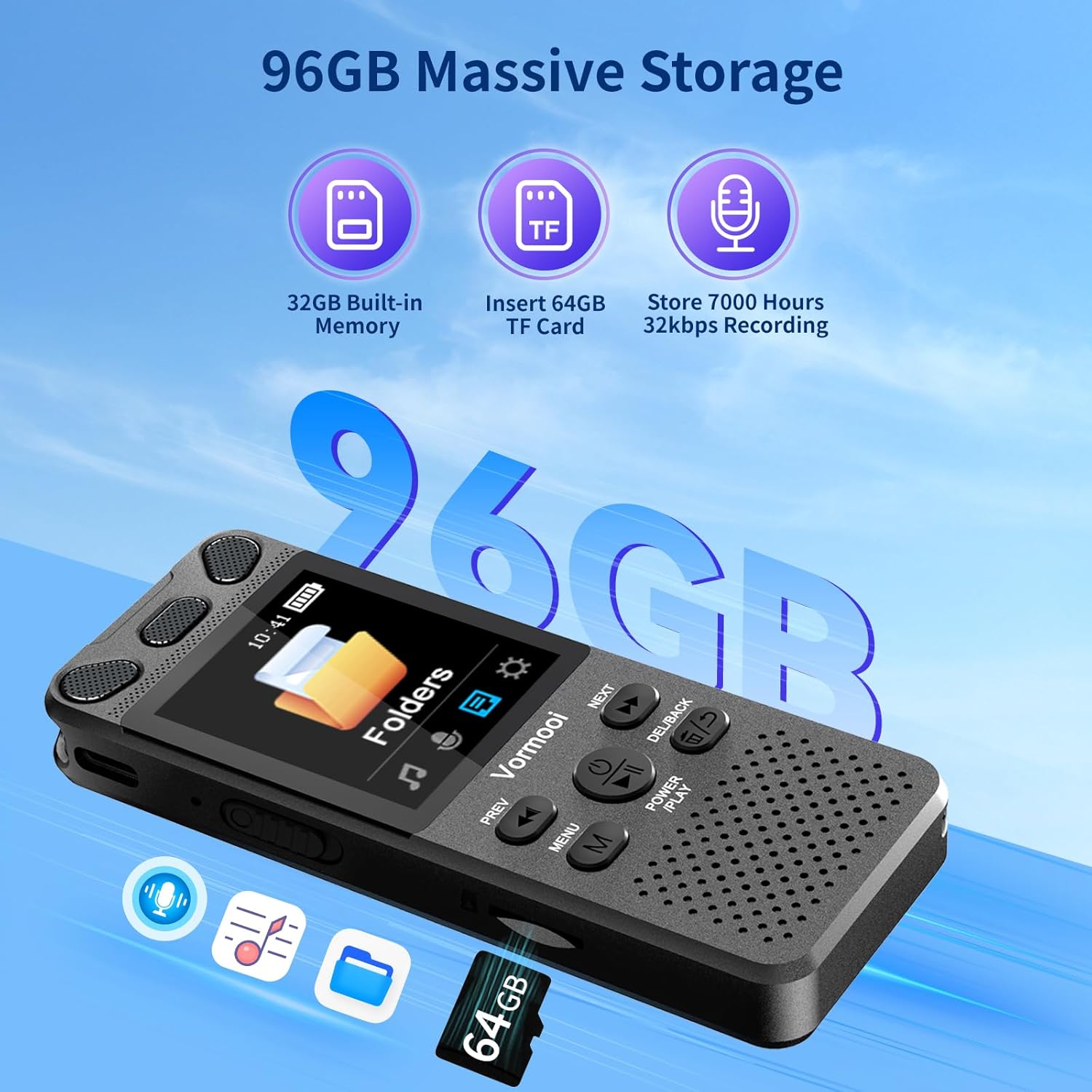
Image: The Vormooi V71 Digital Voice Recorder displaying its total 96GB storage capacity, composed of 32GB built-in memory and an inserted 64GB TF card, capable of storing up to 7000 hours of 32kbps recordings.
4.3 Connecting the External Microphone
The device supports an external 3.5mm 4-section microphone for enhanced recording quality.
- Locate the 3.5mm audio jack on the recorder.
- Plug the external microphone's 3.5mm connector into this jack.
- The device will automatically detect the external microphone.
5. 기본 동작
5.1 전원 켜기/끄기
- 전원 켜기: Press and hold the 'POWER/PLAY' button until the screen illuminates.
- 전원 끄기 : Press and hold the 'POWER/PLAY' button until the screen turns off.
5.2 녹음
The V71 offers quick one-touch recording and voice-activated recording.
- 원터치 녹음: Slide the red button on the right side of the recorder up. Recording will start immediately, even if the device is off.
- 음성 활성화 녹음(VOR): Enable VOR in the 'Settings' menu. When enabled, the recorder will automatically start recording when sound is detected and pause when silence occurs, conserving memory and battery.

Image: The Vormooi V71 Digital Voice Recorder displaying its recording interface, highlighting the 1536Kbps clear sound quality, the 2159 intelligent noise cancellation chip, and the one-touch record/save slider on the side.
5.3 Saving Recordings
To save an active recording:
- Slide the red button on the right side of the recorder 아래에녹화된 내용은 자동으로 저장됩니다.
5.4 재생
- From the main menu, navigate to 'Recordings' or 'Folders'.
- Use the 'PREV' and 'NEXT' buttons to select the desired recording.
- Press the 'POWER/PLAY' button to start playback.
5.5 볼륨 조절
During playback, use the volume buttons (usually '+' and '-') on the side of the device to adjust the speaker or headphone volume (0-32 levels).
5.6 삭제 Files
- 로 이동합니다 file you wish to delete in the 'Recordings' or 'Folders' menu.
- Press the 'DEL/BACK' button.
- 메시지가 나타나면 삭제를 확인하세요.
6. 고급 기능

Image: The Vormooi V71 Digital Voice Recorder with icons representing its advanced features: Voice Activation, Variable Speed Playback, Line-in Mic Record, Password Protection, Built-in Speaker, and A-B Repeat function.
6.1 비밀번호 보호
Set a 6-digit password in the 'Settings' menu to protect your recordings and privacy. Only with the correct password can the device be accessed.
6.2 AB 반복
During playback, press the 'MENU' button to activate A-B repeat. Select your start point (A) and end point (B) to repeatedly play a specific segment of a recording. This is useful for language learning or transcribing.
6.3 가변 속도 재생
Adjust the playback speed of your recordings in the playback options. This feature allows you to slow down or speed up audio for easier transcription or review.
6.4 라인 입력 녹음
Use the provided 3.5mm transcription cable to connect the recorder to other audio sources like a mobile phone, PC, or MP3 player for direct recording.
6.5 컴퓨터에 연결하기
Connect the recorder to your computer using the USB-C cable to transfer recording files. The device will appear as a removable disk drive.
7. 사양
| 특징 | 사양 |
|---|---|
| 모델 | V71 |
| 재료 | 아연 합금 |
| 제품 치수 | 10 x 3.9 x 1.26cm(3.94 x 1.54 x 0.5인치) |
| 제품 무게 | 98g(3.46온스) |
| 화면 크기 | 2.15인치 |
| 디스플레이 유형 | 128 x 160 TFT Color Display |
| 내부 메모리 | 32GB |
| 외부 메모리 | 64GB TF Card (included), supports 8-128GB exFAT format |
| 총 저장 용량 | 96GB |
| 배터리 용량 | 1100mAh 리튬 이온 |
| 충전 시간 | 약 2시간 |
| 연속 녹화 시간 | 최대 110시간 (512kbps 기준) |
| 녹음 품질 | 32-1536Kbps PCM |
| 녹음 형식 | MP3, WAV |
| 마이크로폰 | Built-in dual microphones, supports external 3.5mm 4-section microphone |
| 인터페이스 | USB 타입-C |
| 호환 장치 | MP3 Player, Personal Computer, Smartphone |
8. 문제 해결
8.1 장치가 켜지지 않음
- Ensure the device is sufficiently charged. Connect it to a power source and charge for at least 30 minutes.
- Press and hold the 'POWER/PLAY' button for several seconds.
8.2 Cannot Record or Save Files
- Check if the memory (internal or TF card) is full. Delete unnecessary files.
- Ensure the TF card is properly inserted and formatted within the device. If not, format it via the device's settings menu.
- Verify that the recording slider is in the 'Record' position.
8.3 녹음 품질 불량
- Ensure the built-in microphones are not obstructed.
- If using an external microphone, ensure it is securely connected and functioning correctly.
- Check recording settings (e.g., bitrate) and adjust if necessary.
- Reduce background noise in the recording environment.
8.4 Device Not Detected by Computer
- USB-C 케이블이 녹음기와 컴퓨터에 제대로 연결되어 있는지 확인하십시오.
- 컴퓨터의 다른 USB 포트를 사용해 보십시오.
- 다른 USB-C 케이블을 사용해 보세요.
- Restart both the recorder and the computer.
9. 유지관리
- 기기를 건조하게 보관하고 극한의 온도에 두지 마세요.
- 부드럽고 마른 천으로 화면과 본체를 닦으십시오. 강한 화학 약품 사용은 피하십시오.
- 장치를 떨어뜨리거나 강한 충격을 가하지 마십시오.
- 데이터 손실을 방지하기 위해 중요한 녹음 파일은 정기적으로 컴퓨터에 백업하십시오.
10. 보증 및 지원
The Vormooi V71 Digital Voice Recorder comes with a 2년 보증 from the date of purchase. This warranty covers defects due to non-human factors.
If you encounter any issues with your device that are not resolved by the troubleshooting steps in this manual, or if the device fails due to non-human factors within the warranty period, please contact Vormooi customer support immediately. You can reach us via Amazon station letter or the after-sales email provided with your purchase documentation.
Please provide your purchase details (e.g., order number, date of purchase) when contacting support to facilitate a quicker resolution.