
소개
Thank you for choosing the Phomemo M836 A4 Portable Thermal Printer. This device offers convenient, inkless printing for various document types, making it ideal for business, travel, and personal use. This manual will guide you through the setup, operation, and maintenance of your printer to ensure optimal performance.
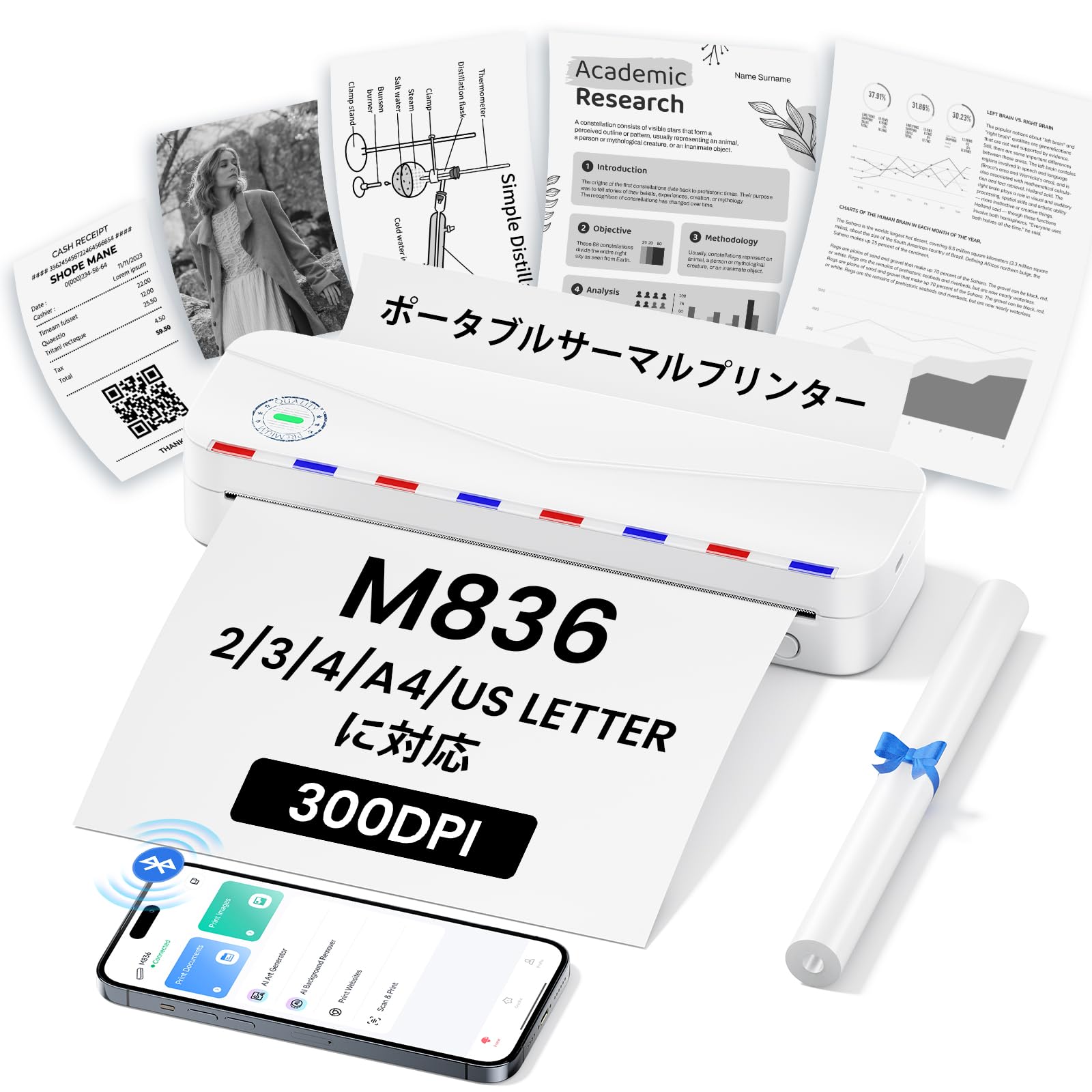
Image: The Phomemo M836 A4 Portable Thermal Printer, showcasing its compact design and portability.
제품 끝view
주요 특징
- 잉크 없는 열전사 인쇄: Utilizes advanced thermal printing technology, eliminating the need for ink cartridges or toner.
- 소형 및 휴대성: Weighing approximately 750g, it is designed for easy transport in a bag, perfect for on-the-go printing.
- 다양한 크기의 용지 지원: Compatible with A4 (8.27 x 11.69 inches) and other thermal paper sizes including 53mm, 80mm, and 110mm. Supports standard thermal sheets, roll paper, and fanfold thermal paper.
- 고해상도: Delivers clear and vivid prints at 304dpi resolution.
- 폭넓은 호환성: Connects via Bluetooth to iPhones, Android phones, and iPads, and via USB cable to laptops and computers (Windows, macOS).
- 오래 지속되는 배터리: Equipped with an upgraded 2600mAh battery, ensuring extended use throughout the day.
- 다양한 인쇄: Capable of printing PDF, Word, image (JPG), web pages, TXT, office documents, receipts, contracts, resumes, invoices, drawings, and school notes.

Image: The Phomemo M836 printer highlighting its compact dimensions (264mm length, 78mm width, 45mm height) and light weight (715g).

Image: The printer demonstrating compatibility with single sheets, fanfold paper, and roll paper. Note: Only thermal paper is supported, not ordinary copy paper.
설치 지침
1. 감열지 넣기
- 프린터 용지 덮개를 여세요.
- Insert the thermal paper with the printable side facing up. Ensure the paper is aligned correctly.
- Close the paper cover. The printer will automatically adjust the paper.

Image: Illustration of how to load thermal paper into the printer, showing the adjustable snaps for different paper widths.
2. 모바일 기기 연결 (블루투스)
- Download the "Phomemo" app from the Apple App Store or Google Play Store.
- Turn on your mobile phone's Bluetooth.
- Press and hold the power button on the M836 printer to turn it on.
- Open the "Phomemo" app and connect to the printer via Bluetooth within the app.

Image: Step-by-step guide for connecting the Phomemo M836 to a smartphone via the Phomemo app and Bluetooth.
3. PC 연결 (USB)
- Turn on the printer by pressing and holding the power button. Ensure thermal paper is loaded.
- 제공된 USB Type-C 케이블을 사용하여 프린터를 컴퓨터에 연결하십시오.
- Download and install the printer driver from M836.phomemo.com.
- After driver installation, select "[M836] Printer" from your computer's print options to begin printing.

Image: Instructions for connecting the Phomemo M836 to a PC via USB, including driver download and print selection.
작동 지침
General Printing Steps
- Ensure the printer is powered on and connected to your device (mobile or PC) as described in the Setup section.
- 인쇄하려는 문서나 이미지를 기기에서 엽니다.
- Initiate the print function from your application (e.g., "Print" in the Phomemo app, or "File" > "Print" on PC).
- Select the "M836 Printer" from the list of available printers.
- 필요에 따라 용지 크기, 방향, 매수 등의 인쇄 설정을 조정하십시오.
- 인쇄 작업을 확인하고 프린터로 전송하세요.

Image: The Phomemo app interface, showing options to print various file types like Word, TXT, PDF, Excel, Web pages, and images, along with scanning functionality.
유지
프린터 헤드 청소
- 프린터 전원을 끄고 전원 콘센트에서 플러그를 뽑으세요.
- 용지 덮개를 엽니다.
- 면봉으로 열전사 프린트 헤드를 부드럽게 닦아주세요.amp이소프로필 알코올로 소독함.
- 프린트 헤드가 완전히 마를 때까지 기다린 후 덮개를 닫고 다시 사용하십시오.
- Do not touch the print head with bare hands to avoid damage or residue transfer.
배터리 관리
- Charge the printer regularly, especially if it will not be used for an extended period, to maintain battery health.
- 충전 시에는 제공된 USB 타입 C 케이블을 사용하십시오.
- Avoid exposing the printer to extreme temperatures, which can affect battery life.
문제 해결
| 문제 | 가능한 원인 | 해결책 |
|---|---|---|
| 프린터가 켜지지 않습니다. | 배터리가 부족하거나 전원 문제가 있습니다. | Charge the printer using the Type-C USB cable. Ensure the power adapter is working. |
| Bluetooth를 통해 연결할 수 없습니다. | Bluetooth is off, incorrect pairing, or app issue. | Ensure Bluetooth is enabled on your device. Restart the printer and your device. Try pairing again through the Phomemo app. |
| Poor print quality (faint or blank). | Incorrect paper loading, non-thermal paper, or dirty print head. | Ensure thermal paper is loaded correctly with the printable side up. Verify you are using thermal paper. Clean the print head as described in the Maintenance section. |
| Printer not recognized by PC. | Driver not installed or USB cable issue. | 다음에서 올바른 드라이버를 설치하세요. M836.phomemo.com다른 USB 포트나 케이블을 사용해 보세요. |
| 종이 걸림. | 용지 적재 불량 또는 이물질. | Turn off the printer. Carefully open the paper cover and remove any jammed paper or obstructions. Reload paper correctly. |
명세서
| 특징 | 세부 사항 |
|---|---|
| 상표 | 포메모 |
| 모델명 | M836 |
| 연결 기술 | 블루투스, USB |
| 인쇄 기술 | 열의 |
| 특징 | 가지고 다닐 수 있는 |
| 색상 | 하얀색 |
| 프린터 출력 | 단색화 |
| 최대 인쇄 속도(흑백) | 20페이지/분 |
| 제품 크기(D x W x H) | 210mm x 47mm x 65mm |
| 최대 용지 크기 | 8.5 x 11인치 (A4) |
| 인쇄 매체 유형 | 감열지 |
| 추가 프린터 기능 | 인쇄만 가능 |
| 해결 | 304dpi |
| 최대 입력 시트 용량 | 10장 |
| 하드웨어 인터페이스 | USB-C |
| 양면 인쇄 | 아니요 (단면) |
| 배터리 용량 | 2600mAh |
보증 및 지원
The Phomemo M836 A4 Portable Thermal Printer comes with a 1년 제조사 보증 구매일로부터. 이 보증은 정상적인 사용 하에서 재료 및 제조상의 결함을 포함합니다.
For technical support, warranty claims, or any questions regarding your product, please contact Phomemo customer service through their official website or the retailer where you purchased the product. Please have your model number (M836) and proof of purchase ready when contacting support.