
1. 서론
The ASUS ROG Swift PG27UCDM is a high-performance 27-inch 4K QD-OLED gaming monitor designed to deliver an exceptional visual experience. Featuring a 240Hz refresh rate and an ultra-fast 0.03ms response time, it ensures smooth, blur-free gameplay and crisp imagery. This monitor incorporates the latest fourth-generation QD-OLED technology for superior image quality, vibrant colors, and true blacks, along with enhanced panel longevity. Advanced features like the Neo Proximity Sensor and OLED Care Pro suite are integrated to protect the display from burn-in and ensure comfortable view주고받음.

Figure 1.1: ASUS ROG Swift PG27UCDM Gaming Monitor
2. 패키지 내용
포장 내용물을 꼼꼼히 확인해 주십시오. 누락되거나 손상된 품목이 있을 경우 즉시 판매점에 문의하십시오.
- ASUS ROG Swift PG27UCDM Monitor
- DisplayPort 2.1 (DP40) Cable
- HDMI Ultra High Speed Cable
- USB 3.2 케이블
- USB-C 케이블
- ROG 파우치
- ROG 스티커
- 마이크로파이버 천
- VESA 마운트 키트
- 전원 코드
- 빠른 시작 가이드
- 보증 카드

그림 2.1: 상자 안에는 무엇이 들어있을까요?
3. 설정
3.1 물리적 설정
Carefully remove the monitor and its components from the packaging. Attach the stand to the monitor following the instructions in the Quick Start Guide. Ensure all connections are secure before powering on the device.

그림 3.1: 후면 연결 포트
The monitor offers extensive adjustability for optimal viewing comfort. You can adjust the height, swivel, pivot (rotate to portrait mode), and tilt the screen.

Figure 3.2: Monitor Adjustability
3.2 장치에 연결하기
Connect the appropriate video cable (DisplayPort 2.1a, HDMI 2.1, or USB-C) from your computer or gaming console to the corresponding input port on the monitor. For optimal performance, especially at 4K 240Hz, use the included DisplayPort 2.1a cable. Connect the power cord to the monitor and then to a power outlet.
3.3 초기 전원 켜기
Press the power button located on the monitor to turn it on. The monitor will automatically detect the active input source. If no signal is detected, ensure all cables are securely connected and your source device is powered on.
4. 모니터 작동하기
4.1 Key Display Technologies
The PG27UCDM features 4th-gen QD-OLED technology, providing supersharp images and crisp text with enhanced pixel density. This technology also contributes to a longer lifespan compared to previous OLED generations.

Figure 4.1: 4th-gen QD-OLED Technology for Sharper Visuals
OLED Anti-Flicker 2.0 technology reduces flicker by 20% compared to previous-generation panels, ensuring a more comfortable viewing experience, even when frame rates fluctuate during dynamic content.
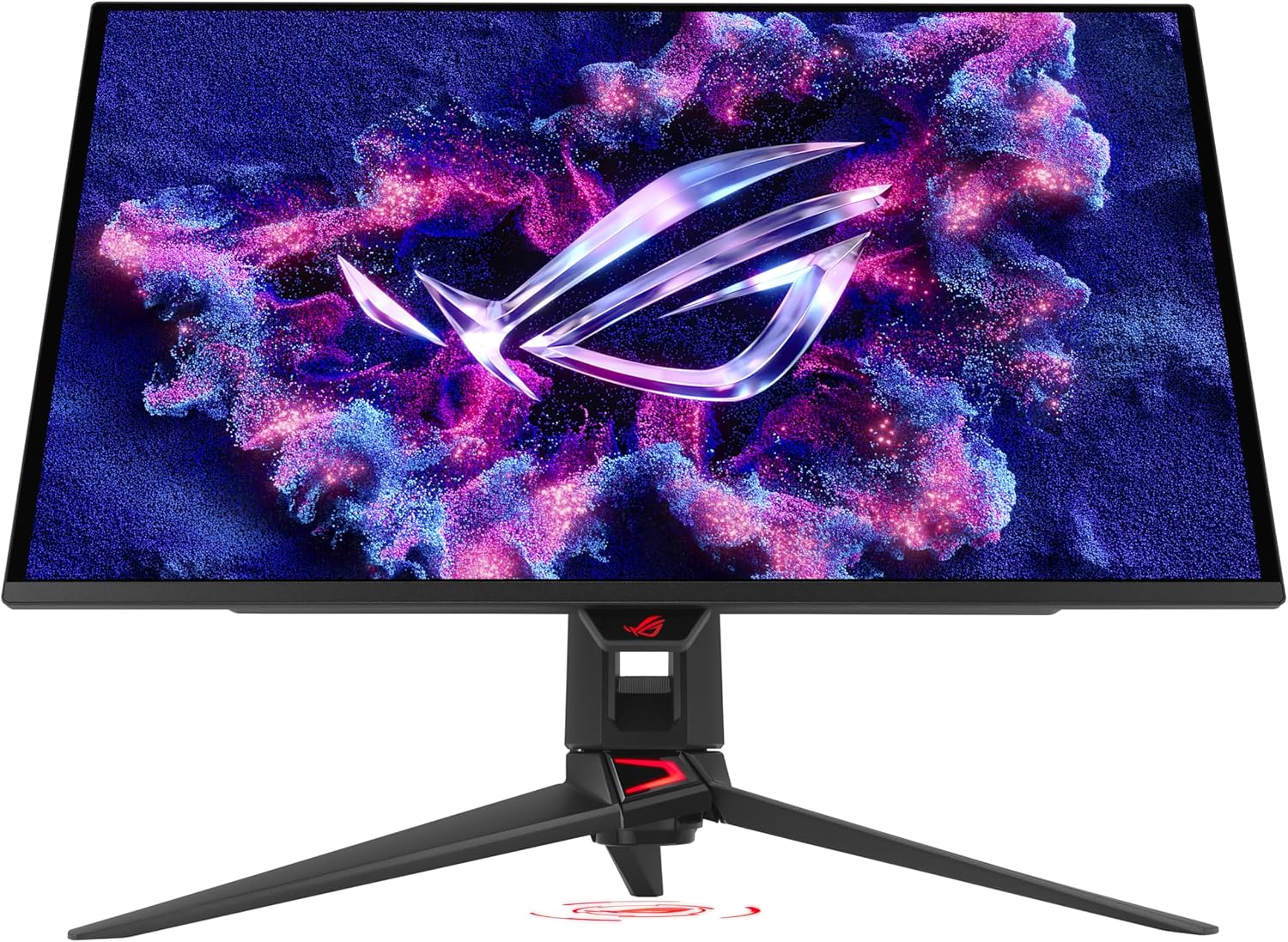
Figure 4.2: OLED Anti-Flicker 2.0 in Action
4.2 ASUS OLED Care Pro
The ASUS OLED Care Pro suite is designed to protect your OLED panel from potential burn-in and ensure its longevity. Key features include:
- 네오 근접 센서: Automatically detects when the user is away and switches to a black screen to reduce burn-in risk.
- 픽셀 청소: A routine maintenance process to refresh pixels.
- 화면 이동: Shifts the display content slightly to prevent static image retention.
- Boundary Detection: Identifies and mitigates static elements at screen edges.
- 화면 보호기: Activates a screen saver when idle.
- 로고 밝기 조절: Reduces brightness of static logos.
- 작업 표시줄 감지: Automatically dims or hides the Windows taskbar.
- 대상 모드: Optimizes display for specific content areas.
- Outer Dimming Control & Global Dimming Control: Advanced dimming features for uniform brightness and burn-in prevention.

Figure 4.3: ASUS OLED Care Pro Functions
4.3 DisplayWidget Center 소프트웨어
The DisplayWidget Center software provides an intuitive interface for easily accessing OLED Care Pro functions and adjusting various monitor settings using your mouse. This includes customizable monitor settings, auto firmware update notifications, multiscreen control, and OLED protection features.

Figure 4.4: DisplayWidget Center Software Interface
4.4 Connectivity and HDR
이 모니터는 다양한 연결 옵션을 제공합니다.
- DisplayPort 2.1a UHBR20: Provides a full 80Gbps bandwidth for uncompressed 4K visuals at 240Hz.
- HDMI 2.1 : Supports 48Gbps full bandwidth.
- USB-C : Offers 90W Power Delivery (PD).
- USB 3.2: 주변 기기를 위한 추가 USB 포트.

그림 4.5: 연결 옵션
The monitor supports 돌비 비전 그리고이다 VESA DisplayHDR 400 True Black compliant, offering 99% DCI-P3 gamut and true 10-bit color for astonishing HDR performance, suitable for both gaming and professional content creation.
4.5 게임 기능
The PG27UCDM is G-SYNC 호환 그리고 지원합니다 AMD FreeSync 프리미엄 프로, ensuring tear-free and low-latency gaming experiences by synchronizing the monitor's refresh rate with your GPU's frame rate.

Figure 4.6: G-SYNC Compatibility for Smooth Gameplay
통합된 AI 어시스턴트 provides in-game enhancements, such as customizable crosshairs and display optimization for various game genres, giving you a competitive edge.

그림 4.7: AI 비서 기능
5. 유지관리
To ensure the longevity and optimal performance of your ASUS ROG Swift PG27UCDM monitor, regular maintenance is recommended.
5.1 모니터 청소
Gently wipe the screen with the provided microfiber cloth to remove dust and fingerprints. For stubborn smudges, lightly damp천에 물이나 비연마성 모니터 세척액을 묻혀 닦아주세요. 화면에 직접 액체를 뿌리지 마세요.
5.2 OLED 패널 관리
Utilize the ASUS OLED Care Pro functions accessible via the DisplayWidget Center software to maintain the health of your OLED panel. Regularly perform Pixel Cleaning and ensure the Neo Proximity Sensor and other burn-in prevention features are active. Avoid displaying static images for extended periods at high brightness levels.
6. 문제 해결
이 섹션에서는 모니터 사용 중 발생할 수 있는 일반적인 문제에 대한 해결책을 제공합니다.
6.1 화면이나 신호가 없음
- 전원 코드가 모니터와 전원 콘센트에 제대로 연결되어 있는지 확인하십시오.
- Verify that the video cable (DisplayPort, HDMI, or USB-C) is firmly connected to both the monitor and your source device.
- Check if your source device (PC, console) is powered on and outputting a signal.
- Try selecting the correct input source manually using the monitor's OSD (On-Screen Display) menu.
6.2 Flickering or Unstable Image
- 비디오 케이블이 손상되지 않았는지, 제대로 연결되어 있는지 확인하십시오.
- Adjust the refresh rate settings on your computer to match the monitor's capabilities (up to 240Hz).
- Enable or adjust the OLED Anti-Flicker 2.0 setting in the DisplayWidget Center or OSD menu.
- If using G-SYNC/FreeSync, ensure your graphics card drivers are up to date.
6.3 Image Retention or Burn-in Concerns
- Activate and regularly use the ASUS OLED Care Pro functions (Pixel Cleaning, Screen Move, Neo Proximity Sensor).
- Avoid displaying static images, logos, or taskbars for prolonged periods. Utilize screen savers and auto-hide features for your operating system's taskbar.
- Reduce screen brightness when not actively using the monitor.
7. 사양
Below are the key technical specifications for the ASUS ROG Swift PG27UCDM monitor.
| 특징 | 사양 |
|---|---|
| 화면 크기 | 26.5 인치 |
| 패널 유형 | QD-OLED |
| 해결 | 4K UHD(3840 x 2160) |
| 새로 고침 빈도 | 240Hz |
| 응답 시간 | 0.03ms(GtG) |
| 종횡비 | 16시 9분 |
| 색상 영역 | 99% DCI-P3 |
| 색상 깊이 | 트루 10비트 |
| HDR 지원 | Dolby Vision, VESA DisplayHDR 400 True Black |
| 적응형 동기화 | G-SYNC Compatible, AMD FreeSync Premium Pro |
| 연결성 | DisplayPort 2.1a (UHBR20), HDMI 2.1, USB-C (90W PD), USB 3.2 |
| 무게 | 16.8파운드 |
| 치수(길이x너비x높이) | 8.6 x 24 x 21.6 인치 |
8. 보증 및 지원
The ASUS ROG Swift PG27UCDM monitor comes with a 3년 보증, covering manufacturing defects and ensuring peace of mind for your investment. This warranty reflects ASUS's commitment to quality and durability, especially with the advanced OLED panel technology.
For technical support, warranty claims, or further assistance, please visit the official ASUS support website or contact their customer service. Keep your purchase receipt and the monitor's serial number handy for faster service.
Additional resources, including driver updates and the latest version of the DisplayWidget Center software, can be found on the ASUS support portal.
메모: A 3-month Adobe Creative Cloud complimentary access is included with the purchase of this product (valid from 9/1/2023 to 8/31/2025).