
1. 서론
The Vgate vLinker FS is an advanced automotive diagnostic tool designed to interface with your vehicle's On-Board Diagnostics II (OBD2) system. It allows users to access the Engine Control Unit (ECU) and other vehicle modules for troubleshooting, configuration modifications, and accessing hidden features through compatible third-party software.
This device supports the OBD2 standard, making it compatible with most vehicles manufactured in 1996 and later for the U.S. market, and 2000 (EU-based) or 2005 (Asia-based) for other regions. It is recommended for use with FORScan software.

Figure 1: Vgate vLinker FS device and its key features.
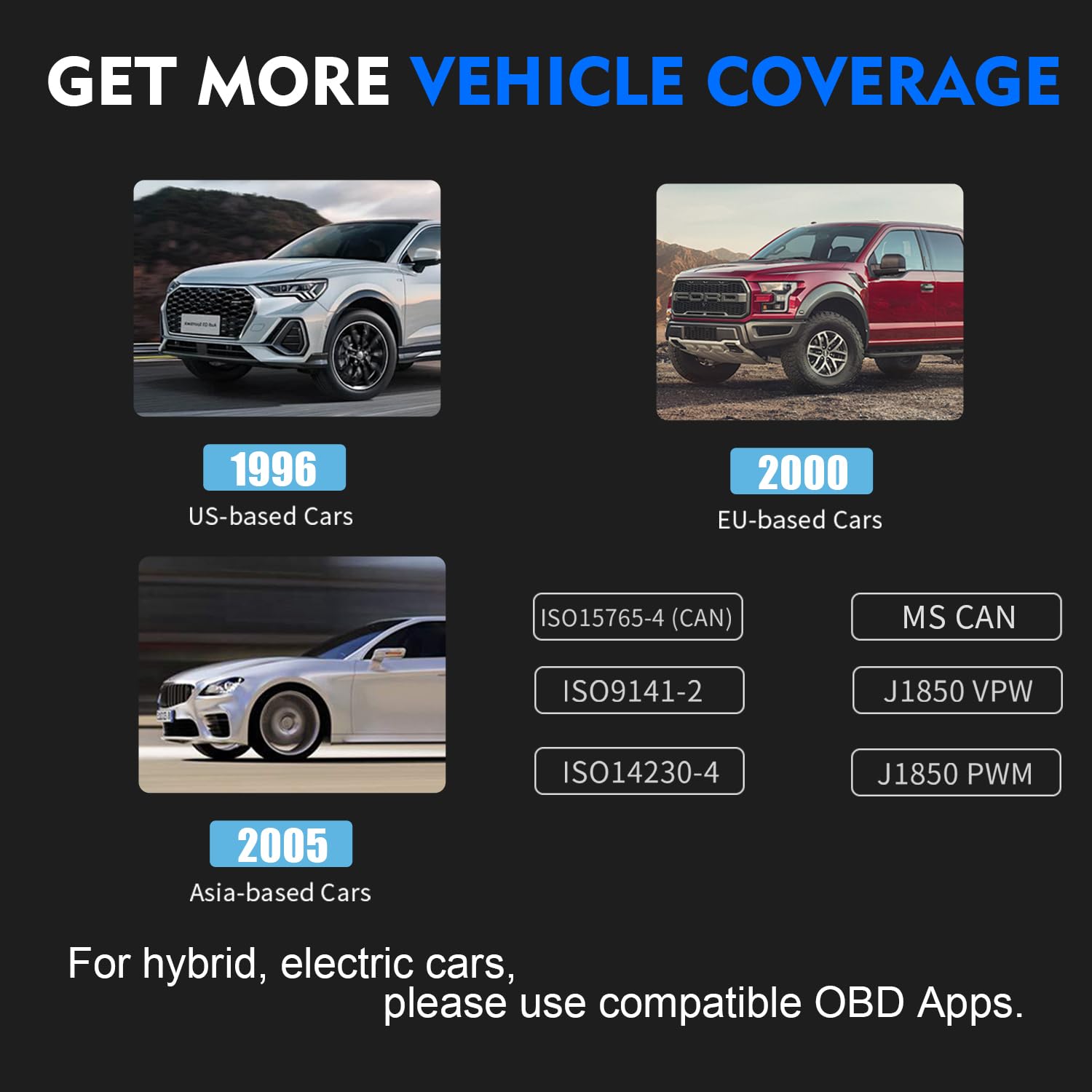
Figure 2: Vehicle and protocol compatibility of the vLinker FS.
2. 설정
2.1 시스템 요구 사항
- 운영 체제: Windows 2000/Vista/7/8/8.1/10
- 차량 호환성: 12V/24V cars compatible with OBD2 standard.

Figure 3: System and vehicle compatibility for the vLinker FS.
2.2 장치 연결
- 차량에서 OBD2 포트를 찾으세요. 일반적으로 운전석 쪽 대시보드 아래에 있습니다.
- Plug the Vgate vLinker FS USB adapter firmly into the vehicle's OBD2 port.
- Connect the USB cable from the vLinker FS to your Windows computer.
- Ensure the indicator lights on the vLinker FS illuminate, indicating power and connection.
2.3 소프트웨어 설치
The Vgate vLinker FS requires third-party diagnostic software to function. FORScan is a recommended application. Follow the instructions provided by your chosen software for installation and driver setup on your Windows computer.
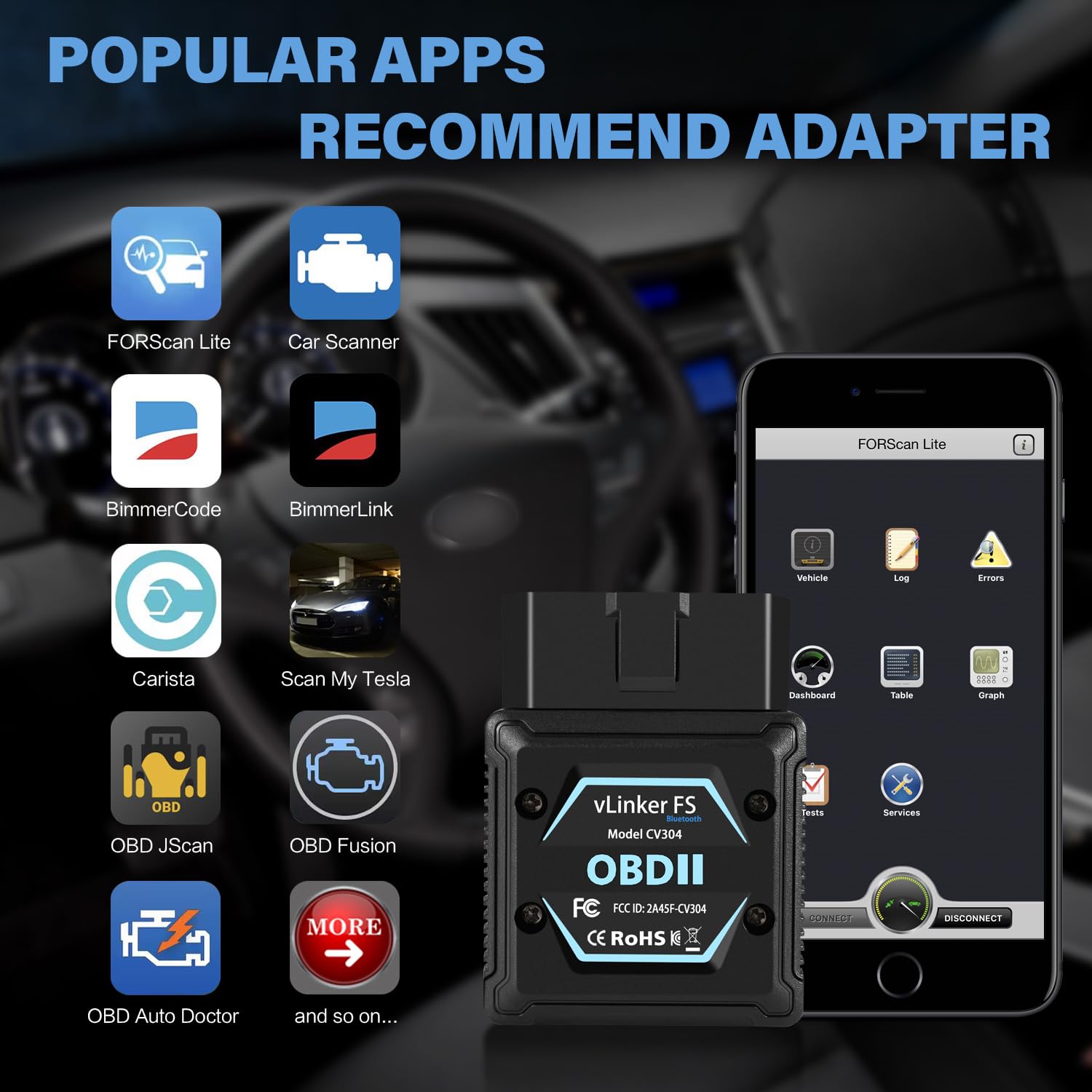
그림 4: 예amp호환 가능한 진단 애플리케이션의 수.
3. 사용 설명서
3.1 기본 작업
- Ensure the vLinker FS is properly connected to your vehicle and computer.
- Launch your preferred diagnostic software (e.g., FORScan) on your computer.
- Within the software, select the vLinker FS as your communication interface.
- Initiate a connection to the vehicle's ECU. The software will guide you through reading diagnostic trouble codes (DTCs), viewing live data, and performing other functions.
3.2 Automatic Electronic Switching
The vLinker FS features automatic electronic switching between High-Speed CAN (HS-CAN) and Medium-Speed CAN (MS-CAN). This allows simultaneous access to both CAN networks without the need for manual toggle switches, enabling access to advanced functions that might not be available with older adapter types.

Figure 5: Automatic electronic switching capability.
4. 유지관리
The Vgate vLinker FS is designed for durability and requires minimal maintenance. Keep the device clean and free from dust and moisture. Store it in a cool, dry place when not in use.
4.1 배터리 절약 기술
The device incorporates battery protection technology to prevent draining your vehicle's battery during extended periods of connection. This low-power design is particularly beneficial for long diagnostic sessions.
5. 문제 해결
- 장치 전원이 켜지지 않음: Ensure the adapter is fully seated in the vehicle's OBD2 port. Check the vehicle's battery for sufficient charge.
- 연결 문제: Verify that the USB cable is securely connected to both the adapter and your computer. Ensure the correct drivers are installed for the vLinker FS on your computer. Restart your diagnostic software and computer.
- 소프트웨어가 기기를 감지하지 못했습니다: Confirm that the diagnostic software is configured to use the correct communication port (COM port) for the vLinker FS. Check your computer's Device Manager to ensure the vLinker FS is recognized and drivers are properly installed.
- 부정확한 판독: Ensure your vehicle is fully compatible with the OBD2 standard and the diagnostic software you are using. Update your diagnostic software to the latest version.
If you encounter persistent issues, refer to the support section for contact information.
6. 사양
| 특징 | 사양 |
|---|---|
| 모델 | v링커 FS |
| 인터페이스 | USB |
| 지원되는 운영 체제 | Windows 2000/Vista/7/8/8.1/10 |
| 차량 Voltag전자 호환성 | 12V/24V OBD2 Compatible Cars |
| 전송 속도 | 최대 3Mbps |
| OBD 요청 바이트 | 최대 4128바이트 |
| 직렬 버퍼 | 8192바이트 |
| 프로그래밍 볼륨tage 출력 | FEPS 18V |
| ASIN | B0DJSYGZ58 |
| 첫 번째 이용 가능 날짜 | 28년 2023월 XNUMX일 |

Figure 6: Technical specifications of the vLinker FS.
7. 보증 및 지원
7.1 보증 정보
The Vgate vLinker FS comes with a one-year warranty. This warranty covers manufacturing defects and ensures product satisfaction.
7.2 고객 지원
For any questions, technical assistance, or warranty claims, please contact the VgateDirect after-sales Team. If you are not satisfied with the product, you may contact them for hassle-free return and refund options.
Contact information can typically be found on the Vgate official website or through your purchase platform (e.g., Amazon seller page for VgateDirect).