
ASUS BT6
ASUS ZenWiFi BT6 트라이밴드 WiFi 7 메시 시스템 사용 설명서
Model: BT6 (W-2-PK) | Brand: ASUS
1. 제품 오버view
The ASUS ZenWiFi BT6 is a tri-band WiFi 7 mesh system designed to provide extensive and high-speed wireless coverage for your home. This system utilizes next-generation Smart AiMesh technology to deliver fast tri-band speeds up to 9.4 Gbps, leveraging superior 6 GHz WiFi for optimal performance.
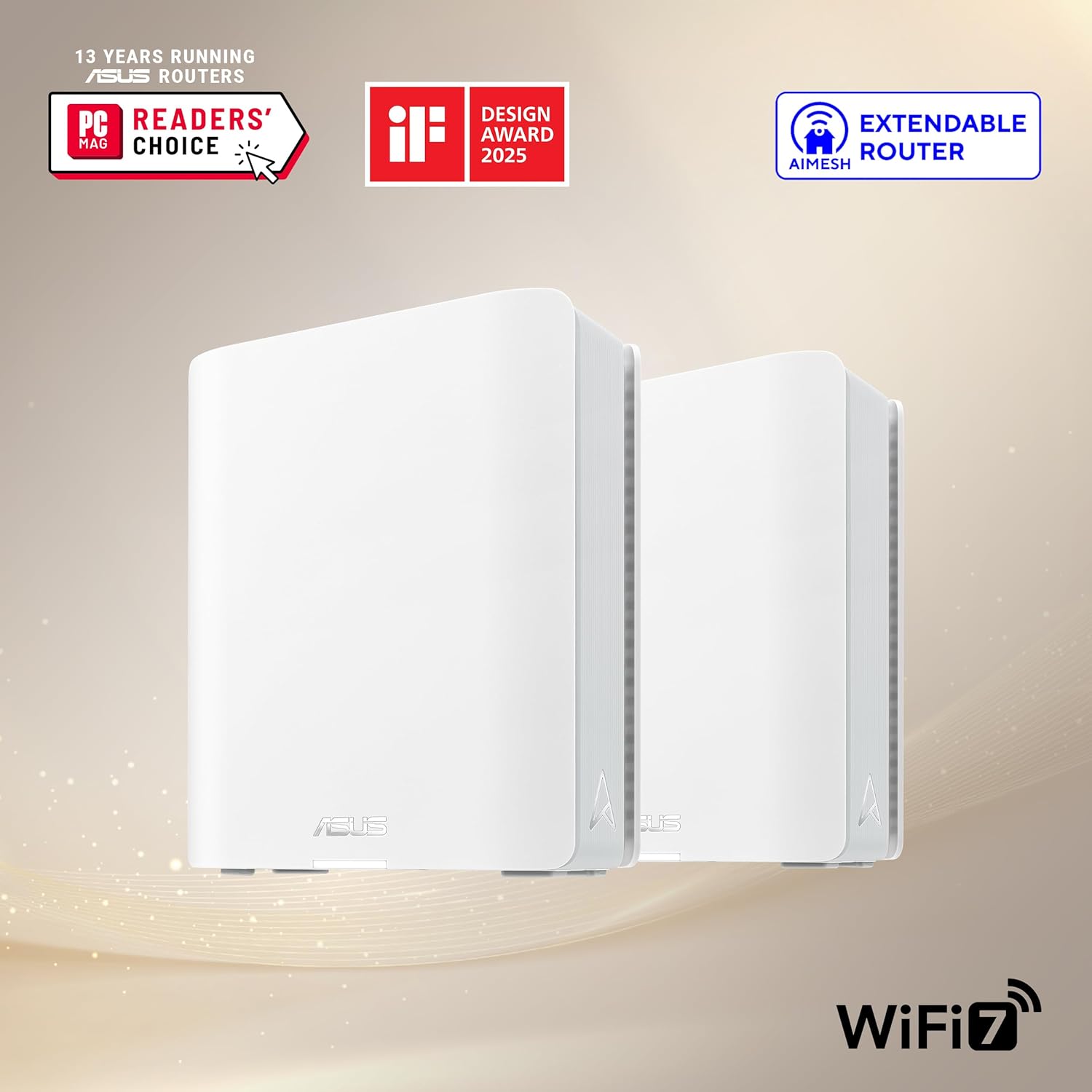
Image: Two ASUS ZenWiFi BT6 mesh units, showcasin컴팩트한 디자인이 특징입니다.
주요 특징:
- Tri-band WiFi 7 Speeds: Achieves speeds up to 9.4 Gbps with Multi-link Operation (MLO) and 4K-QAM technology.
- AI-powered Smart AiMesh: Extends coverage up to 5800 sq.ft. (with a 2-pack system) for seamless whole-home WiFi. Compatible with other ASUS AiMesh routers.
- Optimized Signal Strength: Features seven internal antennas and eight high-power front-end modules to minimize WiFi dead zones.
- 고급 네트워크 보안: Includes commercial-grade AiProtection Pro and advanced VPN features for 24/7 end-to-end protection.
- Smart Home Master SSIDs: Facilitates easy setup and management of IoT Network, parental controls, and VPNs across multiple devices.
- 다양한 연결성: Equipped with a 2.5G WAN Port and supports 4G & 5G Mobile Tethering.
2. 상자 안에 무엇이 들어있나요?
패키지에 모든 품목이 들어 있는지 확인하세요.
- ASUS ZenWiFi BT6 (W-2-PK) Units (2 units for the 2-pack)
- RJ45 이더넷 케이블
- 전원 어댑터
- 보증 카드
- 빠른 시작 가이드
3. 설정 지침
Follow these steps to set up your ASUS ZenWiFi BT6 mesh system:
- Unpack and Place Units: Carefully remove both ZenWiFi BT6 units from the packaging. Place them in central locations within your home, ensuring they are within reasonable range of each other for optimal mesh performance.
- 메인 유닛 연결:
- Connect one end of the provided RJ45 Ethernet cable to the 2.5G WAN port on the back of one ZenWiFi BT6 unit (this will be your main router unit).
- 이더넷 케이블의 다른 쪽 끝을 모뎀의 LAN 포트에 연결하십시오.
- Connect the power adapter to the main router unit and plug it into a power outlet. Power on the unit.
- Connect the Satellite Unit(s):
- Place the second ZenWiFi BT6 unit (satellite node) in another area of your home where you need extended coverage.
- Connect its power adapter and plug it into a power outlet. Power on the unit.
- The units will automatically attempt to establish a mesh connection. Observe the LED indicators for connection status (refer to the Quick Start Guide for LED meanings).
- Download and Configure via ASUS Router App:
- Download the ASUS Router app from the Google Play Store or Apple App Store.
- Open the app and follow the on-screen instructions to detect and configure your new ZenWiFi BT6 system. This includes setting up your WiFi network name (SSID) and password.
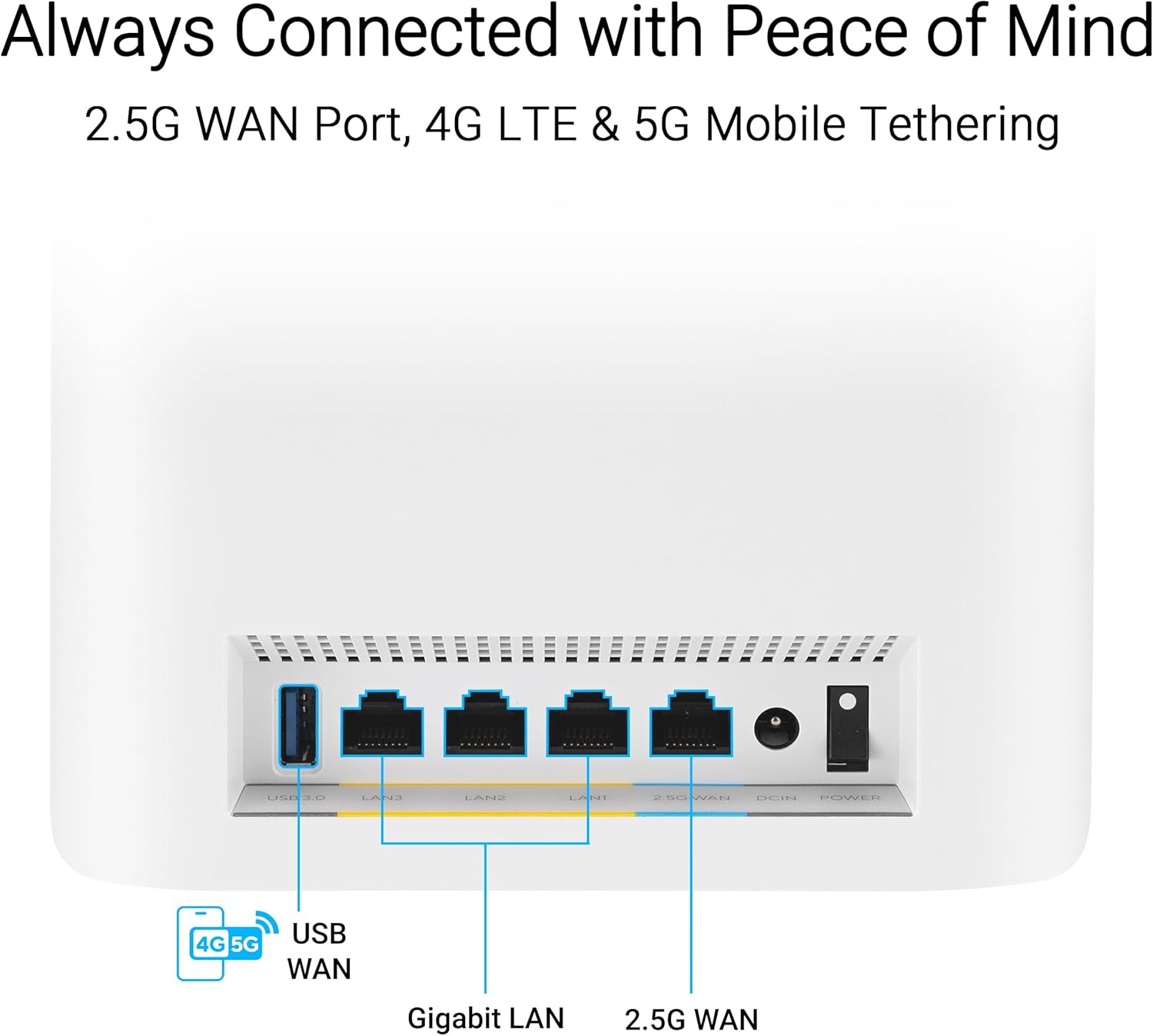
Image: Rear ports of the ZenWiFi BT6, highlighting the 2.5G WAN port for internet connection.

Image: The ASUS Router app interface, showing the easy 3-step setup process.
4. 메시 시스템 작동
4.1. AiMesh 기술
The ZenWiFi BT6 utilizes AiMesh technology to create a unified whole-home WiFi network. This means your devices will automatically connect to the strongest WiFi signal as you move around your home, ensuring seamless connectivity without manual switching between networks.

Image: AiMesh coverage diagram, showing how two units provide WiFi across a large area.
4.2. Tri-Band WiFi 7 Performance
The system operates on three frequency bands (2.4 GHz, 5 GHz, and 6 GHz) to provide maximum bandwidth and reduce interference. WiFi 7 (802.11be) offers enhanced speeds and efficiency, particularly on the 6 GHz band, which is less congested.

Image: Tri-band speed breakdown, illustrating the performance of each frequency band.
4.3. Network Security with AiProtection Pro
AiProtection Pro, powered by Trend Micro, provides comprehensive network security. This includes protection against malicious sites, vulnerability protection, and infected device prevention and blocking. It operates continuously to safeguard your network and connected devices.

Image: AiProtection Pro interface within the ASUS Router app, detailing security features.
4.4. 고급 자녀 보호 기능
Manage internet access for family members with advanced parental controls. Features include an internet activity dashboard, kid-safe presets, content filtering, and flexible time scheduling. These settings can be configured easily through the ASUS Router app.

Image: Parental controls dashboard in the ASUS Router app, showing options for managing family internet usage.
4.5. Smart Home Master SSIDs
The ZenWiFi BT6 allows you to create up to three distinct SSIDs (network names) for different purposes: an IoT Network for smart devices, a Kid's Network with specific access rules, and a VPN Network for secure connections. This segmentation enhances security and network management.

Image: Smart Home Master SSIDs feature, illustrating separate networks for IoT, VPN, and kids.
4.6. 4G & 5G Mobile Tethering
For backup internet or mobile connectivity, the ZenWiFi BT6 supports 4G and 5G mobile tethering. Connect a compatible 4G/5G USB dongle to the USB port on the router to use a mobile data connection as your internet source.
5. 유지관리
To ensure optimal performance and longevity of your ASUS ZenWiFi BT6 system, consider the following maintenance tips:
- 펌웨어 업데이트: ASUS 라우터 앱을 통해 정기적으로 펌웨어 업데이트를 확인하고 설치하세요. web 인터페이스. 업데이트에는 성능 개선, 보안 패치, 새로운 기능이 포함되는 경우가 많습니다.
- 물리적 청소: Keep the units free from dust. Use a soft, dry cloth to wipe the exterior. Ensure ventilation slots are not obstructed.
- 주기적으로 다시 시작: A periodic restart (e.g., once a month) can help clear temporary issues and refresh network performance.
- 최적의 배치: Ensure units are placed in open areas, away from large metal objects, thick walls, and interference sources (like microwaves or cordless phones) to maintain strong signal strength.
6. 문제 해결
If you encounter issues with your ZenWiFi BT6 system, try the following steps:
- 인터넷에 연결되지 않음:
- 모뎀이 제대로 작동하는지 확인하세요.
- Ensure the Ethernet cable is securely connected from the modem to the 2.5G WAN port of your main ZenWiFi unit.
- Restart both your modem and the ZenWiFi main unit.
- Poor WiFi Signal/Coverage:
- Relocate your satellite ZenWiFi unit closer to the main unit or to a more central location.
- Ensure there are no major obstructions between the units.
- Check the AiMesh connection status in the ASUS Router app.
- 기기가 Wi-Fi에 연결할 수 없습니다:
- 올바른 와이파이 네트워크 이름(SSID)과 비밀번호를 사용하고 있는지 확인하십시오.
- 문제가 있는 기기를 재시작하십시오.
- Check if the WiFi is enabled on your ZenWiFi system via the app or web 인터페이스.
- 느린 속도:
- 인터넷 서비스 제공업체(ISP)가 예상 속도를 제공하는지 확인하십시오.
- Minimize the number of active devices or bandwidth-intensive applications.
- Consider using a wired connection for devices that require maximum speed.
For further assistance, refer to the comprehensive user manual available on the ASUS support web해당 웹사이트를 방문하거나 ASUS 고객 지원팀에 문의하십시오.
7. 기술 사양
| 특징 | 세부 사항 |
|---|---|
| 상표 | 아수스 |
| 모델명 | BT6 (W-2-PK) |
| 무선형 | 802.11.be(WiFi 7), 802.11ax(WiFi 6), 802.11ac(WiFi 5), 802.11n(WiFi 4) |
| 주파수 대역 클래스 | 3대역(2.4GHz, 5GHz, 6GHz) |
| 최대 데이터 전송 속도 | 최대 9.4Gbps |
| 커버리지 (2개입) | 최대 5800제곱피트 |
| WAN 포트 | 1 x 2.5G WAN 포트 |
| LAN 포트 | Multiple Gigabit LAN ports |
| USB 포트 | USB 3.0 (for mobile tethering) |
| 운영 체제 | ASUSWRT |
| 치수(길이x너비x높이) | 7.32 x 2.83 x 6.26 인치 |
| 품목 무게 | 1.88파운드 |
| 특별 기능 | 2 PACKS, Alexa Compatible, Guest Mode, VPN Security, AiProtection Pro, Parental Controls, Smart Home Master SSIDs |

Image: Internal components of the ZenWiFi BT6, highlighting its engineering for performance.
8. 보증 및 지원
Your ASUS ZenWiFi BT6 system typically comes with a manufacturer's warranty. Please refer to the included Warranty Card for specific terms and conditions.
보호 계획:
Additional protection plans may be available for purchase, such as 3-Year or 4-Year Protection Plans, or a Complete Protect monthly plan. These plans offer extended coverage beyond the standard manufacturer's warranty.
고객 지원:
For technical assistance, product registration, or warranty claims, please visit the official ASUS support website or contact their customer service department. Keep your product model number (BT6) and serial number handy when contacting support.
9. 추가 리소스
Video: ZenWiFi BT6 Product Video, providing a visual overview of the system's features and benefits.
Ask a question about this manual
Ask about setup, troubleshooting, compatibility, parts, safety, or missing instructions. Manuals+ will review the question and use this page’s manual context to help answer it.